Sign In Start Free Trial
Account

Add to playlist

Create a Playlist

Modal Close icon
You need to login to use this feature.
  • Book Overview & Buying Web Development with Blazor
  • Table Of Contents Toc
Web Development with Blazor

Web Development with Blazor - Second Edition

By : Jimmy Engström
4.4 (18)
close
close
Web Development with Blazor

Web Development with Blazor

4.4 (18)
By: Jimmy Engström

Overview of this book

Blazor is an essential tool if you want to build interactive web apps without JavaScript, but it has a learning curve. Updated with the latest code in .NET 7 and C# 11 and written by someone who adopted Blazor early, this book will help you overcome the challenges associated with being a beginner with Blazor and teach you the best coding practices. You’ll start by learning how to leverage the power of Blazor and exploring the full capabilities of both Blazor Server and Blazor WebAssembly. Then you'll move on to the practical part, centered around a sample project – a blog engine. You'll apply all your newfound knowledge about creating Blazor projects, the inner workings of Razor syntax, validating forms, and creating your own components. This new edition also looks at source generators, dives deeper into Blazor WebAssembly with ahead-of-time, and includes a dedicated new chapter demonstrating how to move components of an existing JavaScript (Angular, React) or MVC-based website to Blazor or combine the two. You’ll also see how to use Blazor (Hybrid) together with .NET MAUI to create cross-platform desktop and mobile applications. When you reach the end of this book, you'll have the confidence you need to create and deploy production-ready Blazor applications, and you'll have a big-picture view of the Blazor landscape.
Table of Contents (22 chapters)
close
close
20
Other Books You May Enjoy
21
Index

Setting up your development environment

In this book, the focus will be on Windows development, and any screenshots are going to be from Visual Studio (unless stated otherwise). But since .NET 7 is cross-platform, we will go through how to set up your development environment on Windows, macOS, and Linux.

The go-to link for all the platforms can be found at https://visualstudio.microsoft.com/.

We can download Visual Studio, Visual Studio Code, or Visual Studio for Mac from the web page.

Windows

On Windows, we have many different options for developing Blazor applications. Visual Studio 2022 is the most powerful tool we can use.

There are three different editions, which are as follows:

  • Community 2022
  • Professional 2022
  • Enterprise 2022

In short, the Community Edition is free, while the others cost money. The Community Edition does have some limitations, and we can compare the different editions here: https://visualstudio.microsoft.com/vs/compare/.

For this book, we can use any of these versions. Take the following steps:

  1. Download Visual Studio 2022 from https://visualstudio.microsoft.com/vs/. Choose the version that is right for you.
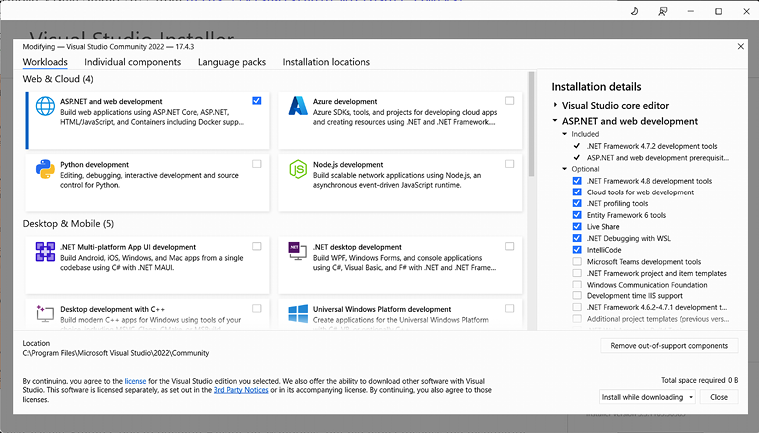
  2. Install Visual Studio and during the installation, make sure to select ASP.NET and web development, as shown in Figure 2.1:

Figure 2.1: Visual Studio 2022 installation on Windows

  1. To the right is a list of all the components that will be installed. Check .NET WebAssembly Build Tools.

We can also use Visual Studio Code to develop Blazor on Windows, but we won’t discuss the installation process for Windows.

macOS

On macOS, we also have some options. Visual Studio for Mac is the most powerful IDE we can use.

Download Visual Studio for Mac from https://visualstudio.microsoft.com/vs/mac/ as follows:

  1. Click on the Download Visual Studio for Mac button.
  2. Open the file that we downloaded.

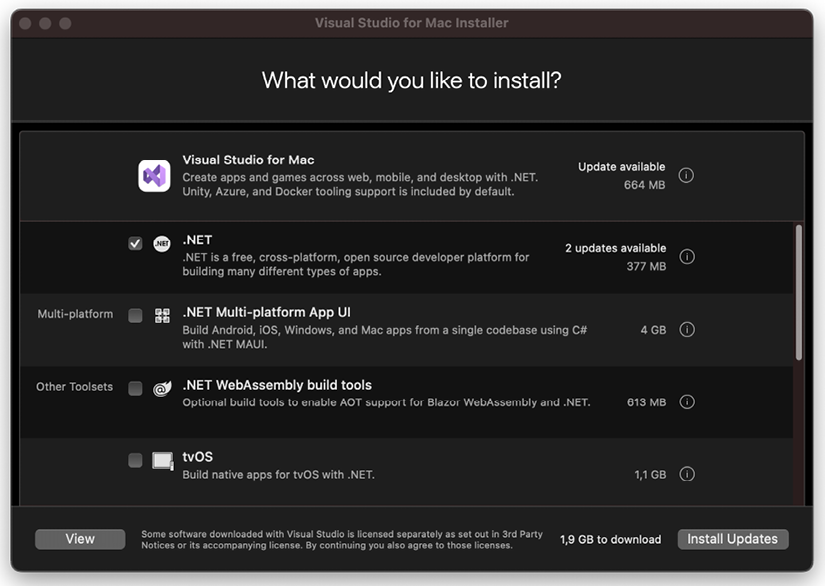
Make sure to select .NET, as shown in Figure 2.2:

No description available.

Figure 2.2: Visual Studio for Mac installation screen

Since Visual Studio Code is a cross-platform software, we can use it here as well.

Linux (or macOS or Windows)

Visual Studio Code is cross-platform, which means we can use it on Linux, macOS, or Windows.

The different versions are available at https://code.visualstudio.com/Download.

Once installed, we also need to add two extensions:

  1. Open Visual Studio Code and press Ctrl + Shift + X.
  2. Search for C# for Visual Studio Code (powered by OmniSharp) and click Install.
  3. Search for JavaScript Debugger (Nightly) and click Install.

To create a project, we can use the .NET CLI, which we will return to throughout this book, but we won’t do a deep dive into the .NET CLI.

Now that everything is set up, let’s create our first app.

CONTINUE READING
83
Tech Concepts
36
Programming languages
73
Tech Tools
Icon Unlimited access to the largest independent learning library in tech of over 8,000 expert-authored tech books and videos.
Icon Innovative learning tools, including AI book assistants, code context explainers, and text-to-speech.
Icon 50+ new titles added per month and exclusive early access to books as they are being written.
Web Development with Blazor
notes
bookmark Notes and Bookmarks search Search in title playlist Add to playlist download Download options font-size Font size

Change the font size

margin-width Margin width

Change margin width

day-mode Day/Sepia/Night Modes

Change background colour

Close icon Search
Country selected

Close icon Your notes and bookmarks

Confirmation

Modal Close icon
claim successful

Buy this book with your credits?

Modal Close icon
Are you sure you want to buy this book with one of your credits?
Close
YES, BUY

Submit Your Feedback

Modal Close icon
Modal Close icon
Modal Close icon