-
Book Overview & Buying
-
Table Of Contents

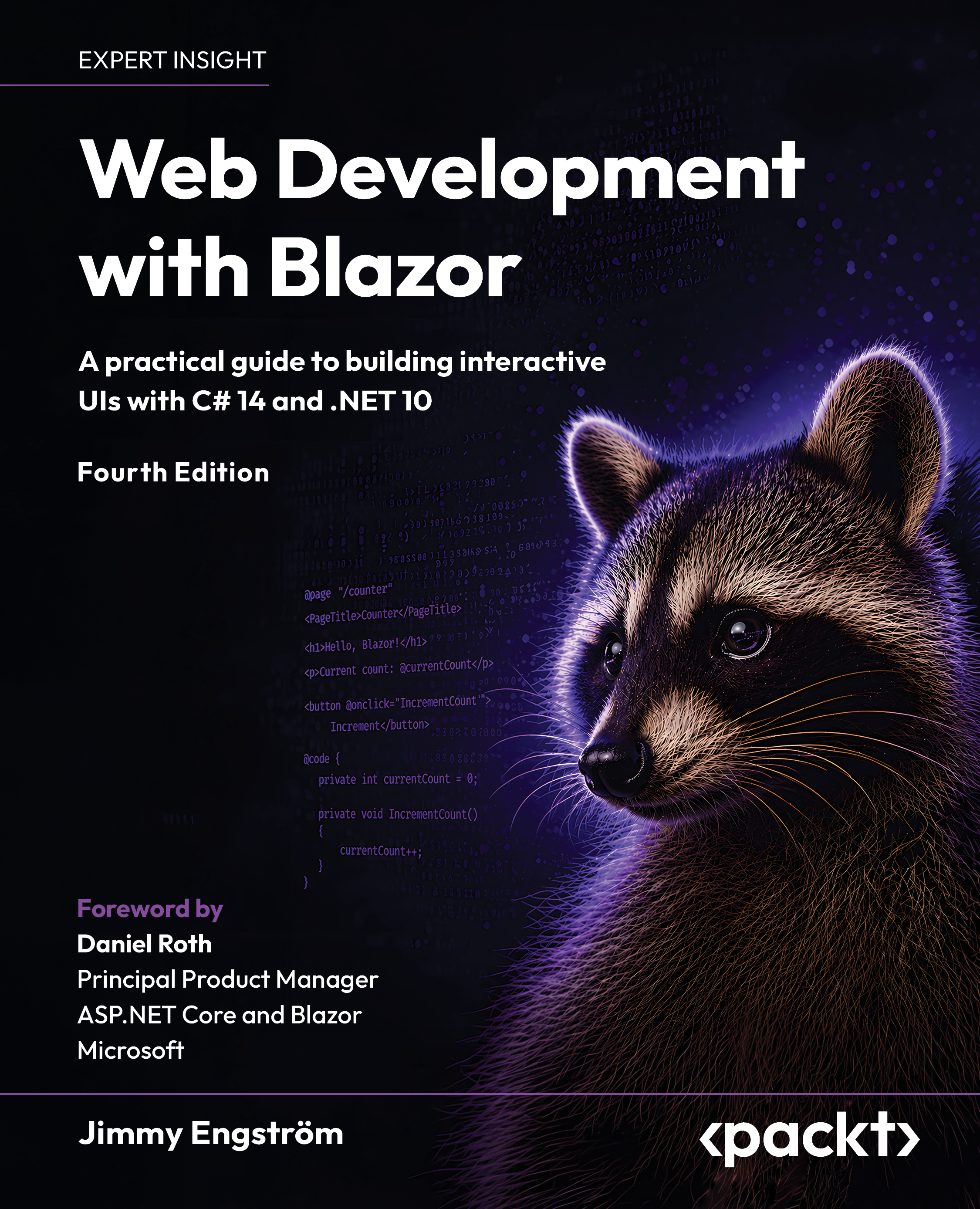
Web Development with Blazor - Fourth Edition
By :


Web Development with Blazor
By:
Overview of this book
Blazor has grown, and with that growth comes a simple question: How should we build Blazor apps today?
This book answers that question by building a real application step by step. We start with what Blazor is, why it is not just WebAssembly, and how the different hosting models fit together. From there, we create components, manage state, build forms with validation, add APIs, secure the app with authentication and authorization, use JavaScript when it makes sense, and test our components with bUnit.
We also look at the key aspects of modern Blazor development, including render modes, server-side rendering, WebAssembly, Aspire, OpenTelemetry, debugging, deployment, and how to work with existing sites when starting from scratch is not an option.
The goal is not only to copy code but also to understand why we choose one approach over another. Should this be SSR, Server, WebAssembly, or Auto? Where should interactivity live? What changes when the code runs in the browser? We answer those questions without making things more complicated than they need to be.
Whether you're new to Blazor or upgrading from an earlier edition, the fourth edition brings the book up to date with .NET 10, Aspire, tracing, metrics, testing, and modern Blazor app development.
Own a raccoon cover already? The collection must continue. The raccoons insist.
Table of Contents (30 chapters)
Preface


Chapter 1: Hello Blazor
Chapter 2: Creating Your First Blazor App
Chapter 3: Exploring Render Modes
Chapter 4: Uncovering Aspire
Part 2: Building a Blazor Application
Chapter 5: Managing State – Part 1
Chapter 6: Understanding Basic Blazor Components
Chapter 7: Creating Advanced Blazor Components
Chapter 8: Building Forms with Validation
Chapter 9: Creating an API
Chapter 10: Adding Authentication and Authorization
Chapter 11: Sharing Code and Resources
Chapter 12: JavaScript Interop
Chapter 13: Managing State – Part 2
Part 3: Running Blazor with Confidence
Chapter 14: Debugging the Code

Chapter 15: Exploring Tracing and Metrics
Chapter 16: Testing
Chapter 17: Deploy to Production
Part 4: Going Beyond the Main Application
Chapter 18: Moving From, or Combining, an Existing Site
Chapter 19: Going Deeper into WebAssembly
Chapter 20: Examining Source Generators
Chapter 21: Visiting .NET MAUI
Chapter 22: Where to Go from Here
Chapter 23: Unlock Your Exclusive Benefits
Other Books You May Enjoy
Index