


-
Book Overview & Buying
-
Table Of Contents

Front-End Development Projects with Vue.js
By :


Front-End Development Projects with Vue.js
By:
Overview of this book
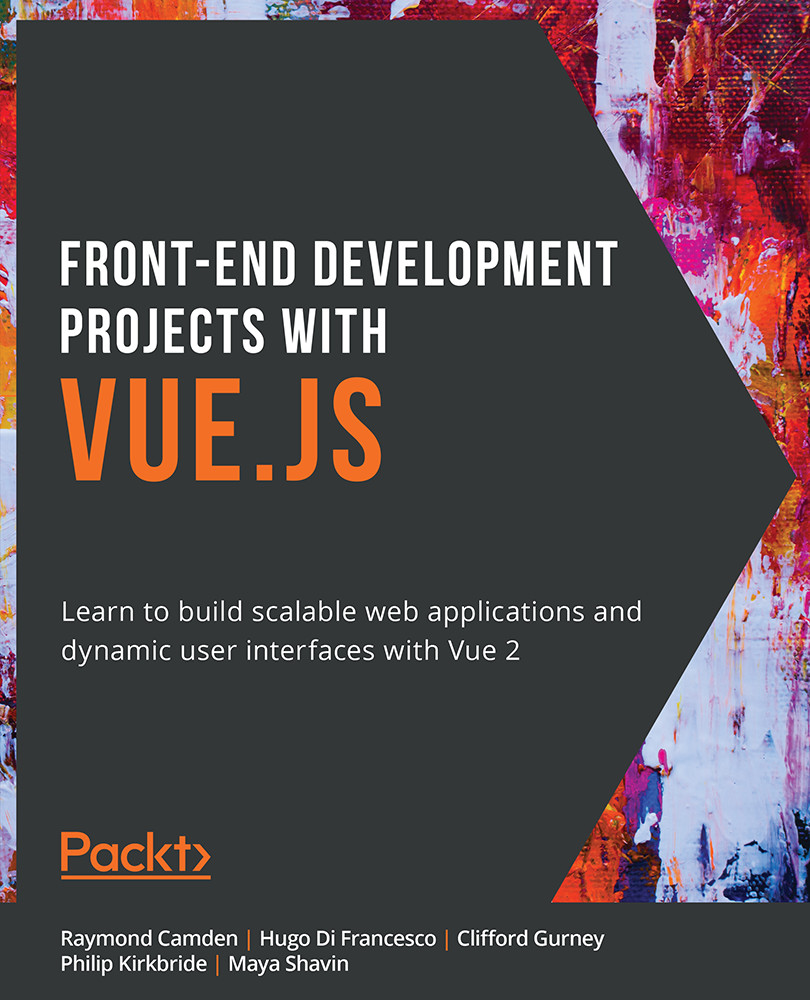
Are you looking to use Vue 2 for web applications, but don't know where to begin? Front-End Development Projects with Vue.js will help build your development toolkit and get ready to tackle real-world web projects. You'll get to grips with the core concepts of this JavaScript framework with practical examples and activities.
Through the use-cases in this book, you'll discover how to handle data in Vue components, define communication interfaces between components, and handle static and dynamic routing to control application flow. You'll get to grips with Vue CLI and Vue DevTools, and learn how to handle transition and animation effects to create an engaging user experience. In chapters on testing and deploying to the web, you'll gain the skills to start working like an experienced Vue developer and build professional apps that can be used by other people.
You'll work on realistic projects that are presented as bitesize exercises and activities, allowing you to challenge yourself in an enjoyable and attainable way. These mini projects include a chat interface, a shopping cart and price calculator, a to-do app, and a profile card generator for storing contact details.
By the end of this book, you'll have the confidence to handle any web development project and tackle real-world front-end development problems.
Table of Contents (16 chapters)
Preface


1. Starting Your First Vue Project

 Free Chapter
2. Working with Data
4. Nesting Components (Modularity)
5. Global Component Composition
6. Routing
7. Animations and Transitions
8. The State of Vue.js State Management
9. Working with Vuex – State, Getters, Actions, and Mutations
10. Working with Vuex – Fetching Remote Data
11. Working with Vuex – Organizing Larger Stores
12. Unit Testing
13. End-to-End Testing
14. Deploying Your Code to the Web
Appendix


