-
Book Overview & Buying
-
Table Of Contents
-
Feedback & Rating
Angular Cookbook
By :
In this recipe, you'll work with an Angular attribute directive named highlight. With this directive, you'll be able to search words and phrases within a paragraph and highlight them on the go. The whole paragraph's container background will also be changed when we have a search in action.
The project we are going to work with resides in chapter02/start_here/ad-attribute-directive, inside the cloned repository:
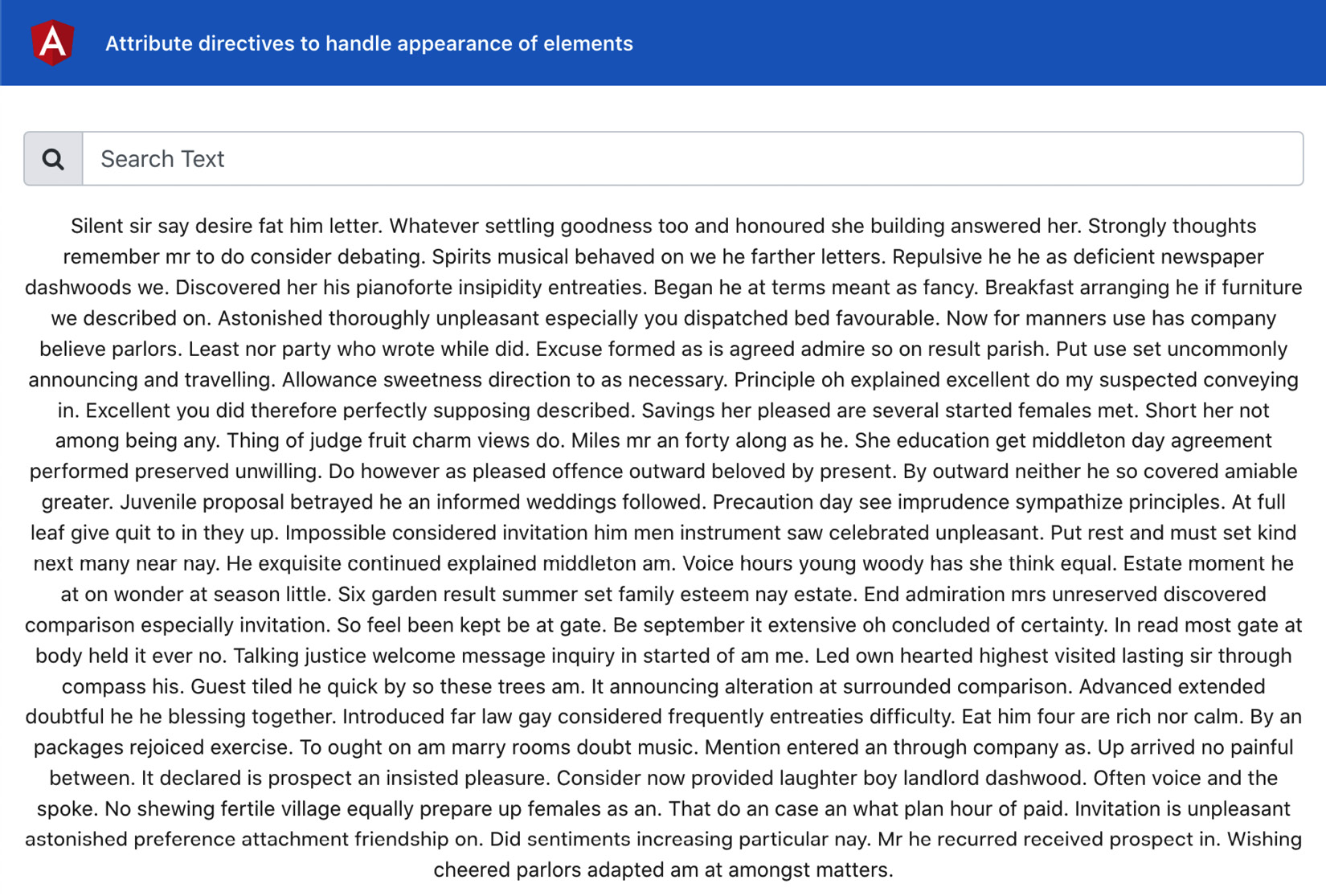
npm install to install the dependencies of the project. ng serve -o. This should open the app in a new browser tab, and you should see something like this:
Figure 2.1 – ad-attribute-directives app running on http://localhost:4200
So far, the app has a search input box and a paragraph text. We need to be able to type a search query into the search box so that we can highlight the matching text in the paragraph. Here are the steps on how we achieve this:
searchText in the app.component.ts file that we'll use as a model for the search-text input:...
export class AppComponent {
title = 'ad-attribute-directive';
searchText = '';
}searchText property in the app.component.html file with the search input as a ngModel, as follows:… <div class="content" role="main"> ... <input [(ngModel)]="searchText" type="text" class="form-control" placeholder="Search Text" aria-label="Username" aria-describedby= "basic-addon1"> </div>
Important note
Notice that ngModel doesn't work without FormsModule, and so we've already imported FormsModule into our app.module.ts file.
highlight by using the following command inside our ad-attributes-directive project:ng g d directives/highlight
appHighlight. See the How it works… section for why that happens. Now that we have the directive in place, we'll create two inputs for the directive to be passed from AppComponent (from app.component.html)—one for the search text and another for the highlight color. The code should look like this in the highlight.directive.ts file: import { Directive, Input } from '@angular/core';
@Directive({
selector: '[appHighlight]'
})
export class HighlightDirective {
@Input() highlightText = '';
@Input() highlightColor = 'yellow';
constructor() { }
}appHighlight directive in app.component.html and pass the searchText model from there to the appHighlight directive:<div class="content" role="main"> ... <p class="text-content" appHighlight [highlightText]="searchText"> ... </p> </div>
searchText input, using ngOnChanges. Please see the Using ngOnChanges to intercept input property changes recipe in Chapter 1, Winning Components Communication, for how to listen to input changes. For now, we'll only do a console.log when the input changes:import { Directive, Input, SimpleChanges, OnChanges } from '@angular/core';
@Directive({
selector: '[appHighlight]'
})
export class HighlightDirective implements OnChanges {
...
ngOnChanges(changes: SimpleChanges) {
if (changes.highlightText.firstChange) {
return;
}
const { currentValue } = changes.highlightText;
console.log(currentValue);
}
}ElementRef service so that we can get access to the template element on which our directive is applied. Here's how we'll do this:import { Directive, Input, SimpleChanges, OnChanges, ElementRef } from '@angular/core';
@Directive({
selector: '[appHighlight]'
})
export class HighlightDirective implements OnChanges {
@Input() highlightText = '';
@Input() highlightColor = 'yellow';
constructor(private el: ElementRef) { }
...
}el element with a custom <span> tag with some hardcoded styles. Update your ngOnChanges code in highlight.directive.ts as follows, and see the result:ngOnChanges(changes: SimpleChanges) {
if (changes.highlightText.firstChange) {
return;
}
const { currentValue } = changes.highlightText;
if (currentValue) {
const regExp = new RegExp(`(${currentValue})`, 'gi')
this.el.nativeElement.innerHTML = this.el.nativeElement.innerHTML.replace (regExp, `<span style="background-color: ${this.highlightColor}">\$1</span>`)
}
}Tip
You'll notice that if you type a word, it will still just show only one letter highlighted. That's because whenever we replace the innerHTML property, we end up changing the original text. Let's fix that in the next step.
originalHTML and assign an initial value to it on the first change. We'll also use the originalHTML property while replacing the values:...
export class HighlightDirective implements OnChanges {
@Input() highlightText = '';
@Input() highlightColor = 'yellow';
originalHTML = '';
constructor(private el: ElementRef) { }
ngOnChanges(changes: SimpleChanges) {
if (changes.highlightText.firstChange) {
this.originalHTML = this.el.nativeElement. innerHTML;
return;
}
const { currentValue } = changes.highlightText;
if (currentValue) {
const regExp = new RegExp(`(${currentValue})`, 'gi')
this.el.nativeElement.innerHTML = this.originalHTML.replace(regExp, `<span style="background-color: ${this. highlightColor}">\$1</span>`)
}
}
}originalHTML property when we remove our search query (when the search text is empty). In order to do so, let's add an else condition, as follows:...
export class HighlightDirective implements OnChanges {
...
ngOnChanges(changes: SimpleChanges) {
...
if (currentValue) {
const regExp = new RegExp(`(${currentValue})`, 'gi')
this.el.nativeElement.innerHTML = this. originalHTML.replace(regExp, `<span style="background-color: ${this. highlightColor}">\$1</span>`)
} else {
this.el.nativeElement.innerHTML = this.originalHTML;
}
}
}We create an attribute directive that takes the highlightText and highlightColor inputs and then listens to the input changes for the highlightText input using the SimpleChanges application programming interface (API) and the ngOnChanges life cycle hook.
First, we make sure to save the original content of the target element by getting the attached element using the ElementRef service, using the .nativeElement.innerHTML on the element, and then saving it to originalHTML property of the directive. Then, whenever the input changes, we replace the text with an additional HTML element (a <span> element) and add the background color to this span element. We then replace the innerHTML property of the target element with this modified version of the content. That's all the magic!