Sign In Start Free Trial
Account

Add to playlist

Create a Playlist

Modal Close icon
You need to login to use this feature.
  • Book Overview & Buying Moodle 1.9 Testing and Assessment
  • Table Of Contents Toc
Moodle 1.9 Testing and Assessment

Moodle 1.9 Testing and Assessment

By : Jason Myrick
5 (1)
close
close
Moodle 1.9 Testing and Assessment

Moodle 1.9 Testing and Assessment

5 (1)
By: Jason Myrick

Overview of this book

Moodle is a free Course Management System (CMS), which is a web application that educators can use to create effective online learning sites. Moodle also has many effective modules and assessment techniques for testing that can be used for any subject. Computer-based testing is inevitable in any online teaching course. As you consider the benefits of computer-based testing you will want to easily create tests and instantaneously assess them.Moodle 1.9 Testing and Assessment puts together a variety of modules and activities that allow us to easily create and deliver a variety of tests on any subject. It is a step-by-step guide that will assist you to develop and assess simple as well as complex quizzes and tests.You will initially learn to create different types of questions such as short answer questions, multiple choice questions, and so on. After you have learned to create questions, you will learn to integrate all of them in a Moodle quiz to create a complete test by tweaking the various options. Next you will learn to create and set up a Lesson, which you can use to create simple vocabulary or flash card tests or complex tests. You will learn to test and assess students through work submitted using Moodle Workshop. This module also provides an opportunity for self- and peer-assessment of your student's work. Then you will learn skill-specific tests such as listening, reading, speaking, and writing tests that will help you to judge a person's ability in a particular field. At the end of this book you will learn how you can grade tests using Moodle Gradebook. This hands-on guide helps you to establish optimal tests that can be graded using Moodle modules.
Table of Contents (18 chapters)
close
close
Moodle 1.9 Testing and Assessment
Credits
About the Author
About the Reviewers
www.PacktPub.com
Preface
1
Index

Your turn

Now that I've shown you how to create a True/False quiz, it's your turn to give it a try. I'm going to give you three statements and I want you to make a True/False quiz using them. The three statements are as follows:

  1. Mice are smaller than cats.
  2. Cats are smaller than dogs.
  3. Dogs are bigger than horses.

Step 1

Go to the front page of your course and turn editing on by going to the upper right-hand side of the page. Make a new Quiz by going to the Add an activity drop-down in any of the topic sections and selecting Quiz.

Step 2

Now you will need to name the quiz and give it an introduction. Please call the quiz My First Moodle Quiz and repeat the name in the Introduction textbox.

Step 3

We are going to leave all the default settings as they are, except for one. We want to go down the page and locate the Attempts section. In this section, please find and turn off the Adaptive mode.

When you have done this, scroll down to the bottom of the page and click on the Save and Display button.

Step 4

We should now be in our quiz question creation area. Go to the category and change it to Default for My First Moodle Quiz. This will help us keep all our questions organized.

Once you have done this, find the Create a new question drop-down and select True/False.

Step 5

We will need to fill in all the required fields now. For Question name and Question text, enter Mice are smaller than cats. For correct answer, select True.

We will also include some feedback here. In the Feedback for Response True enter Yes, mice are smaller than cats. In the Feedback for Response False enter Sorry, but cats are bigger than mice.

Step 6

Scroll to the bottom of the page and click on Save changes.

Step 7

Repeat the process for the remaining two questions, including appropriate feedback for each.

Step 8

When you have all three questions created, move them to the quiz using the Add to quiz icon.

Step 9

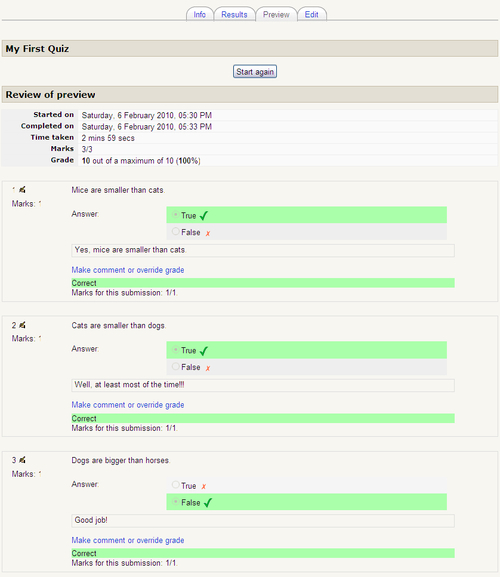
Go to the Preview tab and look over the questions to make sure there are no mistakes. Answer all the questions correctly and then click on Submit all and finish.

When you finish all these steps, you should see the following screenshot:

Step 9

From here, you can see that I was able to put all the questions together into a quiz, the answers are all correct, and the score I received was a 100 %. You can also see the feedback each student receives from the correct answer.

I hope you were able to quickly and easily complete this little project. As I said before, if you were unsure of something, or got something other than I did, go back and review the chapter and make sure you followed all the steps outlined previously.

CONTINUE READING
83
Tech Concepts
36
Programming languages
73
Tech Tools
Icon Unlimited access to the largest independent learning library in tech of over 8,000 expert-authored tech books and videos.
Icon Innovative learning tools, including AI book assistants, code context explainers, and text-to-speech.
Icon 50+ new titles added per month and exclusive early access to books as they are being written.
Moodle 1.9 Testing and Assessment
notes
bookmark Notes and Bookmarks search Search in title playlist Add to playlist font-size Font size

Change the font size

margin-width Margin width

Change margin width

day-mode Day/Sepia/Night Modes

Change background colour

Close icon Search
Country selected

Close icon Your notes and bookmarks

Confirmation

Modal Close icon
claim successful

Buy this book with your credits?

Modal Close icon
Are you sure you want to buy this book with one of your credits?
Close
YES, BUY

Submit Your Feedback

Modal Close icon
Modal Close icon
Modal Close icon