-
Book Overview & Buying
-
Table Of Contents
Moodle 2 Administration
By :
Moodle is updated constantly, which is common practice in open source development environments. A new version containing resolved bug fixes is created every night and, as mentioned earlier, a fully-tested version is released on a weekly basis. There is usually no need to install updates every week. However, you should upgrade your Moodle system when:
There are two ways Moodle systems can be updated. You can either run updates manually (using the web interface or the CLI) or stay up-to-date using the CVS or GIT commands. Both procedures are described in this section.
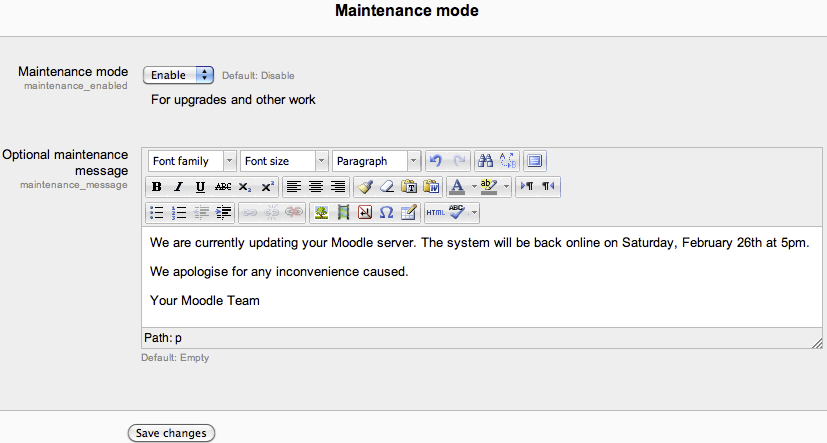
Either way, before you start, make sure you put Moodle in maintenance mode to ensure that no other user is logged in during the update. Go to Server | Maintenance mode, enable the Maintenance mode, and enter a maintenance message.

You can also put Moodle in maintenance mode using its CLI as follows:
sudo –u www-root /usr/bin/php admin/cli/maintenance.php --enableTo change back to normal mode use the --disable parameter instead of --enable as follows:
sudo –u www-root /usr/bin/php admin/cli/maintenance.php --disableThe high-level process for updating a Moodle system is as follows:
If you are updating from a previous version of Moodle, the process is the same. However, double-check the Upgrading document at docs.moodle.org/en/Upgrading for any version-specific issues.
You cannot jump major versions when updating Moodle.
For example, if your current Moodle system is still on version 1.8 and you wish to update to version 2.1, you will first have to update to the latest version of 1.9 before updating to the latest version of 2.1. However, you can update from 2.1 straight to 2.1.5.
Updating from Moodle 1.x to Moodle 2 is a big version jump that has some serious implications. For example, some theme elements will have to be re-created, custom code will need adjusting and, most importantly, your staff is likely to require training before the new version is put into production.
Moving from Moodle 1.x to Moodle 2 is more a migration from one system to another than an update. Setting up a separate system to test the migration process has proven valuable. You will have to plan and budget for this.
Before you install a new update, it is highly recommended that you create a backup of your Moodle system. While most updates will run smoothly, the backup will be required if you have to revert the system to the pre-update version. There are three parts that have to be backed up:
The simplest syntax for the command line tool is:
mysqldump -u <user> -p <database>>backup.sqlTo restore the database you need to use the mysql command line tool as follows:
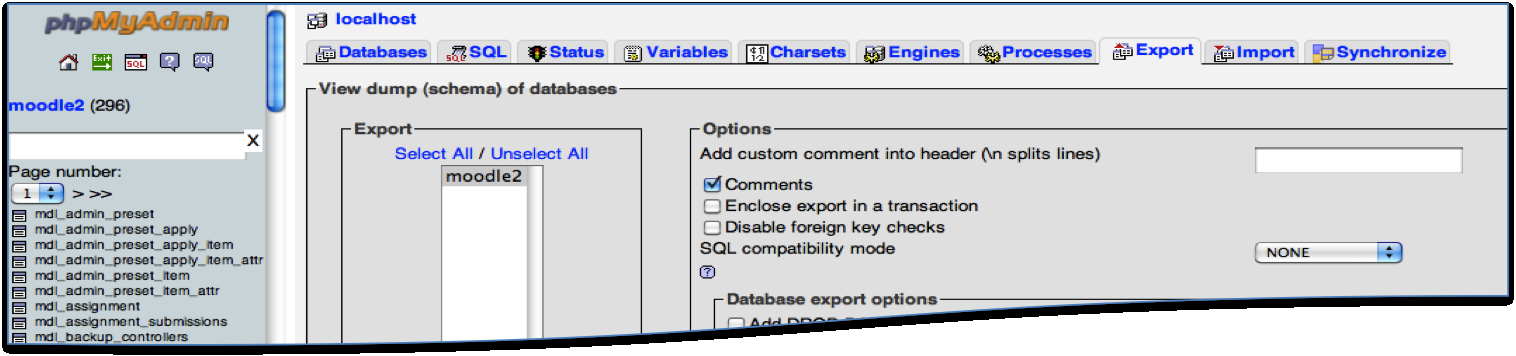
mysql -u <user> -p <database><backup.sqlThe interface for the database tool is accessed via Server | phpMyAdmin. This is an optional module and has to be installed separately (it is the MySQL Admin add-on—see Chapter 14, Installing Third-party Add-ons for more details).
Click on the Export link on the front page, select the database to export, and click on Go, as shown in the following screenshot. The output of the command will be displayed on screen:

moodledata directory. Create a copy of this elsewhere on the server (using cp –R) or create an archive using the tar command (tar –cvf moodledata).config.php, added themes, modified language packs, and so on), it is good practice to create a backup of the entire software. Finally, rename your Moodle system from moodle to say, moodle.old (mv moodle moodle.old).For more information on backups, check out Chapter 13, Backup and Restore.
Once you have created a backup, it is time to download the new version of Moodle. This is done in the same way as described earlier, during the installation process.
First, create a new moodle directory (dirroot) and copy the new version to that location (using the same unzip or tar command as during the installation). Also, make sure the permissions, as well as user and group, are correct.
Now, copy the following files and directories from your moodle.old directory to your new dirroot. Existing files and directories will have to be overwritten:
config.php.htaccess (only if present)local directorylocalThat's it! The next time you start Moodle, the update script will kick in. We'll go through that next.
Once you are more confident with the update process, you can copy the new version, overwriting the current version, after you have created backups. This will save you the last steps of manually copying files from the old to the new versions.
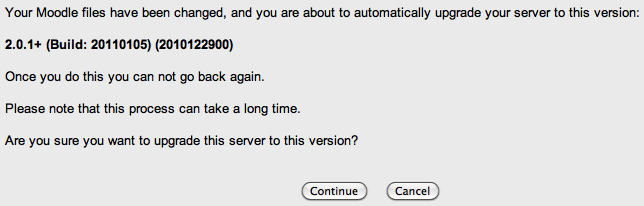
Once you go to the location of your Moodle site and login in as administrator, the system will recognize that a new version is available and kick off the installer automatically.
The first screen displays the build of the new version (here, 2.0.1+) and asks you to confirm that you wish to go ahead with the upgrade.

Next, a screen is displayed that provides a link to the release notes and performs the same server check as the one described during the installation.
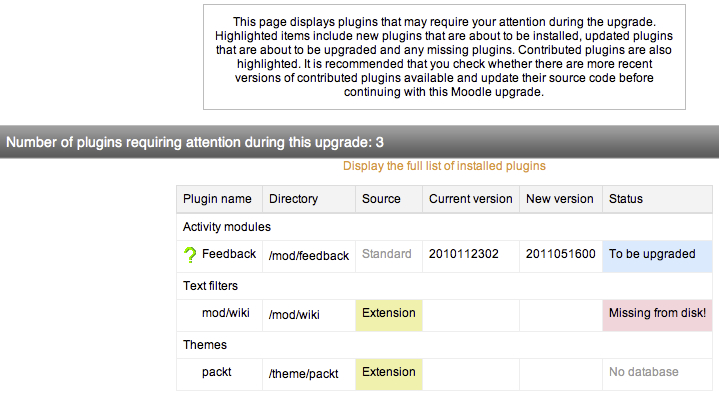
Moodle plugins, whether core or third-party, sometimes cause problems when upgrading Moodle. The installer lists all components and states whether they are Standard, Non-Standard, Extension, or Incompatible. The Status column highlights any actions required or problems found. You will need to resolve any issues that have arisen. See Chapter 14, Installing Third-party Add-ons, for more details.

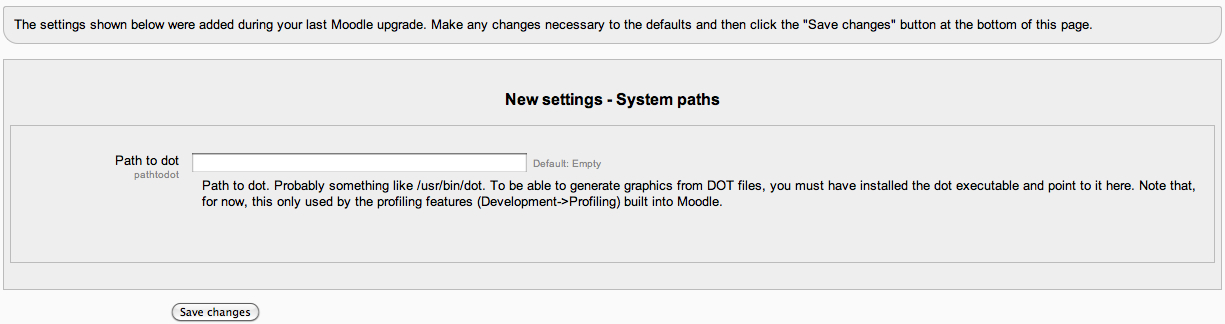
Once this screen has been confirmed, the actual installation starts, during which new database fields are created and data is modified if and when necessary. Any new system settings that have been added to Moodle are shown and can be changed straightaway. For example, in the following screenshot, a new Path to dot parameter has been added to the System paths section.

Once the upgrade process has been completed, make sure you check the Notifications page as earlier. Also, don't forget to turn off the Maintenance mode!
As you would expect, Moodle updates can also be run using the already-discussed CLI. Once you have backed up your data and updated to the latest version, all you need to do is run the following script:
sudo –u www-root /usr/bin/php admin/cli/upgrade.php --non-interactiveUpdating Moodle via CLI is even more powerful when combined with the CVS or GIT checkout of the Moodle source code. That is what we will look at next.
An alternative approach exists to keep a current version up-to-date. It uses open source versioning systems which are supported by Moodle, namely, CVS and GIT. All checked-in Moodle code is made available via this method, which allows you to update only the modules that have actually changed.
The repository cvs.moodle.org is a read-only version of git.moodle.org. First, we are going to describe the basics of how to set up CVS. CVS has to be installed on your Moodle server. The first time you use CVS, you have to download the full version of Moodle, as follows:
cvs -z3 -d:pserver:[email protected]:/cvsroot/moodle co –d <directory> -r <version>Moodle
<directory> is the location where your Moodle system is installed and <version> specifies the version you wish to install, for example, MOODLE_21_WEEKLY or MOODLE_20_STABLE.
Once this has been successful, go to your Moodle site and you will be guided through the same update process as discussed earlier. If this fails, check that the user and group permissions are set correctly and adjust them accordingly (chown –R <user>:<group> moodle).
For further updates you should use the following command, which remembers your previous settings, such as the chosen mirror site:
cvs update -dPFor further options of how to use CVS from the command line and in operating systems other than Unix, check out docs.moodle.org/en/CVS_for_Administrators.
Setting up GIT is a cumbersome process, which is beyond the scope of this book. You can find details at docs.moodle.org/en/Git. However, once set up, GIT is a very streamlined system to use, particularly in conjunction with the CLI we discussed earlier.
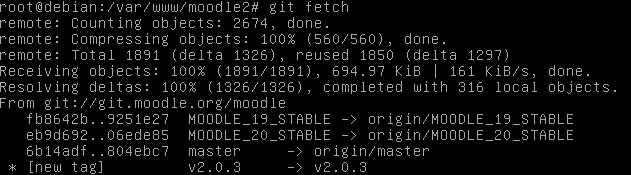
The following is a sample script which gets the latest version of the source code, puts Moodle in maintenance mode, merges the old code with the new, runs the upgrade script, and disables the maintenance mode.
git fetch
sudo -u www-root /usr/bin/php admin/cli/maintenance.php --enable
git merge origin/cvshead
sudo -u www-root/usr/bin/php admin/cli/upgrade.php
sudo -u www-root/usr/bin/php admin/cli/maintenance.php --disable
If you have changed any core code, potential conflicts might arise and will have to be resolved (CVS and GIT will prompt you to do so).
You might also come across some conflicting advice on whether to use CVS or GIT for production sites or not. The advantages are that your system is always up-to-date and that the updates are carried out automatically. The disadvantages are that the update process might require intervention to resolve any conflicts or it might fail, especially when a lot of third-party add-ons have been employed.
Change the font size
Change margin width
Change background colour