
Sign In Start Free Trial
Account

Add to playlist

Create a Playlist

Modal Close icon
You need to login to use this feature.
  • Book Overview & Buying Hands-On Continuous Integration and Delivery
  • Table Of Contents Toc
Hands-On Continuous Integration and Delivery

Hands-On Continuous Integration and Delivery

By : Belmont
close
close
Hands-On Continuous Integration and Delivery

Hands-On Continuous Integration and Delivery

By: Belmont

Overview of this book

Hands-On Continuous Integration and Delivery starts with the fundamentals of continuous integration (CI) and continuous delivery (CD) and where it fits in the DevOps ecosystem. You will explore the importance of stakeholder collaboration as part of CI/CD. As you make your way through the chapters, you will get to grips with Jenkins UI, and learn to install Jenkins on different platforms, add plugins, and write freestyle scripts. Next, you will gain hands-on experience of developing plugins with Jenkins UI, building the Jenkins 2.0 pipeline, and performing Docker integration. In the concluding chapters, you will install Travis CI and Circle CI and carry out scripting, logging, and debugging, helping you to acquire a broad knowledge of CI/CD with Travis CI and CircleCI. By the end of this book, you will have a detailed understanding of best practices for CI/CD systems and be able to implement them with confidence.
Table of Contents (18 chapters)
close
close

Setting up CircleCI in Bitbucket

Since we have just created a new Bitbucket account, we will need to upload our ssh keys into Bitbucket to be able to push changes to Bitbucket. We covered how to create SSH keys in Chapter 9, Installation and Basics of Travis CI, in the Adding a SSH key to your new GitHub account section, so please read that chapter if you do not have any SSH keys set up already. We already created an SSH Key in Chapter 9, Installation and Basics of Travis CI in the Adding an SSH Key to your new GitHub Account section. We just need to copy the public ssh key into our system clipboard, by running the following command:

pbcopy < ~/.ssh/id_rsa_example.pub

Once we have our public SSH key copied into our system clipboard, we need to go to the following page in Bitbucket:
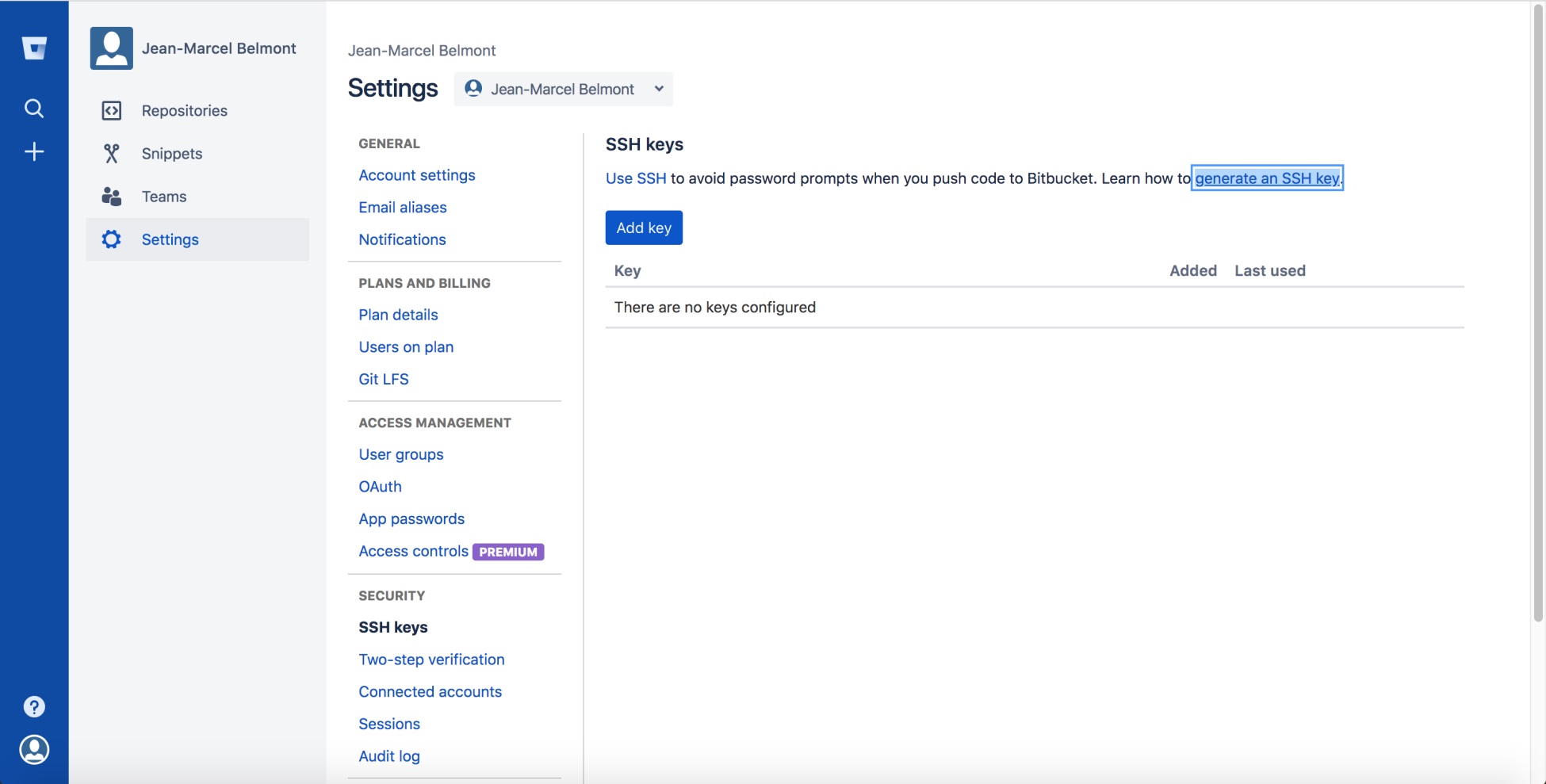
We will need to click the Add key button. This will open a modal where we enter a label and...

Visually different images
CONTINUE READING
83
Tech Concepts
36
Programming languages
73
Tech Tools
Icon Unlimited access to the largest independent learning library in tech of over 8,000 expert-authored tech books and videos.
Icon Innovative learning tools, including AI book assistants, code context explainers, and text-to-speech.
Icon 50+ new titles added per month and exclusive early access to books as they are being written.
Hands-On Continuous Integration and Delivery
notes
bookmark Notes and Bookmarks search Search in title playlist Add to playlist download Download options font-size Font size

Change the font size

margin-width Margin width

Change margin width

day-mode Day/Sepia/Night Modes

Change background colour

Close icon Search
Country selected

Close icon Your notes and bookmarks

Confirmation

Modal Close icon
claim successful

Buy this book with your credits?

Modal Close icon
Are you sure you want to buy this book with one of your credits?
Close
YES, BUY

Submit Your Feedback

Modal Close icon
Modal Close icon
Modal Close icon