-
Book Overview & Buying
-
Table Of Contents
-
Feedback & Rating
Mastering Veeam Backup & Replication 10
By :
The installation of Veeam Backup & Replication v10 is a straightforward process, and this section will go through the operation of the install as well as touch on best practices and optimizations for your environment. Setting up Veeam, if not done right, can lead to components not working correctly and poor performance, among other things. However, if you set up Veeam correctly, it will protect your data and environment with little configuration.
Before installing Veeam, we need to ensure that you have a server deployed, either Windows 2016 or 2019, with enough disk space for the installation. The disk layout should be similar to the following:
Once your server is ready, and you have downloaded the ISO file and mounted it, complete the following steps for installation:
setup.exe file on the mounted ISO drive:
Figure 1.3 – Main installation screen

Figure 1.4 – License dialogue window
– Veeam Backup & Replication: The main application.
– Veeam Backup Catalog: Used when you turn on Guest OS Indexing within your jobs. This option takes all the Guest files and stores them in a catalog where you are then able to use advanced searching across all restore points and conduct 1-click file restores from the Enterprise Manager console.
– Veeam Backup & Replication Console: This is where you go to view, create, and edit jobs, and manage the environment.

Figure 1.5 – System Configuration Check – missing components
– You must have Local Administrator rights on the Veeam server.
– If you are using a separate SQL Server and not the Express edition that comes with the install, you require permissions to create the database.
– You will need full NTFS permissions to the folder containing the catalog.
For all the detailed permissions, please visit https://helpcenter.veeam.com/docs/backup/vsphere/required_permissions.html?ver=100:
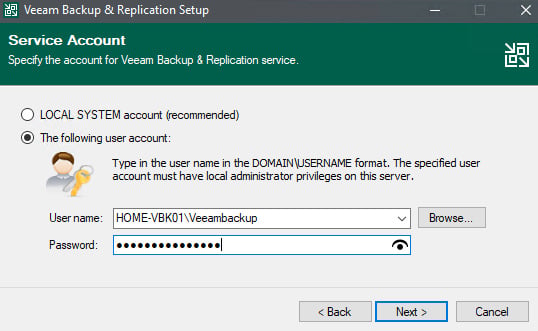
Figure 1.6 – User account for services
For this setup, I am using an account that I created on my lab server. In contrast, in a production scenario, you would already have a service account set up in Active Directory to enter at this step:

Figure 1.7 – SQL Server instance for Veeam

Figure 1.8 – Data Locations – directory selection
The installer is now ready to first complete installation of the local SQL Express instance and then the application. Veeam will also set your user account that you selected to initiate all the services:

Figure 1.9 –Ready to Install and check for updates
We will now proceed to configuring the required settings for Veeam to work with VMware:

Figure 1.10 – The initial console screen

Figure 1.11 – vSphere or vCloud Director selection
You would typically select vSphere; however, if you have vCloud Director in your environment, you may also want to choose this option. When you choose vSphere, you will get prompted for two things to complete the connection:
– The DNS or IP address of your vCenter server.
– Credentials; these can either be a vsphere.local user or a domain account set up for access.
Important note
You do have the option of selecting Microsoft Hyper-V and Nutanix AHV, but this book is focused mainly on VMware vSphere.
We now move on to the next piece required for the infrastructure, which is the proxy server. By default, the Veeam Backup & Replication server is to be your VMware Backup Proxy and File Backup Proxy. Due to the limitations of my lab, I am going to use this server as an example, but in the real world, you would add multiple proxy servers to your environment for better performance and according to best practice. Also, based on best practices, you would typically disable the Veeam Backup & Replication server from being a proxy server to allow the other proxy servers to handle the workload.
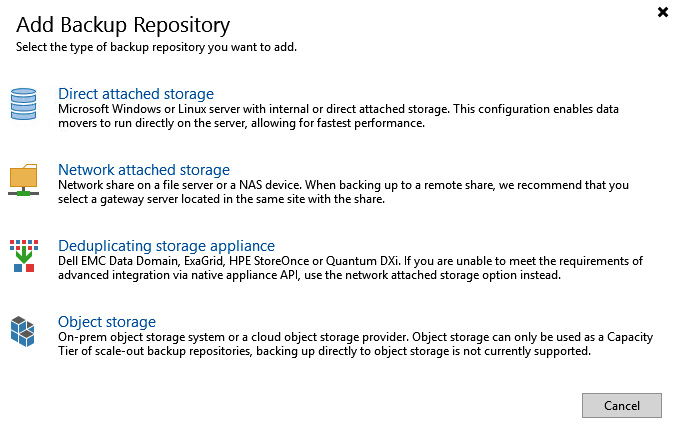
The next component you will require is a Repository Server, the location where Veeam Backup & Replication will store the backup files. By default, Veeam Backup & Replication creates a Default Backup Repository, typically on the most significant sized drive attached to your backup server. This location will be where the Configuration Backups usually get backed up. There are multiple options for adding a repository:
Figure 1.12 – Backup Repository selection
The first three selections would be for block storage, and the last one is object storage, which only works when creating a scale-out backup repository as the capacity tier for offloading data.
For further information on Veeam Backup & Replication best practices and the documentation, please visit the following websites:
You have now completed the installation and basic configuration required for Veeam Backup & Replication. We will now look at how to optimize the proxy and repository servers in the next sections.
Change the font size
Change margin width
Change background colour