Sign In Start Free Trial
Account

Add to playlist

Create a Playlist

Modal Close icon
You need to login to use this feature.
  • Book Overview & Buying OpenVPN 2 Cookbook
  • Table Of Contents Toc
OpenVPN 2 Cookbook

OpenVPN 2 Cookbook

4.1 (12)
close
close
OpenVPN 2 Cookbook

OpenVPN 2 Cookbook

4.1 (12)

Overview of this book

Table of Contents (19 chapters)
close
close
OpenVPN 2 Cookbook
Credits
About the Author
About the Reviewers
www.PacktPub.com
Preface
1
Index

Routing


Point-to-point style networks are great if you want to connect two networks together over a static, encrypted tunnel. If you only have a small number of endpoints (fewer than four), then it is far easier than using a client/server setup as described in Chapter 2, Client-server IP-only Networks.

Getting ready

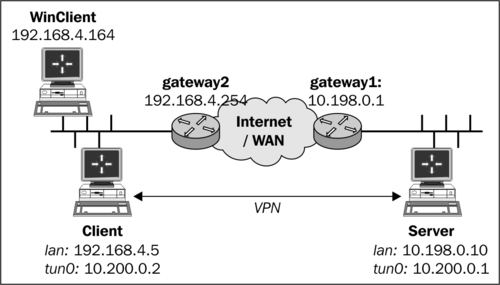
For this recipe, we use the following network layout:

Install OpenVPN 2.0 or higher on two computers. Make sure the computers are connected over a network. For this recipe, the server computer was running CentOS 5 Linux and OpenVPN 2.1.1 and the client was running Fedora 13 Linux and OpenVPN 2.1.1. We'll use the secret.key file from the OpenVPN Secret keys recipe here.

How to do it...

  1. First we establish the connection, but we also make sure OpenVPN daemonized itself:

        [root@server]# openvpn \
                --ifconfig 10.200.0.1 10.200.0.2 \
                --dev tun --secret secret.key \
                --daemon --log /tmp/openvpnserver.log
    
  2. Then we launch the client-side OpenVPN process:

        [client]$ openvpn \
                --ifconfig 10.200.0.2 10.200.0.1 \
                --dev tun --secret secret.key \
                --remote openvpnserver \
                --daemon --log /tmp/openvpnclient.log
    

    The connection is established:

     [server]$ tail -1 /tmp/openvpnserver.log
               Initialization Sequence Completed
    

Now we add routing:

  1. On the server side, we add a static route:

        [root@server]# route add -net 192.168.4.0/24 gw 10.200.0.2
    
  2. On the client side, we need to do two things:

    • Make sure that you have IP traffic forwarding enabled. On Linux this can be achieved using the following:

             [root@client]# sysctl -w net.ipv4.ip_forward=1
      
    • Make sure that on the Windows client on the client-side LAN there is a route back to the OpenVPN server:

             C:> route add 10.200.0.0 mask 255.255.255.0 192.168.4.5
      

      Note that this setting does not survive a reboot of the system.

      Here 192.168.4.5 is the LAN IP address of the OpenVPN client.

  3. From the server, we can now ping machines on the client LAN. First we ping the LAN IP of the OpenVPN client:

              [root@server]# ping -c 2 192.168.4.5
             PING 192.168.4.5 (192.168.4.5) 56(84) bytes of data.
             64 bytes from 192.168.4.5: icmp_seq=0 ttl=64 time=31.7 ms
             64 bytes from 192.168.4.5: icmp_seq=1 ttl=64 time=31.3 ms
    
           --- 192.168.4.5 ping statistics ---
            2 packets transmitted, 2 received, 0% packet loss, time   
            1000ms
           rtt min/avg/max/mdev = 31.359/31.537/31.716/0.251 ms, pipe 2
  4. And next the LAN IP of a machine on the OpenVPN client LAN:

              [root@server]# ping -c 2 192.168.4.164
              [server]$ ping -c 2 192.168.4.164
            PING 192.168.4.164 (192.168.4.164) 56(84) bytes of data.
           64 bytes from 192.168.4.164: icmp_seq=0 ttl=63 time=31.9 ms
           64 bytes from 192.168.4.164: icmp_seq=1 ttl=63 time=31.4 ms
    
            --- 192.168.4.164 ping statistics ---
            2 packets transmitted, 2 received, 0% packet loss, time 
             1001ms
          rtt min/avg/max/mdev = 31.486/31.737/31.989/0.308 ms, pipe 2

How it works...

In our network setup, the LAN we want to reach is behind the OpenVPN client, so we have to add a route to the server:

[server]$ route add -net 192.168.4.0/24 gw 10.200.0.2

On the client side, we need to do two things:

  • Make sure that the routing is enabled. If you want routing to remain enabled after a reboot, edit the file /etc/sysctl.cnf.

     net.ipv4.ip_forward = 1
  • We also need to make sure that on the client LAN there is a route back to the OpenVPN server. This can be done by adding a route to the LAN gateway or by adding a static route to each of the machines on the client LAN. In this recipe, we added a route to a Windows client that is in the same LAN as the OpenVPN client:

     C:> route add 10.200.0.0 mask 255.255.255.0 192.168.4.5
    

    where 192.168.4.5 is the LAN IP address of the OpenVPN client.

There's more...

Routing issues

On the openvpn-users mailing list, a large number of the problems reported have to do with routing issues. Most of them have little to do with the OpenVPN itself but more with understanding the routing and the flow of packets over the network. Chapter 8, Troubleshooting OpenVPN: Routing Issues, provides some recipes to diagnose and fix the most common routing problems.

Automating the setup

It is also possible to add the appropriate routes when the tunnel first comes up. This can be done using the --route statement:

[server]$ openvpn \
    --ifconfig 10.200.0.1 10.200.0.2 \
    --dev tun --secret secret.key \
    --daemon --log /var/log/openvpnserver-1.5.log \
    --route 192.168.4.0 255.255.255.0

Note that on the client LAN the route back to the server still has to be set manually.

See also

  • The last recipe of this chapter, 3-way routing, in which a more complicated setup using three remote sites is explained.

  • Chapter 8, Troubleshooting OpenVPN: Routing Issues

CONTINUE READING
83
Tech Concepts
36
Programming languages
73
Tech Tools
Icon Unlimited access to the largest independent learning library in tech of over 8,000 expert-authored tech books and videos.
Icon Innovative learning tools, including AI book assistants, code context explainers, and text-to-speech.
Icon 50+ new titles added per month and exclusive early access to books as they are being written.
OpenVPN 2 Cookbook
notes
bookmark Notes and Bookmarks search Search in title playlist Add to playlist download Download options font-size Font size

Change the font size

margin-width Margin width

Change margin width

day-mode Day/Sepia/Night Modes

Change background colour

Close icon Search
Country selected

Close icon Your notes and bookmarks

Confirmation

Modal Close icon
claim successful

Buy this book with your credits?

Modal Close icon
Are you sure you want to buy this book with one of your credits?
Close
YES, BUY

Submit Your Feedback

Modal Close icon
Modal Close icon
Modal Close icon