
Sign In Start Free Trial
Account

Add to playlist

Create a Playlist

Modal Close icon
You need to login to use this feature.
  • Book Overview & Buying Mastering OpenCV 4 with Python
  • Table Of Contents Toc
Mastering OpenCV 4 with Python

Mastering OpenCV 4 with Python

By : Alberto Fernández Villán
3.4 (10)
close
close
Mastering OpenCV 4 with Python

Mastering OpenCV 4 with Python

3.4 (10)
By: Alberto Fernández Villán

Overview of this book

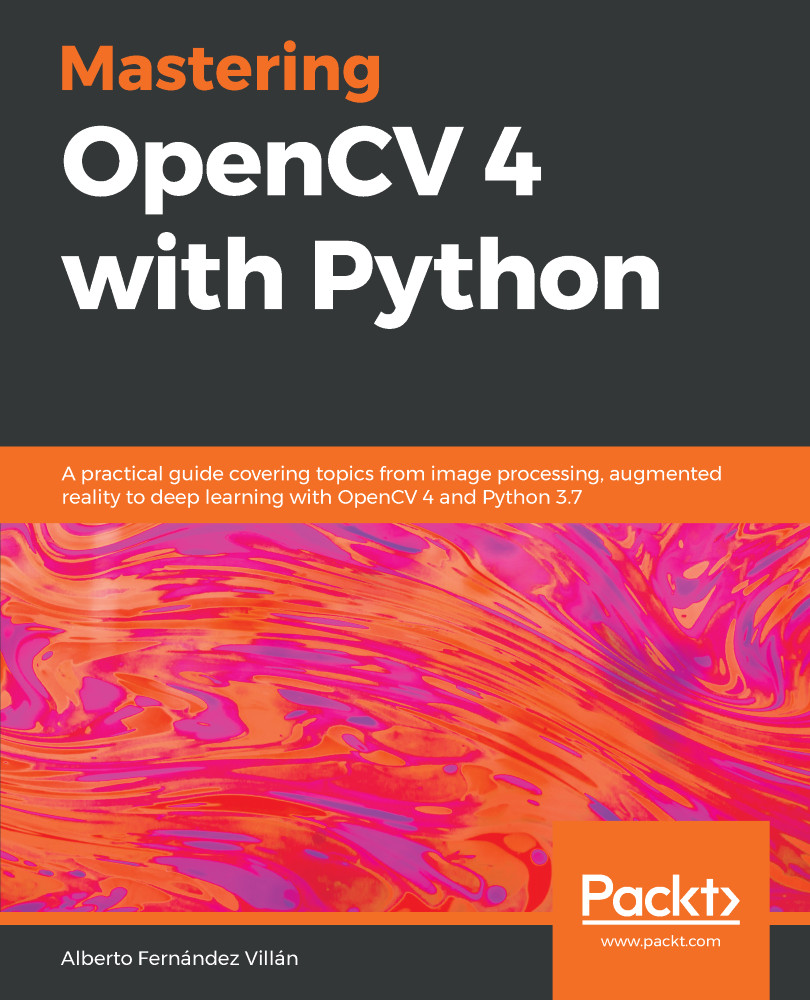
OpenCV is considered to be one of the best open source computer vision and machine learning software libraries. It helps developers build complete projects in relation to image processing, motion detection, or image segmentation, among many others. OpenCV for Python enables you to run computer vision algorithms smoothly in real time, combining the best of the OpenCV C++ API and the Python language. In this book, you'll get started by setting up OpenCV and delving into the key concepts of computer vision. You'll then proceed to study more advanced concepts and discover the full potential of OpenCV. The book will also introduce you to the creation of advanced applications using Python and OpenCV, enabling you to develop applications that include facial recognition, target tracking, or augmented reality. Next, you'll learn machine learning techniques and concepts, understand how to apply them in real-world examples, and also explore their benefits, including real-time data production and faster data processing. You'll also discover how to translate the functionality provided by OpenCV into optimized application code projects using Python bindings. Toward the concluding chapters, you'll explore the application of artificial intelligence and deep learning techniques using the popular Python libraries TensorFlow, and Keras. By the end of this book, you'll be able to develop advanced computer vision applications to meet your customers' demands.
Table of Contents (20 chapters)
close
close
Lock Free Chapter
1
Section 1: Introduction to OpenCV 4 and Python
6
Section 2: Image Processing in OpenCV
12
Section 3: Machine Learning and Deep Learning in OpenCV
16
Section 4: Mobile and Web Computer Vision

Python IDEs to create virtual environments with virtualenv

In the next section, we are going to create virtual environments with PyCharm, which is a Python IDE. But before doing that, we are going to discuss IDEs. An IDE is a software application that facilitates computer programmers with software development. IDEs present a single program where all the development is done. In connection with Python IDEs, two approaches can be found:

  • General editors and IDEs with Python support
  • Python-specific editors and IDEs

In the first category (general IDEs), some examples should be highlighted:

  • Eclipse + PyDev
  • Visual Studio + Python Tools for Visual Studio
  • Atom + Python extension

In the second category, here are some Python-specific IDEs:

  • PyCharm: One of the best full-featured, dedicated IDEs for Python. PyCharm installs quickly and easily on Windows, macOS, and Linux platforms...
CONTINUE READING
83
Tech Concepts
36
Programming languages
73
Tech Tools
Icon Unlimited access to the largest independent learning library in tech of over 8,000 expert-authored tech books and videos.
Icon Innovative learning tools, including AI book assistants, code context explainers, and text-to-speech.
Icon 50+ new titles added per month and exclusive early access to books as they are being written.
Mastering OpenCV 4 with Python
notes
bookmark Notes and Bookmarks search Search in title playlist Add to playlist download Download options font-size Font size

Change the font size

margin-width Margin width

Change margin width

day-mode Day/Sepia/Night Modes

Change background colour

Close icon Search
Country selected

Close icon Your notes and bookmarks

Confirmation

Modal Close icon
claim successful

Buy this book with your credits?

Modal Close icon
Are you sure you want to buy this book with one of your credits?
Close
YES, BUY

Submit Your Feedback

Modal Close icon
Modal Close icon
Modal Close icon