Sign In Start Free Trial
Account

Add to playlist

Create a Playlist

Modal Close icon
You need to login to use this feature.
  • Book Overview & Buying Deep Learning from the Basics
  • Table Of Contents Toc
Deep Learning from the Basics

Deep Learning from the Basics

By : Koki Saitoh, Shigeo Yushita
4.5 (15)
close
close
Deep Learning from the Basics

Deep Learning from the Basics

4.5 (15)
By: Koki Saitoh, Shigeo Yushita

Overview of this book

Deep learning is rapidly becoming the most preferred way of solving data problems. This is thanks, in part, to its huge variety of mathematical algorithms and their ability to find patterns that are otherwise invisible to us. Deep Learning from the Basics begins with a fast-paced introduction to deep learning with Python, its definition, characteristics, and applications. You’ll learn how to use the Python interpreter and the script files in your applications, and utilize NumPy and Matplotlib in your deep learning models. As you progress through the book, you’ll discover backpropagation—an efficient way to calculate the gradients of weight parameters—and study multilayer perceptrons and their limitations, before, finally, implementing a three-layer neural network and calculating multidimensional arrays. By the end of the book, you’ll have the knowledge to apply the relevant technologies in deep learning.
Table of Contents (11 chapters)
close
close

Matplotlib

In deep learning experiments, drawing graphs and visualizing data is important. With Matplotlib, you can draw visualize easily by drawing graphs and charts. This section describes how to draw graphs and display images.

Drawing a Simple Graph

You can use Matplotlib's pyplot module to draw graphs. Here is an example of drawing a sine function:

import numpy as np
import matplotlib.pyplot as plt
# Create data
x = np.arange(0, 6, 0.1) # Generate from 0 to 6 in increments of 0.1
y = np.sin(x)
# Draw a graph
plt.plot(x, y)
plt.show()

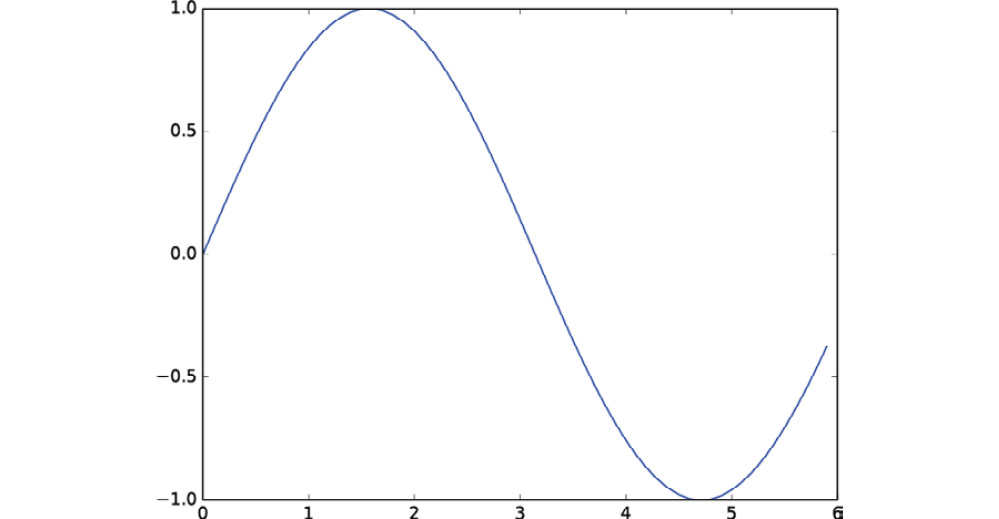
Here, NumPy's arange method is used to generate the data of [0, 0.1, 0.2, …, 5.8, 5.9] and name it x. NumPy's sine function, np.sin(), is applied to each element of x, and the data rows of x and y are provided to the plt.plot method to draw a graph. Finally, a graph is displayed by plt.show(). When the preceding code is executed, the image shown in Figure 1.3 is displayed:

Figure 1.3: Graph of a sine function

Features of pyplot

Here, we will draw a cosine function (cos) in addition to the sine function (sin) we looked at previously. We will use some other features of pyplot to show the title, the label name of the x-axis, and so on:

import numpy as np
import matplotlib.pyplot as plt
# Create data
x = np.arange(0, 6, 0.1) # Generate from 0 to 6 in increments of 0.1
y1 = np.sin(x)
y2 = np.cos(x)
# Draw a graph
plt.plot(x, y1, label="sin")
plt.plot(x, y2, linestyle = "--", label="cos") # Draw with a dashed line
plt.xlabel("x") # Label of the x axis
plt.ylabel("y") # Label of the y axis
plt.title('sin & cos') # Title
plt.legend()
plt.show()

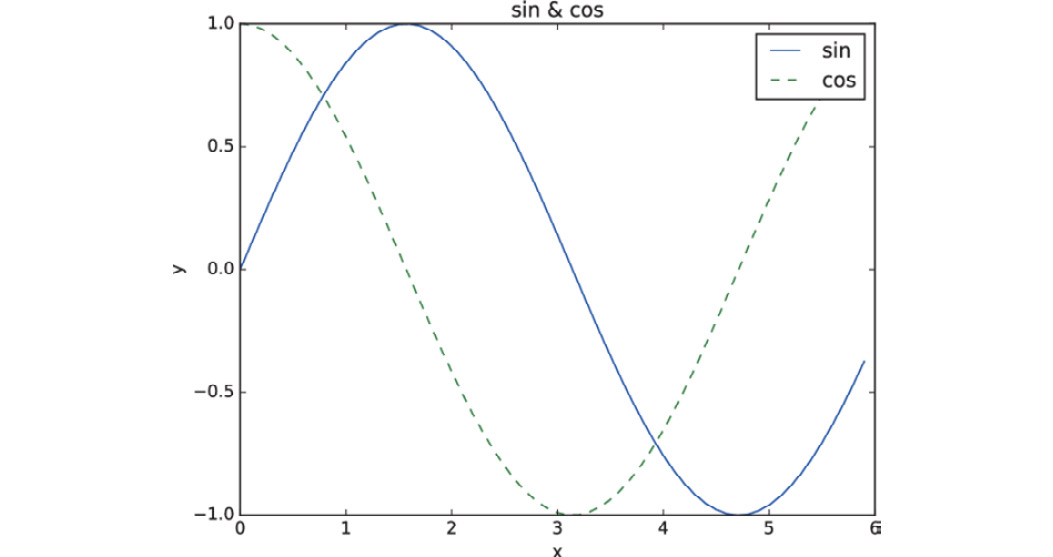
Figure 1.4 shows the resulting graph. You can see that the title of the graph and the label names of the axes are displayed:

Figure 1.4: Graph of sine and cosine functions

Displaying Images

The imshow() method for displaying images is also provided in pyplot. You can use imread() in the matplotlib.image module to load images, as in the following example:

import matplotlib.pyplot as plt 
from matplotlib.image import imread
img = imread('lena.png') # Load an image (specify an appropriate path!) 
plt.imshow(img)
plt.show()

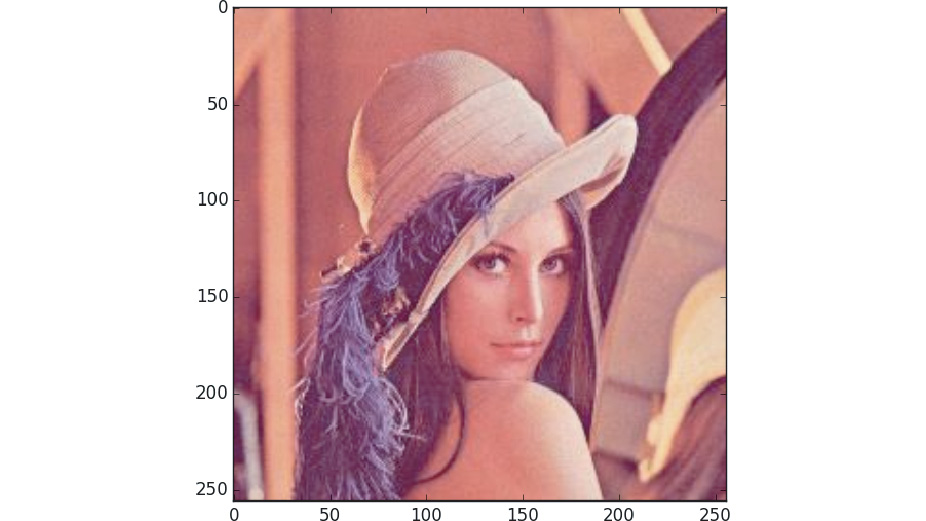
When you execute this code, the image shown in Figure 1.5 is displayed:

Figure 1.5: Displaying an image

Here, it is assumed that the image, lena.png, is located in the current directory. You need to change the name and path of the file as required, depending on your environment. In the source code provided with this book, lena.png is located under the dataset directory as a sample image. For example, to execute the preceding code from the ch01 directory in the Python interpreter, change the path of the image from lena.png to ../dataset/lena.png for proper operation.

CONTINUE READING
83
Tech Concepts
36
Programming languages
73
Tech Tools
Icon Unlimited access to the largest independent learning library in tech of over 8,000 expert-authored tech books and videos.
Icon Innovative learning tools, including AI book assistants, code context explainers, and text-to-speech.
Icon 50+ new titles added per month and exclusive early access to books as they are being written.
Deep Learning from the Basics
notes
bookmark Notes and Bookmarks search Search in title playlist Add to playlist download Download options font-size Font size

Change the font size

margin-width Margin width

Change margin width

day-mode Day/Sepia/Night Modes

Change background colour

Close icon Search
Country selected

Close icon Your notes and bookmarks

Confirmation

Modal Close icon
claim successful

Buy this book with your credits?

Modal Close icon
Are you sure you want to buy this book with one of your credits?
Close
YES, BUY

Submit Your Feedback

Modal Close icon
Modal Close icon
Modal Close icon