-
Book Overview & Buying
-
Table Of Contents
Alteryx Designer Cookbook
By :
When working with databases, we call cursor to the process where, for each record of a given table, you need to sequentially scan/read all the records from a second table, in search of a condition.
This process is very useful for some use cases, but it might cause a huge overhead for the database management system and the network. For example, a cell phone provider company has all the data about each call – each IMEI for a period of time – and the marketing department is trying to predict the effects of a certain campaign on some customers.
If we analyze the amount of data produced by each call per phone, it’ll be huge and it’ll take us a lot of time. So, in this case, we probably will extract from the database the data associated with those customers targeted by the campaign first, then analyze it.
For that, we’ll have a first input consisting of the conditions the targeted audience must fulfill, and we use that input data to scan and retrieve each record from the transactional data source (calls in this case) associated with the selected ones.
In this recipe, we’ll learn how to perform a “cursor-like” reading of tables (for each record in one table, read all the records in a second table), using the Dynamic Input tool, avoiding the overhead, and not capturing the database’s server resources.
For this example, we put together a portable database in SQLite that you can download from here:
https://github.com/PacktPublishing/Alteryx-Designer-Cookbook/tree/main/ch2/Recipe1
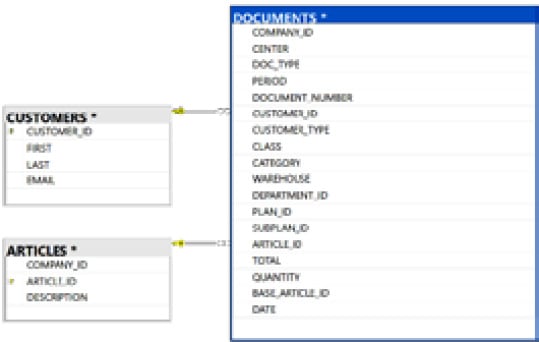
This set contains a database with three tables:
DOCUMENTS: Containing all the information about a company’s billing (~254K records)ARTICLES: Containing a description of each ARTICLE_ID available for the companyCUSTOMERS: FIRST, LAST, and EMAIL for each customer
Figure 2.1: Database structure
The use case will be as follows: we, as a hardware store, need to gather the data corresponding to our top 10 CUSTOMERS from last year and get the top 10 ARTICLES each one bought.
We have DOCUMENTS (billing data) in one table, ARTICLES in another, and CUSTOMERS in a third one.
And our top 10 CUSTOMERS from last year come in an Excel File (DATA\Top10CUSTOMERS2021.xlsx).
We will do so using the following steps:
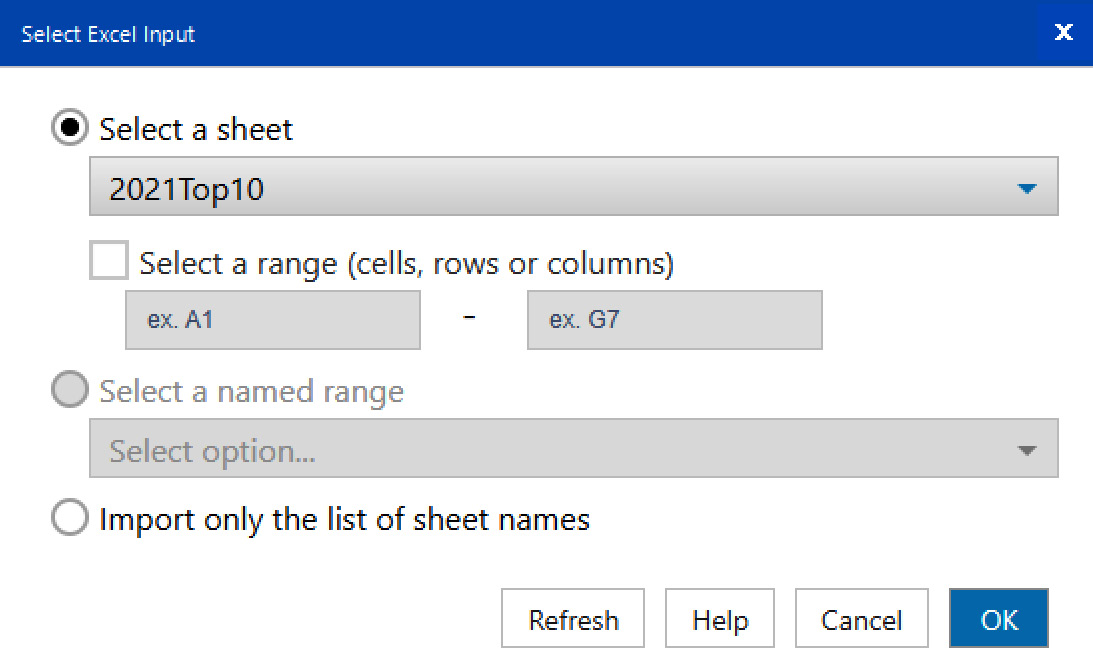
DATA\Top10CUSTOMERS2021.xlsx.2021Top10 worksheet in Select Excel Input and click OK.
Figure 2.2: Select Excel Input
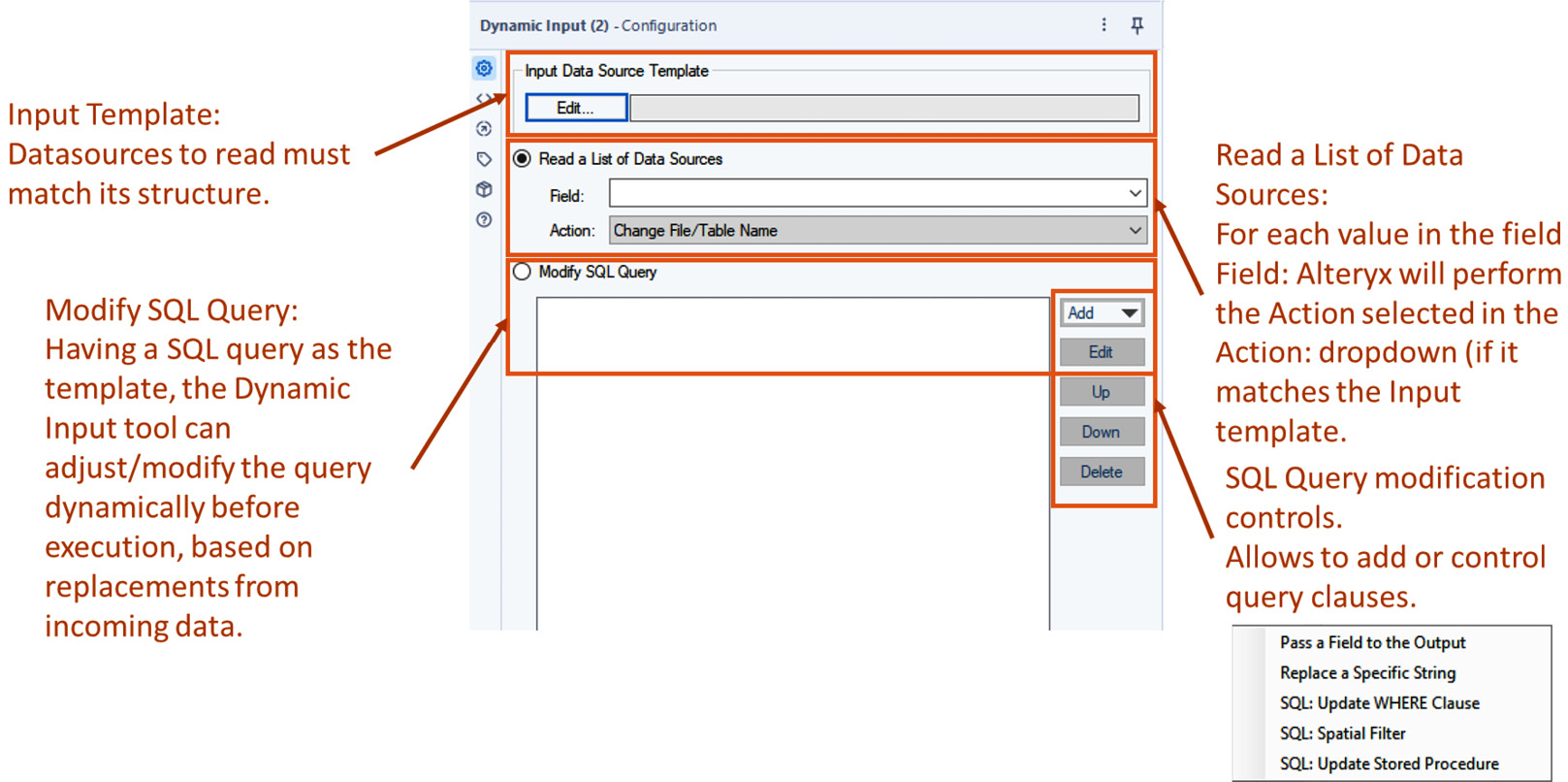
Figure 2.3: Dynamic Input tool configuration options
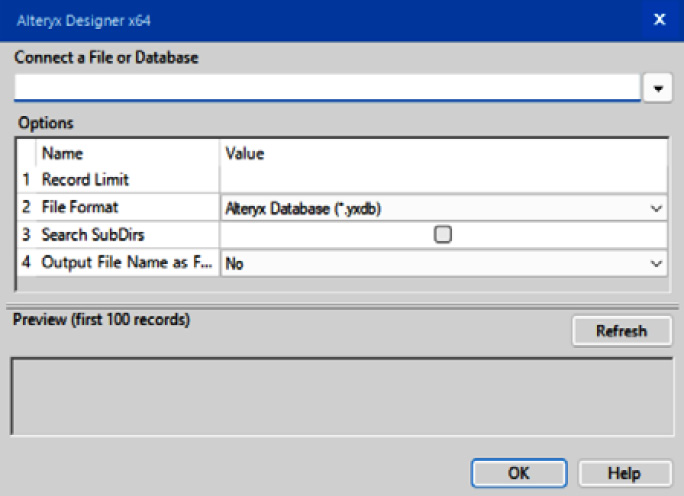
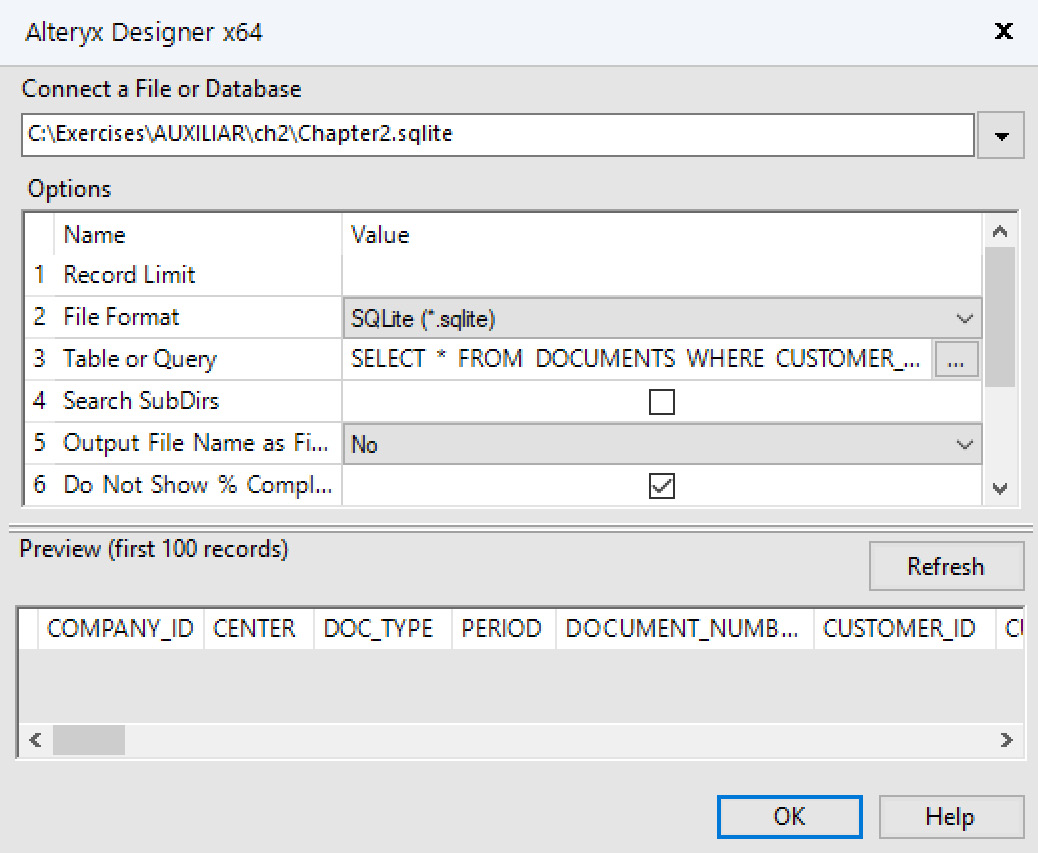
The Connect a File or Database screen will pop up.
Figure 2.4: Dynamic Input template configuration
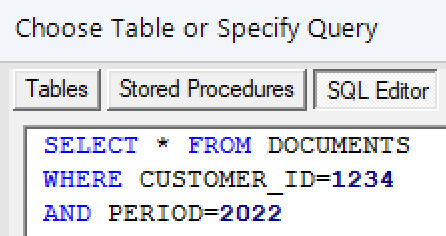
SELECT * FROM DOCUMENTS WHERE CUSTOMER_ID=1234 AND PERIOD=2022
This can be seen here:
Figure 2.5: Dynamic Input template query
As you may notice, there is no CUSTOMER_ID=1234 in the database, but here is where Alteryx Designer will operate its magic.
Once Alteryx validates the query, your template will look like this:
Figure 2.6: Template panel after the configuration
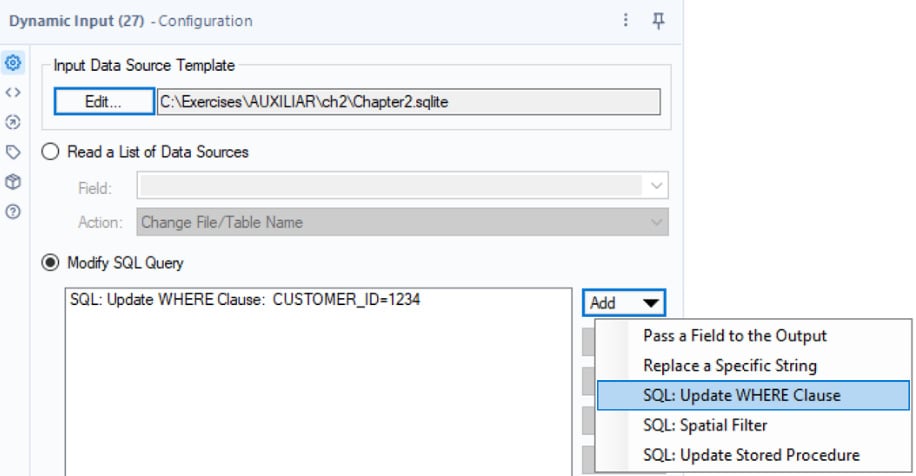
Now, we need to configure the action we want the tool to perform.
Figure 2.7: Modify SQL Query options
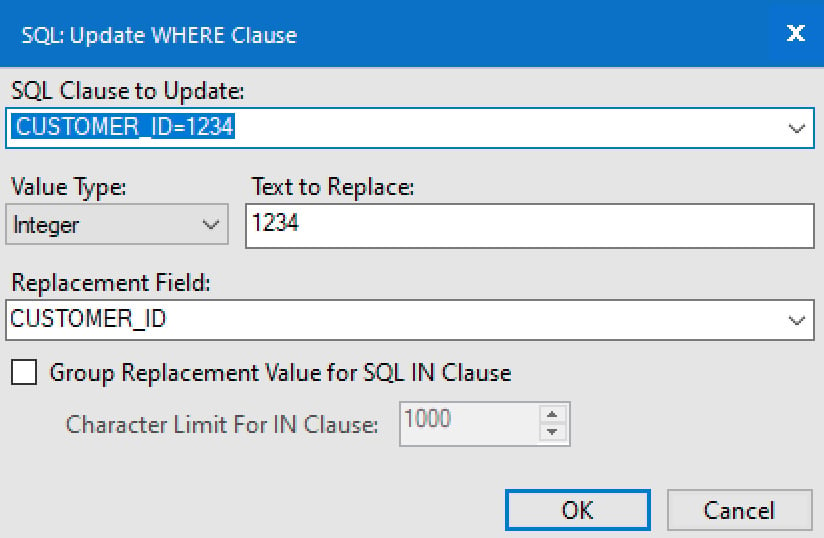
A new screen will be shown with pre-populated fields:
Figure 2.8: Configuring the Dynamic Input tool
CUSTOMER_ID=1234 is selected for SQL Clause to Update, Value Type is set to Integer, Text to Replace is 1234 and Replacement Field shows CUSTOMER_ID and click OK.If you run the workflow, you’ll get all records for 2022 corresponding only to the customer IDs contained in the control file (top 10 buyers from the previous year). From here, you can start the process of getting the top 10 articles bought by each customer, but that will be part of another recipe.
When configuring the Dynamic Input tool to any of the Modify SQL Query options, Alteryx Designer will read all the conditions within the query and will replace the parts you indicated within your selections. In this case, since SQL: Update WHERE Clause was selected, Alteryx will modify only the part corresponding to the WHERE CUSTOMER_ID = 1234 part.
For the second part of the clause (PERIOD=2022), since we didn’t select any modifier for it, it’ll remain untouched.
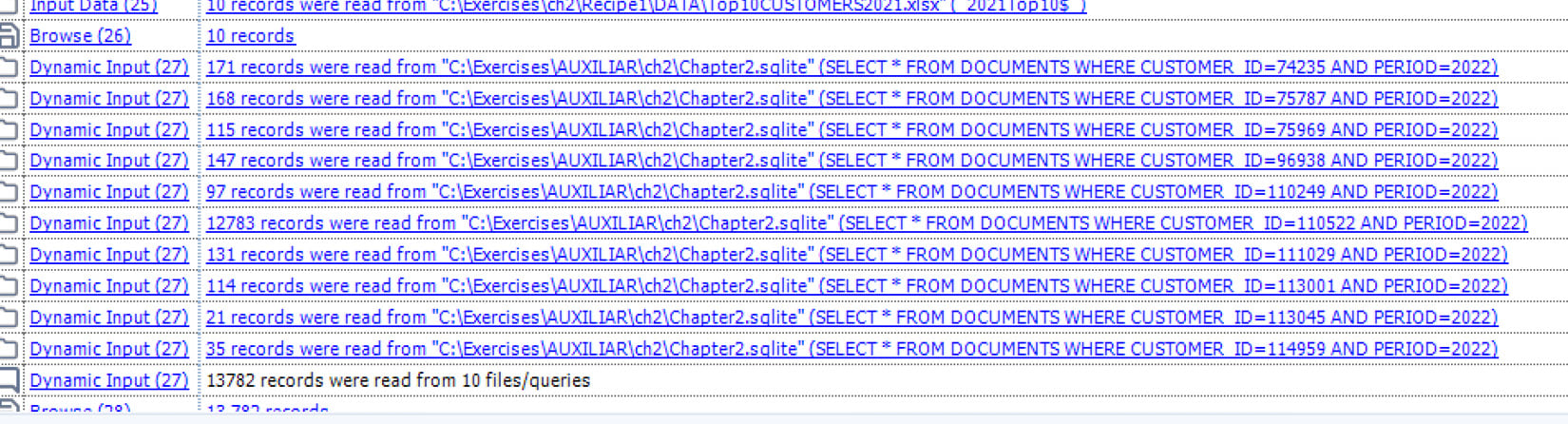
The amazing part is that Alteryx Designer will execute one straight query per record coming from the Input Data tool, so, instead of having a cursor scanning the database per record in the input file (a single process from start to finish), there’ll be N individual queries running one after the other, causing the release of resources in the DBMS after each query.
Figure 2.9: Multiple queries executed from just one tool
Of course, you can combine multiple WHERE statements, and replace the part you need with incoming data every time you have to.
But, if you look at Figure 2.7, you have other options to make your database queries dynamic, such as replacing strings in queries, which can be very helpful for executing queries along different tables:
SELECT * FROM "TABLE" WHERE XXXX
You can set up a rule to indicate the tables you want to query, and in the WHERE clause, the conditions to query those tables, and all can be dynamic.