Sign In Start Free Trial
Account

Add to playlist

Create a Playlist

Modal Close icon
You need to login to use this feature.
  • Book Overview & Buying Alteryx Designer Cookbook
  • Table Of Contents Toc
Alteryx Designer Cookbook

Alteryx Designer Cookbook

By : Guisande
4.9 (10)
close
close
Alteryx Designer Cookbook

Alteryx Designer Cookbook

4.9 (10)
By: Guisande

Overview of this book

Alteryx allows you to create data manipulation and analytic workflows with a simple, easy-to-use, code-free UI, and perform fast-executing workflows, offering multiple ways to achieve the same results. The Alteryx Designer Cookbook is a comprehensive guide to maximizing your Alteryx skills and determining the best ways to perform data operations This book's recipes will guide you through an analyst's complete journey, covering all aspects of the data life cycle. The first set of chapters will teach you how to read data from various sources to obtain reports and pass it through the required adjustment operations for analysis. After an explanation of the Alteryx platform components with a particular focus on Alteryx Designer, you’ll be taken on a tour of what and how you can accomplish by using this tool. Along the way, you’ll learn best practices and design patterns. The book also covers real-world examples to help you apply your understanding of the features in Alteryx to practical scenarios By the end of this book, you’ll have enhanced your proficiency with Alteryx Designer and an improved ability to execute tasks within the tool efficiently
Table of Contents (17 chapters)
close
close

Working with Calgary databases

According to Alteryx’s definition:

Calgary is a list count data retrieval engine designed to perform analyses on large scale databases containing millions of records. Calgary utilizes indexing methodology to quickly retrieve records. A database index is a data structure that improves the speed of data retrieval operations on a database table. Indexes can be created using one or more columns of a database table, providing the basis for both rapid random look ups and efficient access of ordered records.

Besides the actual definition, we can see Calgary as a proprietary file format, with the ability to handle huge amounts of data (~2B records) and to index the contents, so searches are extremely fast because there’s no need to read all the records before filtering them.

Alteryx provides a tool category for Calgary containing a set of five native tools:

  • Calgary Input: We’ll use this tool to query Calgary databases
  • Calgary Join: It’ll allow us to take an input file and perform join queries against a Calgary database
  • Calgary Cross Count: Performs aggregations across multiple Calgary databases and returns a count per record
  • Calgary Cross Count Append: This will allow you to take an input file and append counts to records that join a Calgary database when those records match your criteria
  • Calgary Loader: This is the tool we’ll use to create/load data into a Calgary file (.cydb)

We’ll be focusing on the Loader, Input, and Join tools throughout this recipe since they’re the most used tools in this category.

Getting ready

We built a test set for this recipe you can download from here:

https://github.com/PacktPublishing/Alteryx-Designer-Cookbook/tree/main/ch2/Recipe2

If you’re planning to follow along with your own data, make sure you have a decent number of records in your dataset (millions).

In both cases, make sure that you have at least 2 GB of available disk space on your computer.

How to do it…

There are two phases in this recipe:

  1. Creating/loading our data into a Calgary database
  2. Consuming the loaded data

To create/load the data, we will use the following steps:

  1. Drop an Input Data tool on the canvas and point it to the CitiBike_2013.zip file.
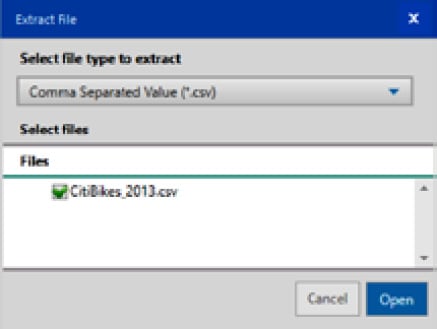
  2. Immediately, you’ll be prompted to select which file/s to read from the ZIP file and the type of the files. In our example, there’s just one, so select it and make sure that Select file type to extract is set to Comma Separated Value (*.csv) and click Open.
Figure 2.10: Read a file from a ZIP file

Figure 2.10: Read a file from a ZIP file

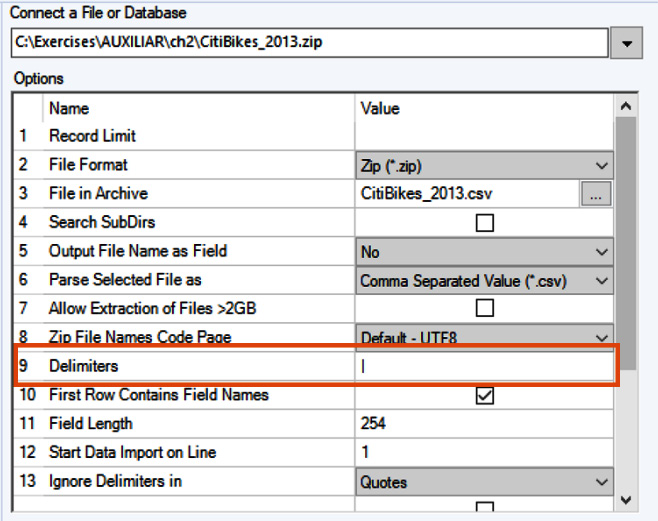
  1. Go to the Input Data tool configuration panel and make sure you change option 9, Delimiters, from a comma (,) to a pipe (|).
Figure 2.11: Input Data configuration panel – Delimiter option

Figure 2.11: Input Data configuration panel – Delimiter option

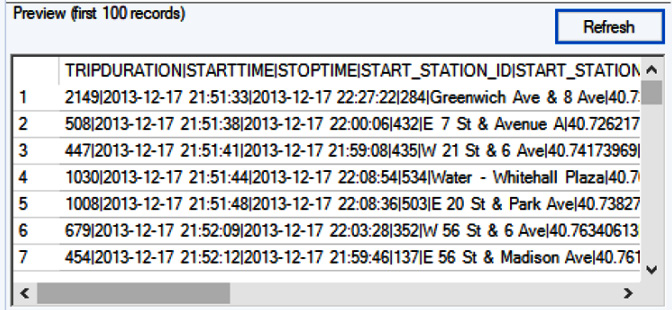
  1. Click the Refresh button and your Preview data will change from the following:
Figure 2.12: Contents with the wrong delimiter

Figure 2.12: Contents with the wrong delimiter

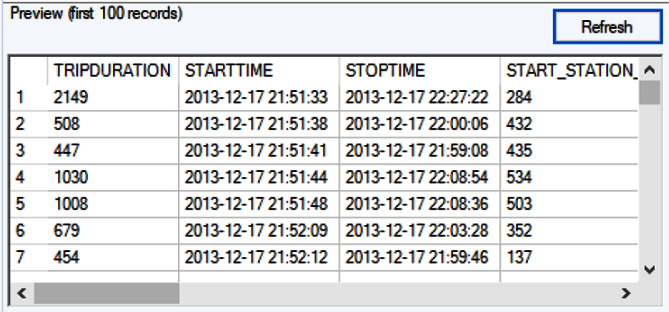
It will change to this:

Figure 2.13: After selecting the right delimiter for our file

Figure 2.13: After selecting the right delimiter for our file

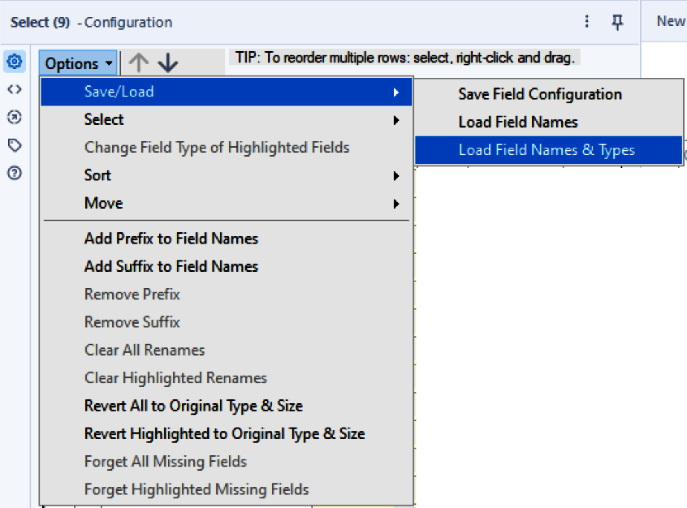
  1. Add a Select tool to the canvas, and from the Options menu, click Save/Load and Load Fields Names & Types.
Figure 2.14: Shaping the data types based on saved configurations

Figure 2.14: Shaping the data types based on saved configurations

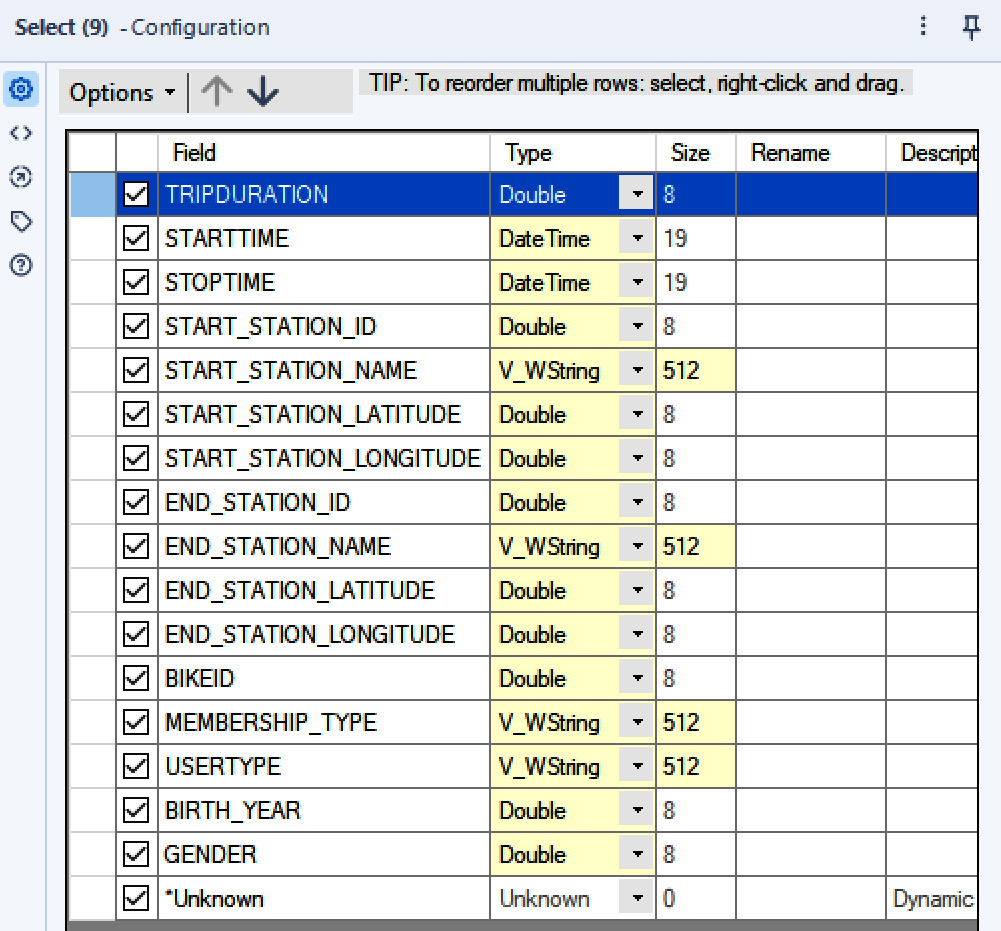
  1. Point to where you saved the recipe test set FIELD_TYPES\CitibikesFieldConfiguration.yxft and your Select tool will be populated with the field definitions saved in that file.
Figure 2.15: Resulting shape of our data

Figure 2.15: Resulting shape of our data

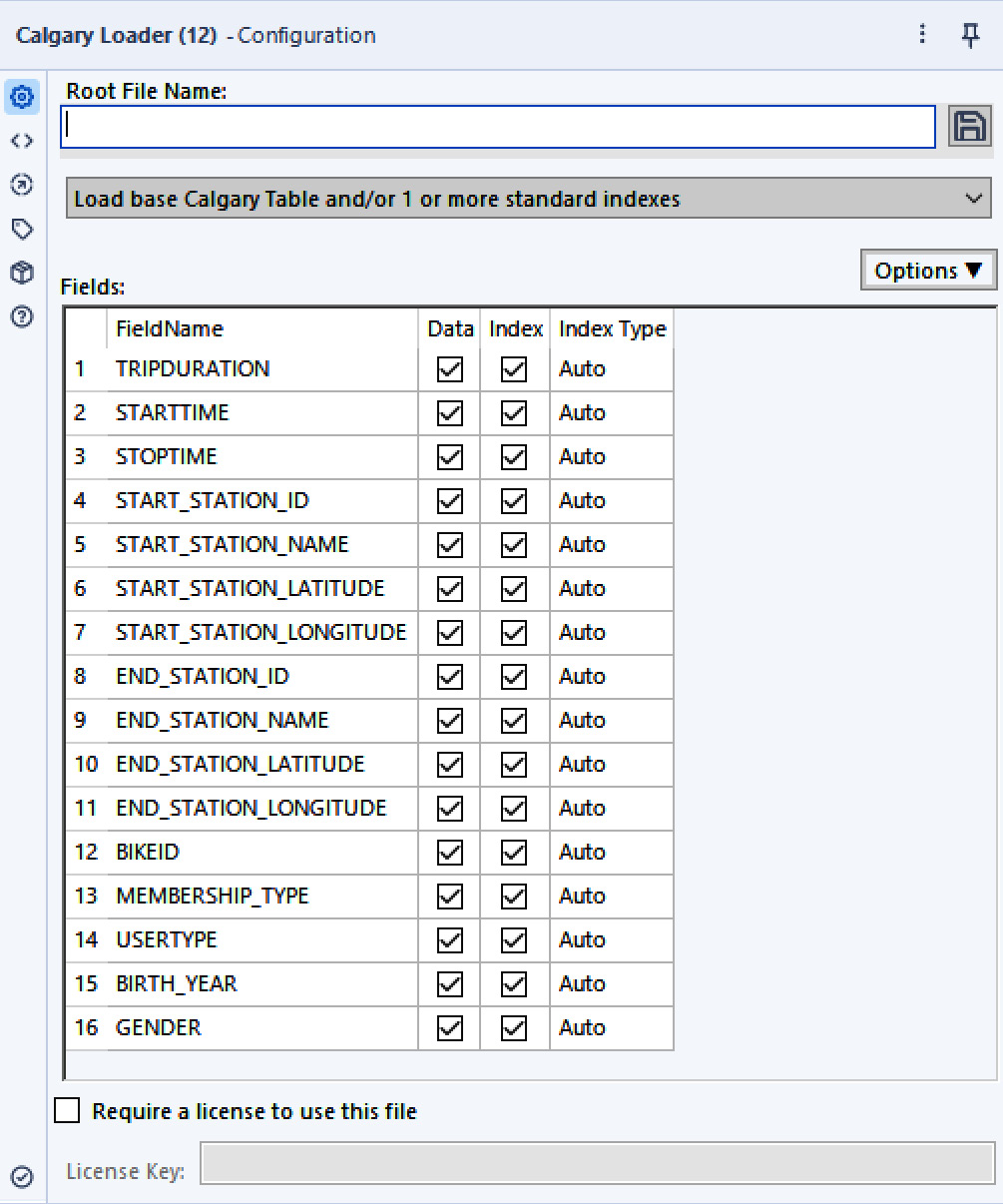
  1. Now, drop a Calgary Loader tool from the Calgary category.
Figure 2.16: Calgary Loader configuration panel

Figure 2.16: Calgary Loader configuration panel

  1. Point Root File Name to the folder you want to save your files in and give the file a name. As a best practice, consider using a single folder per Calgary set of files.

At this point, we can select which fields to keep (save) in the Calgary file and which ones we’ll be using to index. For this recipe, we’ll be indexing all fields, with the Auto index type.

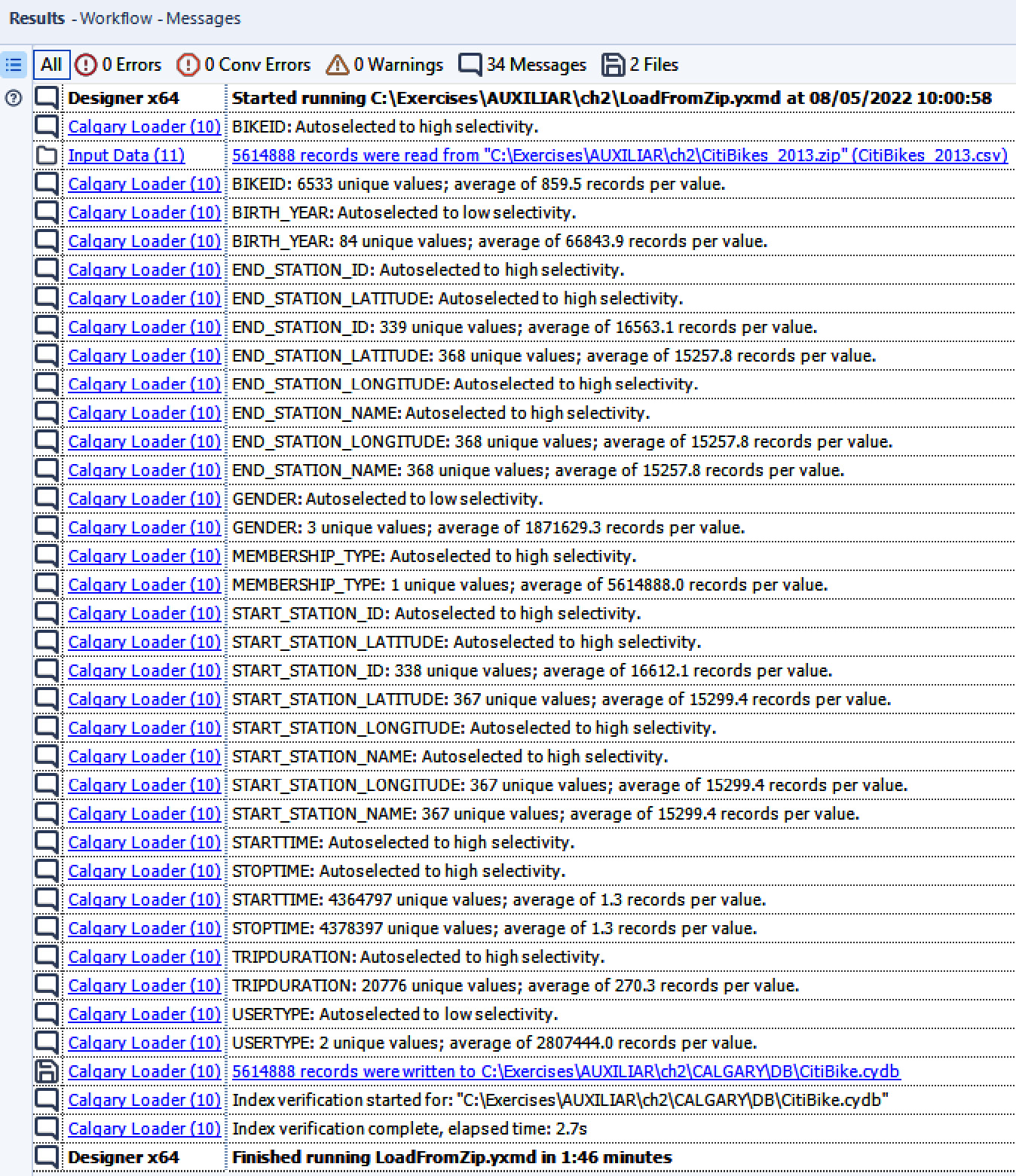
Run the workflow and you’ll see that the file is being created and the data is being indexed. While loading and indexing, Alteryx analyzes the contents of our data (the first million records), selecting the best type of index based on the values contained within it.

Figure 2.17: Results of running the workflow

Figure 2.17: Results of running the workflow

By now, we’ll have the files (one .cydb and one .cyidx per indexed field, plus SelectedName_Indexes.xml containing the index values).

Now, onto making fast queries to our Calgary database. For querying Calgary, Alteryx offers two methods:

  • Static: Using the Calgary Input tool, you can define your query within the tool configuration panel
  • Dynamic: Based on a data stream, you can query your Calgary database dynamically using conditions

We can build a static query as follows:

We’ll be extracting all trips made by people that are 50 years old or more. Since the data is from 2013, we’ll be querying the dataset for those records with BIRTH_YEAR <= 1963:

  1. Drop a Calgary Input tool onto the canvas.
  2. Point the Calgary Data File option to the Citibike.cydb file we just created.

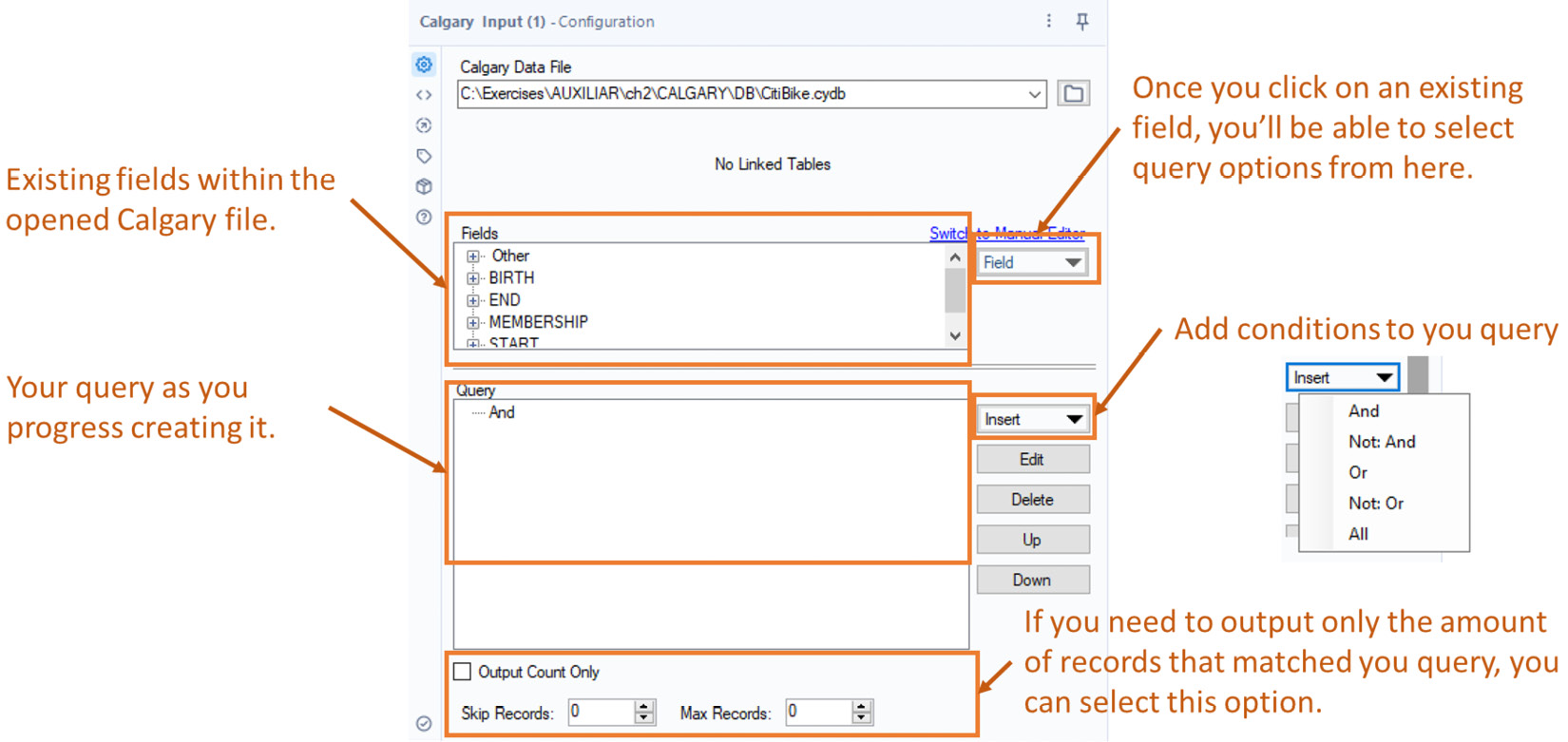
Once you point to the file, the tool’s configuration panel will show you the options for building the query:

Figure 2.18: Calgary Input configuration

Figure 2.18: Calgary Input configuration

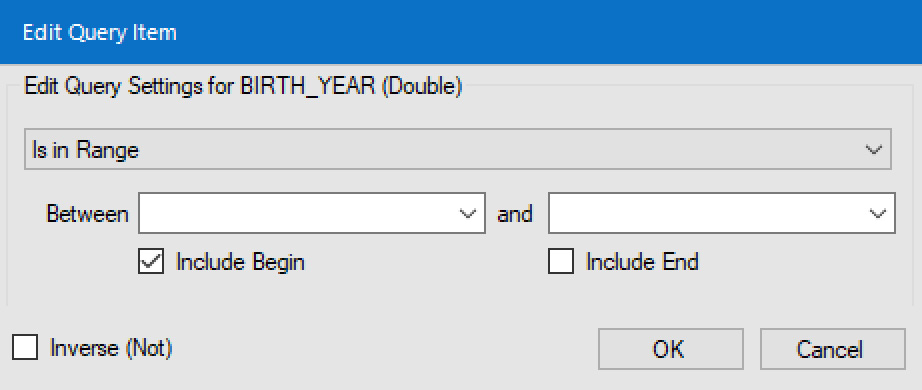
  1. From the BIRTH group, double-click on the YEAR field. Alteryx will pop up a new window – Edit Query Item.
Figure 2.19: Setting the query item

Figure 2.19: Setting the query item

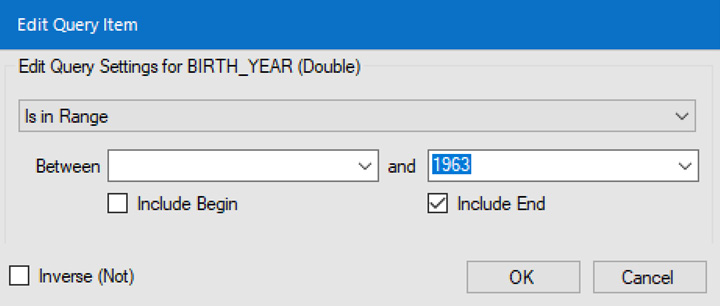
  1. We need to get a range starting at any value, but only up to 1963. So, uncheck Include Begin, check Include End, and enter 1963 for the end value.
Figure 2.20: Using only range end

Figure 2.20: Using only range end

  1. Click OK.

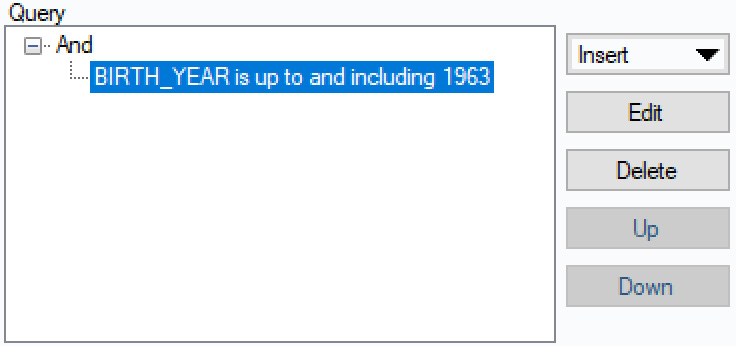
Your actual query clause will be added to the Query section of the configuration panel.

Figure 2.21: Query clause in the configuration panel

Figure 2.21: Query clause in the configuration panel

  1. Drop a Browse tool following the Calgary Input tool and run the workflow. You’ll be able to see all data regarding trips made by people 50 years or older.

We will now dynamically query a Calgary database:

We are going to query the Calgary database for the same results but using a different approach. We’ll be getting some input from a data stream and using those values to query/join against the Calgary database:

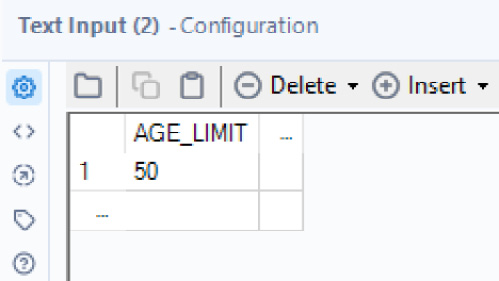
  1. In this case, we are going to use the age limit as an input, so drop a Text Input tool onto the canvas.
  2. Create a column called AGE_LIMIT and add a record with 50 as the value.
Figure 2.22: Incoming data

Figure 2.22: Incoming data

Since the input data we have is the minimum age to consider (remember, we are going to get rides done by people 50 years old or more), we need to transform it, so we can query our data based on BIRTH_YEAR.

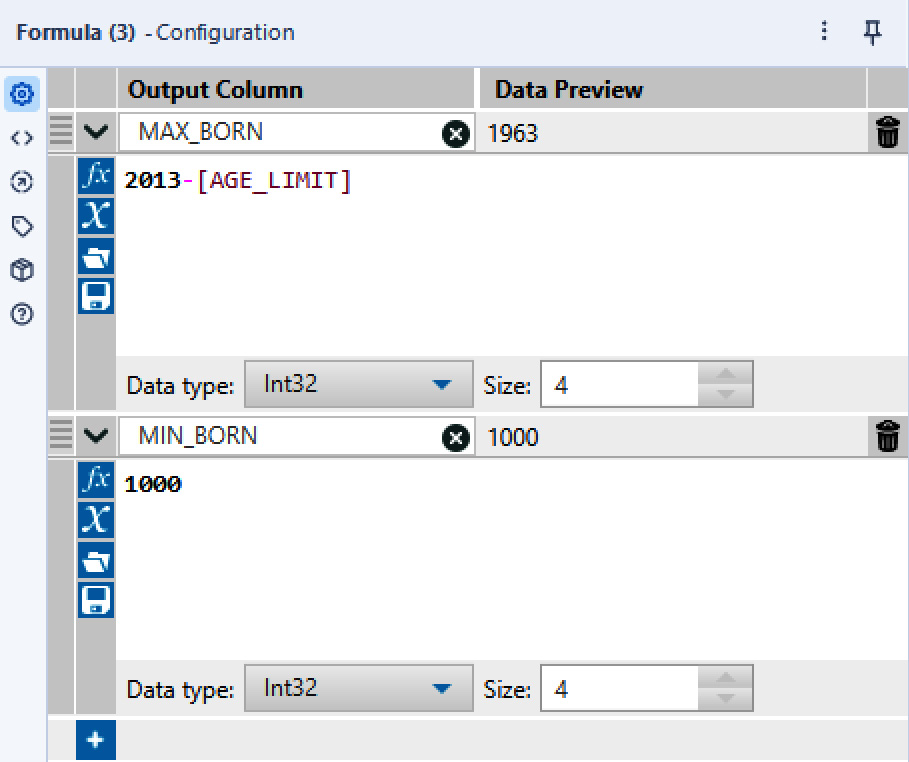
  1. Connect a Formula tool to the Text Input output anchor, and create a new field called MAX_BORN with the following expression to determine which year is the maximum to query (remember that data is from 2013):
    2013-[AGE_LIMIT]
  2. Add a second column called MIN_BORN with the value 1000 (to ensure all data that represents any year before 1963 is considered).

Your Formula tool must look like this:

Figure 2.23: Formula to determine the range

Figure 2.23: Formula to determine the range

At this point, we have already defined our year range to query (from 1000 to 1963):

Figure 2.24: Input data enriched

Figure 2.24: Input data enriched

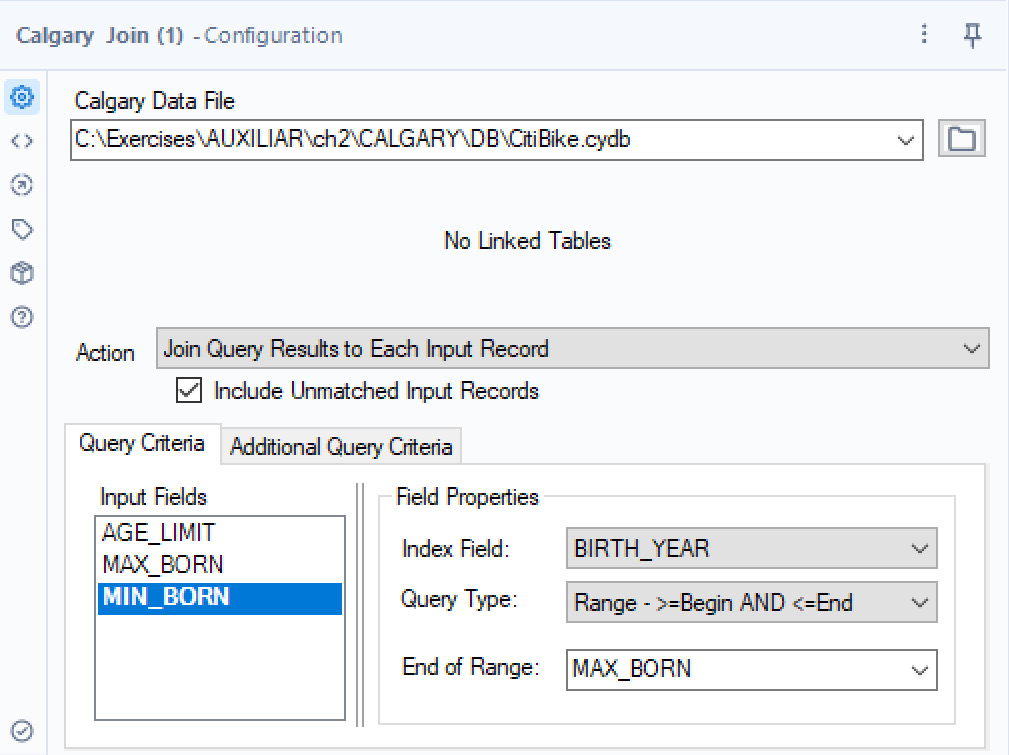
  1. Connect a Calgary Join tool to the Text Input tool and point Calgary Data File to CitiBike.cydb.
  2. Select Join Query Results to Each Input Record for the Action option.
  3. Click on the MIN_BORN input field and select BIRTH_YEAR for Index Field, Range - >=Begin AND <=End for Query Type, and MAX_BORN for End of Range, as in the screenshot here:
Figure 2.25: Calgary Join configured

Figure 2.25: Calgary Join configured

If you run the workflow, you’ll see that you’ll get the same records as we got using the static query with the Calgary Input tool.

How it works…

Calgary is a proprietary format developed by Alteryx that provides very high compression and very fast reading performance and indexing, making it ideal to work with huge amounts of data for lookups.

We recommend always enriching your data as much as you can before creating a Calgary file (very similar to what you’ll do when you create a multidimensional cube). For example, given the use case we used in this recipe, we’ll probably add the age of each person in the Calgary database when creating it, so we can use the Calgary Join tool directly on the AGE input.

The Calgary Input tool is very straightforward, allowing you to build queries in a simple way and retrieve the results very fast.

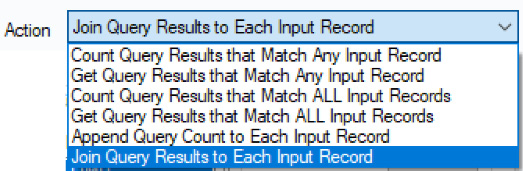
The Calgary Join tool is more complex and provides lots of options to query the data based on incoming/existing data streams, multiple indices, and several actions.

Figure 2.26: Calgary Join actions

Figure 2.26: Calgary Join actions

Important note

You can’t append records to a Calgary database, you need to re-create it.

There’s more…

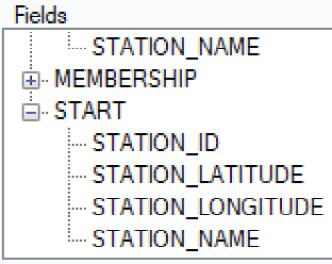
As you already may have noticed, the Calgary Input tool organizes the fields based on their names, so for example, for all the fields starting with START_ or END_, it created a group that has all the fields starting with START_ or END_ in it (such as START_STATION_ID or START_STATION_NAME).

Figure 2.27: Fields grouped by prefix

Figure 2.27: Fields grouped by prefix

It is good practice to add a prefix to your fields to have them organized.

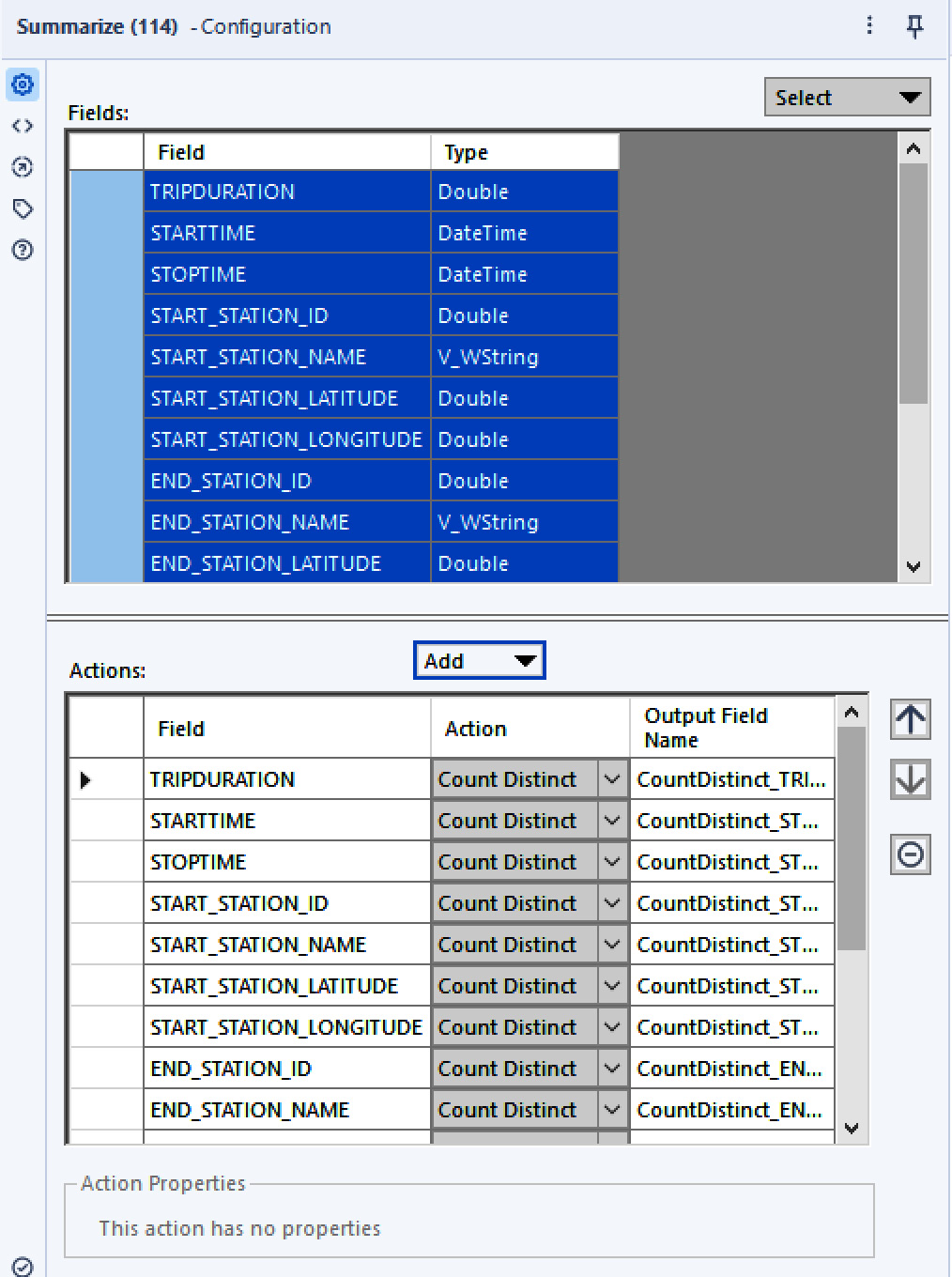
Since Alteryx looks at the first million records to select the index type when set to Auto, it might select the incorrect type for your dataset. It’s a good practice to analyze your data first and determine the selectivity of each index, based on the number of different values each data field might have. This can be easily achieved using a Summarize tool configured to perform a Count Distinct action on each field to be indexed.

Figure 2.28: Count Distinct on each field to Index

Figure 2.28: Count Distinct on each field to Index

The rules of thumb for this selection are as follows:

  • If your field has many possible values (more than 550), use High Selectivity (for example, BIKE_ID)
  • If your field has fewer unique values (less than 550), use Low Selectivity (for example, GENDER)

Doing this will also reduce the time Alteryx Designer needs to analyze your data (1 million records per index) and create the indices.

Finally, another good practice, that’ll make your work easier is adding flags or identifiers to the data before loading a Calgary database, such as a CURRENT_PERIOD field to easily query all records corresponding to the current period, or a SAME_PERIOD_LAST_YEAR field to get all the records corresponding to a particular period, but from last year.

You can also read Calgary files with a regular Input Data tool, but can’t take advantage of the indices (so the Calgary files will behave like a .yxdb file).

CONTINUE READING
83
Tech Concepts
36
Programming languages
73
Tech Tools
Icon Unlimited access to the largest independent learning library in tech of over 8,000 expert-authored tech books and videos.
Icon Innovative learning tools, including AI book assistants, code context explainers, and text-to-speech.
Icon 50+ new titles added per month and exclusive early access to books as they are being written.
Alteryx Designer Cookbook
notes
bookmark Notes and Bookmarks search Search in title playlist Add to playlist download Download options font-size Font size

Change the font size

margin-width Margin width

Change margin width

day-mode Day/Sepia/Night Modes

Change background colour

Close icon Search
Country selected

Close icon Your notes and bookmarks

Confirmation

Modal Close icon
claim successful

Buy this book with your credits?

Modal Close icon
Are you sure you want to buy this book with one of your credits?
Close
YES, BUY

Submit Your Feedback

Modal Close icon
Modal Close icon
Modal Close icon