-
Book Overview & Buying
-
Table Of Contents
QGIS By Example
By :
QGIS is a free and open source desktop GIS on which development began in 2002. Since 2007, the project has been developing under the umbrella of the Open Source Geospatial Foundation (OSGeo). A relatively young project, QGIS is gaining more and more popularity among individual users, private companies, and organizations all over the world due to the following reasons:
You can find more information about QGIS from its official website at http://qgis.org/ and its documentation chapter available at http://documentation.qgis.org/.
According to the release schedule of the QGIS project, a new version of QGIS is available every 4 months. Starting from QGIS 2.8, every third release has been a long-term release (LTR). It is maintained for a year, and then the next LTR occurs. Throughout this book, an LTR of QGIS 2.8 called "Wein" is used.
Installers for the current QGIS version are available for different operating systems from the download page of the official website at http://download.qgis.org. The 32-bit and 64-bit installation files for MS Windows are distributed as follows:
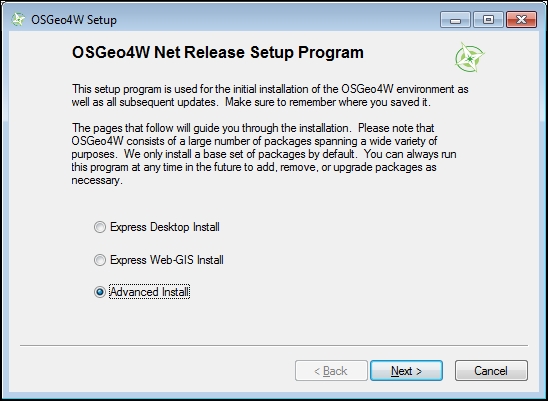
Let's go through the installation procedure of QGIS and its components with the OSGeo4W installer in the example of the latest 32-bit version. Since the installation (especially primary) requires downloading a large number of files, it is desirable to have a high-speed Internet connection. The installation procedure is as follows:
osgeo4w-setup-x86.exe to run the installation.
C:\OSGeo4W is a usual and convenient choice. If you want to use another directory, give it a proper name with a short path, excluding spaces and special symbols.C:\OSGeo4W\Downloads, by typing in its name manually. Keep in mind that the volume of files to be downloaded is about 200 MB and you will need enough space to keep them all.

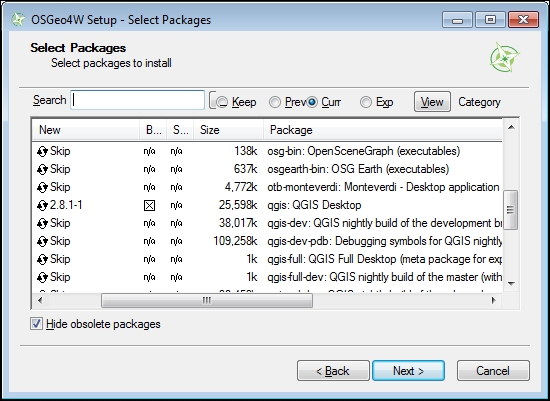
You can also install qgis-dev: QGIS nightly build of the master. Being under constant development, this version is considered unstable and is updated nightly. It is not recommended for workaday use, but is useful if you want to have a try at some new features and give feedback to developers.
After the installation completes, you will find the OSGeo4W group in the Start menu, with the following components:
If you want to update QGIS or expand the current installation with some new components, simply click on the Setup shortcut from the OSGeo4W menu folder and run the Advanced installation procedure. The installer will check for available updates and necessary dependencies, download them, and install them.
Change the font size
Change margin width
Change background colour