-
Book Overview & Buying
-
Table Of Contents
Java FX 8 Essentials
By :
So far, we have had a good introduction to JavaFX and I am as eager as you to start creating and launching our first "Hello JavaFX 8" application. But this can't happen without downloading and installing the right tools that will allow us to create and compile most of the book's code.
You'll need to download and install Java 8 Java Development Kit (JDK) or a later version. Not the runtime version (JRE).
Download the latest Java SE 8u45 JDK or higher from the following location:
http://www.oracle.com/technetwork/java/javase/downloads/index.html
Download and install NetBeans 8.0.2 or higher from the following link https://netbeans.org/downloads, though the NetBeans IDE All Bundle is recommended, you can use the Java EE bundle as well, as shown in the figure:

NetBeans bundles download.
Currently, JavaFX 8 runs on the following operating systems:
The steps outlined in this section will guide you to successfully download and install Java SE 8. Download the Java SE 8 JDK from the following location:
http://www.oracle.com/technetwork/java/javase/downloads/jdk8-downloads-2133151.html
In the following steps, the Java SE 8u45 JDK 64-bit version (at the time of writing) on the Mac OS X Yosemite (10.10.3) operating system will be used as an example.
The steps are similar on other operating systems and JDK versions. However, if your environment is different, refer to the following link for additional details:
http://docs.oracle.com/javase/8/docs/technotes/guides/install/toc.html
The following are steps to install the Java SE 8 JDK:
jdk-8u45-macosx-x64.dmg. A screen will appear that looks like the following screenshot once you've launched the JDK 8 setup image file. That's the package setup file. Double-click on it and the installer will launch:
JDK 8 setup image file
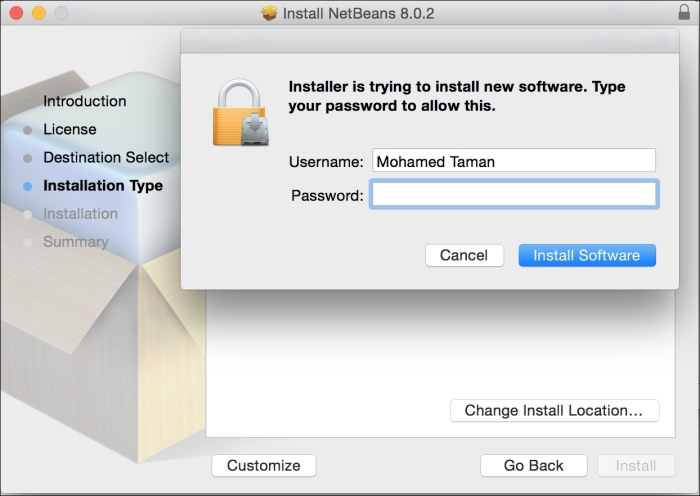
Typically, you will need administrator rights on the machine to install the software.

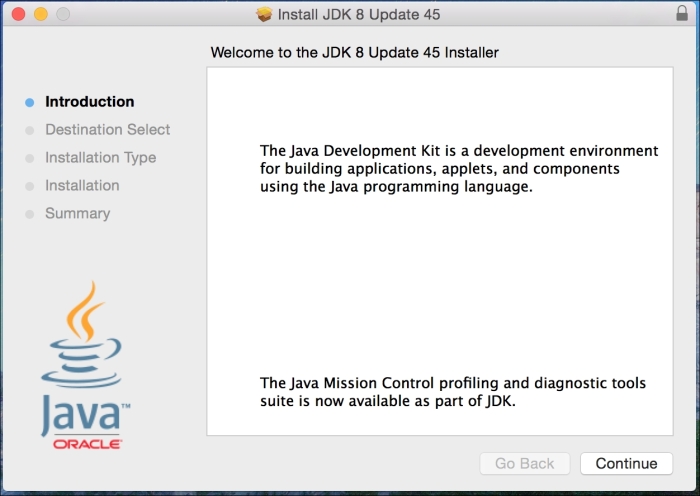
Java SE Development Kit 8 setup

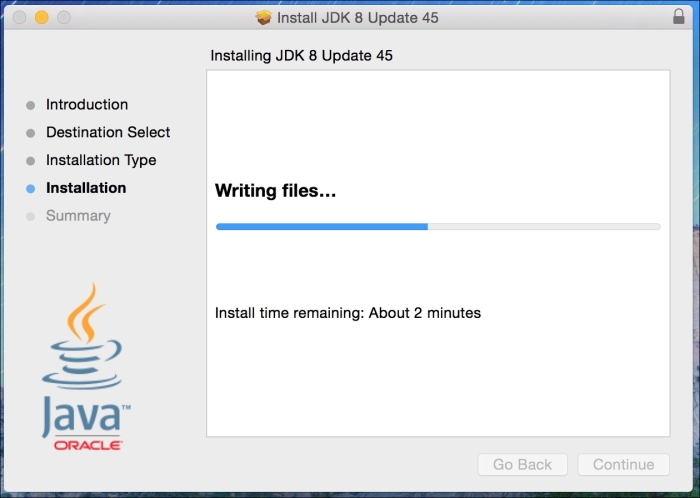
Java SE Development Kit 8 installation in progress
Now you need to set a couple of key environment variables. How you set them and the values they should be set to vary depending on your operating system. The two variables to be set are:
JAVA_HOME home directory.To make JAVA_HOME and PATH more permanent, you will want to add them to your system in such a way that they are always made available whenever you boot or log in. Depending on your operating system, you will need to be able to edit environment variable names and values.
In the Windows environment, you can use the keyboard shortcut Windows logo key + Pause/Break key and then click on Advanced system settings to display the Systems Property dialog.
Next, click on Environment Variables. This is where you can add, edit, and delete environment variables. You will add or edit the JAVA_HOME environment variable by using the installed home directory as the value. Shown in this screenshot is the Environment Variables dialog on the Windows operating system:

Windows Environment Variables
Let's set the environment variables:
JAVA_HOME environment variable for the Mac OS X platform, you will need to launch a terminal window to edit your home directory's .bash_profile file by adding the following export command:export JAVA_HOME=$(/usr/libexec/java_home -v 1.8)
~/.bashrc or ~/.profile file to contain the export commands:export JAVA_HOME=/usr/java/jdk1.8.0 export PATH=$PATH:$JAVA_HOME/bin
C shell (csh) environments, launch a terminal window and edit either the ~/.cshrc or ~/.login file to contain the setenv commands:setenv JAVA_HOME /usr/java/jdk1.8.0_45 setenv PATH ${JAVA_HOME}/bin:${PATH}
Once you've set up your path and the JAVA_HOME environment variables, you will want to verify your setup by launching a terminal window and executing the following two commands from the command prompt:
java -version javac –version
The output in each case should display a message indicating the Java SE 8 version of the language and runtime.
When developing JavaFX applications, you will be using the NetBeans IDE (or any other IDE of your preference). Be sure to download the correct NetBeans version containing JavaFX. To install the NetBeans IDE, follow these steps:
.dmg image file netbeans-8.0.2-macosx.dmg. The image will be verified and a folder containing the installer package archive, netbeans-8.0.2.pkg, will open; double-click on it to launch the installer. A dialog box will appear with the message: This package will run a program to determine if the software can be installed. Click on the Continue button.
The Mac Security Warning dialog

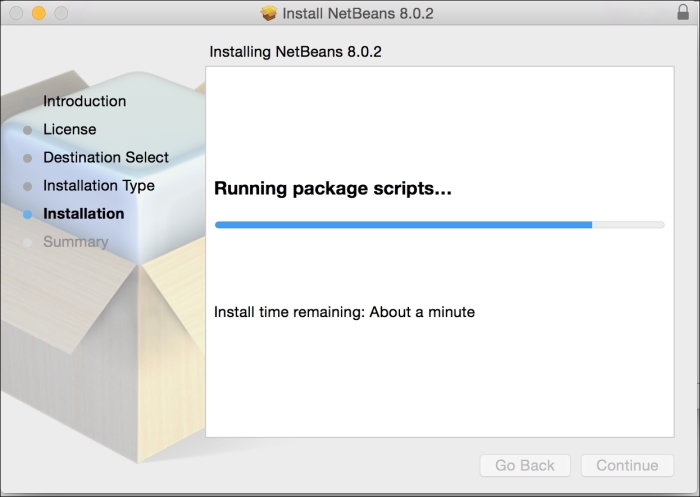
Installation progress

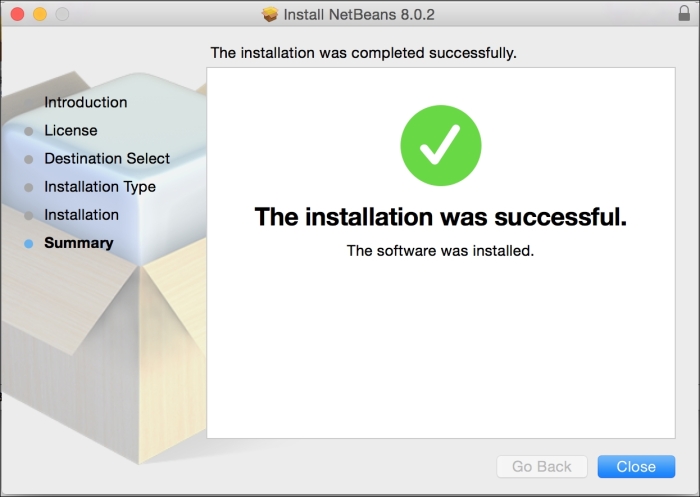
Setup complete
Now you are ready to move on and create JavaFX applications.
Change the font size
Change margin width
Change background colour