Sign In Start Free Trial
Account

Add to playlist

Create a Playlist

Modal Close icon
You need to login to use this feature.
  • Book Overview & Buying Programming ArcGIS with Python Cookbook, Second Edition
  • Table Of Contents Toc
  • Feedback & Rating feedback
Programming ArcGIS with Python Cookbook, Second Edition

Programming ArcGIS with Python Cookbook, Second Edition

By : Eric Pimpler
3.6 (8)
close
close
Programming ArcGIS with Python Cookbook, Second Edition

Programming ArcGIS with Python Cookbook, Second Edition

3.6 (8)
By: Eric Pimpler

Overview of this book

The book kicks off with the fundamentals of starting to use Python with ArcGIS, followed by recipes on managing map documents and layers, including how to find and fix broken data links in these files. In the second part of the book, you will learn to create custom geoprocessing tools and how to use the Attribute and Location tools to select specific features. The third part of the book covers topics for advanced users including the REST API, and also teaches you how to use Python with ArcGIS Pro. The book finishes with appendices covering how to automate Python scripts, and the five things that should be at the back of every GIS programmer's mind.
Table of Contents (17 chapters)
close
close
16
Index

Using IDLE for Python script development

As mentioned in the preface, when you install ArcGIS for Desktop, Python is also installed along with a tool called IDLE that allows you to write your own code. IDLE stands for Integrated DeveLopment Environment. Since it is available with every ArcGIS for Desktop installation, we'll use IDLE for many of the scripts that we write in this book along with the Python window embedded in ArcGIS for Desktop. As you progress as a programmer, you may find other development tools that you prefer over IDLE. There are many other development environments that you may want to consider, including PyScripter, Wingware, Komodo, and others. The development environment you choose is really a matter of preference. You can write your code in any of these tools.

The Python shell window

To start the IDLE development environment for Python, you can navigate to Start | All Programs | ArcGIS | Python 2.7 | IDLE. Please note that the version of Python installed with ArcGIS will differ depending upon the ArcGIS version that you have installed. For example, ArcGIS 10.3 uses Python 2.7, whereas ArcGIS 10.0 uses version 2.6 of Python.

A Python shell window similar to this screenshot will be displayed:

The Python shell window

The Python shell window is used for output and error messages generated by scripts. A common mistake for beginners is to assume that the geoprocessing scripts will be written in this shell window. This is not the case. You will need to create a separate code window to hold your scripts.

Although the shell window isn't used to write entire scripts, it can be used to interactively write code and get immediate feedback. ArcGIS has a built-in Python shell window that you can use in a similar way. We'll examine the ArcGIS Python window in the next chapter.

The Python script window

Your scripts will be written in IDLE inside a separate window known as the Python script window. To create a new code window, navigate to File | New Window from the IDLE shell window. A window similar to this will be displayed:

The Python script window

Your Python scripts will be written inside this new code window. Each script will need to be saved to a local or network drive. By default, scripts are saved with a .py file extension to signify that it is a Python script.

Editing existing Python scripts

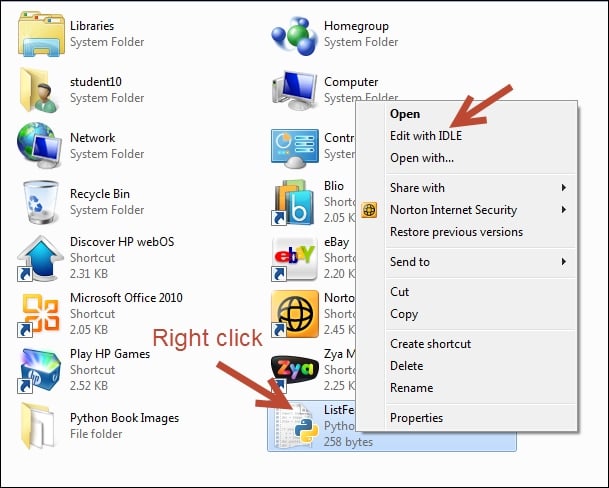
Existing Python script files can be opened by selecting File | Open from the IDLE shell window. Additionally, a Python script can be opened from Windows Explorer by right-clicking on the file and selecting Edit with IDLE, which brings up a new shell window along with the script loaded in the Python script editor. You can see an example of this in the following screenshot:

Editing existing Python scripts

In this instance, we have loaded the ListFeatureClasses.py script with IDLE. The code is loaded inside the script window:

Editing existing Python scripts

Now that the code window is open, you can begin writing or editing code. You can also perform some basic script debugging with the IDLE interface. Debugging is the process of identifying and fixing errors in your code.

Executing scripts from IDLE

Once you've written a geoprocessing script in the IDLE code window or opened an existing script, you can execute the code from the interface. IDLE does provide functionality that allows you to check the syntax of your code before running the script. In the code window, navigate to Run | Check Module to perform a syntax check of your code.

Any syntax errors will be displayed in the shell window. If there aren't any syntax errors, you should just see the prompt in the shell window. While the IDLE interface can be used to check for syntax errors, it doesn't provide a way to check for logical errors in your code nor does it provide more advanced debugging tools found in other development environments, such as PyScripter or Wingware.

Once you're satisfied that no syntax errors exist in your code, you can run the script. Navigate to Run | Run Module to execute the script:

Executing scripts from IDLE

Any error messages will be written to the shell window along with the output from the print statements and system-generated messages. The print statement simply outputs text to the shell window. It is often used to update the status of a running script or to debug the code.

Visually different images
CONTINUE READING
83
Tech Concepts
36
Programming languages
73
Tech Tools
Icon Unlimited access to the largest independent learning library in tech of over 8,000 expert-authored tech books and videos.
Icon Innovative learning tools, including AI book assistants, code context explainers, and text-to-speech.
Icon 50+ new titles added per month and exclusive early access to books as they are being written.
Programming ArcGIS with Python Cookbook, Second Edition
notes
bookmark Notes and Bookmarks search Search in title playlist Add to playlist font-size Font size

Change the font size

margin-width Margin width

Change margin width

day-mode Day/Sepia/Night Modes

Change background colour

Close icon Search
Country selected

Close icon Your notes and bookmarks

Confirmation

Modal Close icon
claim successful

Buy this book with your credits?

Modal Close icon
Are you sure you want to buy this book with one of your credits?
Close
YES, BUY

Submit Your Feedback

Modal Close icon
Modal Close icon
Modal Close icon