Sign In Start Free Trial
Account

Add to playlist

Create a Playlist

Modal Close icon
You need to login to use this feature.
  • Book Overview & Buying Angular Projects
  • Table Of Contents Toc
Angular Projects

Angular Projects - Fourth Edition

By : Aristeidis Bampakos
close
close
Angular Projects

Angular Projects

By: Aristeidis Bampakos

Overview of this book

Angular has evolved toward faster delivery, server rendering, and an enhanced developer experience. This book shows what that looks like in practice. Each project reflects how real teams work: forms, routing, data, and the small choices that make an app feel finished. You will build with just enough tech to matter: signals, template-driven and reactive forms; PrimeNG, Angular Material, and Telerik UI; Google Maps; drag-and-drop; and desktop features. You will also wire up backend NestJS with MongoDB, Firebase services, and email notifications, then improve delivery with SSR and SSG and focused Core Web Vitals improvements. Guided by Aristeidis Bampakos, a Google Developer Expert for Angular and an experienced team lead, you will learn practical patterns you can apply right from the get-go. By the end, you will not just “know” Angular. You will think like a front-end engineer who can deliver, portfolio in hand, job-ready and confident to level up in your current role.
Table of Contents (14 chapters)
close
close
12
Other Books You May Enjoy
13
Index

Interacting with GitHub Copilot

The latest version of VS Code includes a built-in integration of GitHub Copilot. We will learn how to use Copilot as an AI pair programmer and develop Angular applications in the following ways:

  • Smarter by providing instructions with Angular best practices in mind
  • Faster by building different parts of the Angular application using prompts

In the following sections, we will explore both concepts as we continue to develop our Angular application.

Customizing instructions

AI agents use instructions to define a working context and operate within specific boundaries. Instructions define the role and capabilities of the agent in the current context. The Angular CLI created an instructions file for Copilot while creating the application:

  1. Open VS Code and select File | Open Folder… from the main menu.
  2. Navigate to the my‑app folder and select it. VS Code will load the associated Angular CLI project.
  3. Expand the .github folder and select the copilot‑instructions.md file. The Markdown file contains instructions that help Copilot understand Angular.
  4. The top of the file defines the role of the AI agent:
    You are an expert in TypeScript, Angular, and scalable web application development. You write functional, maintainable, performant, and accessible code following Angular and TypeScript best practices.
  5. Each heading in the file represents a different capability of the agent. For example, the agent should adhere to the following TypeScript best practices:
    ## TypeScript Best Practices
    
    - Use strict type checking
    - Prefer type inference when the type is obvious
    - Avoid the `any` type; use `unknown` when type is uncertain
  6. We can customize the instructions file according to our needs. Add the following in the State Management heading:
    - Define signal properties as `readonly`

    The preceding instruction will guide Copilot to declare signals with the readonly keyword.

The Markdown format of the instructions file makes it accessible to all developers. You now understand how easy it is to extend it and share it with other members of your development team. In the following section, we will learn how Copilot uses instructions to interact with our Angular application.

Developing with prompts

GitHub Copilot is pre-installed and enabled by default in the latest version of VS Code. It opens automatically in the CHAT side panel when we load an Angular application.

If the panel is not opened, you can use the Toggle Chat button in the top bar near the search input.

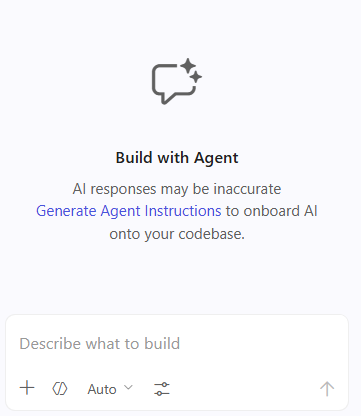
The CHAT panel features a welcome screen and an input box that allows us to interact with Copilot using prompts:

Figure 1.1 – GitHub Copilot

Figure 1.1 – GitHub Copilot

First, we will use Copilot to refactor the existing code base of the Angular application.

AI agents are not deterministic, which means their responses may vary in every run. The steps that you will follow in this section may result in a different output than the one described in the section.

We will create a new property in the App component class for chapter titles:

  1. Enter the following phrase in the input box of Copilot and click the Send button:
    Create a signal in the App component for storing the chapter title with the following value: Chapter 1: Angular AI Kick-Starter.
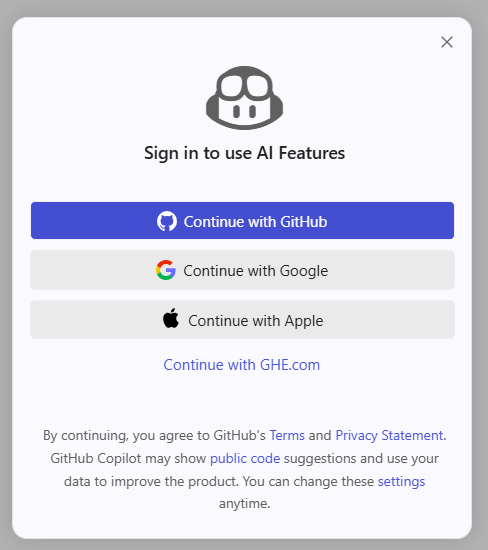
  2. You must sign in to Copilot before starting to interact with it. Select a sign-in method in the following dialog:
    Figure 1.2 – Sign in to use GitHub Copilot

    Figure 1.2 – Sign in to use GitHub Copilot

    After the sign-in process is complete, Copilot creates a chapterTitle property in the App component class.

  3. Copilot follows up on our prompt with a suggestion to update the chapter title in the component template.

    Enter the following prompt:

    Update the title in the template according to the chapter title.

    Copilot changes the line in the template file that displayed the title property to the following:

    <h1>{{ chapterTitle() }}</h1>
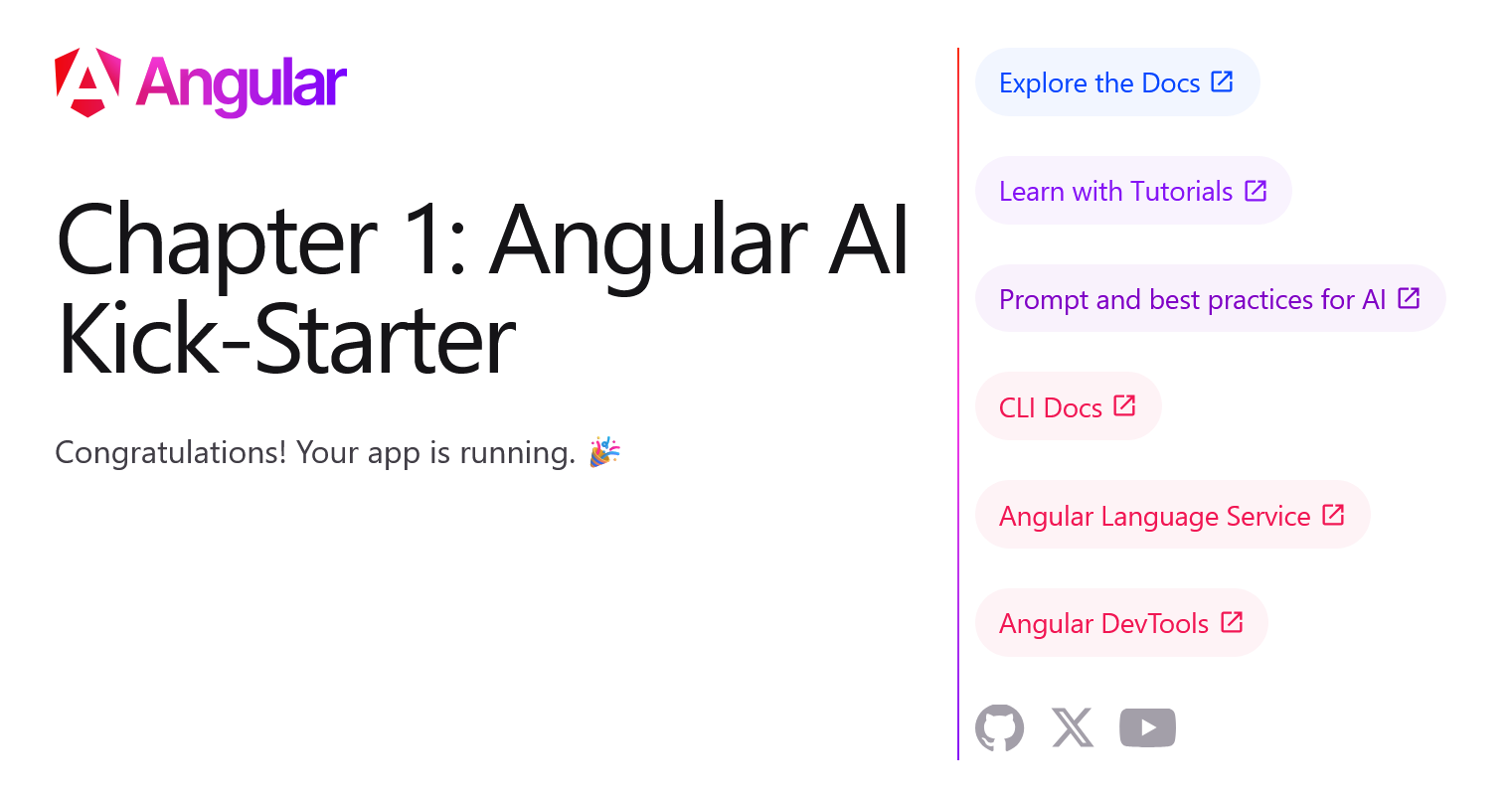
  4. Run the application using the ng serve command and navigate to localhost:4200:
    Εικόνα που περιέχει κείμενο, στιγμιότυπο οθόνης, γραμματοσειρά, σχεδίαση

Το περιεχόμενο που δημιουργείται από AI ενδέχεται να είναι εσφαλμένο.

    Figure 1.3 – Application output

You have learned how to refactor an existing Angular application without needing to interact with the code. Copilot did all the required work using prompts.

We can use Copilot for more complicated tasks, such as creating new components and services:

  1. Click the plus button located in the header of the CHAT panel to create a new Copilot session.
  2. Enter the following prompt in the input box:
    Create a component responsible for displaying the chapter title and use it in the App component.

    The previous prompt will create a new component based on the Components best practices from the instructions file.

  3. The new component passes the value of the chapterTitle property using an input signal. Examine the browser to verify that the application output is still the same.

You now understand how much faster it is to develop Angular applications with Copilot. We learned how to create a component without using the Angular CLI. You can use the same process to generate different parts of an Angular application, such as services and directives.

CONTINUE READING
83
Tech Concepts
36
Programming languages
73
Tech Tools
Icon Unlimited access to the largest independent learning library in tech of over 8,000 expert-authored tech books and videos.
Icon Innovative learning tools, including AI book assistants, code context explainers, and text-to-speech.
Icon 50+ new titles added per month and exclusive early access to books as they are being written.
Angular Projects
notes
bookmark Notes and Bookmarks search Search in title playlist Add to playlist download Download options font-size Font size

Change the font size

margin-width Margin width

Change margin width

day-mode Day/Sepia/Night Modes

Change background colour

Close icon Search
Country selected

Close icon Your notes and bookmarks

Confirmation

Modal Close icon
claim successful

Buy this book with your credits?

Modal Close icon
Are you sure you want to buy this book with one of your credits?
Close
YES, BUY

Submit Your Feedback

Modal Close icon
Modal Close icon
Modal Close icon