Sign In Start Free Trial
Account

Add to playlist

Create a Playlist

Modal Close icon
You need to login to use this feature.
  • Book Overview & Buying Bare-Metal Embedded C Programming
  • Table Of Contents Toc
  • Feedback & Rating feedback
Bare-Metal Embedded C Programming

Bare-Metal Embedded C Programming

By : Israel Gbati
5 (2)
close
close
Bare-Metal Embedded C Programming

Bare-Metal Embedded C Programming

5 (2)
By: Israel Gbati

Overview of this book

Bare-Metal Embedded C Programming takes you on an unparalleled journey to equip you with the skills and knowledge to excel in the world of embedded systems. The author, with over a decade of hands-on experience in engineering, takes a unique, practical approach to teach you how to decode microcontroller datasheets so that you’re able to extract vital information for precise firmware development. Register manipulation will become second nature to you as you learn to craft optimized code from scratch. The book provides in-depth insights into the hardware intricacies of microcontrollers. You'll navigate user manuals and documentation with ease, ensuring a profound understanding of the underlying technology. The true uniqueness of this book lies in its commitment to fostering independent expertise. Instead of simply copy pasting, you'll develop the capability to create firmware with confidence, paving the way for professional-grade mastery. By the end of this book, you'll have honed your skills in reading datasheets, performing register manipulations, and crafting optimized code, as well as gained the confidence needed to navigate hardware intricacies and write optimized firmware independently, making you a proficient and self-reliant embedded systems developer.
Table of Contents (22 chapters)
close
close

Essential development tools for microcontrollers

In this section, we will explore the essential tools that form the backbone of our development process. Understanding these tools is important, as they will be our companions in transforming ideas into functioning firmware.

When selecting tools for firmware development, we have two primary options.

  • IDEs: An IDE is a unified software application offering a Graphical User Interface (GUI) tailored to crafting software – in our context, firmware. Popular IDEs for microcontroller firmware development include the following:
  • Keil uVision (also known as Keil MDK): Developed by ARM Holdings
  • STM32CubeIDE: Developed by STMicroelectronics
  • IAR Embedded Workbench: Developed by IAR Systems

    These IDEs boast a GUI-centric design, enabling users to conveniently create new files, build, compile, and step through code lines interactively. For the demonstrations and exercises in this book, we’ll use the STM32CubeIDE. It has all the requisite features and is generously available for free, without any code size constraints.

  • Toolchains: At its core, a toolchain is a cohesive set of development tools, sequenced in distinct stages, to produce the final firmware build for the target microcontroller. This approach bypasses the comfort of a GUI. Instead, firmware is written using basic text editors such as Notepad or Notepad++, with the command line used to execute the various phases of the build process –commands such as assemble, compile, and link are often used. In this book, we’ll use the open source GNU Arm Embedded Toolchain. Based on the renowned open source GNU Compiler Collection (GCC), this integrates a GCC compiler tailored for ARM, the GNU Debugger (GDB) debugger, and several other invaluable utilities.

In the following section, we will carefully go through the process of setting up our preferred IDE, the STM32CubeIDE.

Setting up the STM32CubeIDE

Throughout this book, we’ll use both the STM32CubeIDE and the GNU Arm Embedded Toolchain to develop our firmware. Leveraging an IDE such as STM32CubeIDE enables us to easily analyze and compare the linker script and startup files, autogenerated by the IDE, against those we’ll construct from the ground up.

Let’s start by downloading and installing STM32CubeIDE:

  1. Launch your web browser and navigate to st.com.
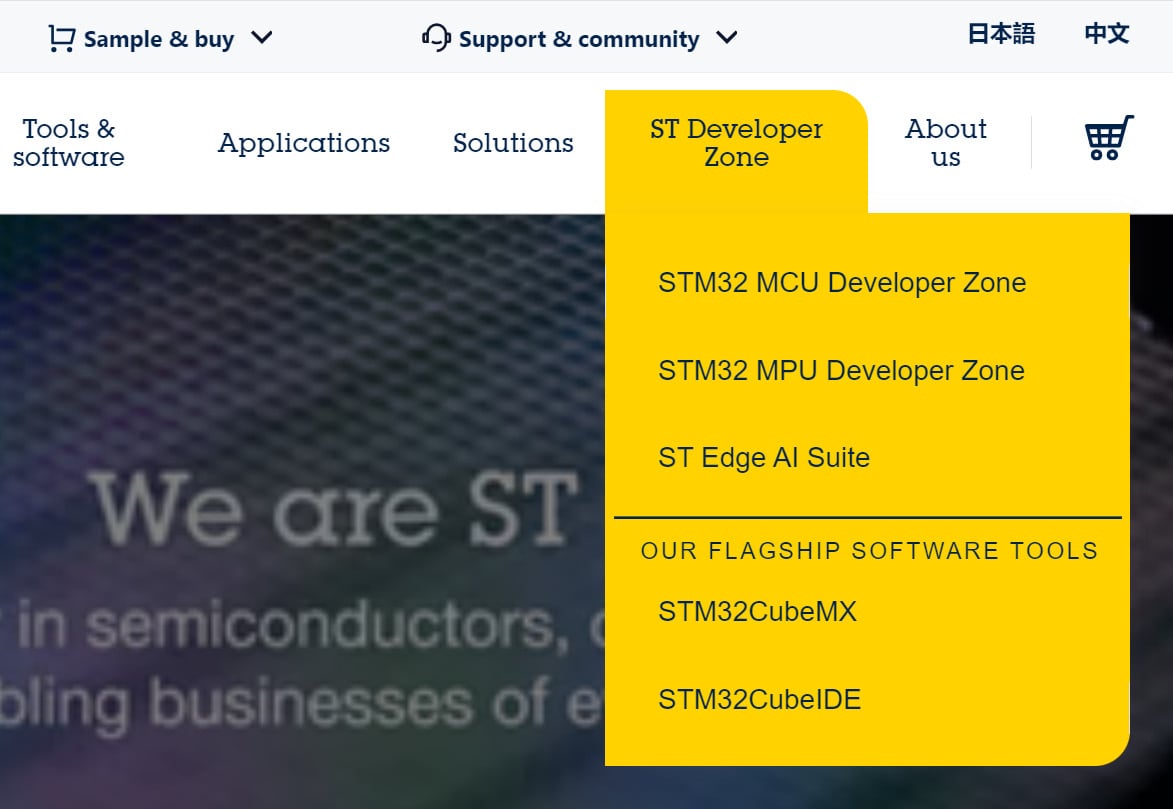
  2. Click on STM32 Developer Zone, and then select STM32CubeIDE.
Figure 1.1: The home page of st.com

Figure 1.1: The home page of st.com

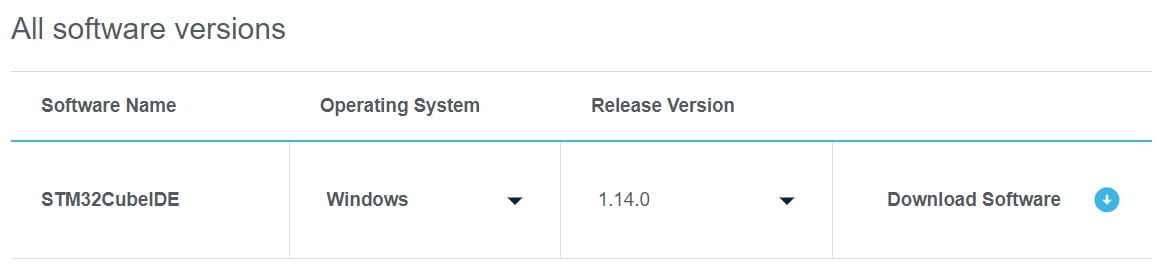
  1. Scroll down to the All software versions section of the page and click on Download Software. You’ll need to log into your ST account before proceeding with the download.
Figure 1.2: The All software versions section of the stm32cubeide page

Figure 1.2: The All software versions section of the stm32cubeide page

  1. If you don’t have an account, click on Login/Register to sign up. If you already have one, simply log in.
  2. Complete the registration form with your first name, last name, and email address.
  3. Click on Download to start the download process. A .zip file will be downloaded into your Downloads folder.

Let’s install the STM32CubeIDE:

  1. Unzip the downloaded package.
  2. Double-click the st-stm32cubeide file to initiate the installer.
  3. Retain default settings by clicking Next throughout the setup process.
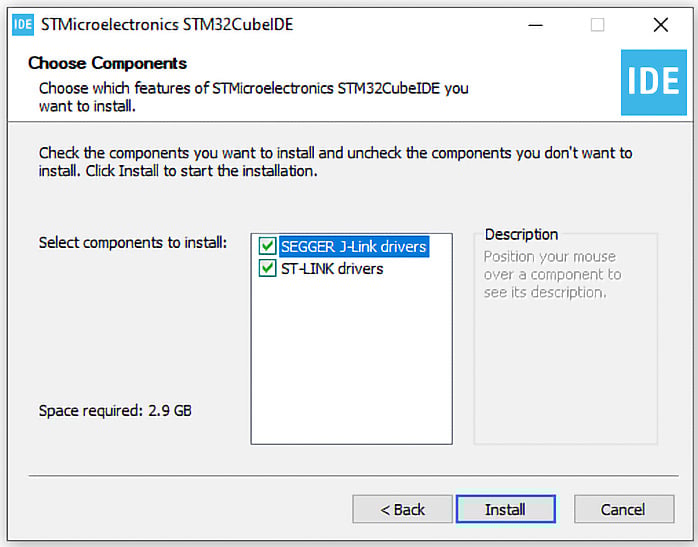
  4. On the Choose Components page, ensure that both SEGGER J-Link drivers and ST-LINK drivers are selected. Then, click Install.
Figure 1.3: The installer showing the Choose Components page

Figure 1.3: The installer showing the Choose Components page

Having successfully installed STM32CubeIDE on our computer, we will now proceed to configure our alternate development tool, the GNU Arm Embedded Toolchain.

Setting up the GNU Arm Embedded Toolchain

In this section, we will go through the process of setting up the GNU Arm Embedded Toolchain – an important tool for developing firmware for ARM-based microcontrollers:

  1. Launch your web browser and navigate to https://developer.arm.com/downloads/-/gnu-rm.
  2. Scroll down the page to find the download link appropriate for your operating system. For those of you using Windows, like myself, opt for the .exe version. For Linux or macOS users, choose the corresponding .tar file for your operating system.
  3. After the download completes, double-click the installer to begin the installation process.
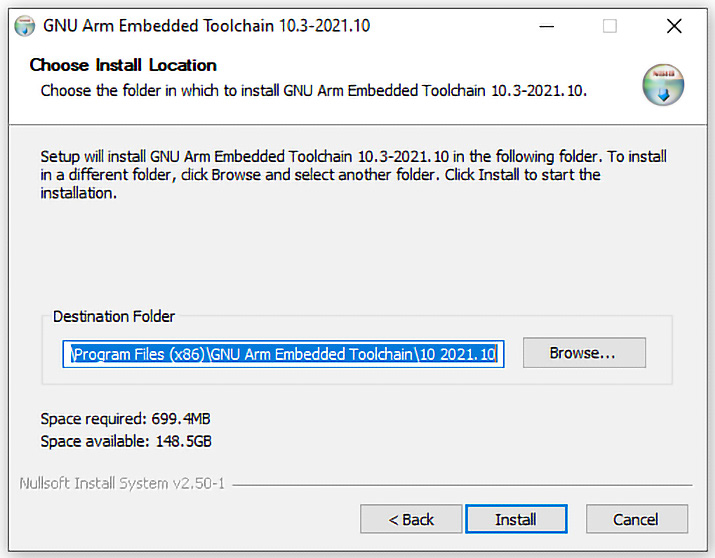
  4. Read through the license agreement. Then, choose to install in the default folder location by clicking Install.
Figure 1.4: The GNU Arm Embedded Toolchain installer

Figure 1.4: The GNU Arm Embedded Toolchain installer

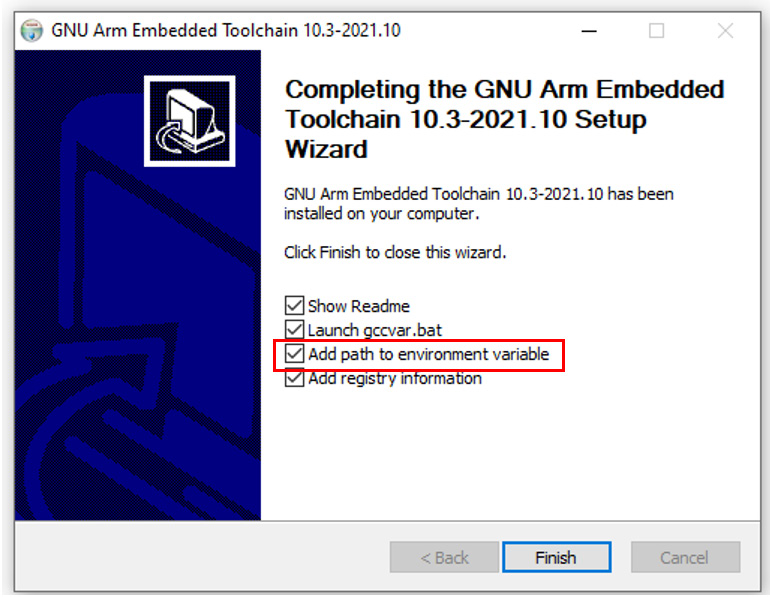
  1. When the installation is complete, ensure that you check the Add path to environment variable option.

Figure 1.5: The installer showing the Add path to environment variable option

Figure 1.5: The installer showing the Add path to environment variable option

  1. Click Finish to finalize the setup.

Setting up OpenOCD

For firmware development with the GNU Arm Toolchain, OpenOCD plays an integral role, facilitating both the downloading of firmware into our microcontroller and the debugging of code in real time.

Let’s set up OpenOCD:

  1. Launch your web browser and navigate to https://openocd.org/pages/getting-openocd.html.
  2. Scroll to the section titled Unofficial binary packages.
  3. Click on the link for multiplatform binaries.
Figure 1.6: The Unofficial binary packages section

Figure 1.6: The Unofficial binary packages section

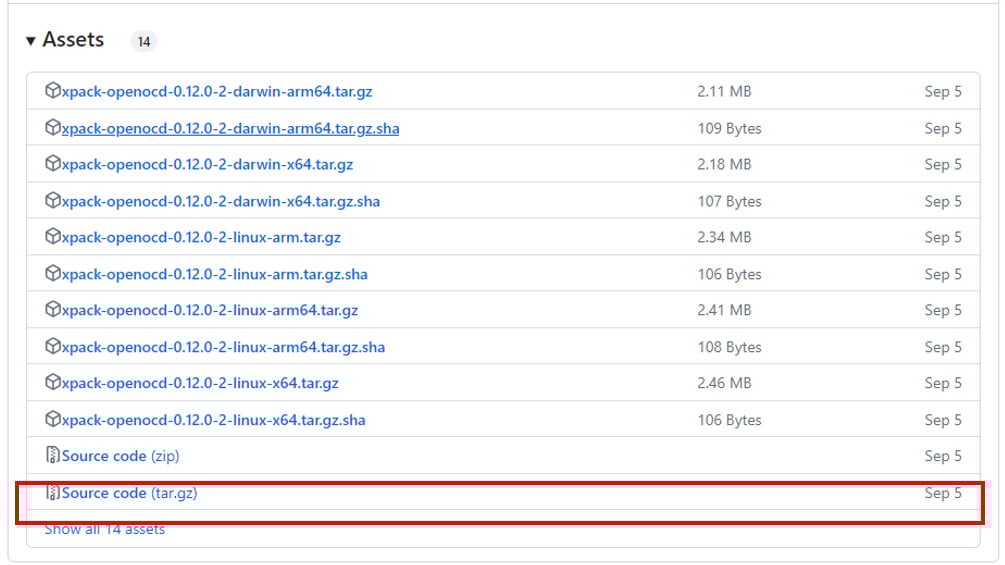
  1. Identify the latest version compatible with your operating system. For an exhaustive list, click on Show all 14 assets.
Figure 1.7: The OpenOCD packages

Figure 1.7: The OpenOCD packages

  1. For Windows users, download the win32-x64.zip version. For Linux or macOS users, download the corresponding .tar file for your operating system.
  2. Once downloaded, unzip the package.
  3. Navigate to the extracted folder, and then the bin subfolder. Here, you’ll find the openocd.exe application. This is the application we shall call in the command prompt together with the specific script of our chosen microcontroller, in order to debug or download code onto the microcontroller.

Within the xpack-openocd-0.12.0-2 | openocd | scripts directory structure, you’ll find scripts tailored for various microcontrollers and development boards.

Next, we need to add OpenOCD to our environment variables:

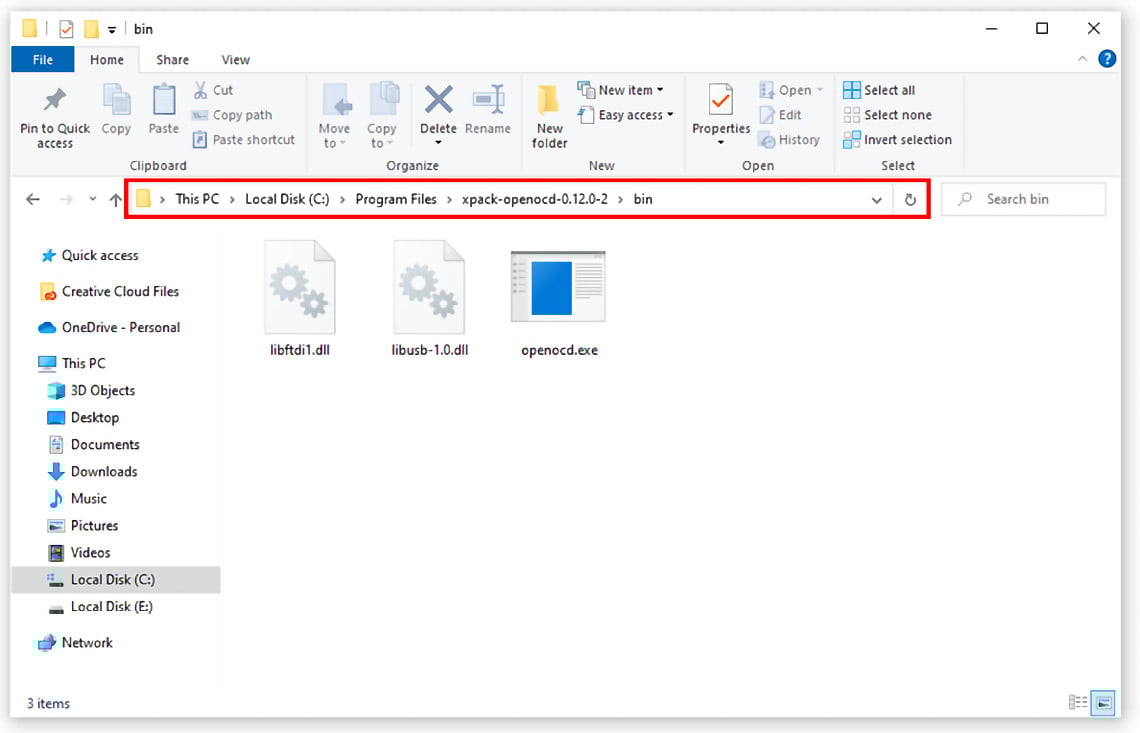
  1. Begin by relocating the entire openocd folder to your Program Files directory.
Figure 1.8: OpenOCD moved to Program Files, showing the path to the bin folder

Figure 1.8: OpenOCD moved to Program Files, showing the path to the bin folder

  1. Copy the path to the openocd bin folder.
  2. Right-click on This PC, and then choose Properties.
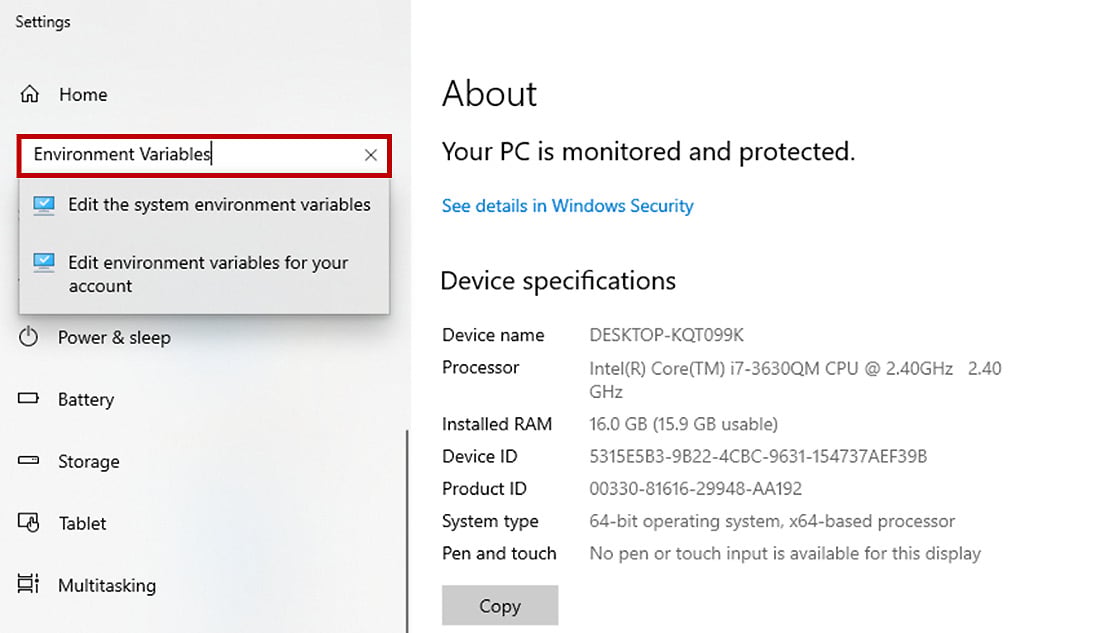
  3. Search for and select Edit the system environment variables.
Figure 1.9: The This PC properties page

Figure 1.9: The This PC properties page

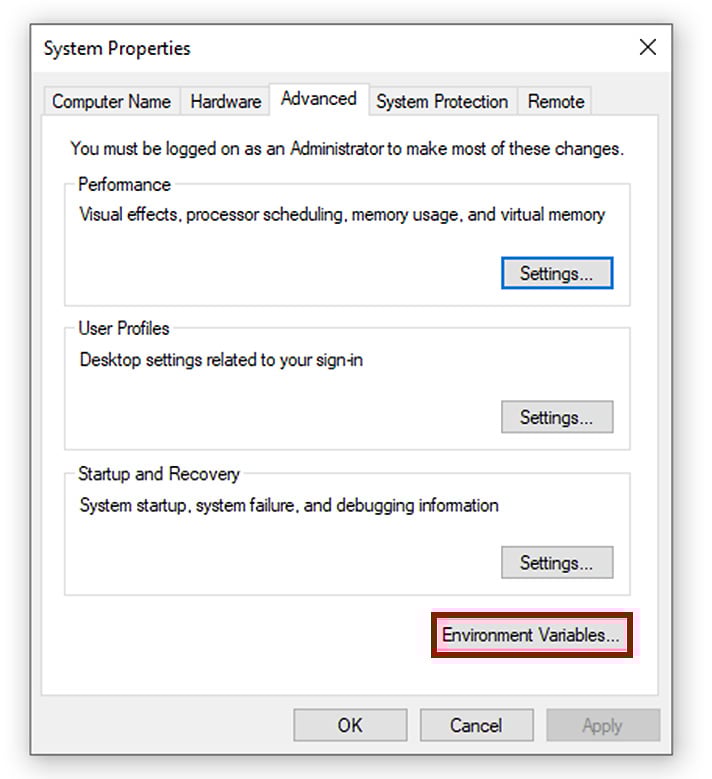
  1. Click the Environment Variables button in the System Properties pop-up window.
Figure 1.10: The System Properties pop-up window

Figure 1.10: The System Properties pop-up window

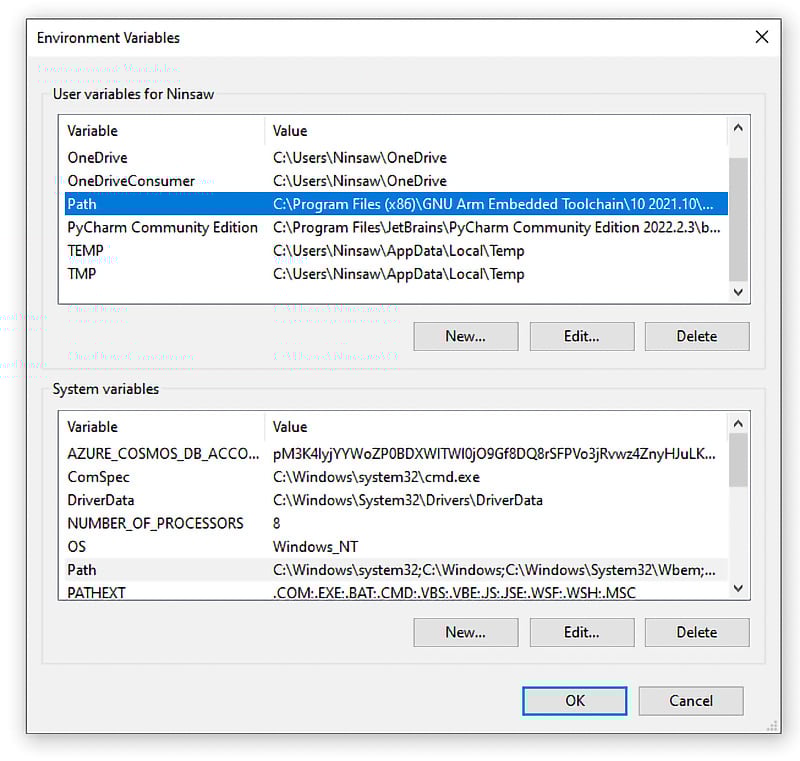
  1. Under the User variables section of the Environment Variables popup, double-click the Path entry.
Figure 1.11: The Environment Variables popup

Figure 1.11: The Environment Variables popup

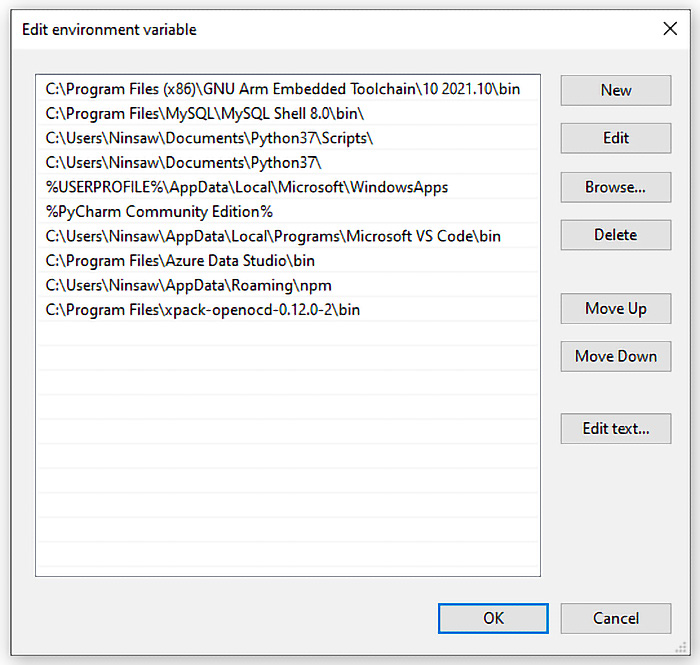
  1. In the Edit environment variable popup, click on New to create a row for a new path entry.
  2. Paste the previously copied OpenOCD path into this new row.
  3. Confirm your changes by clicking OK on the various pop-up windows.
Figure 1.12: The Edit environment variable popup

Figure 1.12: The Edit environment variable popup

Finally, we have successfully completed the setup process. We have configured two essential, standalone tools to develop firmware for STM32 microcontrollers – the STM32CubeIDE for an IDE, and the GNU Arm Embedded Toolchain, complemented by OpenOCD, to develop and debug our firmware without an IDE.

Next, we will turn our attention to our development board.

Visually different images
CONTINUE READING
83
Tech Concepts
36
Programming languages
73
Tech Tools
Icon Unlimited access to the largest independent learning library in tech of over 8,000 expert-authored tech books and videos.
Icon Innovative learning tools, including AI book assistants, code context explainers, and text-to-speech.
Icon 50+ new titles added per month and exclusive early access to books as they are being written.
Bare-Metal Embedded C Programming
notes
bookmark Notes and Bookmarks search Search in title playlist Add to playlist download Download options font-size Font size

Change the font size

margin-width Margin width

Change margin width

day-mode Day/Sepia/Night Modes

Change background colour

Close icon Search
Country selected

Close icon Your notes and bookmarks

Confirmation

Modal Close icon
claim successful

Buy this book with your credits?

Modal Close icon
Are you sure you want to buy this book with one of your credits?
Close
YES, BUY

Submit Your Feedback

Modal Close icon
Modal Close icon
Modal Close icon