-
Book Overview & Buying
-
Table Of Contents

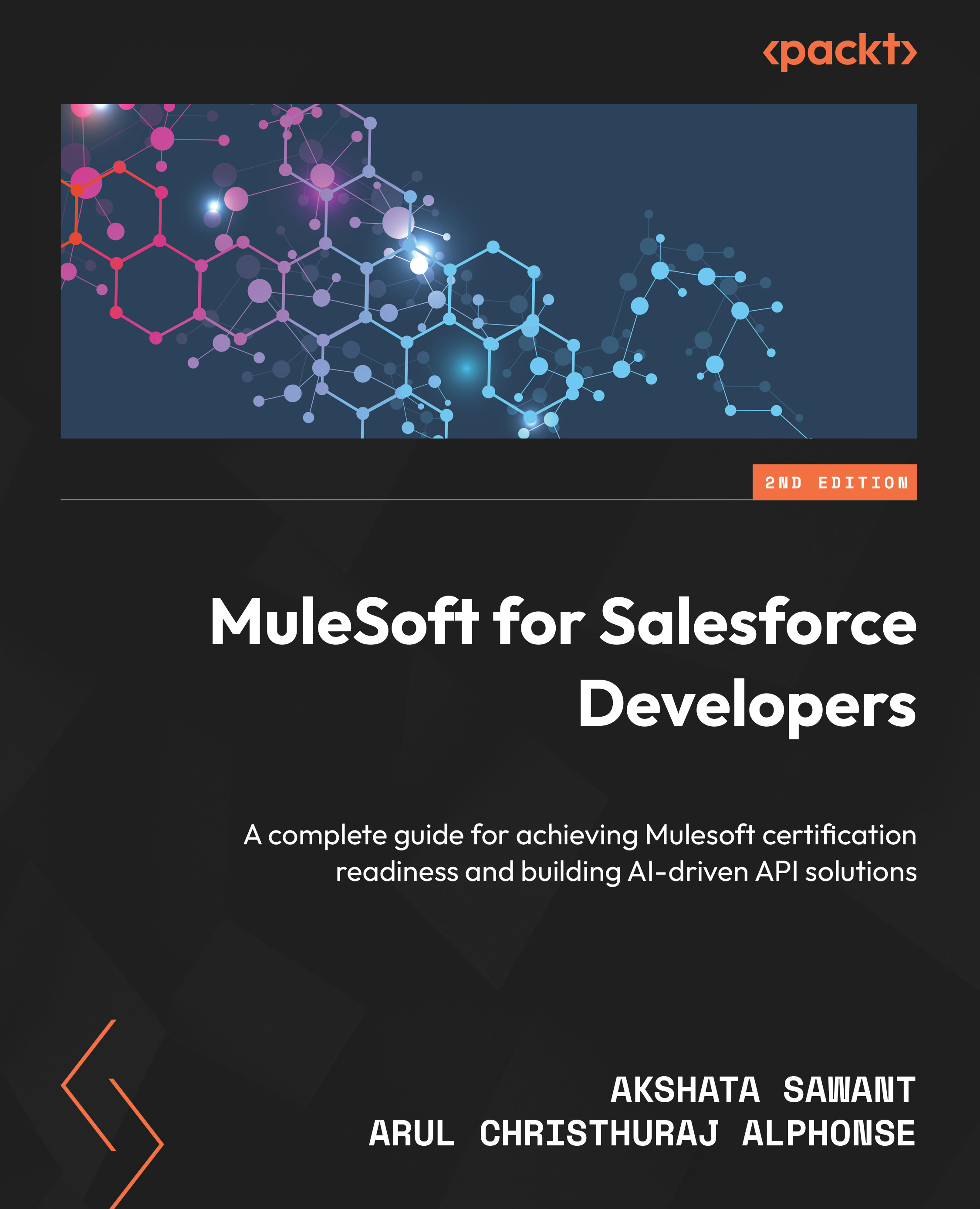
MuleSoft for Salesforce Developers - Second Edition
By :


MuleSoft for Salesforce Developers
By:
Overview of this book
Salesforce developers often need help with complex integrations to manage multi-cloud environments, data mapping, data security, API scalability, and real-time integration issues. Written by industry veterans with 20+ years of experience, this revised edition will help you overcome these challenges and unlock data with MuleSoft.
In this second edition, you’ll learn about MuleSoft’s newest IDE (aka Anypoint Code Builder) and its tools and capabilities. The chapters will show you how to use AI-enabled APIs to maximize productivity, integration of Data Cloud with MuleSoft, Mule APIs with AI agents, and Mule AI Chain connectors. You’ll grasp the fundamentals of APIs and integration and confidently design your APIs, while also utilizing a no-code visual editor for API design to build your Mule applications using MuleSoft’s Anypoint Code Builder. The chapters will teach you about data transformation, API management, deployment models, and MuleSoft’s security features. Progressively, you’ll leverage MuleSoft connectors to integrate with Salesforce, Data Cloud, and other systems. You’ll explore AI-driven integrations and automation, and get practical tips to ace MuleSoft interviews and achieve MCD Level 1 certification.
By the end of this book, you’ll be able to implement the entire API lifecycle and manage complex integrations with MuleSoft like a pro.
Table of Contents (23 chapters)
Preface


Chapter 1: Introduction to APIs and MuleSoft
Chapter 2: Designing Your API
Chapter 3: Exploring Anypoint Studio and Anypoint Code Builder (ACB)
Chapter 4: Introduction to Core Components
Chapter 5: All About Anypoint Platform
Part 2: A Deep Dive into MuleSoft
Chapter 6: Learning DataWeave
Chapter 7: Transforming with DataWeave

Chapter 8: Building Your Mule Application
Chapter 9: Deploying Your Application
Chapter 10: Securing Your API
Chapter 11: Testing Your Application
Part 3: Integration with Salesforce and Other connectors
Chapter 12: MuleSoft Integration with Salesforce
Chapter 13: MuleSoft Connectors and Use Cases
Chapter 14: MuleSoft Best Practices, Tips, and Tricks
Chapter 15: Certification and Interview Tips
Chapter 16: AI and Automations with MuleSoft
Chapter 17: Unlock Your Exclusive Benefits
Index
Other Books You May Enjoy