Installing Dynamics CRM Server
The installation of the on-premises version of Microsoft Dynamics CRM 2011 involves a little more than the standard Microsoft wizard process. Here we will discuss how to install the on-premises version on a single-server machine.
Microsoft Dynamics CRM is designed so that its components (Application Service, Deployment Service
, Sandbox Processing Service
, and Asynchronous Processing Service) can run under separate identities. It is recommended that you use separate Active Directory accounts for running these components and SQL Server Reporting Services. Additionally, these accounts should be set up as service accounts
in Active Directory and should only be granted the permissions necessary to enable a particular component to function. By this, we can help secure the system and reduce the likelihood of exploitation.
Note
Managed service accounts, introduced in Windows Server 2008 R2, are not supported for running Microsoft Dynamics CRM services.
We will now take a look into these identity accounts and the privileges to be granted to them for proper functioning. It is very important to set up these accounts before starting the installation of Dynamics CRM 2011. After the installation of Dynamics CRM, these accounts should not be added to Dynamics CRM as users. This might create authentication issues and unexpected behavior in the application. These service accounts should be granted the following permissions:
- Application service account:
- Should be a member of the Active Directory Domain Users group and the local machine's Performance Log Users group
- Should have administrative access on the computers that are running Microsoft Dynamics CRM website and SQL Server
- The service account may need a service principal number (SPN) for the URL used to access the website that is associated with it
Note
By default, websites using IIS7.0 or later versions are configured to use kernel-mode authentication. When a Microsoft Dynamics CRM website is run using the Kernel-Mode authentication, SPNs for the Microsoft Dynamics CRM Application Pool identities are not required.
- Deployment Web service account:
- Should be a member of the Active Directory Domain Users group
- Must be granted the Logon as service permission in Local Security Policy
- Should have administrative access on the computers where Dynamics CRM 2011 Deployment Web Service and SQL Server are running
- Should have sysadmin permission on the instance of SQL Server to be used for the configuration and organization databases
- The service account may need an SPN for the URL used to access the website associated with it
- Microsoft Dynamics CRM Asynchronous Processing service account:
- Should be a member of the Active Directory Domain Users group
- Should be a member of the Performance Log Users group
- Must be granted the Logon as service permission in Local Security Policy
- The service account may need an SPN for the URL used to access the website associated with it
- Microsoft Dynamics CRM Sandbox Processing service account:
- Dynamics CRM 2011 Installation User account:
- Should be a member of the Active Directory Domain User group.
- Should have administrative access on the computer where the Dynamics CRM 2011 setup will be run.
- Should have read and write permissions to the local
Program Files folder. - Should have administrative access on the computer where the instance of SQL Server that will be used to store the Microsoft Dynamics CRM databases is located.
- Should have sysadmin membership on the instance of SQL Server that will be used to store the Microsoft Dynamics CRM databases.
- Should have organization and security group creation permission in the Active Directory directory service.
- If Microsoft SQL Server Reporting Services is installed on a different server, the Content Manager role must be added at the root level for installing the user account. We must also add the System Administrator role at the site-wide level for the installation of the user account. Also make sure that port 80 (the default port on which Reporting Services is installed) accepts connections.
In the previous sections we have discussed the minimum recommended software and hardware specifications and service account requirements. Now we will discuss how to install Dynamics CRM Server components on a single-server machine.
During the installation, if a machine restart is requested by the setup, it is recommended that one selects the Restart option before proceeding with the installation.
It is usually recommended that one creates separate organization units (OUs) for each CRM deployment, especially for production or production-like deployment environments. Dynamics CRM 2011 Server installer creates security groups within the specified OU, and hence, it is advisable to create separate OUs for deployment isolation purposes.
Follow these steps to install Dynamics CRM 2011 Server in a single-server machine:
- Log in to the machine using the installation user account setup using the recommended privileges.
- Run the Dynamics CRM 2011 setup.
Alternatively, navigate to the installation directory for Dynamics CRM 2011 Server and run the Dynamics CRM 2011 setup file at \Server\amd64\SetupServer.exe.
- It is recommended that you run the setup using the Run as Administrator option by right-clicking on the
.exe file. - On the Welcome to Microsoft Dynamics CRM Setup page, select Get updates for Microsoft Dynamics CRM (recommended) in the latest update rollups that have to be applied during the installation; otherwise, select Do not get updates. Press Next to continue.
It is recommended that you assess the impact of the update rollups before applying them because they can break any existing code or the rollup itself can have defects.
- On the Product Key Information page, enter the product key.
- On the Accept License page, accept the license agreement.
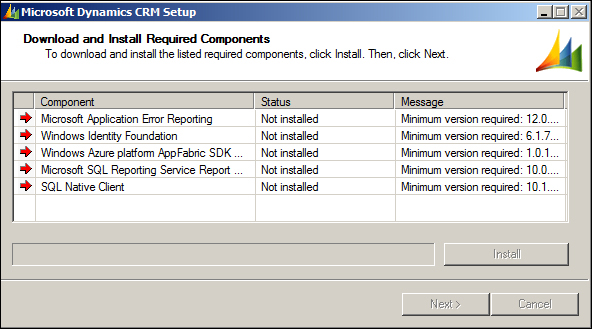
- If the setup detects that a few of the required components are missing, the Install Required Components page will appear. The missing required components can be installed by clicking on Install. When the components are installed, the status column will change from Not Installed to Installed and we can click on Next to continue as shown in the following screenshot:
- The Select Installation Location page provides us with the option of choosing the installation directory. Accept the default location or enter a different file installation location, and then click on Next.
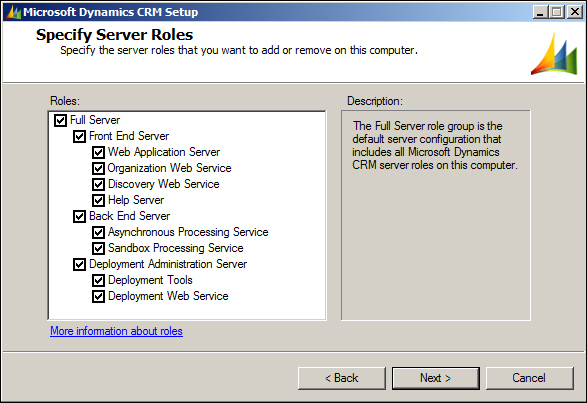
- The Specify Server Roles page appears. By default, Full Server is selected. For a single-server deployment, we will go with the Full Server option.
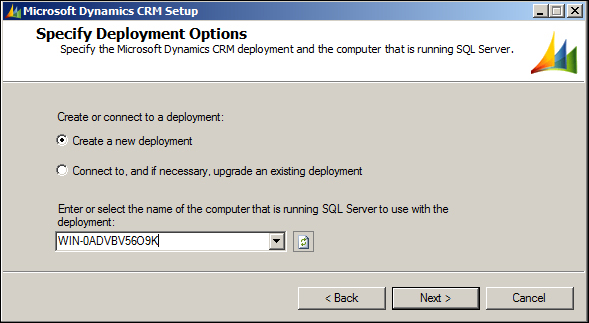
- On the Specify Deployment Options page, select the Create a new deployment option. In the Enter or select the name of the computer that is running SQL Server to use with the deployment box, type or select the instance of SQL Server that will be used to store Dynamics CRM 2011 databases.
In case there already exists an MSCRM_CONFIG database from a previous CRM deployment that is intended to be used here, select the Connect to, and if necessary, upgrade an existing deployment option. But, if an MSCRM_CONFIG database does not exist in the SQL Server instance, an error will occur.
- On the Select the Organizational Unit page, click on Browse to display the Active Directory structure. Select the location where the Microsoft Dynamics CRM organizational unit is to be installed, click on OK, and then click on Next.
Four Microsoft Dynamics CRM-specific security groups will be created in this organizational unit. To know more about these groups, read the How it works… section of this recipe.
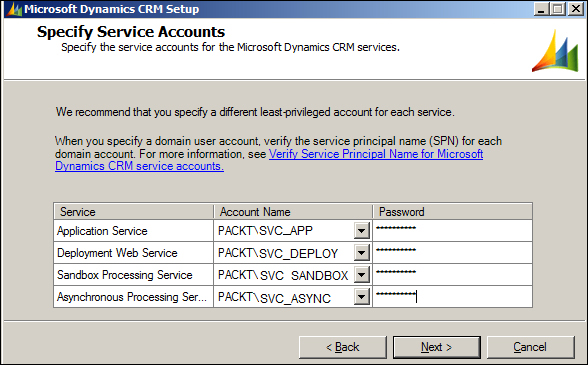
- In the Specify Service Accounts page, select the service accounts for the Microsoft Dynamics CRM services and then click on Next as shown in the following screenshot:
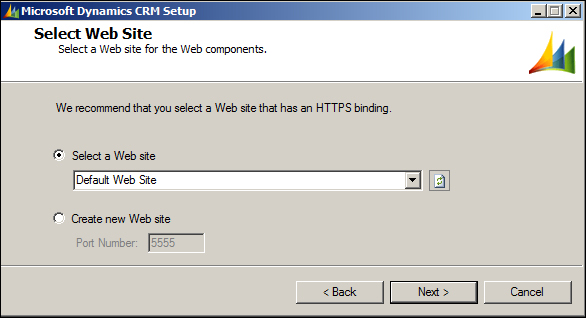
- On the Select Web Site page, select the website that will host the Dynamics CRM web application. Here we can use the default website (port 80) or any other existing websites.
Note
Unless there is a valid reason for not installing the application in the default website, leave it as it is because among other advantages, it will be much easier for users to access the website as they won't have to remember another port number. If we select a network port other than the default port, we have to ensure that the firewall does not block the port.
If you decide to create a new website, select the Create new Web site option; the setup creates a new website for Microsoft Dynamics CRM Server 2011. We can specify the port number by typing the TCP port number that Microsoft Dynamics CRM clients will use to connect to Microsoft Dynamics CRM Server 2011. The default port number is 5555.
- Click on Next> to proceed:
- On the Specify E-mail Router Settings page, specify the name or IP address of the machine where E-mail Router will be installed. If E-mail Router is not to be installed, this information can be left blank. Click on Next to proceed.
Note
We will discuss how to install E-mail Router later in this chapter.
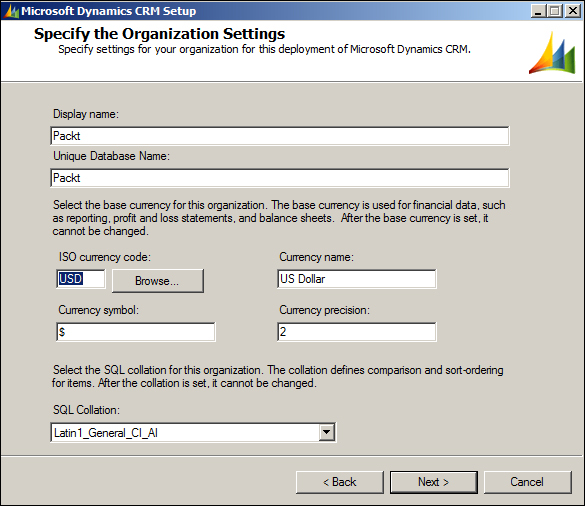
- On the Specify Organization Settings page, we have to specify the following details:
Note
SQL Server Collation
refers to a set of rules that is used to determine how character data is sorted and compared. Collation encodes the rules governing the proper use of characters for either a language, such as Greek or Polish, or an alphabet, such as Latin1_General (the Latin alphabet used by Western European languages).
More information about SQL Server Collation can be found at:
http://msdn.microsoft.com/en-IN/library/ms143726.aspx
After setting these details, click on Next.
- On the Specify Reporting Services Server page, please type the Reporting Server URL. Please verify the URL in a separate browser window. Please note that the Reporting Server URL should be specified here and not the Reporting Manager URL. Click on Next to proceed.
- On the Help Us Improve the Customer Experience page, select whether you want to participate in the Customer Experience Improvement Program, and then click on Next.
- On the Select Microsoft Update Preference page, indicate whether to use Microsoft Update to keep CRM Server 2011 updated.
Note
Automatic rollup update is not recommended, and before applying any update rollup we have to be very sure (by trying the rollup in a test environment) that it does not break existing functionality and that the update rollup itself is not broken.
- Click on Next to proceed.
- Next is the System Checks page, which outlines a summary of all requirements and recommendations for successful installation.
If there are any errors or warnings, they will be listed here. We have to rectify all errors before proceeding further. Warnings, however, can be ignored, but it is strongly suggested that you rectify the warnings as they may cause issues later on in the system.
- Click on Next to proceed.
- Next, we have the Service Disruption Warning page. This page indicates all services that can be stopped or restarted during installation. Click on Next to proceed.
- Review the Ready to Install Microsoft Dynamics CRM page, and click on Back to correct any setting to proceed warning free. When we are ready to continue, click on Install.
- If installation completes successfully, the Microsoft Dynamics CRM Server setup completed page appears.
- To install Dynamics CRM, we must click on Finish and wait until the server is restarted.
In this recipe we have installed Microsoft Dynamics CRM 2011 on a single-server machine. During the process, the installer creates four security groups in Active Directory; these groups are fundamental for Dynamics CRM's functioning. Usually it is left to the installer to create these groups, but these groups can be precreated manually and can be used during the Dynamics CRM installation. If these groups do not already exist in Active Directory, the installation user must have Active Directory rights to create them. The following are the groups that will get created during installation:
One more important point to be noted here is that the four service accounts used during installation and the SQL access accounts are part of some or all of the aforementioned Active Directory groups. The following matrix will explain the group membership of these accounts:
Note
The performance log user group is a local group on each server and not a domain group.
For Dynamics CRM to function properly, these service accounts will have to have the following rights:
- Folder read and write permission on the
Trace folder, by default located under \%Program Files%\Microsoft Dynamics CRM\, and the %AppData% folder of the user account on the local computer - Read and write permission to the
HKEY_LOCAL_MACHINE\SOFTWARE\Microsoft\MSCRM and HKEY_LOCAL_MACHINE\SYSTEM\ControlSet001\services\MSCRMSandboxService subkeys in the Windows Registry - The Application service account and Deployment Web service account should also be part of the
CRM_WPG group
Microsoft Dynamics CRM 2011 uses a list of ports, and these ports have to be allowed in the firewall for CRM to function. The following matrix lists all these ports:
Each of these service accounts runs a specific component within the Dynamics CRM 2011 Server infrastructure. The following outlines how these service accounts are used within Dynamics CRM 2011:
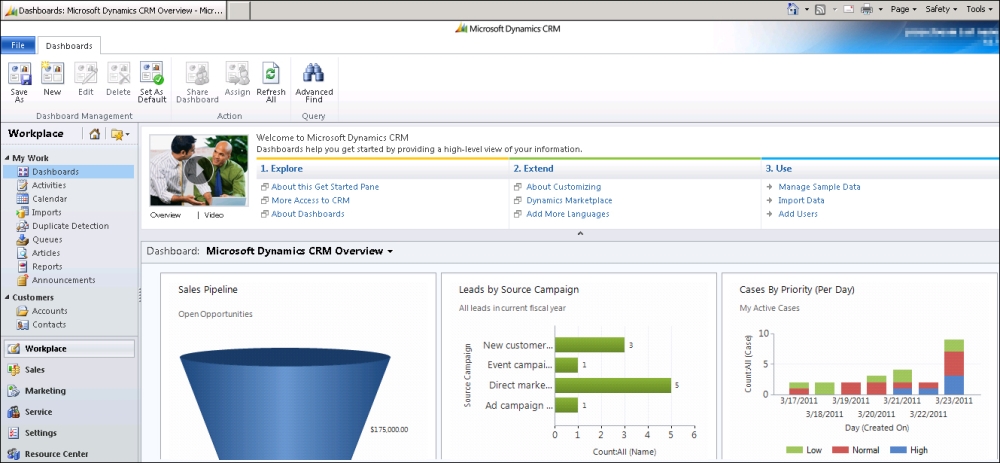
Once the installation has completed, its success can be verified by accessing the CRM server URL. The URL would be in the format http://<servername>:<port _number>/<organization_name>/main.aspx.
Here, we will replace <servername> with the name of the Dynamics CRM 2011 server, <port_number> with the port used by Dynamics CRM 2011 Server, and <organization_name> with the CRM Organization that was created during installation.
If installation is successful, the Dynamics CRM landing page will appear in the browser window as shown in the following screenshot:
Before we end this recipe, let's take look at some information on the use of currency codes in Microsoft Dynamics CRM 2011:
Dynamics CRM 2011 is a multicurrency system that allows a user to perform any financial transaction using their own currency, known as transaction currency
. During installation, a primary or default currency has to be selected. This currency is the de facto currency for financial transactions within a CRM Organization and known as the base currency
. After defining a base currency for the organization, we have to define exchange rates to associate the base currency with transaction currencies.
Each currency record has three parts describing the currency:
- The name of the currency
- The symbol that is used to represent the currency, such as $ (dollar), £ (pound), € (euro), or ¥ (yen)
- The exchange rate with the base currency
Any transaction in other currencies will automatically be converted to the base currency, using the exchange rate defined in the record for that currency, in the Microsoft Dynamics CRM database.
The base currency of a CRM Organization has to be selected carefully as:
- The base currency is used as the basis to calculate additional currencies that can be used for transaction-based records. Hence, the native currency of the CRM Organization users is usually chosen as the base currency to avoid too many currency conversions.
- Financial reporting is done based on the base currency.
The supported currency code details can be found at:
http://msdn.microsoft.com/en-us/library/hh699729.aspx
We have seen that, in the process of a single-server installation, all the server roles of Dynamics CRM 2011 are installed onto one single machine. But in a multiserver deployment, the server roles are usually separately deployed on multiple machines. We will find out more about multiserver Dynamics CRM deployments in the latter parts of this chapter.





 Free Chapter