-
Book Overview & Buying
-
Table Of Contents

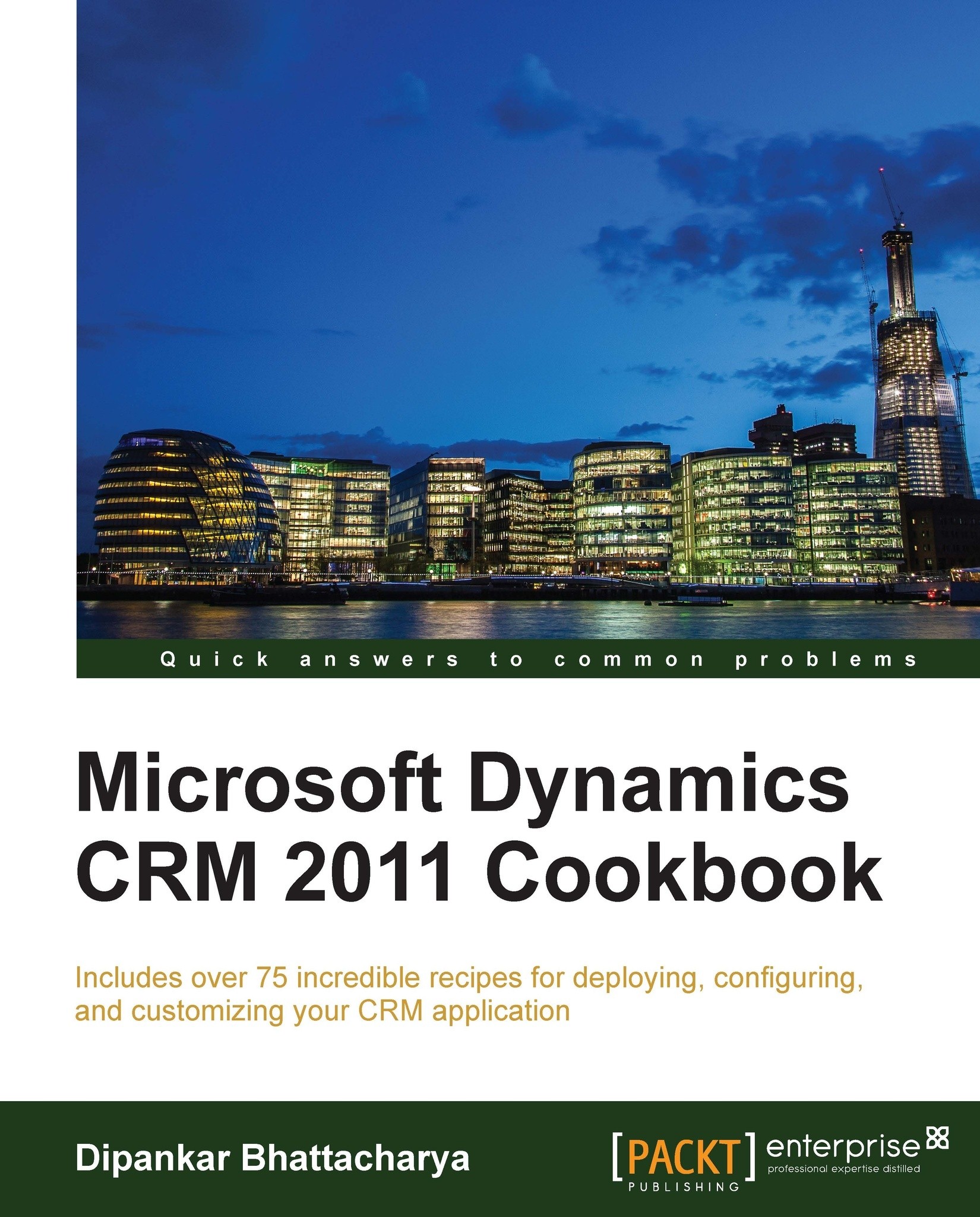
Microsoft Dynamics CRM 2011 Cookbook
By :


Microsoft Dynamics CRM 2011 Cookbook
By:
Overview of this book
Without a comprehensive understanding of deployment scenarios and steps, it is really difficult to install and maintain Dynamics CRM 2011 within complex IT infrastructures. Done badly, it can cause serious future maintenance and optimization issues. Administration of CRM systems is equally complex and important; unless efficiently done, it can create fuss in the system and potentially bring down end user satisfaction. Configuration and customization of the system has to be done very carefully too so that it can meet the functional needs appropriately.“Microsoft Dynamics CRM 2011 Cookbook" is a hands-on guide, providing clear, step-by-step instructions to deploy, maintain, optimize, and administer Dynamics CRM 2011 along with advanced configuration and customization processes, to give us a strong advantage in creating successful CRM applications.This book introduces Dynamics CRM 2011 by describing the important aspects of the system. It will take you through a number of clear and practical recipes from successful deployment, hassle-free maintenance, and effective administration to advanced level configuration and customization techniques.You will learn from a range of deployment and maintenance topics such as how to configure CRM to use claim-based authentication using AD FS, how to enable tracing in CRM servers, how to recover from server failures, and how to optimize server performance. This book will also discuss how to schedule Data Duplication detection jobs, enable auditing, export and import managed/unmanaged solutions, create 1:N, N:1, or N:N relationships between entities, configuring role based forms, adding a new button in the ribbon, SharePoint integration with CRM, and configuring a dialog or workflow.You will learn everything you need to know, from deployment, administration, and maintenance to configuration, integration, and customization for your Dynamics CRM 2011 application.
Table of Contents (12 chapters)
Preface


 Free Chapter
1. Installing Dynamics CRM 2011

2. Maintaining and Optimizing Microsoft Dynamics CRM 2011 Server
3. Administering Microsoft Dynamics CRM 2011
4. Data Management
5. Solution Management
6. Entity Customizations
7. Form and View Customizations
8. Site Map and Ribbon Customizations
9. Office and SharePoint Integration
10. Processes
Index