Sign In Start Free Trial
Account

Add to playlist

Create a Playlist

Modal Close icon
You need to login to use this feature.
  • Book Overview & Buying OpenJDK Cookbook
  • Table Of Contents Toc
  • Feedback & Rating feedback
OpenJDK Cookbook

OpenJDK Cookbook

By : Kobylyanskiy, Mironchenko
4 (2)
close
close
OpenJDK Cookbook

OpenJDK Cookbook

4 (2)
By: Kobylyanskiy, Mironchenko

Overview of this book

If you are an experienced Java developer using Java 7 platform and want to get your grips on OpenJDK for Java development, this is the book for you. JDK users who wish to migrate to OpenJDK will find this book very useful.
Table of Contents (15 chapters)
close
close
14
Index

Configuring OpenJDK on Windows

Although the initial configuration is sufficient for most tasks, it may still be required to do some configuration. In the case of OpenJDK, this is performed by setting system variables. Here we will touch only on the case that often occurs when JDK is unpacked manually—how to set it as default.

Getting ready

To follow this recipe, we will need an OpenJDK instance installed on our Windows system. Windows 7 or Windows 8 will be best, because Windows XP is already officially discontinued by Microsoft.

How to do it...

At first, we need to install our OpenJDK implementation as the default Java instance. This is often necessary for development:

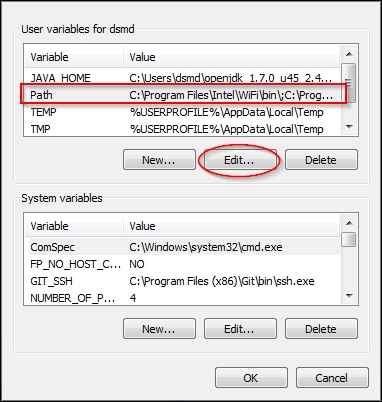
  1. In order to do so, we will go to Start | Control Panel | System | Advanced | Environment Variables | User Variables (or System Variables for system-wide configuration) and add the path to the Java executable to the PATH system variable, as shown:
    How to do it...

    Tip

    If there are other paths to other Java executables, we may need to delete them as well, but it will be better to remember them, since we may need to restore our old default Java settings.

  2. If we were installing OpenJDK from unofficial builds, there may be no need to change the PATH variable at all.
  3. To validate our newly configured variable, we will go to the Command Prompt and type the following:
    java -version
  4. The expected output is the version of our newly installed build.

How it works…

In order to set a newly installed OpenJDK instance as the default JDK, we need to change the system variable. After that change, our Java executables will be visible to the system.

There's more...

The same procedure is followed to set the CLASSPATH variable. It is not very necessary, and if you are using other libraries such as GNU classpath, you probably know about it.

Visually different images
CONTINUE READING
83
Tech Concepts
36
Programming languages
73
Tech Tools
Icon Unlimited access to the largest independent learning library in tech of over 8,000 expert-authored tech books and videos.
Icon Innovative learning tools, including AI book assistants, code context explainers, and text-to-speech.
Icon 50+ new titles added per month and exclusive early access to books as they are being written.
OpenJDK Cookbook
notes
bookmark Notes and Bookmarks search Search in title playlist Add to playlist font-size Font size

Change the font size

margin-width Margin width

Change margin width

day-mode Day/Sepia/Night Modes

Change background colour

Close icon Search
Country selected

Close icon Your notes and bookmarks

Confirmation

Modal Close icon
claim successful

Buy this book with your credits?

Modal Close icon
Are you sure you want to buy this book with one of your credits?
Close
YES, BUY

Submit Your Feedback

Modal Close icon
Modal Close icon
Modal Close icon