Sign In Start Free Trial
Account

Add to playlist

Create a Playlist

Modal Close icon
You need to login to use this feature.
  • Book Overview & Buying Android Security Cookbook
  • Table Of Contents Toc
Android Security Cookbook

Android Security Cookbook

By : Makan
4.8 (6)
close
close
Android Security Cookbook

Android Security Cookbook

4.8 (6)
By: Makan

Overview of this book

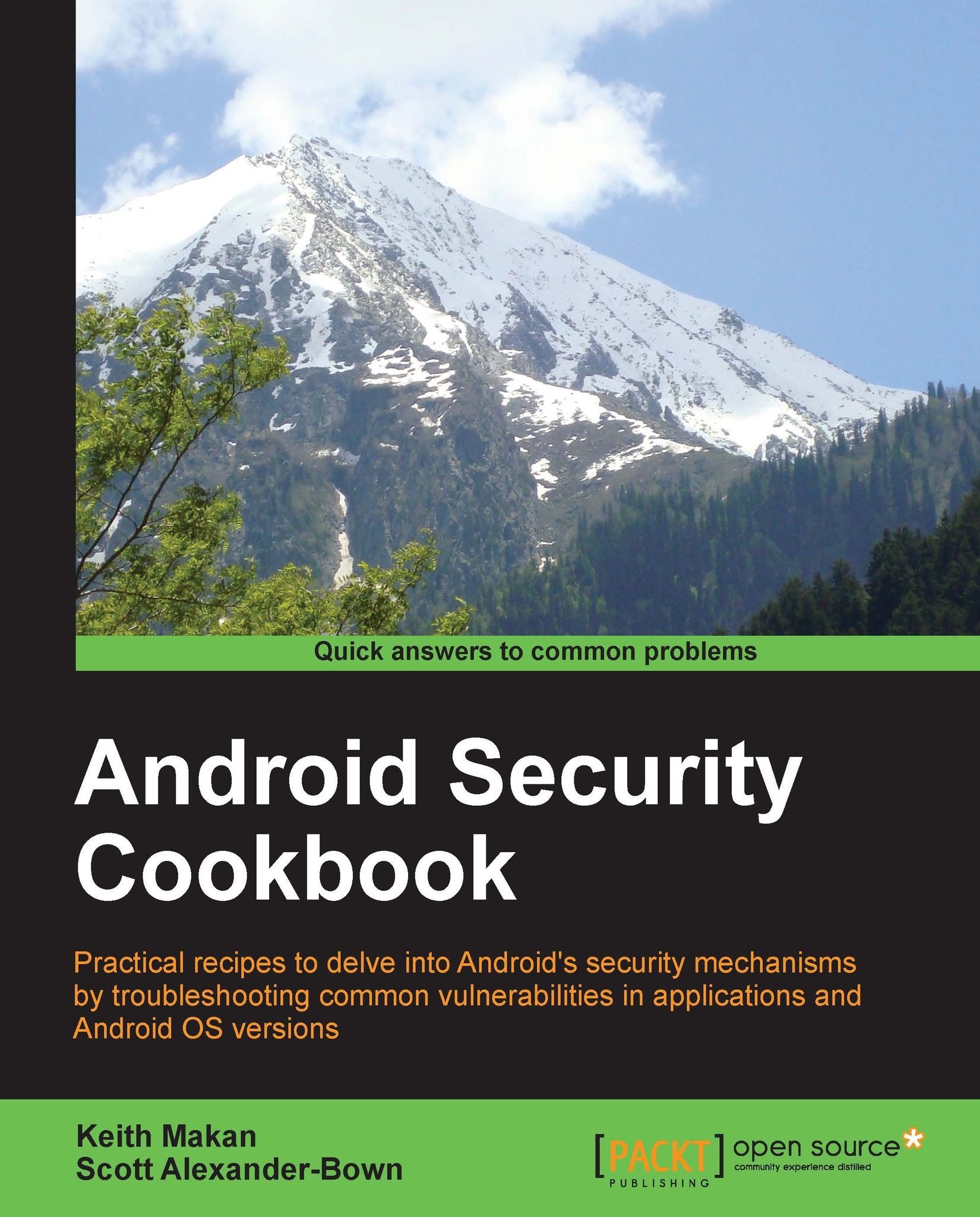
Android Security Cookbook discusses many common vulnerabilities and security related shortcomings in Android applications and operating systems. The book breaks down and enumerates the processes used to exploit and remediate these vulnerabilities in the form of detailed recipes and walkthroughs. The book also teaches readers to use an Android Security Assessment Framework called Drozer and how to develop plugins to customize the framework. Other topics covered include how to reverse-engineer Android applications to find common vulnerabilities, and how to find common memory corruption vulnerabilities on ARM devices. In terms of application protection this book will show various hardening techniques to protect application components, the data stored, secure networking. In summary, Android Security Cookbook provides a practical analysis into many areas of Android application and operating system security and gives the reader the required skills to analyze the security of their Android devices.
Table of Contents (11 chapters)
close
close
10
Index

Installing the Java Development Kit (JDK)

Android uses a customized version of the Java runtime to support its applications. This means, before we can get going with Eclipse and developing Android applications, we actually need to install the Java runtime and development tools. These are available in the Java Development Kit (JDK).

How to do it...

Installing the JDK on Windows works as follows:

  1. Grab a copy of the JDK from Oracle's Downloads page, http://www.oracle.com/technetwork/java/javase/downloads/index.html. Click on DOWNLOAD. The following screenshot shows the Downloads page:
    How to do it...
  2. Make sure to select the appropriate version for your system type; see the previous walkthrough to find out how to check your system type. The following screenshot highlights the Windows system types supported by the Oracle Java JDK:
    How to do it...
  3. After downloading the JDK, run the jdk-[version]-[platform version].exe file. For instance, you could have an EXE file named something like jdk-7u21-windows-i586.exe. All you need to do now is follow the prompts until the installation of all the setups is completed. The following screenshot is what the install wizard should look like once it's launched:
    How to do it...

Once the install wizard has done its job, you should see a fresh install of your JDK and JRE under C:\Program Files\Java\jdk[version] and should now be able to launch Eclipse.

There's more…

Installing the Java Runtime and Development tools on Ubuntu Linux is somewhat simpler. Seeing that Ubuntu has a sophisticated package and repository manager, all you need to do is make use of it by firing off a few simple commands from the terminal window. You need to execute the following steps:

  1. Open a terminal, either by searching for the terminal application via your Unity, KDE, or Gnome desktop or by pressing Ctrl + Alt + T.
  2. You may need to update your package list before installation, unless you've already done that a couple of minutes ago. You can do this by executing either of the following commands:
    sudo aptitude update //If you have aptitude installed 
    

    Or:

    sudo apt-get update
    

    You should see your terminal print out all the downloads it's performing from your repositories as shown in the following screenshot:

    There's more…
  3. Once that's done, execute the following command:
    sudo apt-get install openjdk-[version]-jdk apt-get 
    

    You will need to enter your password if you have been added to your sudoers file correctly. Alternatively, you could borrow root privileges to do this by executing the following command, assuming that you have the root user's password:

    su root
    

    This is displayed in the following screenshot:

    There's more…

Once your JDK is installed properly, you should be able to launch Eclipse and get going with your Android development. When you launch Eclipse, you should see the following screenshot:

There's more…

After successful installation, the toolbar in your Eclipse installation should look something like the one in the following screenshot:

There's more…
CONTINUE READING
83
Tech Concepts
36
Programming languages
73
Tech Tools
Icon Unlimited access to the largest independent learning library in tech of over 8,000 expert-authored tech books and videos.
Icon Innovative learning tools, including AI book assistants, code context explainers, and text-to-speech.
Icon 50+ new titles added per month and exclusive early access to books as they are being written.
Android Security Cookbook
notes
bookmark Notes and Bookmarks search Search in title playlist Add to playlist font-size Font size

Change the font size

margin-width Margin width

Change margin width

day-mode Day/Sepia/Night Modes

Change background colour

Close icon Search
Country selected

Close icon Your notes and bookmarks

Confirmation

Modal Close icon
claim successful

Buy this book with your credits?

Modal Close icon
Are you sure you want to buy this book with one of your credits?
Close
YES, BUY

Submit Your Feedback

Modal Close icon
Modal Close icon
Modal Close icon