-
Book Overview & Buying
-
Table Of Contents
Moodle Administration Essentials
By :
We are now going to deal with the specification required for installing Moodle on a Linux server.
Moodle is most typically installed on Linux servers using Apache, MySQL, and PHP, known as the LAMP platform. Hence, this installation combination is the most tried, tested, stable, and supported. This is what we will be using in the coming examples.
There is no way to set a requirement for the hardware for a Moodle site without understanding how many users will be using the site and how they will be using it. Moodle is an enterprise system, so be sure that you give it sufficient memory, CPU, and disk space. Active monitoring of the performance can help you identify if more is needed. For the most up-to-date guidance, you should check the Moodle docs, the https://moodle.org/ forums, or contact a certified Moodle service provider.
For the installation and upgrade examples in this chapter, if you do not have a Linux server at hand, you can use a Linux virtual server from any cloud provider, such as Amazon cloud, Digital Ocean, Linode, or similar. Just be sure to choose an image with an up-to-date LAMP stack that meets the minimum requirements for your Moodle version.
Moodle provides detailed specifications for required software for each Moodle version.
Check out https://docs.moodle.org/dev/Releases for further details. For instance, https://docs.moodle.org/dev/Moodle_2.8_release_notes#Server_requirements has the 2.8 version list.
We are now going to cover the installing of Moodle, where to download code from (including which version), and the settings that are used to run the installation process.
We always recommend that you download your Moodle code directly from https://moodle.org/. The following are the steps for downloading Moodle:
git clone -b MOODLE_28_STABLE git://git.moodle.org/moodle.git
moodle. This directory should be located in your web server directory so that it can be accessed via the Internet.learning, use the following Git command instead:git clone -b MOODLE_28_STABLE git://git.moodle.org/moodle.git learning
moodle, move all of the contents directly into your web server directory.You need to make the moodle files secure as they are publically accessible via the Internet.
Ensure that all moodle files are owned by the root user and are only readable by the web server user as follows:
chown -R root /path/to/moodle chmod -R 0755 /path/to/moodle
Next, in your designated database, you need to set up an empty database and a dedicated user with sufficient access.
For instance, in MySQL, the following mysql command line queries would suffice:
CREATE DATABASE <databasename> DEFAULT CHARACTER SET utf8 COLLATE utf8_unicode_ci; GRANT SELECT,INSERT,UPDATE,DELETE,CREATE,CREATE TEMPORARY TABLES,DROP,INDEX,ALTER ON <databasename>.* TO <username>@<dbhost> IDENTIFIED BY '<password>';
You should not use the database root or admin account for security reasons.
You will need to take note of the following details for the installation process later:
You will also need to set up a dedicated file directory to hold all of the moodle files.
This moodledata directory cannot be located within the moodle web directory or within the web server directory as otherwise this would be a security risk.
However, the web server needs write access to the moodledata directory as browser actions will generate data file creation, editing, and deletion.
Hence, use the following command lines in a suitable server directory:
mkdir <moodledatadirectoryname> chmod -R 0777 /path/to/moodledatadirectory
The moodle installer can be run in two ways:
If running the command-line installer, it's advisable to run it as the web server user, for instance www-data for Ubuntu/Debian or apache for Centos.
Hence:
chown www-data /path/to/moodle cd /path/to/moodle/admin/cli sudo -u www-data /usr/bin/php install.php chown -R root /path/to/moodle
The main configuration settings are the URL, the directory path to both the moodle code files and the moodledata files, and the database details. If in doubt, use the default settings and remember that these settings can be easily edited after the installation process if needed in the /path/to/moodle/config.php file. You will also need to supply an administrator account username with a secure password, which you need to retain permanently. If you lose this, it can be changed from the command line if required.
To run the web installer instead, go to your Moodle site's main URL within your browser and submit the same configuration settings as for the command-line version. Once the installer has finished, you will have access to your Moodle site.
After the actual code and database installation, there are a number of systems that need to be configured to ensure the Moodle site is operating correctly. These are as follows:
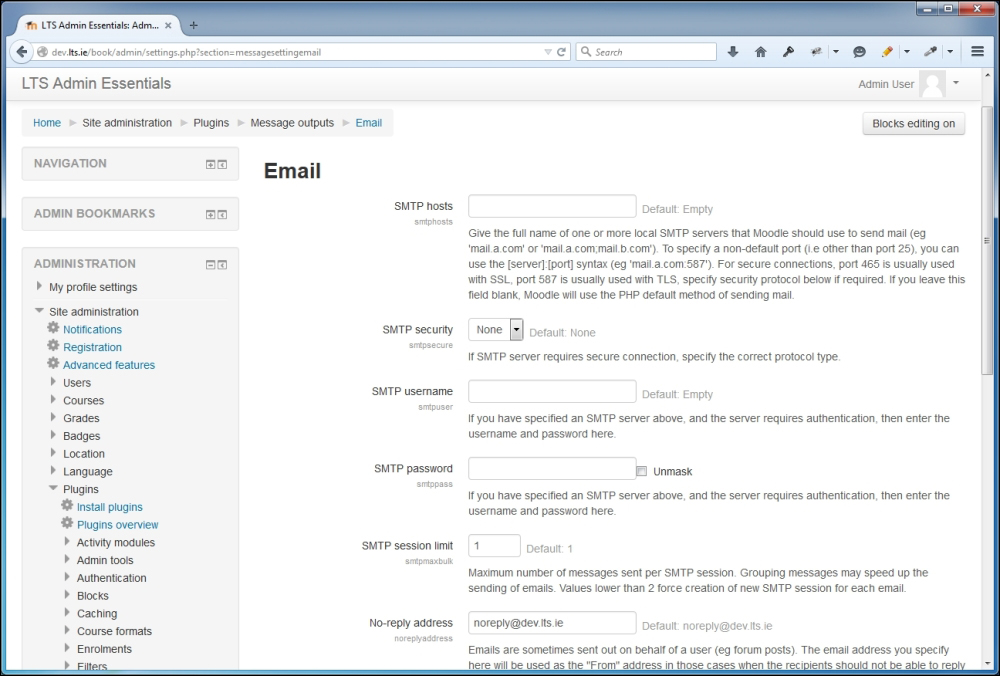
Navigate to Administration | Site administration | Plugins | Message Outputs | Email.
Enter and save your SMTP settings as required to ensure that Moodle is able to send out e-mails. This is essential for functions such as email-based self-registration:

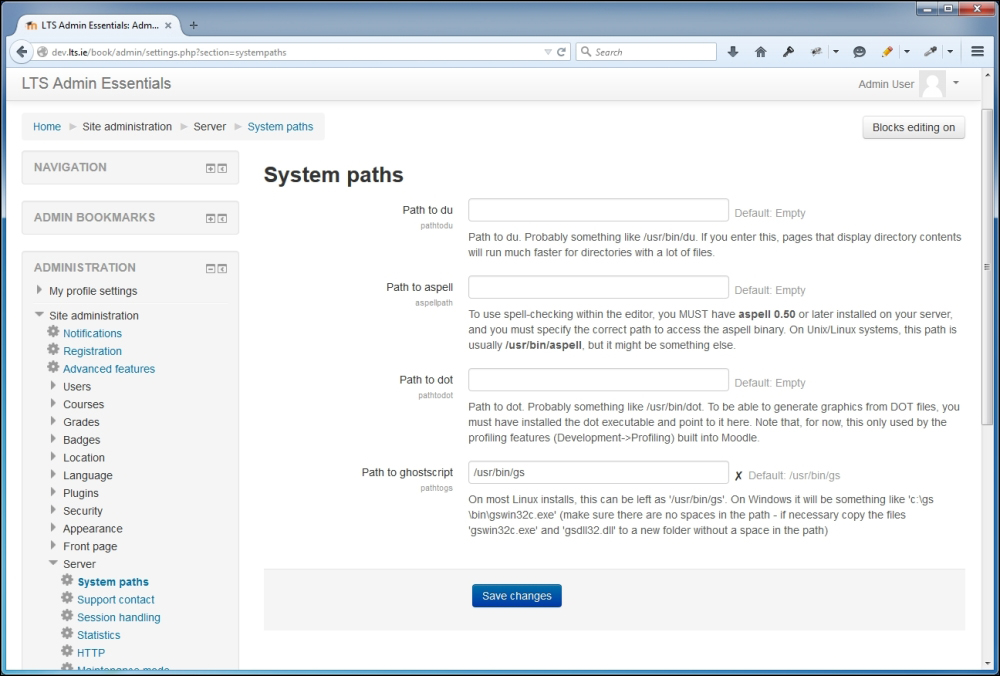
Navigate to Administration | Site administration | Server | System paths.
Enter and save your specified paths to ghostscript, du, aspell, and dot binaries:

Cron is essential to the processing of many Moodle background functions.
The moodle cron script is located at /path/to/moodle/admin/cli/cron.php.
This cron script needs to be scheduled in the server's own cron program for UNIX or Linux.
For instance, on Ubuntu/Debian servers, to edit the cron program:
crontab -u www-data –e
*/1 * * * * /usr/bin/php /path/to/moodle/admin/cli/cron.php >/dev/null
*/1 * * * * /usr/bin/php /path/to/moodle/admin/cli/cron.php >> /path/to/moodledata/temp/cron.log 2>&1
Change the font size
Change margin width
Change background colour