-
Book Overview & Buying
-
Table Of Contents
Moodle Administration Essentials
By :
As mentioned earlier, Moodle HQ releases updates on a regular basis, which include bug fixes and security patches. Hence, it is important to know how to update the Moodle codebase to keep it secure.
Most importantly, any Moodle site older than 2.2 being upgraded to above 2.2 must be first upgraded to 2.2 completely, and then upgraded to 2.X.
Your first step is to create a copy of your live site and practice the upgrade process on it from the beginning to the end, ensuring that everything upgrades as expected.
These are the recommended steps to create a clone of your Moodle live site:
mysqldump -h localhost -u <dbuser> --password=<dbpass> -C -Q -e --create-options <dbname> > dbnameclone.sql
source dbnameclone.sql;
admin/tool/replace/index.php. Please note that this will only work on sites, which use either MySQL or Postgres.The following upgrade steps should, therefore, be run firstly and completely on your cloned site and only then on your live site.
Put your site into maintenance mode by navigating to Administration | Site administration | Server | Maintenance mode. This prevents non-admin users from logging into the site and altering any of its contents, such as course resources, submitting assignments, posting to forums, and so on.
Any of these types of alterations will not only render your backups obsolete, but also compromise the integrity of the final upgraded site.
Before you start any upgrades, you need to take a full backup of your Moodle site. This involves three components:
Take a full backup of this directory and also have a list of all external plugins and any core code customizations, which have been implemented.
Take a full backup of this directory. Its location is found in the config.php script.
Take a full MySQL dump of the relevant Moodle database. This also requires you to ensure correct character encoding used if needed as the MySQL dump is not 100 percent reliable for all UTF-8 encoding.
As with an initial Moodle installation, we always recommend that you download your Moodle code directly from https://moodle.org/. For this example, we will be updating to Moodle Version 2.8.
You can either download the ZIP file from https://download.moodle.org/ and unzip it, or use Git to pull the code from the Moodle Git repository.
ZIP file from https://moodle.org/ or use the following Git command (for versions other than 2.8, use the relevant branch name):git clone -b MOODLE_28_STABLE git://git.moodle.org/moodle.git <directory>
Please note that this will overwrite the existing data in the target moodle code directory with the latest 2.8 moodle code.
Once you have completed the updating of the Moodle code directory, you then need to complete the following steps:
config.php script from the backup into the target moodle code directory.admin/cron.php script is executable via the browser or more typically that the site is listed in the cron program for your server, which is explained more in Chapter 8, Miscellaneous Admin Tasks.
Each Moodle version branch is updated weekly to ensure that all code is up-to-date, which may include fixes to recently discovered issues.
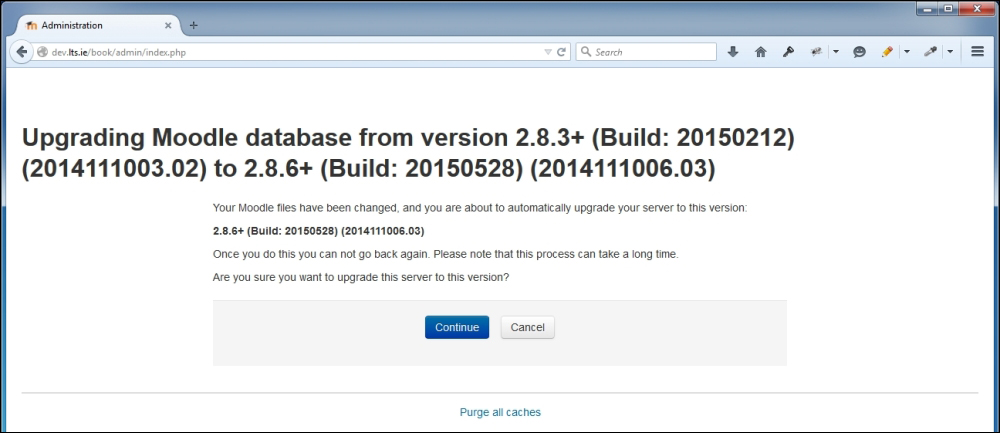
Hence, if your site is 2.8, it will also be a version of 2.8, for instance 2.8.3. If you decide to upgrade to a more recent version of 2.8, for instance 2.8.6, you should still follow the exact same procedure as we explained earlier for the upgrade process. This ensures that if there are any issues during the upgrade process, you have an easily accessible original version to instantly roll back to.
Moodle has minor releases every 2 months and major releases every 6 months. It is advisable to update with every minor release if possible, and at least yearly with a major release.
There is also a long-term support release (currently 2.7 and the next one is 3.0) that can offer the opportunity to only do a major update every 3 years.
Change the font size
Change margin width
Change background colour