-
Book Overview & Buying
-
Table Of Contents
Mastering PostCSS for Web Design
By :
PostCSS is a fascinating tool; its modular architecture leaves it wide open to being used in a variety of different use-case scenarios, or even a mix of several! Throughout this book, we'll touch on different uses, before bringing them all together to create a processor that can both pre- and post-process files within the same workflow.
To give you a taste of how well it works, we're going to build a simple processor now; this will automatically add vendor prefixes and spit out minified versions during compilation.
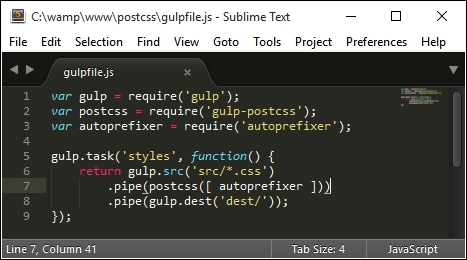
Let's make a start, we've installed the relevant plugins, so let's go create our Gulp task file:
gulpfile.js at the root of our project area:
dest; other folders will be created, but these will be done automatically during compilation.example.css in the src folder of our project area:body {
display: flex;
background: green;
}gulp styles
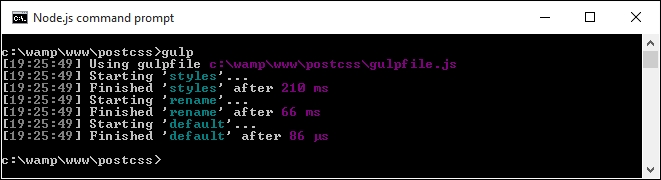
Gulp will now process the instructions in gulpfile.js:

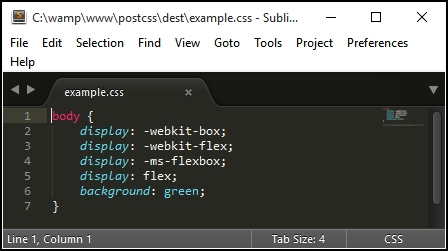
example.css appear in the dest folder of our project area.example.css in a text editor: if all is well, we should see this:
Perfect, we now have a working PostCSS installation; any time we need to add vendor prefixes, we can just fire up our compilation process, and away we go…
Or do we? Ah, there is much more to PostCSS than simply adding vendor prefixes! Remember how I mentioned that PostCSS is often (incorrectly) labelled as a pre- or post-processor?
Well, there is much more we can do; one of the key benefits of PostCSS is being selective about how we process our code. We're not forced to rely on dependencies (such as Ruby for SASS); we can instead produce something that is very light and quick. In our previous example, we created a task called styles; we'll change this to use the task name default, which will allow us to run multiple tasks from one command. This means we can simply call gulp, instead of needing to supply the task name.
All of our examples from this point onwards will use this convention by default.
Let's put this to the test and start to expand on our compilation process by adding source map support—we'll use the source map plugin for Gulp by Florian Reiterer, available from https://github.com/floridoo/gulp-sourcemaps:
npm install --save-dev gulp-sourcemaps
gulp file we created back in the Creating a simple example using PostCSS section, then add a reference to gulp-sourcemaps as a variable:var autoprefixer = require('autoprefixer');
var sourcemaps = require('gulp-sourcemaps');
.pipe(postcss([ autoprefixer ])) .pipe(sourcemaps.init()) .pipe(sourcemaps.write('maps/')) .pipe(gulp.dest('dest/'));
gulp styles
dest folder, under a subfolder called maps.We're a step further in the right direction; we now have a map file for our style sheet in the maps folder, created automatically during the compilation process.
It's worth noting that we will make full use of this area—if you see any reference to project area throughout the book, this will be our given name for this folder.
But, we can do more: although we only have a small CSS file here, it's still important to compress it to save on unnecessary bandwidth usage. We can easily fix that using PostCSS—let's take a look at how, using the cssnano plugin.
A key part of producing style sheets is minifying the output; this should feature as standard in any developer's workflow. Minifying the results will cut down on bandwidth usage. In an age of broadband or cable use, this is less critical for smaller sites, but should not attract any less importance than for larger sites!
Thankfully, minifying files is a cinch to achieve when working with PostCSS. For this next exercise, we will use the
cssnano and gulp-rename plugins, available from http://cssnano.co/ and https://github.com/hparra/gulp-rename, respectively. Let's go ahead and get them installed:
npm install -–save-dev cssnano npm install -–save-dev gulp-rename
Don't close the session window, we will use it later in this exercise.
gulpfile.js file we created earlier (it's stored at the root of our project folder), then add the following lines immediately after the last closing }) on or around line 12:gulp.task('rename', ['styles'], function () {
return gulp.src('dest/example.css')
.pipe(postcss([ cssnano ]))
.pipe(rename('example.min.css'))
.pipe(gulp.dest("dest/"));
});
gulp.task('default', ['styles', 'rename']);var sourcemaps = require('gulp-sourcemaps');
var rename = require('gulp-rename');
var cssnano = require('cssnano');
styles, yet nothing is shown in the code for this! To fix it, we need to change our code. In line 8, change the line as shown:gulp.task('styles', function() {gulp

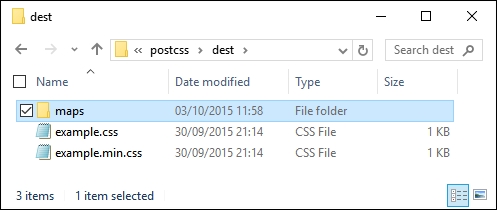
If all is well, we should see the compiled output appear in the dest folder of our project area:

In our project area, we not only have the source map file created under maps, but now also have a minified style sheet, the latter created by renaming the output from cssnano (cssnano does not do this renaming natively, hence use of the rename plugin).
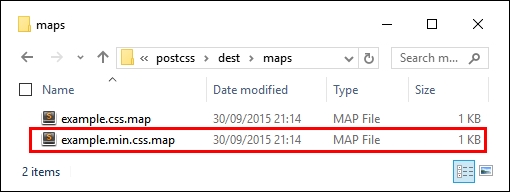
Unfortunately though, we still have one small issue—take a look at the contents of the maps folder: notice anything? Hopefully, you may spot that the source map file is there for the uncompressed version of our style sheet, but not the compressed one! Let's fix that now. To do so, we just need to use the rename task in our Gulp file, as shown:
.pipe(rename('example.min.css'))
.pipe(sourcemaps.init())
.pipe(sourcemaps.write('maps/'))
.pipe(gulp.dest("dest/"));Try running Gulp now. If all is well we should see the source map appear for our minified style sheet:

Let's finish off our gulp file; the last stage is to add a watch facility, so that changes are compiled automatically as soon as files are modified.
Adding a
watch facility is simple when using Gulp. It helps reduce the manual effort required when using Gulp, as we only need to fire off the Gulp task file once, and it will continue to apply the tasks each time files are changed.
Unlike other plugins, we don't need to install any plugins for this; simply add the highlighted lines from the following to the gulpfile.js file:
gulp.task('default', ['styles', 'rename', 'sourcemaps']);
var watcher = gulp.watch('src/*.css', ['default']);
watcher.on('change', function(event) {
console.log('File ' + event.path + ' was ' + event.type + ', running tasks...');
});
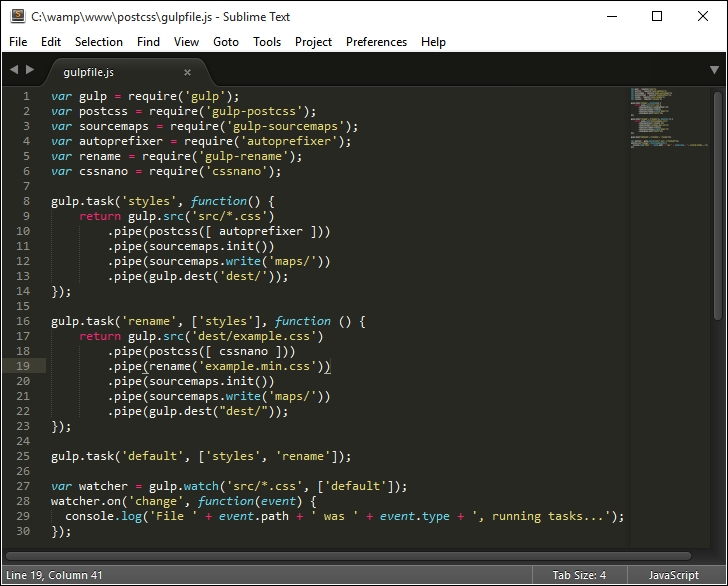
We can see the results of the addition to our gulp task file, and how it all comes together, in this screenshot:

At this point, we can save the file then re-run the gulp command as before; this time it will automatically recompile any file that has changed, from within the src folder. In this instance, we've added an event handler to log an indication into the session so we can tell what is happening; we can easily modify this if needed.
We now have a basic working system; we will begin to add to this over the next few chapters, toward building up our own processor. There is one small thing we should cover though: it's not essential, but a useful tip for developing with PostCSS. I'm talking about linting your code, to ensure it is valid; let's dive in and get this set up for use.