The development process and development environment
For the next few pages, we are going to take a little break from Splunk and specifically look at the development process and using Git as part of this process. The topics covered are more suited to new developers or developers who are not familiar with working as part of a team or with applications such as Git. If you are familiar with these subjects, feel free to jump to the end of this chapter, where we introduce the sample data and example applications we will be working on through this book.
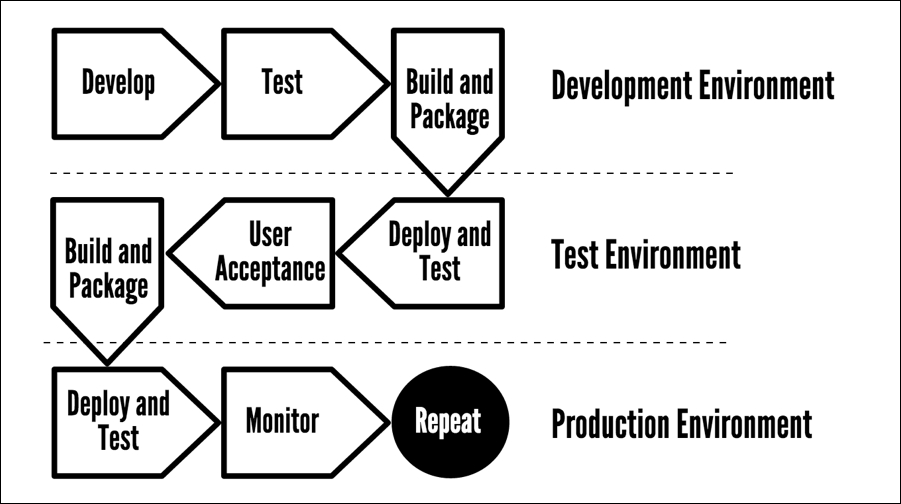
When you work in a team developing applications, there is most likely a process in place that you would need to follow to develop, deploy to the development environment, test, deploy to the test environment, test, and deploy to production. It sounds like a lot of work, but the last thing you want to be doing is deploy a new application into a production environment and realize that you have misspelled the company name, or worse still, you are getting the following dreaded no show screen from Splunk.
This book is not designed to educate you on the software development process, and there are many books, videos, and courses dedicated to the subject, but we will go through a brief run through of the types of things you should be thinking about and the types of good habits you should be getting into.
So, even if you are just developing at home on your own projects, it is good practice to get into the habit of setting up and following a development process, including using a specific development host that mirrors the setup of the production server and some form of version control software:
- Develop your application in your development environment. Even if your development environment is on your laptop or PC, you need to make sure that you are developing on an identical environment to what your application will be eventually deployed on. You won't be able to have everything 100%, but you need to make sure you are using the same language versions and libraries and on the same operating system.
- Test your application in your development environment. Within Agile development methodologies, we can perform test-driven development, where the writing of tests should be performed at the start of the development process. As each iteration of your application is completed, you then need to implement these tests to verify the operation of your application and lodge any bugs or defects that may be found after the development process.
- In the preceding diagram, we showed that we are packaging our application. For now, we will be using Git as part of our development process instead of packaging our application before release. In later chapters, we will also take a look at packaging our Splunk app to deploy and allow others to use our application.
- Deploy your application in a test environment. This is only after your application has successfully passed testing. This should be a standalone environment, isolated from development and once again set up to mimic your production setup. A test environment should go further than your development environment to mimic how the application will be run in production. It should even be on the same hardware as well as operating systems and have the same accompanying applications.
- Test your application in a test environment. Upon successful deployment in your test environment, you can test the application further. It is not a matter of simply performing the same tests that you did in development. This is your chance to perform security tests, make sure that the performance of the application and surrounding applications that are on the same environment is also fine, and simulate production loads to ensure that your application operates under heavy usage.
- User acceptance testing. If you are working for a specific client, you may be asking them to access the application deployed in the test environment and make sure that it operates to their agreed-upon standard. This may mean that the client has requested specific features be added and bugs be removed. If user acceptance testing is in place for your development process, this will usually be the final approval before it is deployed to production.
- Deploy to production. It's time to push the button and deploy your changes into production. If everything has worked as it should, you shouldn't have any surprises, but it is still important to test your application as you would to make sure that the functionality of your application still works the way it should.
- Monitor a new application in production. We're working with Splunk aren't we? Well, this is where we can set up monitoring for our application to make sure we are not seeing an increase in errors, a decline in usage, weird things happening with our hardware and unauthorized users accessing our application.
In the early stages of development of an application, the development process can be stripped down a little. Your production environment may be running on your laptop, but still keep the aforementioned processes in mind so that when you move on to developing within more complex environments and architectures, you will have the basics covered and extending them will not be too difficult.
You should have a development environment set up as closely as possible to mirror what you are deploying in production. If you need to set up VirtualBox, VMware, or another virtualization environment, it is worth doing so to make sure you are setting up an operating system—the same as what you have in production. At the very least, your version of Splunk should be the exact same version as what you will be deploying in production.
Nowadays, with products such as Amazon Web Services, Google Cloud, and Softlayer from IBM, they offer us a much easier way to create development, test, and production environments that all mirror each other without the need to interact with hardware. Automation can also be put in place to create the environment, deploy code, and then test against that environment. Within later chapters of this book, we will touch on automated testing, packaging, and deployment of our code, but for now, we will use collaboration tools such as source code management software to allow us to deploy our code in development and in turn revert changes when needed.
It may not be possible to have the data indexed in exactly the same way as you would be able to in production, but ensure that you have a sample to demonstrate that visualizations and reports are operating correctly and will provide the insight that you need. Try to have as much data as you can, as with reporting tools such as Splunk, your development process may need to incorporate speeding up and optimization of your searches.
Using collaboration tools... enter Git
When discussing the development process, it's probably the best time to introduce collaboration tools such as Git to help you manage your code and track changes. Git is a free and open source tool that offers source code management and collaboration features that should hopefully improve the way we code and interact with our code. As a developer working on smaller projects and development environments, you may be tempted to simply make the changes locally and upload your work to a web server when you're done, but by using source code management software such as Git, you are able to do the following:
- Track and monitor changes to your code. Even if you are working alone on a project, Git will allow you keep a historical log of all the changes made to your code. You may find non-developers accessing code on production environments and making changes to code. Git allows you to verify that the code has not been altered from the original source code. Disk space is not over-utilized in the process as Git only keeps a copy of the changes made and not an entire copy of the software each time changes are made.
- Create specific versions of projects. This allows you to demonstrate changes over time to keep track of feature enhancements to your code and bug fixes, and allows you to easily establish when bugs may have entered your code.
- Revert to old versions of code. As you have been creating versions of your software and tracking your changes, it then becomes a lot easier to back out of changes or revert to old versions of code if something goes wrong. As long as your servers have Git installed and can access your repository, changes can be deployed or reverted with ease and pushed onto each of your development and production environments.
- It allows you to collaborate with other developers. Features and projects can be branched off, so development can be performed on the same code by numerous developers and then merged back once the development is complete. Git also allows these projects to be updated from the central code base on a periodic basis to ensure that these projects keep up to date with the other features being developed around them.
- Store your code in a centrally hosted location. In this book, we will be using GitHub, which is a free hosted service that allows all our code to be hosted in a central location to make sure that we do not need to be working on a specific laptop or have access to a specific server to be able to work on our code. If security is an issue, you can use a licensed version of GitHub to ensure that your code is private, or you can host a Git environment on your own servers to increase security even further.
- Allow your code to be reviewed by other developers. GitHub allows you to create requests to have your code reviewed by other developers and allow them to vote or approve the code changes made.
If you want to collaborate with a few other developers, you will either need to have a Git server running or be using a Git hosting repository service. As we have mentioned earlier, we will be using GitHub as it is one of the most popular online repositories available to use and is free if you don't mind not being able to create private repositories.
Basic usage examples of Git
You can install Git directly on your PC or laptop and use it as a standalone application without any problems. As for our projects and examples, as well as having Git installed, we will set up an account with GitHub and create a new repository for storing all our apps that we develop for Splunk.
A lot of the work we will be doing with Git will be performed on the command line, but there is a little work to be done on the GitHub web interface. Git will also work with different Integrated Development Environments (IDEs).
Create an account on GitHub
Let's start by creating an account on GitHub. Go to the following URL and create your own account: https://github.com/.
Take a little time to set up your account and add all your specific details and passwords. Make sure that you also set up SSH keys on GitHub as this will allow you to pull and push changes to and from the GitHub servers. You will still be able to create repositories and track and add changes, but you will not be able to make any of these changes public to other developers; they will only be available on the local PC or laptop you are developing on.
In the following example, we will work through setting up a repository to store an app.
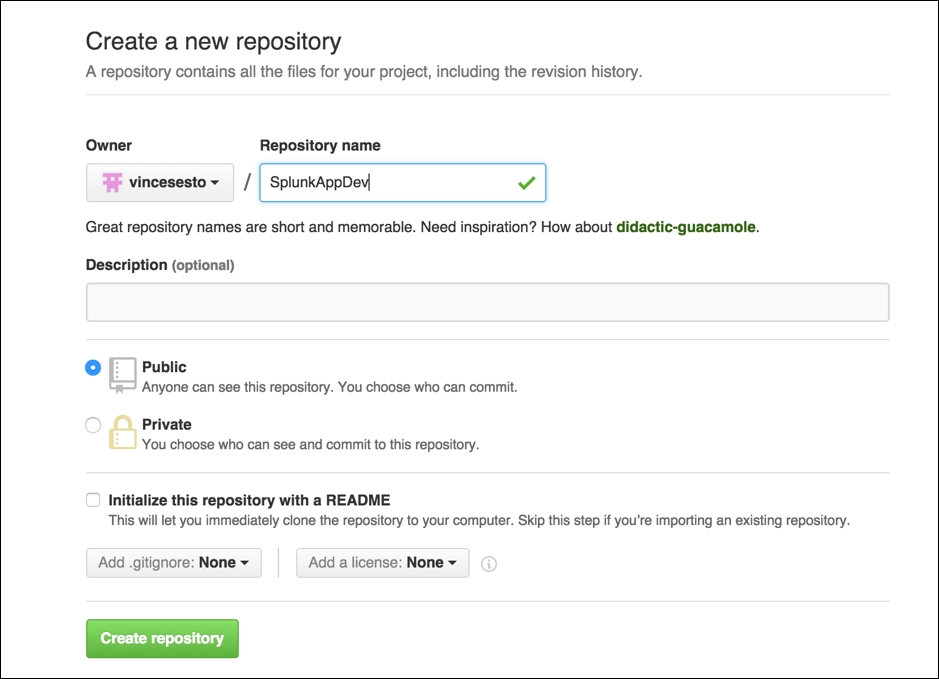
Make sure you are happy with the free account as the repositories will be public. Within your account, you will have a Repositories tab; click on that and click on the New button. You will be presented with the following screen to give your repository a name and description and display it as Public or Private. When you are happy with the name, click on Create Repository:
Note
We are using the free version of GitHub. Please make sure you are happy with this before you start creating repositories that need to be kept private or have sensitive information. You may need to look at a different solution or pay for a Private GitHub repository.
For now, this means we have somewhere to store our repository, but we still need to initialize our repository where we will be developing it. We will create a simple README.md file in a development environment and initialize it:
- Access your development environment and make sure it is set up to run Git.
- Go to the directory that you want to be developing on.
- Run the following command to create the
README.md file and populate it with its first line:echo "# SplunkAppDev" >> README.md
- Then run the following Git command:
git init
- We have now initialized our repository, which tells our Git installation that we are setting up a repository and everything inside this directory will be included. This now includes the new
README.md file. We will be able to see that Git recognizes that we have initialized a repository, but does not know where to put the information. We will now see what Git is thinking about our code, add our README.md file, and then commit our changes to our repository in GitHub. - To see if there have been any changes made in your repository, run the status command:
git status
On branch master
Initial commit
Untracked files:
(use "git add <file>..." to include in what will be
      committed)
  README
nothing added to commit but untracked files present (use "git
      add" to track)
- We then use the
add command to allow Git to track our new file:git add .
- When we are happy with all our additions, then we commit the changes that have been added:
git commit -m "Our first commit"
- All this is still on our local Git application, so let GitHub know we are going to add some more information. Get the URL for the repository you have created and run the following command:
git remote add origin [email protected]:
      <username>/<repository>.git
- Finally, push your changes back to the remote repository on GitHub:
git push -u origin master
If you access the GitHub web interface again, you will be able to see the new files added to your repository.
Branching and working with Git
When we want to start working on development projects, creating features and bug fixes for application and code, the best thing we could do is create a branch from our master code. In our previous example, we simply added files and committed changes to our master branch. But what if we wanted to develop on one specific feature while someone else works on a bug in the code? This is where we can create a branch from our master branch of code and work on it in isolation, while our fellow developer creates a separate branch and works on their bug fix.
The best thing about branching is that we can use this to follow the development process that we outlined earlier in the chapter as we can create and develop on our branch, test these changes, before merging the code back into the master before we then deploy our changes to our test environment and then production.
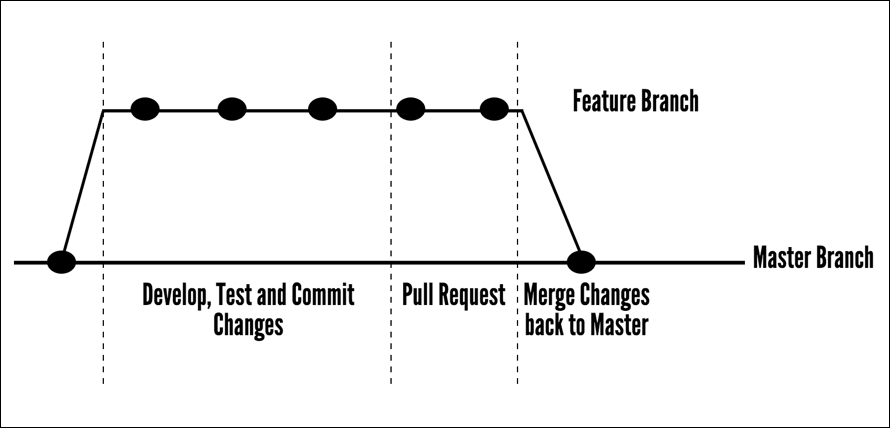
The following diagram gives you a clear example of how the development branch is taken from our master code branch. Code is changed and commits are made to the code in which the new features are created. The changes are tested and once complete, a pull request is made, allowing other developers and our peers to view the changes and make sure there is nothing that we have missed or could have done in a more efficient way. Once the pull request is approved, we can merge our code branch into the master and deploy our changes into our production environment.
In the following example, we will create a branch from our master repository, make changes, and then merge the changes back into the master branch:
- First we want to make sure that the master branch in the environment we are developing in is as up to date as possible, so we will be in sync with what is currently on GitHub:
git pull
- Then we use the checkout option to create a branch of our master code:
git checkout -b branchname master
We then simply go about our work as we normally would, adding and committing changes as we did in our previous example and making sure we regularly push our changes back up to GitHub. Sometimes our development may run on for days and we should be merging changes from master back into our branch.
- Move back to the master branch:
git checkout master
- Grab any changes that have been made back onto our system:
git pull
- Change back to our development branch:
git checkout branchname
- Then merge any changes from the master back into our branch to make sure we are developing on the later version of code:
git merge master
So far, as part of our development process, we have been making changes to our code in a development branch, but at some point in time, we will want to be able to merge our branched code back into our master branch. Of course, this will only happen once we have successfully tested our changes in our development and test environment.
In these situations, it is simple to merge the branched code back into the master, but as we are working in a development team, we create a pull request, we ask that other developers to review our changes, and then once they are approved by our peers, they can be merged back into the master branch.
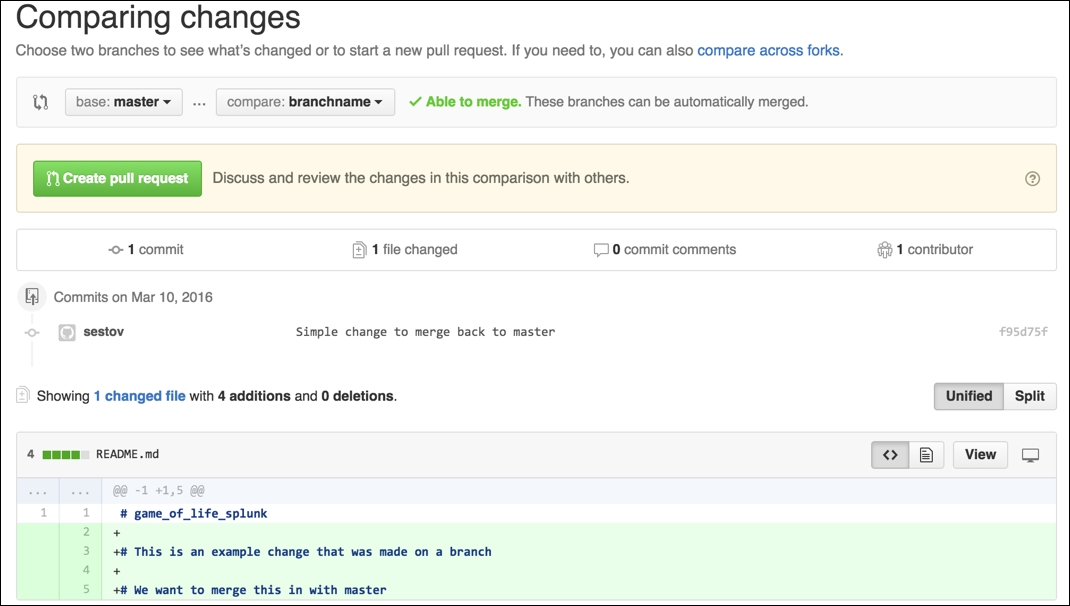
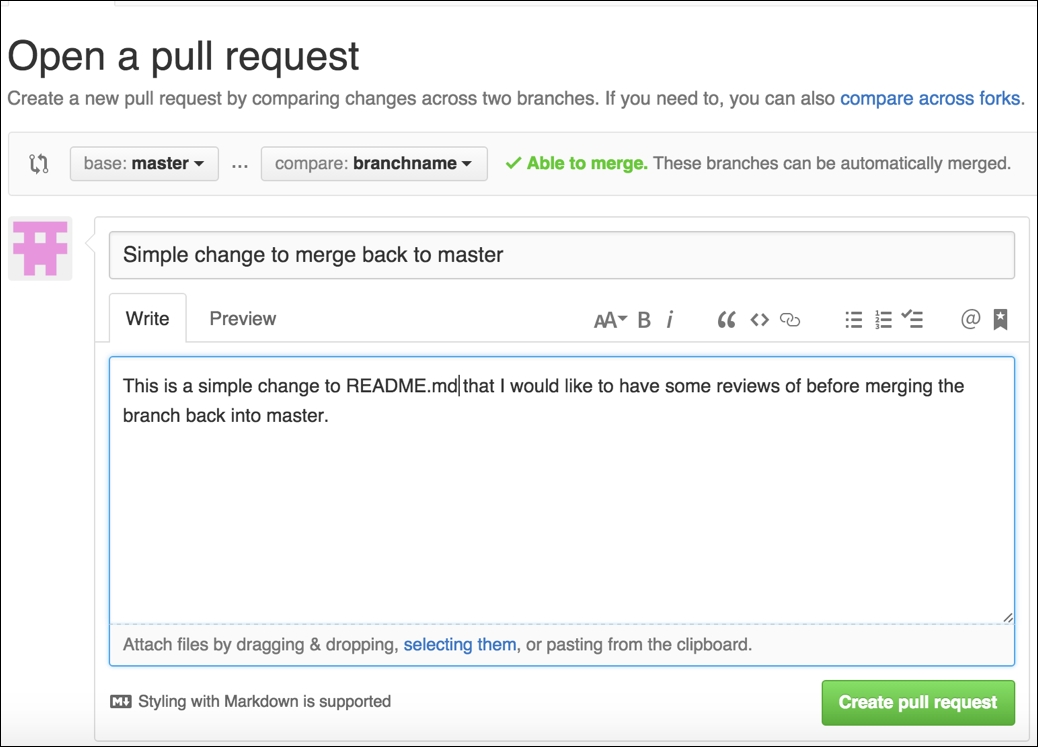
To create a pull request, we need to go back to our GitHub repository and click on the New Pull Request button at the top left of the screen. We will then be presented with a similar screen to the following one:
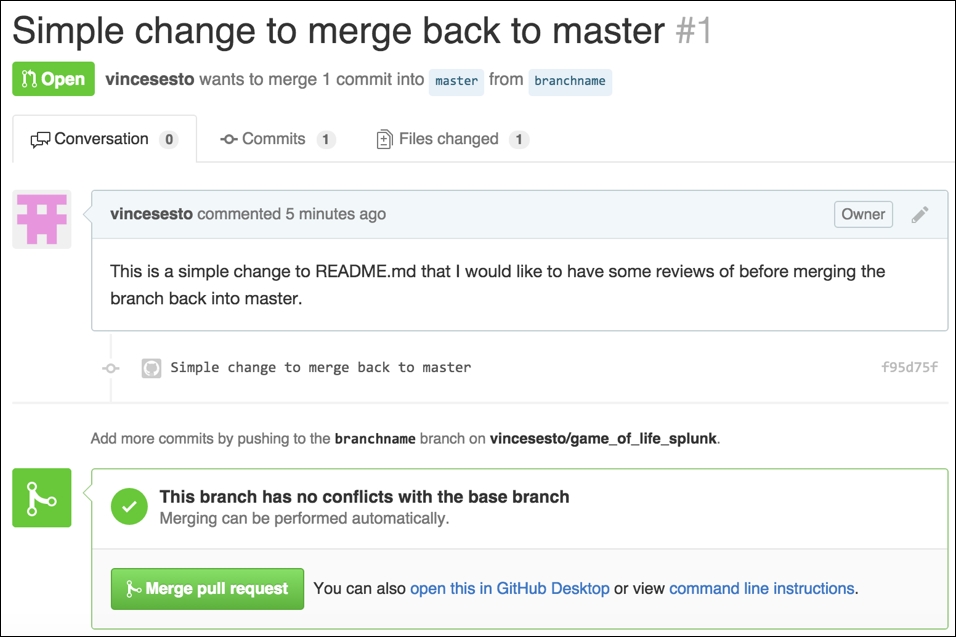
In the example screenshot, we can see that we are using the master branch as our base and using our branch (which in this case is called branchname) that we can compare it with. This feature of GitHub also shows us the differences between the two branches, where additions are in green, and if we removed code as part of our branch, we would see it highlighted in red. Once you then click on Create Pull Request, you are given the option to provide some more information about your changes, so your reviewers will then have some idea of what the code is doing. This is displayed in the following screenshot:
Once you create your pull request, you can then send the request out to other developers to allow them to view, comment on, and vote on your changes.
Once everyone is happy with the changes, click on the Merge Pull Request button at the bottom of the screen where your branch will be merged back into master, hopefully ready for your changes to be then deployed to your production environment.
Using Git when changes go bad
There may be some situations when a change has been implemented into production and testing within the development and test environments has missed some specific edge cases that are being hit when the code is released into production. This does happen occasionally, but when we are using Git, we have a way to quickly go back to our old release.
Within GitHub, you will be able to view a history of commits that have been made over the history of your development. Each commit is provided with a commit hash value, which is a 40-character alphanumeric value that can be used to then revert your changes to an earlier commit that you are sure is working. The following command uses an example commit hash, but you can locate your commit has to your code from GitHub. To revert changes, you can use the following command from the command line in your development environment:
git revert -r e088c3a4b62aec6729021945d6d2b0adc9734c72
The preceding command does not need to have the entire Git hash specified, but you can only provide the first five or so characters that provide enough information to identify the specific commit. The best thing about Git is that if ever a file system is corrupted, tampered with, or destroyed, we have the data stored and available on Git ready to be cloned back to our environment. In case of emergencies, the easiest thing that you might want to do is remove the directory that your application is located and then create a fresh clone of the data, as follows:
git clone [email protected]:username/repositoryname.git
This is just a simple introduction to Git and there are many books and websites that can give you a much more in-depth overview of using the application. It is definitely worth getting comfortable with applications such as Git if you are planning to continue working and developing in the technology sector.






 Free Chapter