Sign In Start Free Trial
Account

Add to playlist

Create a Playlist

Modal Close icon
You need to login to use this feature.
  • Book Overview & Buying Full-Stack Web Development with Vue.js and Node
  • Table Of Contents Toc
  • Feedback & Rating feedback
Full-Stack Web Development with Vue.js and Node

Full-Stack Web Development with Vue.js and Node

By : Sharma
2.3 (4)
close
close
Full-Stack Web Development with Vue.js and Node

Full-Stack Web Development with Vue.js and Node

2.3 (4)
By: Sharma

Overview of this book

Isomorphic JavaScript was the buzzword of the year 2017, allowing developers to utilize a single language throughout their web development stack and build cost-effective and scalable applications. MEVN is a one such modern web development stack consisting of web applications such as MongoDB, Express.js, Vue.js, and Node.js. Hands-On Full-Stack Web Development with Vue.js 2 and Node.js leverages the harmony of these technologies to help you create full-stack web applications. Starting with the core frameworks, this example-based guide explains all the key concepts of frameworks, how to set them up properly, and how to use popular modules to connect them together and make them work cohesively. You will learn all this with the help of real-world examples. In addition to this, you will be able to scaffold web application architecture, add an authentication layer, and develop the MVC structure to support the development of your application. You'll explore how to create data models for your applications and then write REST APIs by exposing your data model to your application. Solely orientated towards building a full, end-to-end application using the MEVN stack, this book will help you understand how your application development grows.
Table of Contents (12 chapters)
close
close

Installing Node.js

To get started, we need to add all the dependencies that are required for an MEVN stack application. We can also refer to the documentation on the official website (https://nodejs.org/) for details on how to install Node.js in any operating system. 

Installing Node.js on macOS

There are two ways to install Node.js on macOS: using the installer or using the bash.

Installing Node.js using the installer

To install Node.js using the installer, perform the steps:

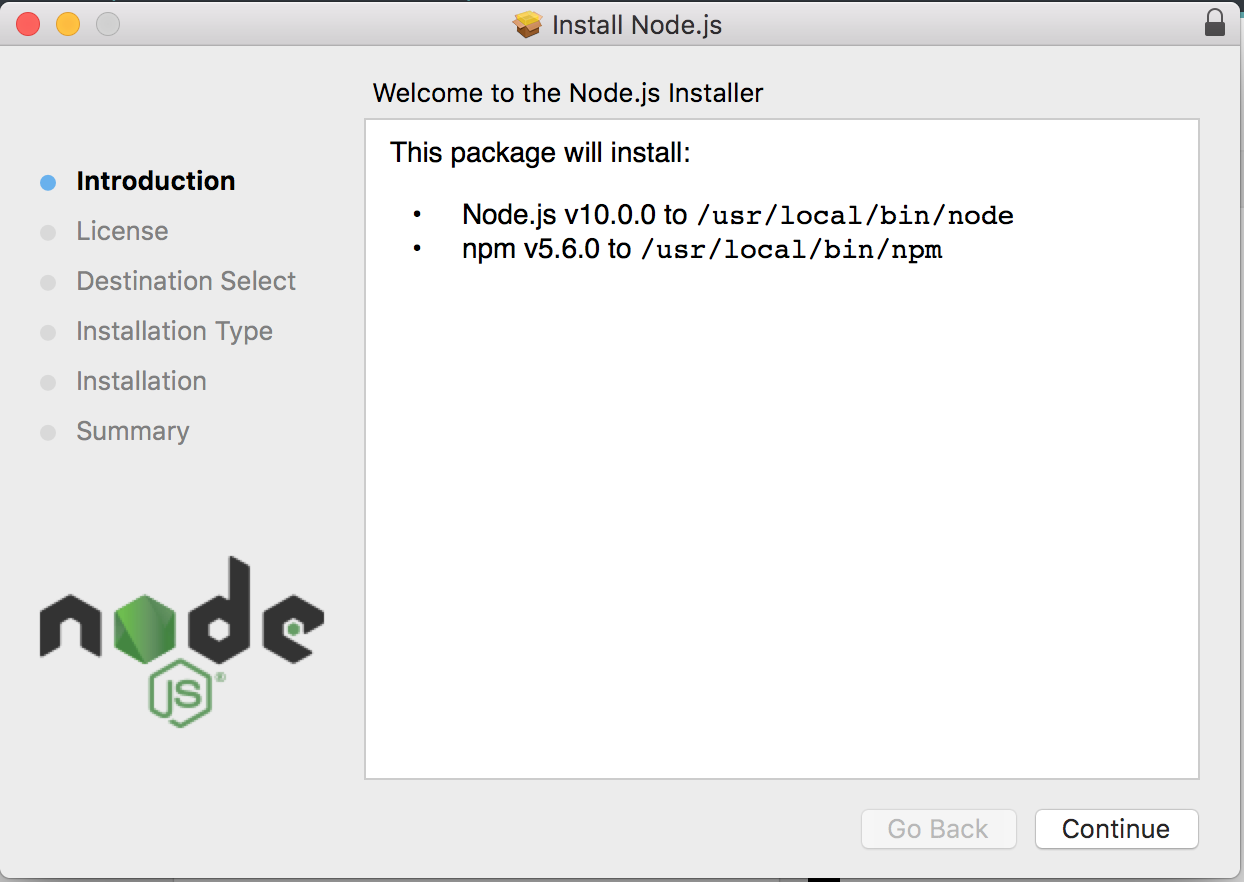
  1. Install the installer: We can download the installer for macOS from the official website's download page (https://nodejs.org/en/#download). We will be installing the latest node version, which is 10.0.0. You can install any node version you want, but the application that we will be building in this book will require the node version >= 6.0.0. Run the installer and follow the instructions given. When we download and run the installer, we will be prompted with the following dialog box:
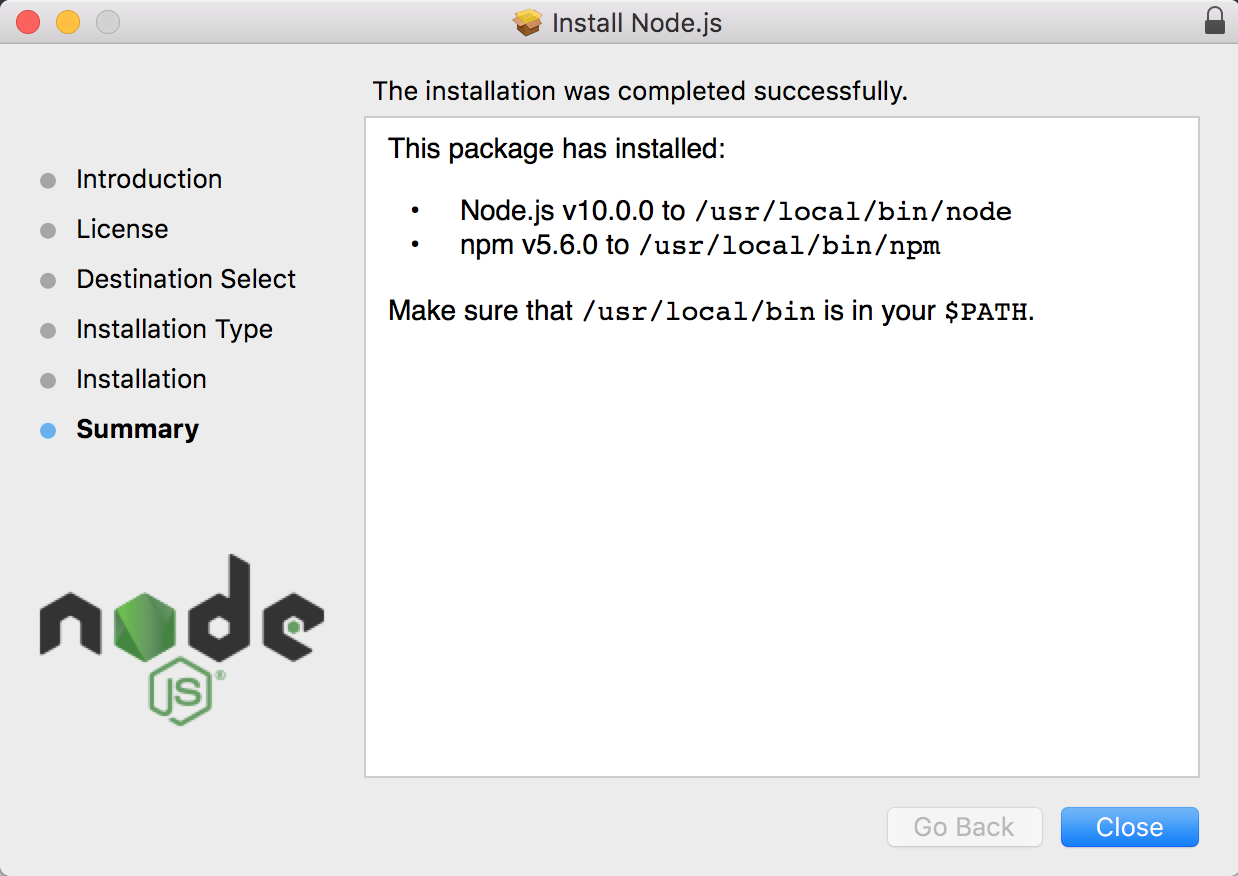
  1. Just hit Continue until the installation finishes. Once the installation is complete, we will be able to see the following dialog box:

Just hit Close and we will be done.

Installing Node.js using the bash

Node.js can be easily installed using Homebrew in macOS. Homebrew is a free and open source software package manager that is used to install software on macOS. I personally prefer Homebrew because it makes it very easy to install different software on Mac:

  1. To install Homebrew, type the following command:
$ /usr/bin/ruby -e "$(curl -fsSL https://raw.githubusercontent.com/Homebrew/install/master/install)"
  1. Now, use Homebrew to install Node.js with the following command:
$ brew install node

Installing Node.js on Linux

For Linux, we can either install the default distribution of Node.js or we can download it from NodeSource to use the latest version.

Installing Node.js from the default distribution

To install from the default distribution, we can install Node.js on Linux by using this command:

$ sudo apt-get install -y nodejs

Installing Node.js from NodeSource

To install Node.js from NodeSource, perform the following steps:

  1. First download the latest version of Node.js from NodeSource:
$ curl -sL https://deb.nodesource.com/setup_9.x | sudo -E bash 
  1. Then, install Node.js with the command:
$ sudo apt-get install -y nodejs
The apt is a short form of Advanced Package Tool that is used to install software on Debian and Linux distributions. Basically, this is equivalent to the Homebrew command in macOS.

Installing Node.js on Windows

We can install Node.js on Windows by following these steps:

  1. Download the Node.js installer from the official website (https://nodejs.org/en/download/)
  2. Run the installer and follow the given instructions
  3. Click on the Close/Finish button

Installing Node.js for Windows via an installer is almost the same as on macOS. Once we download and run the installer, we will be prompted with a dialog box. Just click on Continue until the installation completes. When we finally see a dialog with a confirmation, we hit Close. Node.js will be installed!

Visually different images
CONTINUE READING
83
Tech Concepts
36
Programming languages
73
Tech Tools
Icon Unlimited access to the largest independent learning library in tech of over 8,000 expert-authored tech books and videos.
Icon Innovative learning tools, including AI book assistants, code context explainers, and text-to-speech.
Icon 50+ new titles added per month and exclusive early access to books as they are being written.
Full-Stack Web Development with Vue.js and Node
notes
bookmark Notes and Bookmarks search Search in title playlist Add to playlist download Download options font-size Font size

Change the font size

margin-width Margin width

Change margin width

day-mode Day/Sepia/Night Modes

Change background colour

Close icon Search
Country selected

Close icon Your notes and bookmarks

Confirmation

Modal Close icon
claim successful

Buy this book with your credits?

Modal Close icon
Are you sure you want to buy this book with one of your credits?
Close
YES, BUY

Submit Your Feedback

Modal Close icon
Modal Close icon
Modal Close icon