Sign In Start Free Trial
Account

Add to playlist

Create a Playlist

Modal Close icon
You need to login to use this feature.
  • Book Overview & Buying An Atypical ASP.NET Core 5 Design Patterns Guide
  • Table Of Contents Toc
An Atypical ASP.NET Core 5 Design Patterns Guide

An Atypical ASP.NET Core 5 Design Patterns Guide

By : Marcotte
3.5 (11)
close
close
An Atypical ASP.NET Core 5 Design Patterns Guide

An Atypical ASP.NET Core 5 Design Patterns Guide

3.5 (11)
By: Marcotte

Overview of this book

Design patterns are a set of solutions to many of the common problems occurring in software development. Knowledge of these design patterns helps developers and professionals to craft software solutions of any scale. ASP.NET Core 5 Design Patterns starts by exploring basic design patterns, architectural principles, dependency injection, and other ASP.NET Core mechanisms. You’ll explore the component scale as you discover patterns oriented toward small chunks of the software, and then move to application-scale patterns and techniques to understand higher-level patterns and how to structure the application as a whole. The book covers a range of significant GoF (Gangs of Four) design patterns such as strategy, singleton, decorator, facade, and composite. The chapters are organized based on scale and topics, allowing you to start small and build on a strong base, the same way that you would develop a program. With the help of use cases, the book will show you how to combine design patterns to display alternate usage and help you feel comfortable working with a variety of design patterns. Finally, you’ll advance to the client side to connect the dots and make ASP.NET Core a viable full-stack alternative. By the end of the book, you’ll be able to mix and match design patterns and have learned how to think about architecture and how it works.
Table of Contents (27 chapters)
close
close
1
Section 1: Principles and Methodologies
5
Section 2: Designing for ASP.NET Core
11
Section 3: Designing at Component Scale
15
Section 4: Designing at Application Scale
21
Section 5: Designing the Client Side
25
Acronyms Lexicon

Getting started with .NET

A bit of history; the team did a magnificent job building ASP.NET Core from the ground up, cutting out compatibility with older versions. That brought its share of problems at first, but those interoperability issues got alleviated by the creation of .NET Standards. Now, with the reunification of most technologies into .NET 5 and the promise of a shared BCL, the name ASP.NET Core is (almost) no more, but became the future. Afterward, Microsoft is planning a major release of .NET every year, so 2021 should be .NET 6, and so on.

The good thing is that architectural principles and design patterns should remain relevant in the future and are not tightly coupled with the versions of .NET you are using. Minor changes to the code sample should be enough to migrate the knowledge and the code to the new versions.

Now, let's cover some key information surrounding .NET 5 and the .NET ecosystem.

.NET SDK versus runtime

You can install different binaries grouped under SDKs and runtimes. The SDK allows you to build and run .NET programs, while the runtime only allows you to run .NET programs.

As a developer, you want to install the SDK on your deployment environment. On the server, you want to install the runtime. The runtime is lighter, while the SDK contains more tools, including the runtime.

.NET 5 versus .NET Standard

When building .NET projects, there are multiple types of projects, but basically, we could separate them into two categories:

  • Applications
  • Libraries

Applications are targeting a version of .NET, such as net5.0. Examples of that would be an ASP.NET application or a console application.

Libraries are bundles of code compiled together, often distributed as a NuGet package over NuGet.org. .NET Standard class library projects allow code to be shared between .NET Core, .NET 5+, and .NET Framework projects. .NET Standards came into play to bridge the compatibility gap between .NET Core and .NET Framework, which eased the transition. It was not easy when .NET Core 1.0 first came out.

With .NET 5 unifying all of the platforms and becoming the future of that unified .NET ecosystem, .NET Standards is no longer required.

Note

I'm sure that we are going to see .NET Standard libraries stick around for a while though. All projects are not going to migrate from .NET Framework to .NET 5 magically, and people are likely to want to continue sharing code between the two.

Next versions of .NET should be built over .NET 5, while .NET Framework 4.X is going to stay where it is today, receiving only security patches and minor updates.

Visual Studio Code versus Visual Studio versus the command-line interface (CLI)

How can one of those projects be created? .NET Core comes with the dotnet CLI, which exposes multiple commands, including new. Running the dotnet new command in a terminal generates a new project.

To create an empty class library, we can run the following commands:

md MyProject cd MyProject dotnet new classlib

That would generate an empty class library in the newly created MyProject directory. The -h option can come in handy when discovering available commands and their options. You can use dotnet -h to find the available SDK commands, or dotnet new -h to find out about options and available templates.

Visual Studio Code is my favorite text editor. I don't use it much for .NET coding, but I still do to reorganize projects, when the CLI time comes, or for any other task that is easier to complete using a text editor, such as writing documentation using markdown, writing JavaScript or TypeScript, or managing JSON, YAML, or XML files. To create a project or solution, or to add a NuGet package using VS Code, open a terminal and use the CLI.

As for Visual Studio, my favorite IDE, it uses the CLI under the hood to create the same projects, making it consistent between tools. Visual Studio adds a user interface over the CLI.

You can also create and install additional dotnet new project templates to the CLI or even create global tools. Those topics are beyond the scope of this book.

An overview of project templates

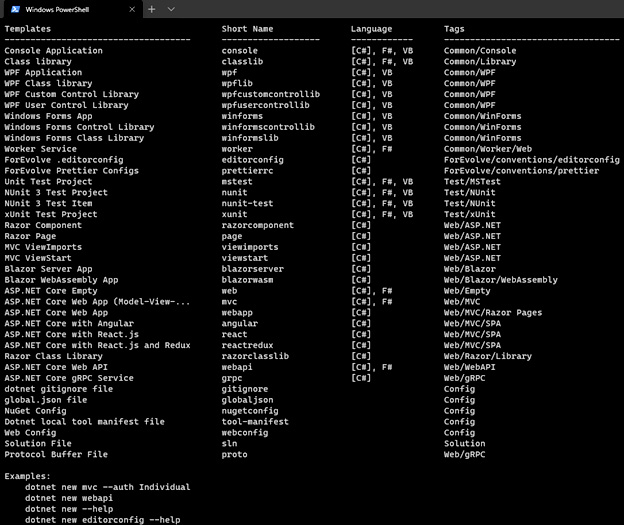
Here is an example of the templates that are installed (dotnet new):

Figure 1.1 – Project templates

Figure 1.1 – Project templates

A study of all the templates is beyond the scope of this book, but I'd like to visit the few that are worth mentioning or because we will use them later:

  • dotnet new console creates a console application.
  • dotnet new classlib creates a class library.
  • dotnet new xunit creates an xUnit test project.
  • dotnet new web creates an empty web project.
  • dotnet new webapp creates an empty web project with a preconfigured Startup class.
  • dotnet new mvc scaffolds an MVC application.
  • dotnet new webapi scaffolds a web API application.

Async main (C# 7.1)

From C# 7.1 onward, a console application can have an async main method, which is very convenient as more and more code is becoming async. This new feature allows the use of await directly in the main() method, without any quirks.

Previously, the signature of the main method had to fit one of the following:

public static void Main() { }
public static int Main() { }
public static void Main(string[] args) { }
public static int Main(string[] args) { }

Since C# 7.1, we can also use their async counterpart:

public static async Task Main() { }
public static async Task<int> Main() { }
public static async Task Main(string[] args) { }
public static async Task<int> Main(string[] args) { }

Now, we can create a console that looks like this:

class Program
{
    static async Task Main(string[] args)
    {
        Console.WriteLine("Entering Main");
        var myService = new MyService();
        await myService.ExecuteAsync();
        Console.WriteLine("Exiting Main");
    }
}
public class MyService
{
    public Task ExecuteAsync()
    {
        Console.WriteLine("Inside MyService.ExecuteAsync()");
        return Task.CompletedTask;
    }
}

When executing the program, the result is as follows:

Entering Main
Inside MyService.ExecuteAsync()
Exiting Main

Nothing fancy, but it allows advantage to be taken of the await/async language feature.

Since .NET Core, all types of application start with a Main method (usually Program.Main), including ASP.NET Core 5 web applications.

Running and building your program

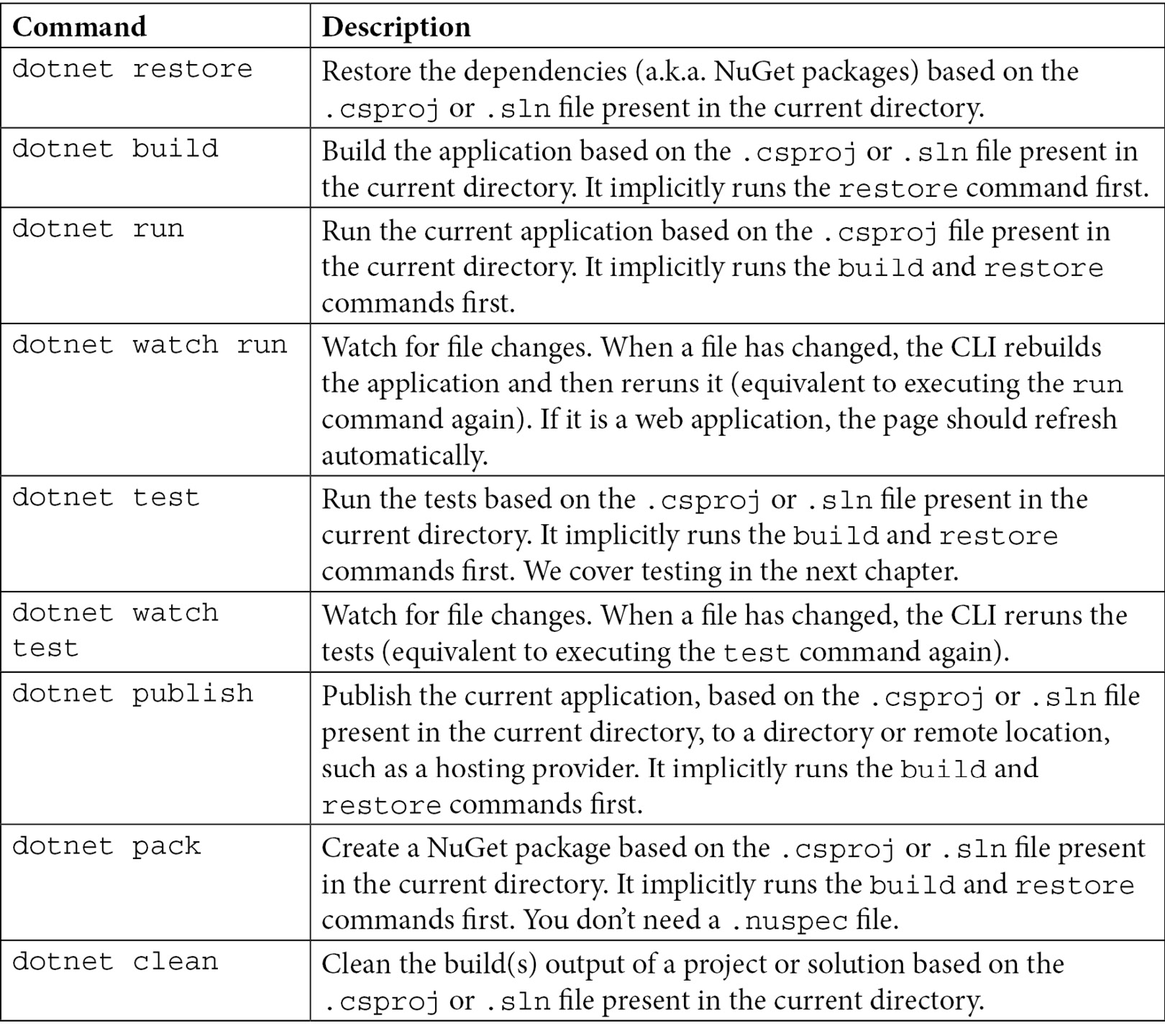
If you are using Visual Studio, you can always hit the play button, or F5, and run your app. If you are using the CLI, you can use one of the following commands (and more). Each of them also offers different options to control their behavior. Add the -h flag with any command to get help on that command, such as dotnet build -h:

Technical requirements

Throughout the book, we explore and write code. I recommend that you install Visual Studio, Visual Studio Code, or both, to help out with that.

Note

You could also use Notepad or your favorite text editor if you prefer. I use VS and VS Code. Choose the tools that you prefer.

Unless you install Visual Studio, which comes with the .NET SDK, you may need to install the .NET 5 SDK. The SDK comes with the CLI that we explored earlier, as well as the building tools for running and testing your programs. Have a look at the README.md file of the GitHub repository for more information and links to those resources.

The source code of all chapters is available for download on GitHub at the following address: https://net5.link/code.

CONTINUE READING
83
Tech Concepts
36
Programming languages
73
Tech Tools
Icon Unlimited access to the largest independent learning library in tech of over 8,000 expert-authored tech books and videos.
Icon Innovative learning tools, including AI book assistants, code context explainers, and text-to-speech.
Icon 50+ new titles added per month and exclusive early access to books as they are being written.
An Atypical ASP.NET Core 5 Design Patterns Guide
notes
bookmark Notes and Bookmarks search Search in title playlist Add to playlist download Download options font-size Font size

Change the font size

margin-width Margin width

Change margin width

day-mode Day/Sepia/Night Modes

Change background colour

Close icon Search
Country selected

Close icon Your notes and bookmarks

Confirmation

Modal Close icon
claim successful

Buy this book with your credits?

Modal Close icon
Are you sure you want to buy this book with one of your credits?
Close
YES, BUY

Submit Your Feedback

Modal Close icon
Modal Close icon
Modal Close icon