Sign In Start Free Trial
Account

Add to playlist

Create a Playlist

Modal Close icon
You need to login to use this feature.
  • Book Overview & Buying Svelte 3 Up and Running
  • Table Of Contents Toc
Svelte 3 Up and Running

Svelte 3 Up and Running

By : Segala
4.8 (5)
close
close
Svelte 3 Up and Running

Svelte 3 Up and Running

4.8 (5)
By: Segala

Overview of this book

Svelte is a modern JavaScript framework used to build static web apps that are fast and lean, as well as being fun for developers to use. This book is a concise and practical introduction for those who are new to the Svelte framework which will have you up to speed with building apps quickly, and teach you how to use Svelte 3 to build apps that offer a great app user experience (UX). The book starts with an introduction to Svelte 3, before showing you how to set up your first complete application with the framework. Filled with code samples, each chapter will show you how to write components using the Svelte template syntax and the application programming interfaces (APIs) of the Svelte framework. As you advance, you’ll go from scaffolding your project and tool setup all the way through to production with DevOps principles such as automated testing, continuous integration, and continuous delivery (CI/CD). Finally, you’ll deploy your application in the cloud with object storage services and a content delivery network (CDN) for best-in-class performance for your users. By the end of this book, you’ll have learned how to build and deploy apps using Svelte 3 to solve real-world problems and deliver impressive results.
Table of Contents (9 chapters)
close
close

Debugging Svelte applications

Lastly, let's look at how we can debug Svelte applications in a web browser. There are two tools worth highlighting, which can be complementary: using the Visual Studio Code debugger, and using the Svelte DevTools browser extension.

Using the Visual Studio Code debugger

Visual Studio Code contains a powerful debugger that works neatly with web browsers such as Chrome, Firefox, and Edge.

Earlier in the chapter, I recommended installing the free Debugger for Chrome extension from the Visual Studio Code Marketplace (link to the extension in the Visual Studio Marketplace: https://aka.ms/vscode-chrome-debugger). That, or the equivalent for Firefox or Edge, plus a small configuration file is all we need.

Create a configuration file called .vscode/launch.json (note the dot at the beginning of the path) and paste the following content:

.vscode/launch.json

{
    "version": "0.2.0",
    "configurations": [
        {
            "type": "chrome",
            "request": "launch",
            "name": "Launch Chrome against dev server",
            "url": "http://localhost:5000",
            "webRoot": "${workspaceFolder}"
        }
    ]
}

If you're familiar with the Visual Studio Code debugger, you'll notice that this is the standard, autogenerated file, with just the port changed in the URL.

In order to be able to set breakpoints in .svelte files, open the Visual Studio Code settings (File | Preferences, or Code | Preferences on macOS), search for debug.allowBreakpointsEverywhere, and then enable it.

After we've done this, we can use the full debugger, with support for breakpoints, data inspection, logpoints, and so on. To debug a Svelte application, perform the following steps:

  1. First of all, start the dev server in a terminal; this is the same command we've run before:
    $ npm run dev
  2. Secondly, click the Run icon in the Visual Studio Code activity bar to bring up the debugger and then press the green RUN button:
    Figure 2.5 – Clicking on the green RUN button to launch the debugger

    Figure 2.5 – Clicking on the green RUN button to launch the debugger

    Alternatively, you can use the F5 button as a keyboard shortcut.

  3. Chrome will be launched automatically and will be connected to the debugger in the editor.

Visual Studio Code comes with a very powerful debugger, with support for advanced features, too. The best way to learn how to use the debugger is to check out the official documentation:

https://code.visualstudio.com/docs/editor/debugging

Browser extension

In addition to the debugger inside Visual Studio Code, this community-provided extension for Chrome and Firefox can be useful to inspect and change the state of your Svelte components and troubleshoot issues:

https://github.com/RedHatter/svelte-devtools

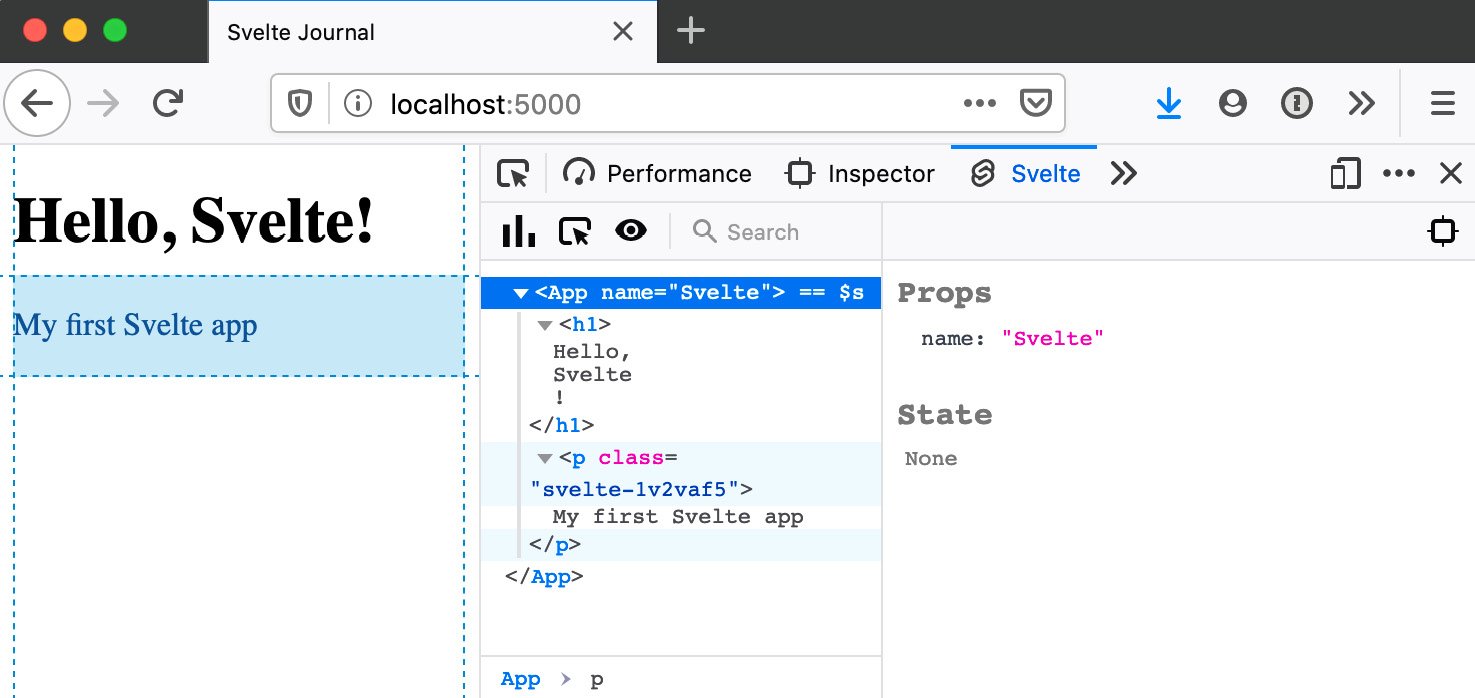
After installing the extension, when you're browsing a Svelte application running in a dev server (for example, our project launched with npm run dev), you will find an extra Svelte tab at the end in your browser's Inspector (also known as Developer Tools):

Figure 2.6 – The Svelte tab in the browser's developer tools


Figure 2.6 – The Svelte tab in the browser's developer tools

While not a full debugger, this extension shows the Svelte components that are currently rendered in the page, and their current state. You can change the values of props, for example, and see how the content changes.

Visually different images
CONTINUE READING
83
Tech Concepts
36
Programming languages
73
Tech Tools
Icon Unlimited access to the largest independent learning library in tech of over 8,000 expert-authored tech books and videos.
Icon Innovative learning tools, including AI book assistants, code context explainers, and text-to-speech.
Icon 50+ new titles added per month and exclusive early access to books as they are being written.
Svelte 3 Up and Running
notes
bookmark Notes and Bookmarks search Search in title playlist Add to playlist download Download options font-size Font size

Change the font size

margin-width Margin width

Change margin width

day-mode Day/Sepia/Night Modes

Change background colour

Close icon Search
Country selected

Close icon Your notes and bookmarks

Confirmation

Modal Close icon
claim successful

Buy this book with your credits?

Modal Close icon
Are you sure you want to buy this book with one of your credits?
Close
YES, BUY

Submit Your Feedback

Modal Close icon
Modal Close icon
Modal Close icon