-
Book Overview & Buying
-
Table Of Contents

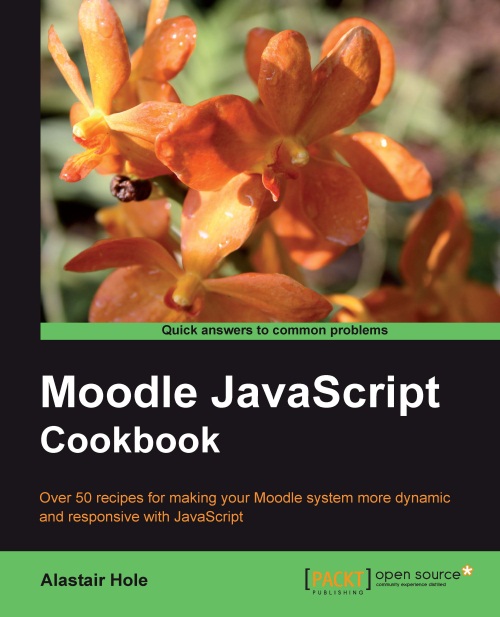
Moodle JavaScript Cookbook
By :


Moodle JavaScript Cookbook
By:
Overview of this book
Moodle is the best e-learning solution on the block and is revolutionizing courses on the Web. Using JavaScript in Moodle is very useful to administrators and dynamic developers as it uses built-in libraries to provide the modern and dynamic experience that is expected by web users today.The Moodle JavaScript Cookbook will take you through the basics of combining Moodle with JavaScript and its various libraries and explain how JavaScript can be used along with Moodle. It will explain how to integrate Yahoo! User Interface Library (YUI) with Moodle. YUI will be the main focus of the book, and is the key to implementing modern, dynamic feature-rich interfaces to help your users get a more satisfying and productive Moodle experience. It will enable you to add effects, make forms more responsive, use AJAX and animation, all to create a richer user experience. You will be able to work through a range of YUI features, such as pulling in and displaying information from other websites, enhancing existing UI elements to make users' lives easier, and even how to add animation to your pages for a nice finishing touch.
Table of Contents (15 chapters)
Moodle JavaScript Cookbook


Credits
About the Author
About the Reviewers
www.PacktPub.com
Preface
 Free Chapter
Combining Moodle and JavaScript

Moodle and Yahoo! User Interface Library (YUI)
Moodle Forms Validation
Manipulating Data with YUI 3
Working with Data Tables
Enhancing Page Elements
Advanced Layout Techniques
Animating Components