Sign In Start Free Trial
Account

Add to playlist

Create a Playlist

Modal Close icon
You need to login to use this feature.
  • Book Overview & Buying Windows Server 2016 Cookbook
  • Table Of Contents Toc
  • Feedback & Rating feedback
Windows Server 2016 Cookbook

Windows Server 2016 Cookbook

By : Jordan Krause
3.5 (2)
close
close
Windows Server 2016 Cookbook

Windows Server 2016 Cookbook

3.5 (2)
By: Jordan Krause

Overview of this book

This hands-on Cookbook is stuffed full of practical recipes that will help you handle the essential administrative tasks in Windows Server 2016. You’ll start by familiarizing yourself with the look and feel of Windows Server 2016, and will then learn how to navigate through some daily tasks using the graphical interface. You will see how to compose optimal Group Policies and facilitate task automation with PowerShell 5.0 scripting. We will also take a look at the functions available to provide remote network access to your traveling users, and explore the much anticipated Nano Server and Hyper-V built-in integration support that is brand new in Windows Server 2016. By the end of this book, you will know how to take your Windows Server 2016-powered server and turn it into any common infrastructure role that might be required in your company.
Table of Contents (13 chapters)
close
close

Building and executing your first PowerShell script

Command Prompt and PowerShell are both great command-line interfaces that can acquire and configure information about our servers. Most of us are familiar with creating some simple batch files that are driven by Command Prompt, essentially programming out small tasks within these batch files to automate a series of commands. This saves time later as we do not have to type out the commands line by line, especially for common tasks or for items that we need to run during login.

PowerShell has similar functionality, the ability to write out multiple lines of PowerShell cmdlets inside a script file. We can then launch this script file as we would a batch file, automating tasks while taking advantage of the additional features that PowerShell brings to the table over Command Prompt. These PowerShell scripts are put together inside .ps1 files; let's build a simple one together to get a feel for running these scripts.

Getting ready

Our work with PowerShell today will be accomplished from a Windows Server 2016 machine. PowerShell is installed by default with Windows, and there is nothing further that we need to install.

How to do it…

Follow these steps to build and execute our first PowerShell script:

  1. Open the Start menu and type Windows PowerShell ISE. Right-click to launch this tool as an administrator. Windows PowerShell ISE is an editor for PowerShell scripts that is much more useful than opening a simple text editor such as Notepad in order to build our script.

    How to do it…

  2. Navigate to File | New from the menus in order to open a blank .ps1 script file.
  3. In your first line, type the following: Write-Host "Hello! Here is the current date and time:".
  4. From the toolbar menu, click the green arrow that says Run Script. Alternatively, you can simply press the F5 button. When you run the script, the command and output are displayed in the lower portion of the ISE window.

    How to do it…

    Cool! Okay, so far it's actually pretty lame. It's just reflecting the text that we told it to echo, but it worked. That is the nice thing about using the ISE editing tool rather than a generic text editor, you have the ability to quickly test run scripts as you make modifications.

  5. Now let's add some additional lines into our script to give us the information we are looking for. You can see a list of available commands on the right side of the screen if you would like to browse through what is available, but for our example simply change your script to include the following:
          Write-Host "Hello! Here is the current date and time:" 
          Get-Date 
          Write-Host "The name of your computer is:" 
          hostname
    
    
  6. Press the Run Script button again to see the new output.

    How to do it…

  7. Now navigate to File | Save and save your new .ps1 PowerShell script out to the Desktop.
  8. Let's test this script by launching it from within a real PowerShell command window. Right-click on your PowerShell icon in the Taskbar and choose Run as administrator.
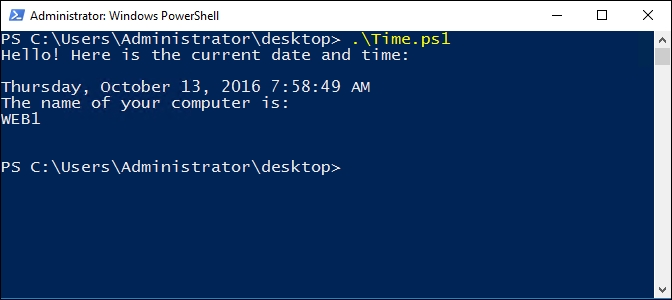
  9. Browse to the location of the script file, I placed mine on the Desktop. Then launch the script by inputting .\filename. In my case, it looks like this: .\time.ps1.

Tip

Remember that the Tab key can be our friend in this. When browsing to your Desktop, all you need to do is input the first letter of your script filename, and then press Tab. Since I named my script Time.ps1, all I had to do was press the T and then press Tab, then Enter.

How to do it…

How it works…

In this recipe, we created a very simple PowerShell script and saved it on our server for execution. While in practice getting time and date information from your server may come faster by using the standalone Get-Date cmdlet, we use this recipe to give a small taste of the ISE and to get your scripting juices flowing. Expanding upon the ideas presented here will start to save you valuable time and keystrokes as you identify more and more ways to automate the tasks and information gathering that are part of your daily routines. The possibilities of PowerShell are practically limitless, so make sure that you open it up and start becoming familiar with the interfaces and tools associated with it right away!

Visually different images
CONTINUE READING
83
Tech Concepts
36
Programming languages
73
Tech Tools
Icon Unlimited access to the largest independent learning library in tech of over 8,000 expert-authored tech books and videos.
Icon Innovative learning tools, including AI book assistants, code context explainers, and text-to-speech.
Icon 50+ new titles added per month and exclusive early access to books as they are being written.
Windows Server 2016 Cookbook
notes
bookmark Notes and Bookmarks search Search in title playlist Add to playlist font-size Font size

Change the font size

margin-width Margin width

Change margin width

day-mode Day/Sepia/Night Modes

Change background colour

Close icon Search
Country selected

Close icon Your notes and bookmarks

Confirmation

Modal Close icon
claim successful

Buy this book with your credits?

Modal Close icon
Are you sure you want to buy this book with one of your credits?
Close
YES, BUY

Submit Your Feedback

Modal Close icon
Modal Close icon
Modal Close icon