Sign In Start Free Trial
Account

Add to playlist

Create a Playlist

Modal Close icon
You need to login to use this feature.
  • Book Overview & Buying Data Analysis and Business Modeling with Excel 2013
  • Table Of Contents Toc
  • Feedback & Rating feedback
Data Analysis and Business Modeling with Excel 2013

Data Analysis and Business Modeling with Excel 2013

By : Rojas
4.5 (2)
close
close
Data Analysis and Business Modeling with Excel 2013

Data Analysis and Business Modeling with Excel 2013

4.5 (2)
By: Rojas

Overview of this book

Excel 2013 is one of the easiest to use data analysis tools you will ever come across. Its simplicity and powerful features has made it the go to tool for all your data needs. Complex operations with Excel, such as creating charts and graphs, visualization, and analyzing data make it a great tool for managers, data scientists, financial data analysts, and those who work closely with data. Learning data analysis and will help you bring your data skills to the next level. This book starts by walking you through creating your own data and bringing data into Excel from various sources. You’ll learn the basics of SQL syntax and how to connect it to a Microsoft SQL Server Database using Excel’s data connection tools. You will discover how to spot bad data and strategies to clean that data to make it useful to you. Next, you'll learn to create custom columns, identify key metrics, and make decisions based on business rules. You’ll create macros using VBA and use Excel 2013’s shiny new macros. Finally, at the end of the book, you'll be provided with useful shortcuts and tips, enabling you to do efficient data analysis and business modeling with Excel 2013.
Table of Contents (13 chapters)
close
close
10
10. Creating Interactive Spreadsheets Using Tables and Slicers
11
A. Tips, Tricks, and Shortcuts
12
Index

Manually creating data

Let's create our first dataset by using the following steps:

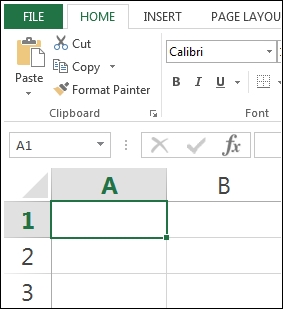
  1. First, fire up Excel 2013 and create a new spreadsheet. We will begin with creating some data manually as an introduction to gathering data. We will begin with typing in cell A1, as shown in the following screenshot:
    Manually creating data
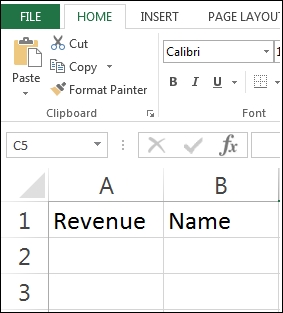
  2. Type Revenue in cell A1 and Name in cell B1, as shown in the following screenshot. These are going to be our column headings of our dataset.
    Manually creating data
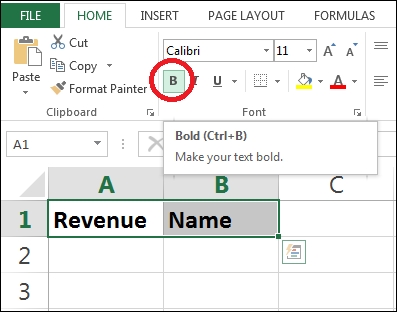
  3. We are now going to apply styles to the column headings so that they stand out. Highlight columns A1 and B1 and press Ctrl + B. This action will make the two strings that we selected bold. Another option is to highlight the cells and click on the Bold button in the toolbar, as shown in the following screenshot:
    Manually creating data
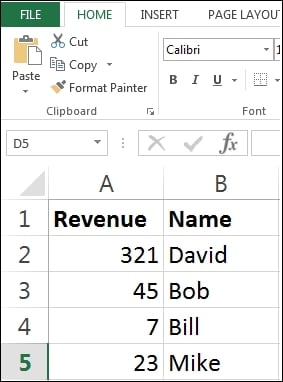
  4. Now, type 321, 45, 7, and 23 in the Revenue column. Then, type David, Bob, Bill, and Mike in the Name column. Your spreadsheet should look like the example in the following screenshot:
    Manually creating data
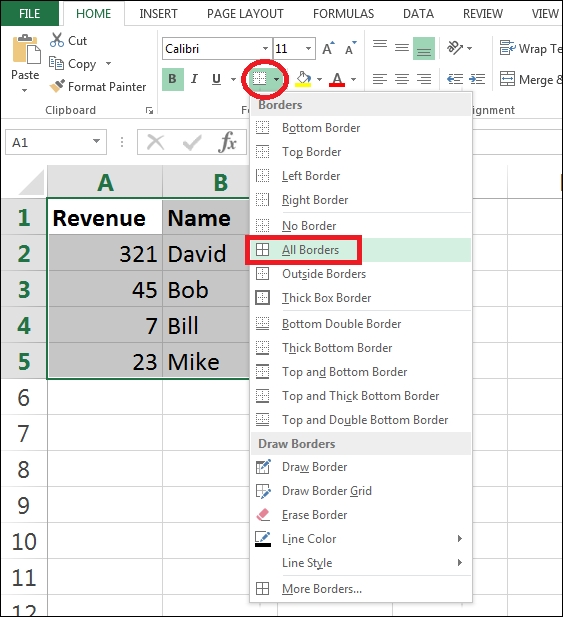
  5. For our finishing touches, we can apply styles to our data by adding borders around the cells. We can accomplish this by highlighting the cells A1 through B5 and clicking on the Borders button. This will bring up a new menu. Select All Borders. Remember that you need to first highlight the cells you want to add the borders to. Refer to the following screenshot:
    Manually creating data

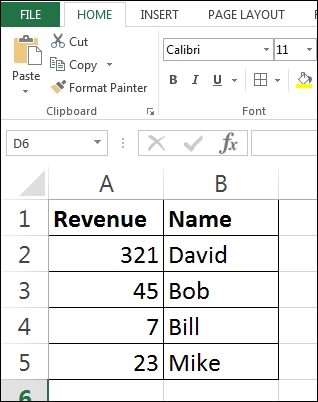
Congratulations! You have just learned how to enter numbers, strings, and column headers in an Excel spreadsheet. You have also learned how to apply styles to the text and cells using various built-in Excel functions. You can think of this as your first Hello World program in Excel 2013. Your final output should look like this:

Manually creating data
Visually different images
CONTINUE READING
83
Tech Concepts
36
Programming languages
73
Tech Tools
Icon Unlimited access to the largest independent learning library in tech of over 8,000 expert-authored tech books and videos.
Icon Innovative learning tools, including AI book assistants, code context explainers, and text-to-speech.
Icon 50+ new titles added per month and exclusive early access to books as they are being written.
Data Analysis and Business Modeling with Excel 2013
notes
bookmark Notes and Bookmarks search Search in title playlist Add to playlist font-size Font size

Change the font size

margin-width Margin width

Change margin width

day-mode Day/Sepia/Night Modes

Change background colour

Close icon Search
Country selected

Close icon Your notes and bookmarks

Confirmation

Modal Close icon
claim successful

Buy this book with your credits?

Modal Close icon
Are you sure you want to buy this book with one of your credits?
Close
YES, BUY

Submit Your Feedback

Modal Close icon
Modal Close icon
Modal Close icon