Sign In Start Free Trial
Account

Add to playlist

Create a Playlist

Modal Close icon
You need to login to use this feature.
  • Book Overview & Buying ETL with Azure Cookbook
  • Table Of Contents Toc
ETL with Azure Cookbook

ETL with Azure Cookbook

By : Christian Cote, Matija Lah, Madina Saitakhmetova
4 (2)
close
close
ETL with Azure Cookbook

ETL with Azure Cookbook

4 (2)
By: Christian Cote, Matija Lah, Madina Saitakhmetova

Overview of this book

ETL is one of the most common and tedious procedures for moving and processing data from one database to another. With the help of this book, you will be able to speed up the process by designing effective ETL solutions using the Azure services available for handling and transforming any data to suit your requirements. With this cookbook, you’ll become well versed in all the features of SQL Server Integration Services (SSIS) to perform data migration and ETL tasks that integrate with Azure. You’ll learn how to transform data in Azure and understand how legacy systems perform ETL on-premises using SSIS. Later chapters will get you up to speed with connecting and retrieving data from SQL Server 2019 Big Data Clusters, and even show you how to extend and customize the SSIS toolbox using custom-developed tasks and transforms. This ETL book also contains practical recipes for moving and transforming data with Azure services, such as Data Factory and Azure Databricks, and lets you explore various options for migrating SSIS packages to Azure. Toward the end, you’ll find out how to profile data in the cloud and automate service creation with Business Intelligence Markup Language (BIML). By the end of this book, you’ll have developed the skills you need to create and automate ETL solutions on-premises as well as in Azure.
Table of Contents (12 chapters)
close
close

Creating a SQL Azure database

To do ETL, we need to have a source to query data and a target (often called a sink) to land the transformed data. Our first recipe will create a simple SQL Azure database that will be used as both the source and sink in all recipes of this chapter.

Getting ready

In Chapter 1, Getting Started with Azure and SSIS 2019, you were shown how to install SQL Server on-premises, SQL Server Management Studio (SSMS), and Visual Studio 2019 with the SSIS extension. This chapter will show you how to set up SQL Server in Azure and the recipes will use this version of SQL Server.

How to do it…

In a browser, go to the Microsoft Azure portal using the following URL: https://portal.azure.com/#home.

On the main portal page, we'll create a resource group to group all Azure services together. It's much easier to find and manage them later.:

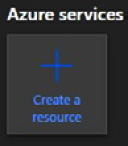
  1. From the main portal page, click on the + sign to create a new resource, as shown in the following screenshot:
    Figure 2.1 – Create a resource in Azure

    Figure 2.1 – Create a resource in Azure

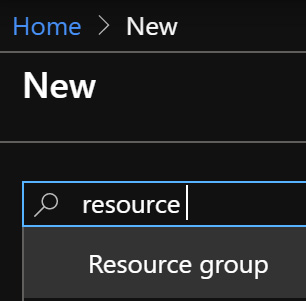
  2. In the search box, type resource. Click on the search result Resource group that appears, as in the following screenshot:
    Figure 2.2 – Choose Resource group from the search list

    Figure 2.2 – Choose Resource group from the search list

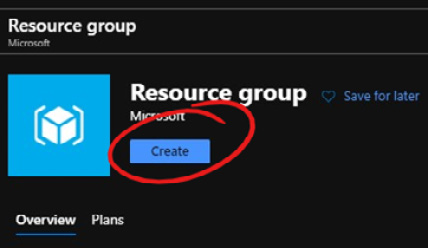
  3. In the Resource group blade, click Create to create a new resource group, as shown in the following screenshot:
    Figure 2.3 – Create a resource group after selection

    Figure 2.3 – Create a resource group after selection

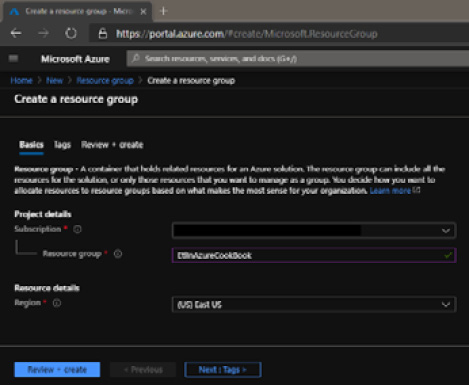
  4. Select the subscription, give the resource group a name, and choose the region, as shown in the following screenshot:
    Figure 2.4 – New resource group properties

    Figure 2.4 – New resource group properties

    The region you select here will be the default for all the resources you create in the resource group in the future. Ideally, you should choose a location not too far from where you live. We can always override this setting in each resource we create in the future.

    Click on Review + create at the bottom left of the blade to validate the entries we made. Once validated, click Create to create the resource group.

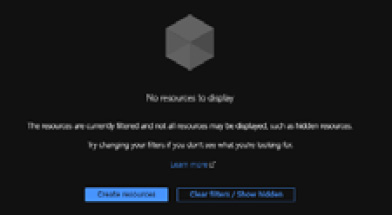
  5. Once the resource group is created, click Go to resource group from the activity log message that is displayed. Or you can click on Home on the left-hand menu and click on your resource group in the Recent resource list. Once in the resource group, click on Create resources as shown in the following screenshot:
    Figure 2.5 – Add a resource to a resource group

    Figure 2.5 – Add a resource to a resource group

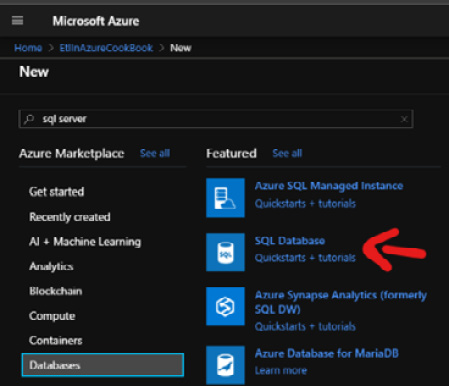
  6. From the blade that appears, select Databases on the left and click on SQL Database as shown in the following screenshot:
    Figure 2.6 – Select SQL Database

    Figure 2.6 – Select SQL Database

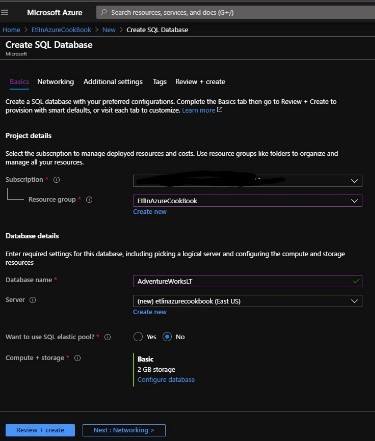
  7. The Create SQL Database blade opens. Set the properties as shown in the following screenshot:
    Figure 2.7 – Database properties

    Figure 2.7 – Database properties

    Let's look at the database properties:

    a) Subscription: Your subscription.

    b) Resource group: EtLInAzureCookBook or the resource group created before.

    c) Database name: We're going to restore a sample database that will be used in future recipes. We'll name it AdventureWorksLT.

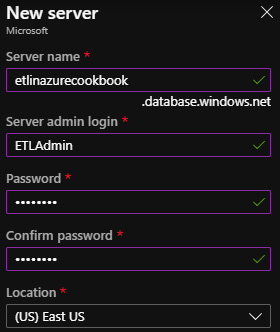
    d) Server: Click on Create new below the combo list. The New server blade appears:

    Figure 2.8 – New server properties

    Figure 2.8 – New server properties

    Let's look at the server properties:

    a) Server name: You should use something like <yourname> etlinazurecookbook all in lower case. Here's the reference from Microsoft for SQL Server naming: https://docs.microsoft.com/en-us/azure/azure-resource-manager/management/resource-name-rules#microsoftsql.

    b) Server admin login: ETLAdmin.

    c) Password: Create a password.

    d) Confirm password: Confirm the password created.

    e) Location: Select an Azure location. You should use the same region as the resource group created before.

    f) Click on OK to create the server.

    g) Back in the database creation blade, set the SQL elastic pool option to No.

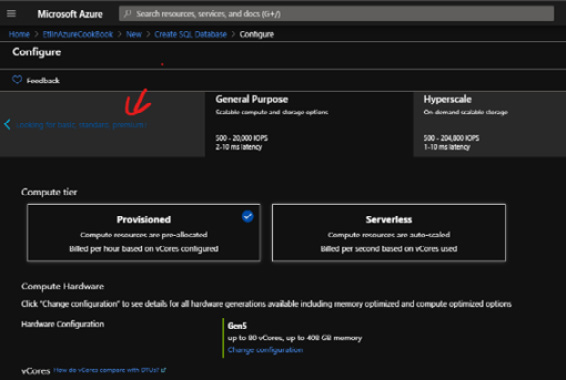
    h) Compute + Storage: Click on the Configure database link. We'll select the Basic configuration for now.

    i) From the Configure blade, click on the Looking for basic, standard, premium? link as shown in the following screenshot:

    Figure 2.9 – Change server capacity

    Figure 2.9 – Change server capacity

    • Select Basic.
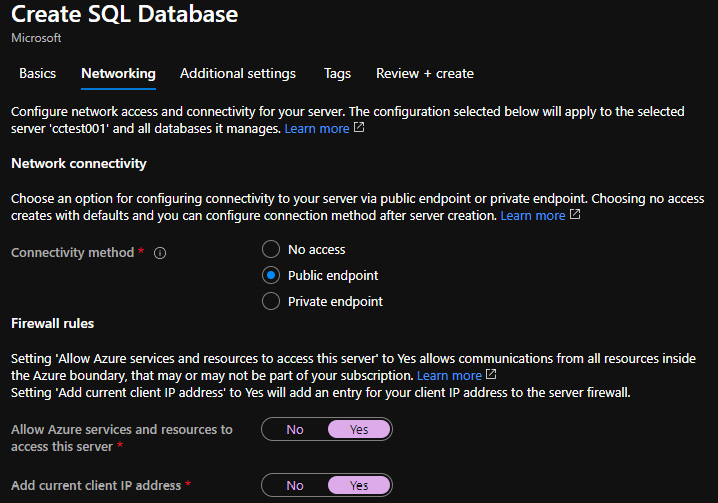
    • On the Create SQL Database blade, click on Networking. The Networking blade appears as shown in the following screenshot:
Figure 2.10 – Server Networking blade

Figure 2.10 – Server Networking blade

  • Set Connectivity method to Public endpoint.
  • In the Firewall rules section, set Allow Azure services and resources to access this server to Yes. This will be needed in later chapters when we use Azure services such as Azure Data Factory.
  • Also, set Add current client IP address to Yes. This will whitelist your current PC IP address and therefore allow you to connect to the database using SQL Server Management Studio (SSMS) and SQL Server Integration Services (SSIS).
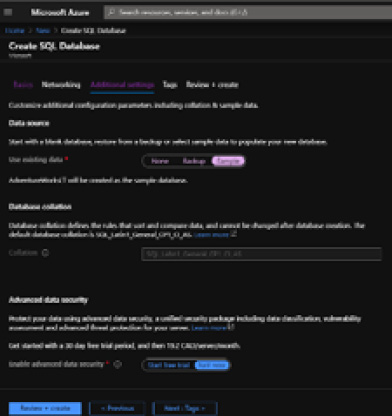
  • Click on Additional settings.
  • The Additional settings blade appears. In the Use existing data setting, click on Sample as shown in the following screenshot:
Figure 2.11 – Server Additional settings

Figure 2.11 – Server Additional settings

  • Click on Review + create and then Create to create the database.
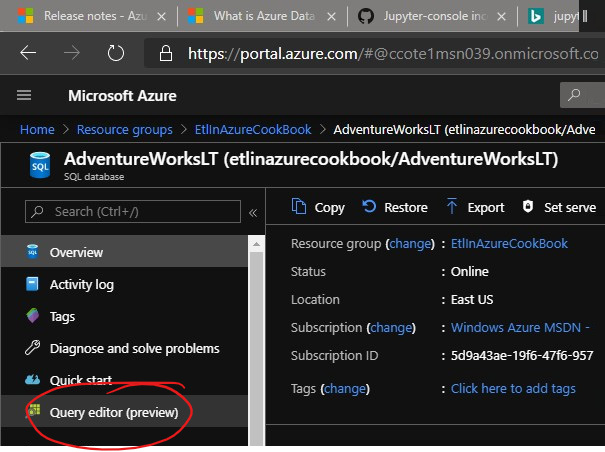
  1. Now, we'll check whether the sample database has been created correctly. Go into the resource group and click on the AdventureWorksLT (etlinazurecookbook/AdventureWorksLT) resource. The database blade opens. As shown in the following screenshot, click on Query editor (preview):
    Figure 2.12 – Database query editor

    Figure 2.12 – Database query editor

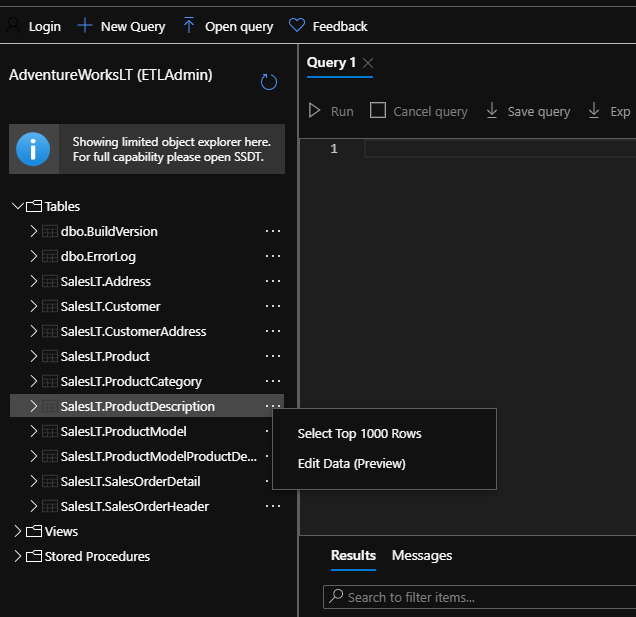
    Enter the login and password. The query editor opens. Expand the Tables folder, right-click on any table, and click Select Top 1000 Rows from the submenu that appears, as shown in the following screenshot:

    Figure 2.13 – Database Select Top 1000 Rows

    Figure 2.13 – Database Select Top 1000 Rows

  2. Click the Run button to execute the query.

Let's move on to the next section!

How it works…

We created a SQL server in Azure and we stored a sample database on it: AdventureWorksLT. Everything was done using a web browser, with no need to install anything on a PC. The next recipes will show how to use that database with on-premises software.

CONTINUE READING
83
Tech Concepts
36
Programming languages
73
Tech Tools
Icon Unlimited access to the largest independent learning library in tech of over 8,000 expert-authored tech books and videos.
Icon Innovative learning tools, including AI book assistants, code context explainers, and text-to-speech.
Icon 50+ new titles added per month and exclusive early access to books as they are being written.
ETL with Azure Cookbook
notes
bookmark Notes and Bookmarks search Search in title playlist Add to playlist download Download options font-size Font size

Change the font size

margin-width Margin width

Change margin width

day-mode Day/Sepia/Night Modes

Change background colour

Close icon Search
Country selected

Close icon Your notes and bookmarks

Confirmation

Modal Close icon
claim successful

Buy this book with your credits?

Modal Close icon
Are you sure you want to buy this book with one of your credits?
Close
YES, BUY

Submit Your Feedback

Modal Close icon
Modal Close icon
Modal Close icon