Sign In Start Free Trial
Account

Add to playlist

Create a Playlist

Modal Close icon
You need to login to use this feature.
  • Book Overview & Buying IBM Cognos 8 Report Studio Cookbook
  • Table Of Contents Toc
IBM Cognos 8 Report Studio Cookbook

IBM Cognos 8 Report Studio Cookbook

By : Abhishek Sanghani
3 (3)
close
close
IBM Cognos 8 Report Studio Cookbook

IBM Cognos 8 Report Studio Cookbook

3 (3)
By: Abhishek Sanghani

Overview of this book

Cognos Report Studio is widely used for creating and managing business reports in medium to large companies. It is simple enough for any business analyst, power user, or developer to pick up and start developing basic reports. However, when it comes to developing more sophisticated, fully functional business reports for wider audiences, report authors will need guidance. This book helps you understand and use all the features provided by Report Studio to generate impressive deliverables. It will take you from being a beginner to a professional report author. It bridges the gap between basic training provided by manuals or trainers and the practical techniques learned over years of practice. This book covers all the basic and advanced features of Report Authoring. It begins by bringing readers on the same platform and introducing the fundamental features useful across any level of reporting. Then it ascends to advanced techniques and tricks to overcome Studio limitations.Develop excellent reports using dimensional data sources by following best practices that development work requires in Report Studio. You will also learn about editing the report outside the Studio by directly editing the XML specifications. Provide richness to the user interface by adding JavaScript and HTML tags. The main focus is on the practical use of various powerful features that Report Studio has to offer to suit your business requirements.
Table of Contents (18 chapters)
close
close
IBM Cognos 8 Report Studio Cookbook
Credits
About the Author
About the Reviewers
Preface
2
Index

Hiding column in crosstab

Users want to see sales figures by periods and order method. We need to show monthly sales and year's totals. The year should be shown in the Year total row and not as a separate column.

Getting ready

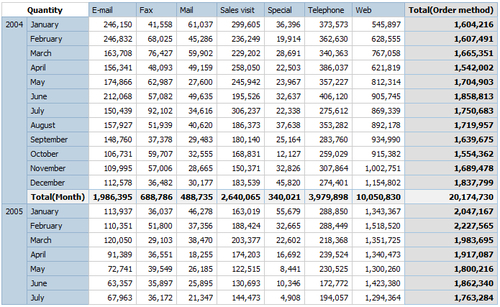
Create a crosstab report with Sales fact | Quantity as a measure. Drag Time dimension | Current year and Month on rows, Order method | Order method on column as shown in the following screenshot. Create aggregation on measure.

Getting ready

Define appropriate sorting.

How to do it...

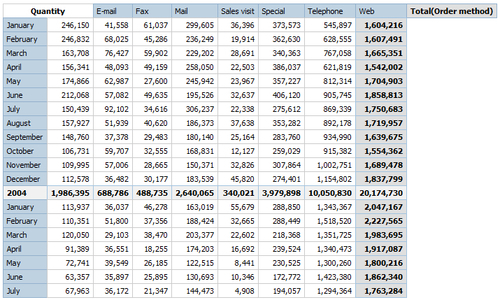
  1. First, let's identify the issue. If you run the report as it is, you will notice that the year is shown to the left of the months. This consumes one extra column. Also, the yearly total doesn't have user friendly title.
    How to do it...
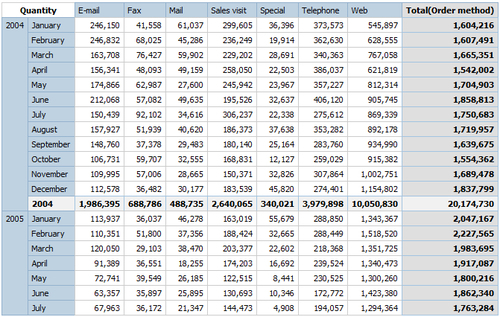
  2. We will start by updating the title for yearly total row. Select <Total(Month)> crosstab node. Change its Source type to Data item value and choose Current year as the Data item.
  3. Run the report and check that the yearly total is shown with the appropriate year.
    How to do it...
  4. Now, we need to get rid of the year column on left edge. For that, click the Unlock button How to do it... on Report Studio toolbar. The icon should change to an open lock (unlocked).
  5. Now select the <#Current Year#> text item and delete it.
  6. Select the empty crosstab node left after deleting the text. Change its padding to 0 pixels and font to 0.001 pt size.
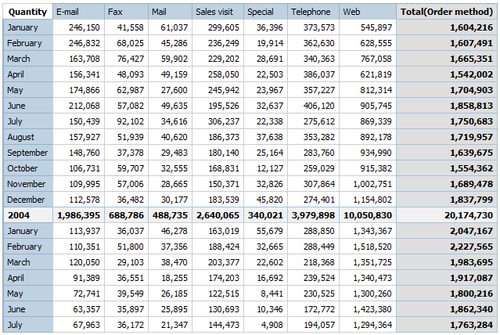
  7. Run the report.
    How to do it...

As you can see the year column on the left is now successfully hidden.

How it works...

When we want to hide an object in Report Studio, we often set its Box Type property to None. However, in this case, that was not possible.

Try setting the box type of year column to None and run the report. It will look like the following screenshot:

How it works...

As you can see, the cells have shifted to the left leaving the titles out of sync. This is most often the problem when Report Studio creates some merged cells (in our case, for the aggregations).

The solution to this is to format the column in such a way that it is hidden in the report.

There's more...

This solution works best in HTML output. The excel output still has a column on the left with no data in it.

You might need to define the background colour and bordering as well, so as to blend the empty column with either the page background on left or the month column on right.

CONTINUE READING
83
Tech Concepts
36
Programming languages
73
Tech Tools
Icon Unlimited access to the largest independent learning library in tech of over 8,000 expert-authored tech books and videos.
Icon Innovative learning tools, including AI book assistants, code context explainers, and text-to-speech.
Icon 50+ new titles added per month and exclusive early access to books as they are being written.
IBM Cognos 8 Report Studio Cookbook
notes
bookmark Notes and Bookmarks search Search in title playlist Add to playlist font-size Font size

Change the font size

margin-width Margin width

Change margin width

day-mode Day/Sepia/Night Modes

Change background colour

Close icon Search
Country selected

Close icon Your notes and bookmarks

Confirmation

Modal Close icon
claim successful

Buy this book with your credits?

Modal Close icon
Are you sure you want to buy this book with one of your credits?
Close
YES, BUY

Submit Your Feedback

Modal Close icon
Modal Close icon
Modal Close icon