Sign In Start Free Trial
Account

Add to playlist

Create a Playlist

Modal Close icon
You need to login to use this feature.
  • Book Overview & Buying Cocos2d-x cookbook
  • Table Of Contents Toc
Cocos2d-x cookbook

Cocos2d-x cookbook

By : Akihiro Matsuura
4.6 (5)
close
close
Cocos2d-x cookbook

Cocos2d-x cookbook

4.6 (5)
By: Akihiro Matsuura

Overview of this book

Cocos2d-x is a suite of open source, cross-platform game-development tools used by thousands of developers all over the world. Cocos2d-x is a game framework written in C++, with a thin platform-dependent layer. Completely written in C++, the core engine has the smallest footprint and the fastest speed of any other game engine, and is optimized to be run on all kinds of devices. You will begin with the initial setup and installation of Cocos2d before moving on to the fundamentals needed to create a new project. You will then explore and create the sprites, animations, and actions that you will include in the game. Next you will look at strings and create labels, including a label with True Type Font (TTF) font support. Later, you will learn about layer and scene creation and transition. Then you will create the GUI parts essential for a game, such as buttons and switches. After that, you will breathe life into the game with background music and sound effects using the all new Cocos2d-x audio engine. You will then discover how to manage resource files and implement processes that depend on the operating system. Finally, you will polish your game with physics such as gravity and elevation, learn about tools that will help you make games more robust and stable, and get to know best practices to improve the game you have developed.
Table of Contents (13 chapters)
close
close
12
Index

Building the project using Eclipse

Getting ready

You must finish the first recipe before you begin this step. If you have not finished it yet, you will need to install Eclipse.

How to do it...

  1. Setting up NDK_ROOT:
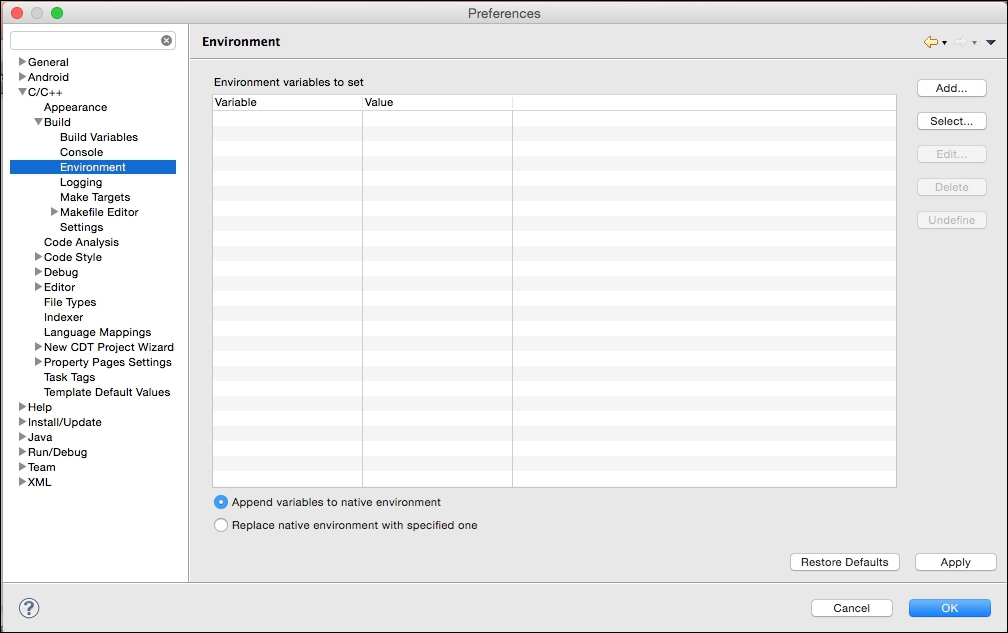
    • Open the preference of Eclipse
    • Open C++ | Build | Environment
      How to do it...
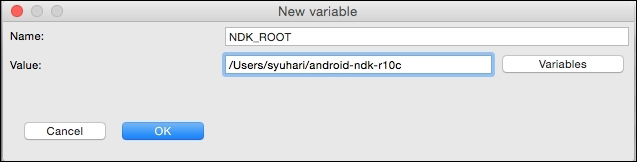
  2. Click on Add and set the new variable, the name is NDK_ROOT, and the value is NDK_ROOT path:
    How to do it...
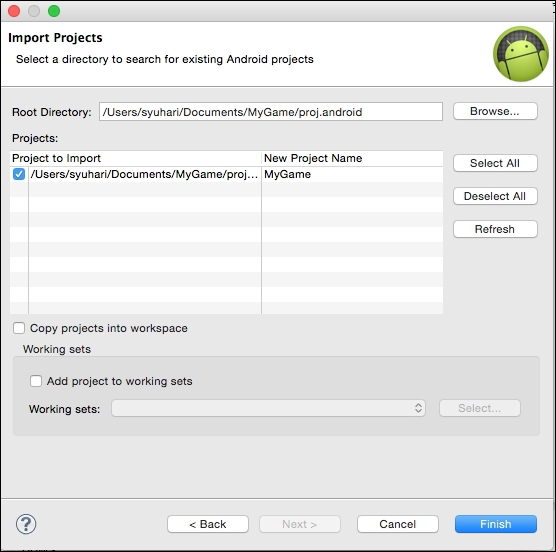
  3. Importing your project into Eclipse:
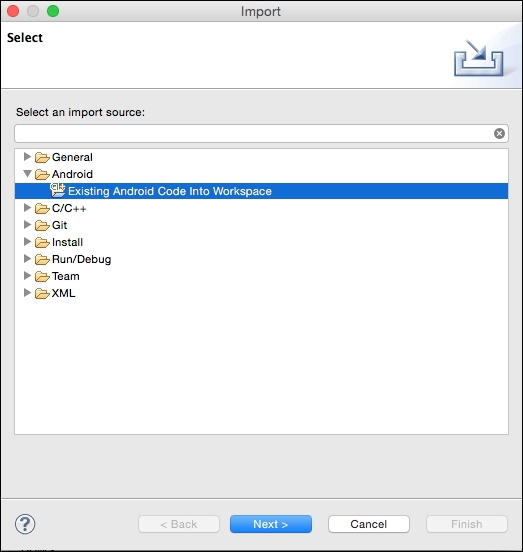
    • Open the file and click on Import
    • Go to Android | Existing Android Code into Workspace
    • Click on Next
    How to do it...
  4. Import the project into Eclipse at ~/Documents/MyGame/proj.android:
    How to do it...
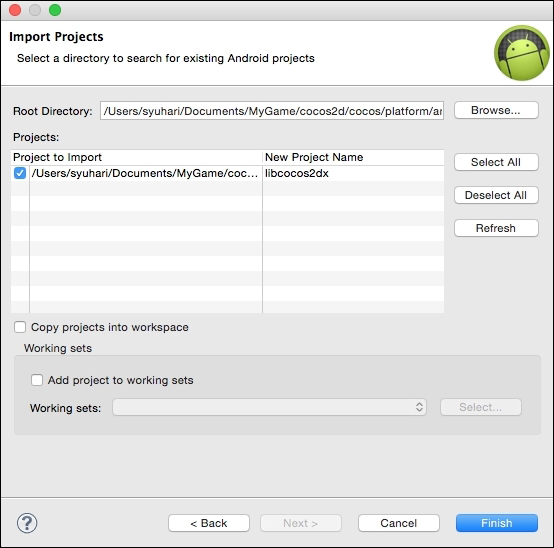
  5. Importing the Cocos2d-x library into Eclipse:
    • Perform the same steps from Step 3 to Step 4.
    • Import the project cocos2d lib at ~/Documents/MyGame/cocos2d/cocos/platform/android/java, using the following command:
      importing cocos2d lib
      
    How to do it...
  6. Build and Run:
    • Click on the Run icon
    • The first time, Eclipse will ask you to select a way to run your application. Select Android Application and click on OK, as shown in the following screenshot:
      How to do it...
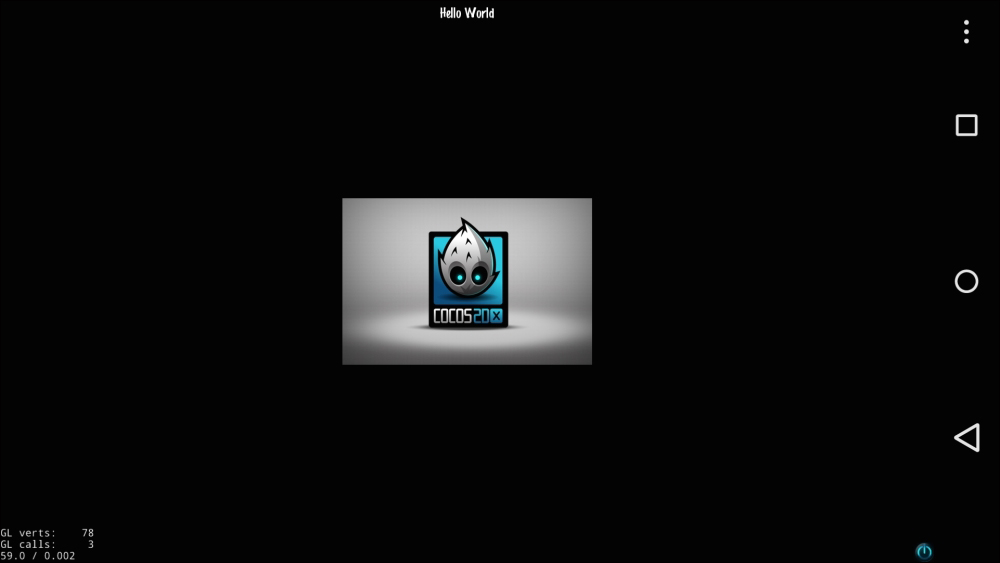
    • If you connected to the Android device on your Mac, you can run your game on your real device or an emulator. The following screenshot shows that it is running on Nexus5:
      How to do it...
  7. If you added cpp files into your project, you have to modify the Android.mk file at ~/Documents/MyGame/proj.android/jni/Android.mk. This file is needed to build the NDK. This fix is required to add files.
  8. The original Android.mk would look as follows:
    LOCAL_SRC_FILES := hellocpp/main.cpp \
                       ../../Classes/AppDelegate.cpp \
                       ../../Classes/HelloWorldScene.cpp
  9. If you added the TitleScene.cpp file, you have to modify it as shown in the following code:
    LOCAL_SRC_FILES := hellocpp/main.cpp \
                       ../../Classes/AppDelegate.cpp \
                       ../../Classes/HelloWorldScene.cpp \
                       ../../Classes/TitleScene.cpp 

The preceding example shows an instance of when you add the TitleScene.cpp file. However, if you are also adding other files, you need to add all the added files.

How it works...

You get lots of errors when importing your project into Eclipse, but don't panic. After importing the Cocos2d-x library, errors soon disappear. This allows us to set the path of the NDK, Eclipse could compile C++. After you have modified the C++ codes, run your project in Eclipse. Eclipse automatically compiles C++ codes, Java codes, and then runs.

It is a tedious task to fix Android.mk again to add the C++ files. The following code is the original Android.mk:

LOCAL_SRC_FILES := hellocpp/main.cpp \
                   ../../Classes/AppDelegate.cpp \
                   ../../Classes/HelloWorldScene.cpp

LOCAL_C_INCLUDES := $(LOCAL_PATH)/../../Classes

The following code is the customized Android.mk that adds C++ files automatically:

CPP_FILES := $(shell find $(LOCAL_PATH)/../../Classes -name *.cpp)
LOCAL_SRC_FILES := hellocpp/main.cpp
LOCAL_SRC_FILES += $(CPP_FILES:$(LOCAL_PATH)/%=%)

LOCAL_C_INCLUDES := $(shell find $(LOCAL_PATH)/../../Classes -type d)

The first line of the code gets C++ files to the Classes directory into the CPP_FILES variable. The second and third lines add C++ files into the LOCAL_C_INCLUDES variable. By doing so, C++ files will be automatically compiled in the NDK. If you need to compile a file other than the extension .cpp file, you will need to add it manually.

There's more...

If you want to manually build C++ in NDK, you can use the following command:

$ ./build_native.py

This script is located in ~/Documents/MyGame/proj.android . It uses ANDROID_SDK_ROOT and NDK_ROOT in it. If you want to see its options, run ./build_native.py –help.

CONTINUE READING
83
Tech Concepts
36
Programming languages
73
Tech Tools
Icon Unlimited access to the largest independent learning library in tech of over 8,000 expert-authored tech books and videos.
Icon Innovative learning tools, including AI book assistants, code context explainers, and text-to-speech.
Icon 50+ new titles added per month and exclusive early access to books as they are being written.
Cocos2d-x cookbook
notes
bookmark Notes and Bookmarks search Search in title playlist Add to playlist font-size Font size

Change the font size

margin-width Margin width

Change margin width

day-mode Day/Sepia/Night Modes

Change background colour

Close icon Search
Country selected

Close icon Your notes and bookmarks

Confirmation

Modal Close icon
claim successful

Buy this book with your credits?

Modal Close icon
Are you sure you want to buy this book with one of your credits?
Close
YES, BUY

Submit Your Feedback

Modal Close icon
Modal Close icon
Modal Close icon