Sign In Start Free Trial
Account

Add to playlist

Create a Playlist

Modal Close icon
You need to login to use this feature.
  • Book Overview & Buying Construct 2 Game Development by Example
  • Table Of Contents Toc
Construct 2 Game Development by Example

Construct 2 Game Development by Example

By : John Bura
3.8 (9)
close
close
Construct 2 Game Development by Example

Construct 2 Game Development by Example

3.8 (9)
By: John Bura

Overview of this book

This book uses practical examples to teach readers, and imparts the key skills and techniques of working in Construct 2 through building complete game projects. This book is for complete beginners who have always wanted to learn how to make games and have never tried. It is the perfect introduction to game development, design, and production.
Table of Contents (11 chapters)
close
close
9
A. Where to Go from Here
10
Index

Coding in Construct 2

For all of our visual programming examples, we will be typing them in pseudo-code for easier understanding. This code will not work, but it will give you an idea about the concepts of programming. So, let's use an example of moving something to the right. The code might look something like the following line of code:

GameObject.Move.Right;

This works, but we haven't set up a speed for the object. Right now, either the default speed will be the speed of the object and the object will move too fast for the human eye to see, or the compiler might get an error. If you misspell a word or make some kind of syntax error, the game might not run. So, we might have to update our code as follows:

GameObject.Speed = 10;
GameObject.Move.Right;

Notice how there is a semicolon at the end of each line. The semicolon tells the computer to read the next line. However, if you look at the code, we haven't told the computer to check for a button being pressed. If we add that code, it might be something similar to the following code:

if (RightArrow.Pressed) {
GameObject.Speed = 10;
GameObject.Move.Right;
}

As per the preceding line of code, if the right arrow is pressed then the GameObject will move to the right. This is called an if statement, and all it does is check for a condition to be true. In this case, if the right arrow is pressed then the GameObject will move to the right; however, if the right arrow is not pressed then nothing will happen. Now, let's add the logic for the left arrow being pressed. The code is as follows:

if (RightArrow.Pressed) {
GameObject.Speed = 10;
GameObject.Move.Right;
}
if (LeftArrow.Pressed) {
GameObject.Speed = 10;
GameObject.Move.Left;
}

We should mention at this point that there are only two lines of code in these if statements, but there can be many more. Imagine how gigantic the code base is for some of the games you play. Those games are much more complex. Sometimes, the logic for the right arrow being pressed can be more than a page of logic. Let's add some code that will make the GameObject move in four directions. The code is as follows:

if (RightArrow.Pressed) {
GameObject.Speed = 10;
GameObject.Move.Right;}
if (LeftArrow.Pressed) {
GameObject.Speed = 10;
GameObject.Move.Left;}
if (UpArrow.Pressed) {
GameObject.Speed = 10;
GameObject.Move.Up;}
if (DownArrow.Pressed) {
GameObject.Speed = 10;
GameObject.Move.Down;
}

This is a lot of code and we are not even making a complex game. So far, our game just has a GameObject moving up, down, left, and right. We have no projectiles, no antagonists, and no artificial intelligence. So, why a code like this? Well, it's only recently that non-coding languages have been around. If you have ever played a game, it was painstakingly coded. We should also point out that the preceding code is an abbreviated version to make it simpler. Depending on the language, moving something across the screen might take many more lines of code.

Working with visual programming languages

Visual programming languages do exactly the same thing that regular programming languages do, except that all of the logic is placed visually. This is more efficient for several reasons:

  • You can layout information in different areas
  • Logic that would take multiple lines of code can be in one dialog box
  • You can visually see that your game is coming together

At this point, we should also mention that, in most game development environments, you have to do most of the work by typing commands. Having an editor where you visually assemble your game, even if it is just the level design, wasn't always the case. One of the best features of a visual programming language is that you can see everything and test everything much more easily than traditional game development environments.

Layout and event sheets

In Construct 2, we have two main areas in which we work. The first area is called the layout, which is a visual representation of what the game will look like when a player plays it. In this area, we can perform the following actions:

  • Drop in all of our game objects so that we can arrange them the way we like
  • Set the look of the game
  • Add the heads-up display (HUD) and other Graphic User Interface (GUI) elements

The following screenshot shows the layout with some game objects on it:

Layout and event sheets

Each game object is a sprite. A sprite can have an image, an animation (multiple images), and a game logic attached to it. Your event sheet will look like the following screenshot:

Layout and event sheets

The second area is the event sheet. An event sheet is where the game logic goes. This is where we would "code" the game in other environments (see the preceding image).

If we want to add some logic so that the game characters will move left and right, this is where we will add it. Right now, there is nothing in our event sheet; however, we can go and add something to demonstrate how we will "code" in the game logic.

To add an event, all you have to do is click on the Add event button. Another way of adding an event is to just double-click on the area underneath the Event sheet 1 tab, as shown in the following screenshot:

Layout and event sheets

The Add event dialog box will provide you with all of the possible game objects and commands you can use in your game.

Sprites

As you can see in the Layout1 window, all the game objects in the game are here. You will also see a system icon. This icon brings up the internal commands and functional commands that you can use.

If we want to select the sprite to move forward, we can simply select the sprite and give it a command. Remember, in other environments, you would have to type that in. If we want to make the sprite move left with the A button, we can simply select the A button and add some logic that would make the sprite move left, as shown in the following screenshot:

Sprites

You will also notice that all of the game objects are properly named. It is very important to name all of your game objects appropriately. When your game has a few hundred game objects, it will become much easier to manage if your game objects are named properly.

Let's go ahead and select the sprite by double-clicking on it. Once you do this, you will be able to see a bunch of conditions. These conditions must be met before we give an action to perform. In the same way as the if statement we looked at a few pages ago, we need to make sure a condition is true; only then we can go ahead and add an action. The Add event window should look like the following screenshot:

Sprites

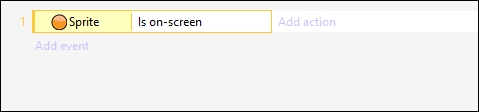
Now, let's scroll down and select Is on-screen as shown in the following screenshot:

Sprites

As you can see, once you select Is on-screen, the onscreen condition is added to the event sheet. You can also see that you can add an action and another event. We want the sprite to do something before we move on.

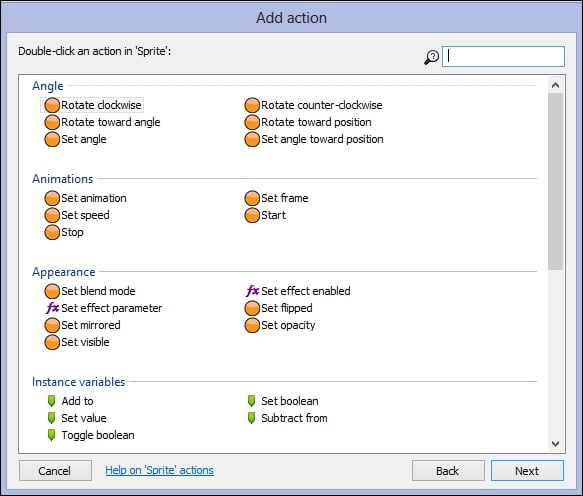
If you click on Add action, you will get a similar dialog box but with actions instead of conditions. Let's go ahead and click on the Sprite element and the following screen will pop up:

Sprites

You will see actions that you can add to the sprite, as shown in the preceding screenshot. Take a moment to look at all of the actions and you can see how versatile Construct 2 really is.

Once you have finished looking, go ahead and click on Rotate clockwise. This will make the sprite rotate. You can enter in any number in the Degrees textbox:

Sprites

Let's look at what we are telling the computer to do. While the condition of the sprite is onscreen, the action will be to rotate the sprite. If we were to run the game, the sprite will rotate. This may seem like it is really simple, but imagine if you had to code all of that by typing in commands. It would take a very long time. What we have just shown you is the power of visual programming languages. They take out most of the work needed to develop games. Instead, you can focus on creativity and design versus technicality.

Visually different images
CONTINUE READING
83
Tech Concepts
36
Programming languages
73
Tech Tools
Icon Unlimited access to the largest independent learning library in tech of over 8,000 expert-authored tech books and videos.
Icon Innovative learning tools, including AI book assistants, code context explainers, and text-to-speech.
Icon 50+ new titles added per month and exclusive early access to books as they are being written.
Construct 2 Game Development by Example
notes
bookmark Notes and Bookmarks search Search in title playlist Add to playlist font-size Font size

Change the font size

margin-width Margin width

Change margin width

day-mode Day/Sepia/Night Modes

Change background colour

Close icon Search
Country selected

Close icon Your notes and bookmarks

Confirmation

Modal Close icon
claim successful

Buy this book with your credits?

Modal Close icon
Are you sure you want to buy this book with one of your credits?
Close
YES, BUY

Submit Your Feedback

Modal Close icon
Modal Close icon
Modal Close icon