Sign In Start Free Trial
Account

Add to playlist

Create a Playlist

Modal Close icon
You need to login to use this feature.
  • Book Overview & Buying Augmented Reality for Developers
  • Table Of Contents Toc
Augmented Reality for Developers

Augmented Reality for Developers

By : Linowes, Babilinski
3.7 (7)
close
close
Augmented Reality for Developers

Augmented Reality for Developers

3.7 (7)
By: Linowes, Babilinski

Overview of this book

Augmented Reality brings with it a set of challenges that are unseen and unheard of for traditional web and mobile developers. This book is your gateway to Augmented Reality development—not a theoretical showpiece for your bookshelf, but a handbook you will keep by your desk while coding and architecting your first AR app and for years to come. The book opens with an introduction to Augmented Reality, including markets, technologies, and development tools. You will begin by setting up your development machine for Android, iOS, and Windows development, learning the basics of using Unity and the Vuforia AR platform as well as the open source ARToolKit and Microsoft Mixed Reality Toolkit. You will also receive an introduction to Apple's ARKit and Google's ARCore! You will then focus on building AR applications, exploring a variety of recognition targeting methods. You will go through multiple complete projects illustrating key market sectors including business marketing, education, industrial training, and gaming. By the end of the book, you will have gained the necessary knowledge to make quality content appropriate for a range of AR devices, platforms, and intended uses.
Table of Contents (10 chapters)
close
close

Adding image content


Given our InstructionElement events, to add images to the instructions requires updates to the UI and the data model, but not the controller.

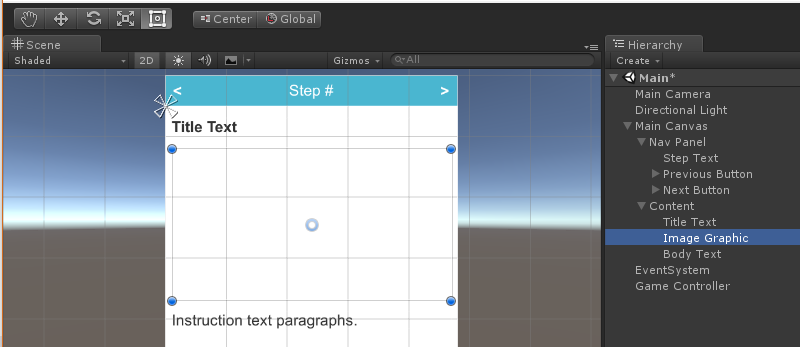
Adding an image to the instruction Content panel

First let's add an image to the Content panel. Actually, we will add a Unity UI Raw Image, since the element named Image is reserved for sprites.

  1. In Hierarchy, locate the Content panel (under Main Canvas), right-click, and select UI | Raw Image.
  2. Rename it Image Graphic.
  3. Select Add Component | Layout Element.
  4. Select Preferred Width: 395.
  5. Select Preferred Height: 250.
  6. Position it in the Hierarchy between Title Text and Body Text.

The image ahead shows the now current Hierarchy, along with the Scene view of the Canvas:

Adding image data to the InstructionStep model

From our CSV data, images will be referenced by name. The app will look in the Resources folder for the files. We could use an image URL instead (and that is provided as another column in the CSV data), but, just in case wikiHow changes...

CONTINUE READING
83
Tech Concepts
36
Programming languages
73
Tech Tools
Icon Unlimited access to the largest independent learning library in tech of over 8,000 expert-authored tech books and videos.
Icon Innovative learning tools, including AI book assistants, code context explainers, and text-to-speech.
Icon 50+ new titles added per month and exclusive early access to books as they are being written.
Augmented Reality for Developers
notes
bookmark Notes and Bookmarks search Search in title playlist Add to playlist download Download options font-size Font size

Change the font size

margin-width Margin width

Change margin width

day-mode Day/Sepia/Night Modes

Change background colour

Close icon Search
Country selected

Close icon Your notes and bookmarks

Confirmation

Modal Close icon
claim successful

Buy this book with your credits?

Modal Close icon
Are you sure you want to buy this book with one of your credits?
Close
YES, BUY

Submit Your Feedback

Modal Close icon
Modal Close icon
Modal Close icon