Mobile automation testing approaches
In this section, you will understand the different approaches used for automation of a mobile application and their salient points.
There are, broadly speaking, four different approaches or techniques available for mobile application testing automation:
- Test automation using physically present real devices
- Test automation using emulators and simulators
- Mobile web application test automation through the user agent simulation technique
- Cloud-solutions-based test automation
Automation using real devices
As the name suggests, this technique is based on the usage of real devices that are physically present with the testing automation team. Since this technique is based on the usage of real devices, it is a natural consequence that the Application Under Test (AUT) is also tested over a real network (GSM, CDMA, or Wi-Fi). To establish connectivity of the automation tool with the devices, any of the communication mechanisms, such as USB, Bluetooth, or Wi-Fi can be used; however, the most commonly used and the most reliable one is the USB connection. After the connection is established between the machines on which the automation tool is installed and the Device Under Test (DUT), the automation scripts can capture object properties of the AUT and later, the developed scripts can be executed on other devices as well, but with minor modifications.
There are numerous automation tools, both licensed as well as open source freeware, available for mobile automation. Some commonly used licensed tools are:
- Experitest SeeTest
- TestPlant eggPlant Mobile /eggOn
- Jamo Solutions M-eux Test
- ZAP-fiX
Prominent tools for Android and iOS automation are:
- Selenium with solutions such as Selendroid and Appium along with iOS and Android drivers
- MonkeyTalk (formerly FoneMonkey)
The following are the salient features of this approach:
- The AUT is accessed on devices either by using a real mobile network or Wi-Fi network and can also be accessed by the Intranet network of the machine to which it is connected
- The automation testing tool is installed on the desktop that uses the USB or Wi-Fi connectivity to control devices under test
Steps to set up automation
For automation on real devices, scripts are required to be executed on the devices with a USB or Wi-Fi connection to send commands via the execution tool to the devices. The following is a step-by-step description of how to perform the automation on real devices:
- Determine the device connectivity solution (USB or Wi-Fi connectivity) based on the available setup. In some cases, USB connectivity is not enabled due to security policies and only in those cases is a Wi-Fi connection utilized.
- Identify the tool to be used for the automation based on the tool feasibility study of the application. We will discuss in detail how to conduct a mobile automation tool feasibility study and the parameters that should be considered in subsequent chapters, when we discuss this technique in detail.
- Procure the required licenses (seat or concurrent) if a licensed tool is selected. License procurement might mean that lengthy agreements need to be signed by both parties, besides arranging for the payment of services such as support. So, this step should be well planned with enough buffer time.
- If the existing automation setup is to be leveraged, then an additional license needs to be acquired that corresponds to the tool (such as Quick Test Professional, Quality Center, and more). In some cases, you might also have to integrate the existing automation scripts developed with tools such as Quick Test Professional/Unified Functional Testing along with the automation scripts developed for the mobile. In such a case, the framework already in place needs to be modified.
- Install the tools on the automation computer and establish the connectivity with the real devices. Installation may not be as simple as just running an executable file when it comes to mobile automation. There are various network-level settings and additional drivers that are needed to connect the computer and to control various mobile devices from the computer. Hence, all this should be done and planned well in advance.
- Script the test cases and execute them on real devices.
Limitations of this automation
This approach has the following limitations:
- The overall cost can be high as multiple devices are required to be procured for different teams and testers
- Maintenance and physical security can be an overhead
- Script maintenance can be delayed if testing cycles are overlapping with functional and automation teams
Emulators-based automation
Emulators are programs that replicate the behavior of a mobile operating system and, to some extent, the device features on a computer. So, in essence, these programs are used to create virtual devices. So, any mobile application can be deployed on such virtual devices and then tested without the use of a real device. Ideally speaking, there are two types of mobile device virtualization programs: emulators and simulators.
From a purely theoretical standpoint, the following are the differences between an emulator and a simulator.
A device emulator is a desktop application that emulates both the mobile device hardware and its operating systems; thus, it allows us to test the applications to a lesser degree of tolerance and better accuracy. There are also operating system emulators that don't represent any real device hardware, but rather the operating system as a whole. These exist for Windows Mobile and Android, but a simulator is a simpler application that simulates some of the behavior of a device, does not emulate hardware, and does not work over the real operating system. These tools are simpler and less useful than emulators. A simulator may be created by the device manufacturer or by some other company that offers a simulation environment for developers. Thus, simulator programs have lesser accuracy than emulator programs.
Note
For the sake of keeping the discussion simple, we will refer to both as emulators in this chapter and in later chapters; when we discuss this technique in detail, we will refer to each of them individually.
Since this technique does not use real devices, it is a natural consequence that the AUT is not tested over a real network (GSM, CDMA, or Wi-Fi), and the network connection of the machine is utilized to make a connection with the application server (if it connects to a server, which around 90 percent of mobile applications do). Since the virtual devices are available on the computer, there is no external connection required between the device's operating system and automation tool. However, an emulator is not as simple as automating any other program because the actual AUT runs inside the shell of the virtual device. So, a special configuration needs to be enabled with the automation tools to enable the automation on the virtual device.
The following is a diagram depicting an Android emulator running on a Windows 7 computer:
In most projects, this technique is used for prelaunch testing of the application, but there are cases where emulators are automated to a great extent. However, since the emulator is essentially more limited in scope than the real devices, mobile-network-specific and certain other features such as memory utilization cannot be relied upon while testing automation with emulators. There are numerous automation tools, both licensed as well as of an open source freeware available for mobile automation on these virtual devices, and ideally, emulators for various mobile platforms can be automated with most of the tools that support real device automation.
The prominent licensed tools are:
- ExperiTest SeeTest
- TestPlant eggPlant Mobile /eggOn
- Jamo Solutions M-eux Test
Tools such as Selenium and ExperiTest SeeTest can be used to launch device platform emulators and execute scripts on the AUT.
The prominent free-to-use tools for emulator automation are:
- Selenium WebDriver
- Appium
- MonkeyTalk (formerly FoneMonkey)
Since emulators are also software that run on other machines, device-specific configurations need to be performed prior to test automation and have to be handled in the scripts. The following is the conceptual depiction of this technique.
The emulator and simulator programs are installed on a computer with a given operating system, such as Windows, Linux, or Mac, which then virtualizes the mobile operating system, such as Android, iOS, RIM, or Windows, and subsequently, which can be used to run scripts that emulate the behavior of an application on the real devices.
Steps to set up automation
The following are the steps to set up the automation process for this approach:
- Identify the various platforms for which the AUT needs to be automated.
- Establish the connectivity to AUT by enabling the firewall access in the required network for mobile applications.
- Identify the various devices, platforms, emulators, and device configurations, according to which test needs to be carried out.
- Install emulators/simulators for the various platforms.
- Create scripts and execute them across multiple emulators/simulators.
This approach has the following advantages:
- Standalone emulators that don't have real devices can be utilized
- No additional connectivity is required for automation
- This provides support for iOS and Android with freeware
- This provides support to all platforms and types of applications with licensed tools, such as Jamo Solutions M-eux and ExperiTest SeeTest
This approach has the following limitations:
- This can be difficult to automate as the emulators and simulators are themselves not thoroughly tested software and might have unknown bugs.
- Selenium WebDriver cannot be used to automate Android applications in some versions due to a bug in the Android emulator.
- It might sometimes be difficult to triangulate a defect that is detected on a virtual device and it might be needed that you recreate it on a real device first. In many cases, it has been observed that defects caught on emulators are not reproduced on real devices.
- For iOS simulators, access to a Mac machine with Xcode is required, which can be difficult to set up in a secure Offshore Development Center (ODC) due to security restrictions.
User agent-simulation-based automation
The third technique is the simplest of all. However, it is also very limited in its scope of applicability. It can be used only for mobile web applications and only to a very limited extent. Hence, it is generally only used to automate the functional regression testing of mobile web applications and rarely used for GUI validations.
User agent is the string that web servers use to identify information, such as the operating system of the requester and the browser that is accessing it. This string is normally sent with the HTTP/HTTPS request to identify the requester details to the server. Based on this information, a server presents the required interface to the requesting browser.
This approach utilizes the browser user agent manipulation technique. This is depicted in the following schematic diagram:
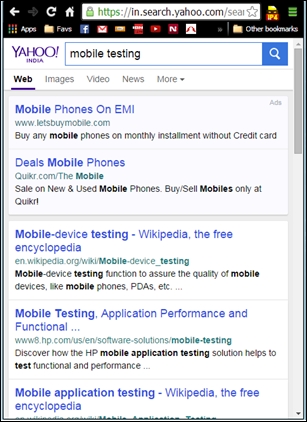
In this approach, an external program or a browser add-on is used to override the user agent information that is sent to the web application server to identify the requestor system as a mobile instead of its real information. So, for example, when a web application URL such as https://www.yahoo.com is accessed from a mobile device, the application server detects the requester to be a mobile device and redirects it to https://mobile.yahoo.com/, thereby presenting the mobile view. If the user agent information is overridden to indicate that it is coming from a Safari browser on an iPhone, then it will be presented with the mobile view.
The following screenshot depicts how the application server has responded to a request when it detects that the request is from an iPhone 4 and is presented the mobile view:
Since the mobile web application is accessed entirely from the computer, automation can be done using traditional web browser automation tools, such as Quick Test Professional/Unified Functional Testing or Selenium.
The salient features of this technique are as follows:
- With browser user agent manipulation, any mobile platform can be simulated
- Browser user agent manipulation is limited to only mobile web applications and is not extended to native and hybrid applications
- Browser simulation can be done using freeware files that are available for all leading web browsers
- The common user agent switching tools are:
- Bayden UAPick for IE
- User agent switcher add-on for Firefox
- Fiddler for IE
- Modify Headers for Firefox
- UA Spoofer add-on for Chrome
- Built-in device emulator with Chrome that can be accessed from developer tools
Steps to set up the automation
The following are the steps to set up the automation process for this approach:
- Identify the various platforms for which the AUT needs to be validated.
- Identify the user-agent switcher tool that corresponds to any browser that needs to be leveraged for testing.
- Identify the user-agent string for all platforms in scope and set up configuration in the user-agent switcher tool.
- Leverage any functional testing tool that offers testing capabilities using any web browser, for example, Quick Test Professional, RFT, SilkTest, and Selenium WebDriver.
This approach has the following advantages:
- All platforms can be automated with little modification of scripts
- Quick implementation of automation solution
- Can leverage an open source software, such as Selenium for automation
- Existing automation set up can be leveraged
This approach has the following limitations:
- Least representative of real device-based tests
- Device-specific issues cannot be captured through this approach
- This cannot be used for UI-related test cases
- This approach supports only web-based mobile applications
This technique provides most of the capabilities for test automation, but is also one of the more expensive techniques. In this technique, automation is done on real devices connected to real networks that are accessed remotely through cloud-based solutions, such as Perfecto Mobile, Mobile Labs, Sauce Labs, and DeviceAnywhere.
The salient features of this technique are as follows:
- Cloud-based tools, such as Perfecto mobile and Device Anywhere provide a WYSIWYG (What You See Is What You Get) solution for automation
- Both OCR (Optical Character Recognition) and native object recognition and analysis is utilized in these tools for automation
- These tools also provide simple high-level keywords, such as Launch Browser, Call Me, and many more that can be used to design test cases
- The scripts that are thus created need to be re-recorded for every new type of device due to differences between the interface and GUI objects
- Mobile devices are accessed via a web interface or thick-client, by teams in various regions
- The devices are connected to real networks that use Wi-Fi or various mobile network operators (AT&T, Vodafone, and more)
- The AUT is accessed via the Internet or through a secure intranet connection
- This approach provides offer integration with common automation tools such as Quick Test Professional/UFT and Selenium
Steps to set up the automation
The following are the steps to set up the automation process for this approach:
- Identify the various platforms and devices for which the AUT needs to be automated.
- Establish connectivity to AUT by enabling the firewall access for mobile web applications.
- Open an account with the chosen cloud solution provider and negotiate to get the licenses for automation or set up a private cloud infrastructure within your company premises.
- Install the cloud service provider client-side software setup along with the automation plugin for the relevant tool of choice (UFT or Selenium).
- Book the devices as per testing needs (this usage normally has a cost associated with it).
- Create scripts and execute across multiple devices.
This approach has the following advantages:
- This allows us to test automation on multiple devices of various manufactures (hardware)
For example: Samsung, Apple, Sony, Nokia
- A script can be executed on multiple mobile devices from the same manufactures (models)
For example: Galaxy SII, Galaxy SIII, iPhone 4S, iPhone 5, iPad2
- Scripts can be tested on different platforms (software)
For example: Android 2.3 - 4.4, iOS 4-8, Symbian, Bada
This approach has the following limitations:
- Network latency may be experienced
- Cost can be high as fees depends on device usage
- Setting up a private mobile lab is costly, but may be necessary due to an organization's security policies, particularly in legally regulated industries, such as BFSI organizations





 Free Chapter