-
Book Overview & Buying
-
Table Of Contents
Oracle APEX Cookbook : Second Edition - Second Edition
In this recipe, we are going to create an interactive report and show you how to use it. An interactive report is a special kind of report, which offers a lot of options to the user for filtering, sorting, publishing, and much more.
It's always a good idea to start by creating a view that already selects all columns you want to show in your report. This simplifies the query required for your report region and separates the logic from presentation in your application architecture.
In this recipe, we are going to base the interactive report on the APP_VW_CONTACTS view that joins the tables for contacts, addresses, and communications. The query for this view is as follows:
select ctt.firstname
, ctt.lastname
, ctt.contact_type
, ads.address_type
, ads.address_line1
, ads.address_line2
, ads.postcode
, ads.city
, ads.state
, ads.country
, aac.default_yn
, cct.id contact_id
, ads.id address_id
from app_contacts ctt
, app_addresses ads
, app_ads_ctt aac
where aac.ctt_id = ctt.id
and aac.ads_id = ads.id
[9672_01_01.txt]We will also need a named LOV later on in the recipe. To create it, follow the next steps:
LOV.ADDRESS_TYPE; it should be a dynamic LOV.select rv_meaning display_value
, rv_low_value return_value
from app_ref_codes
where rv_domain = 'ADDRESSES'
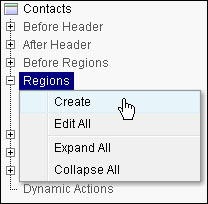
[9672_01_02.txt]The starting point for this recipe is an empty page, so the first thing that we're going to do is create a new region to contain the interactive report.

SELECT * FROM app_vw_contacts [9672_01_03.txt]
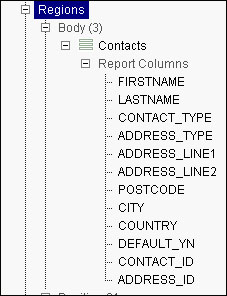
As you can see in the tree view, we now have a new region with all columns from the view:

When we run the page now, we can already see some data. APEX also generated a toolbar above the report that we can use to filter data or change the way it is presented:

The next step is to alter the report, so we can customize the column labels and change the way some of the data is presented.
First NameLast NameDefault Address?This changes the labels for some of the columns in the report. Next, we will change the presentation of the data inside one of the columns.
ADDRESS_TYPE and click on Edit.Display as Text (based on LOV and escape special characters).When we take a look at the page by clicking on we can see the changes to the column names and the Address Type no longer shows the abbreviation, but the full text:

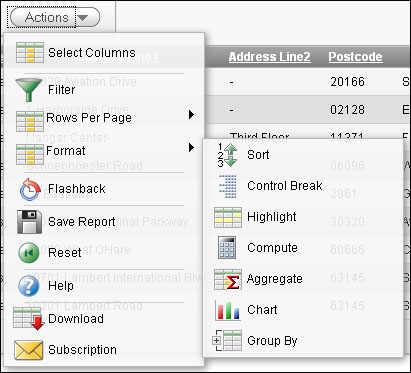
After the developer is done with creating an interactive report, the user will have a host of possibilities in the action menu to change the way the information is presented and filtered. These possibilities can be granted or revoked by the developer to an extent.
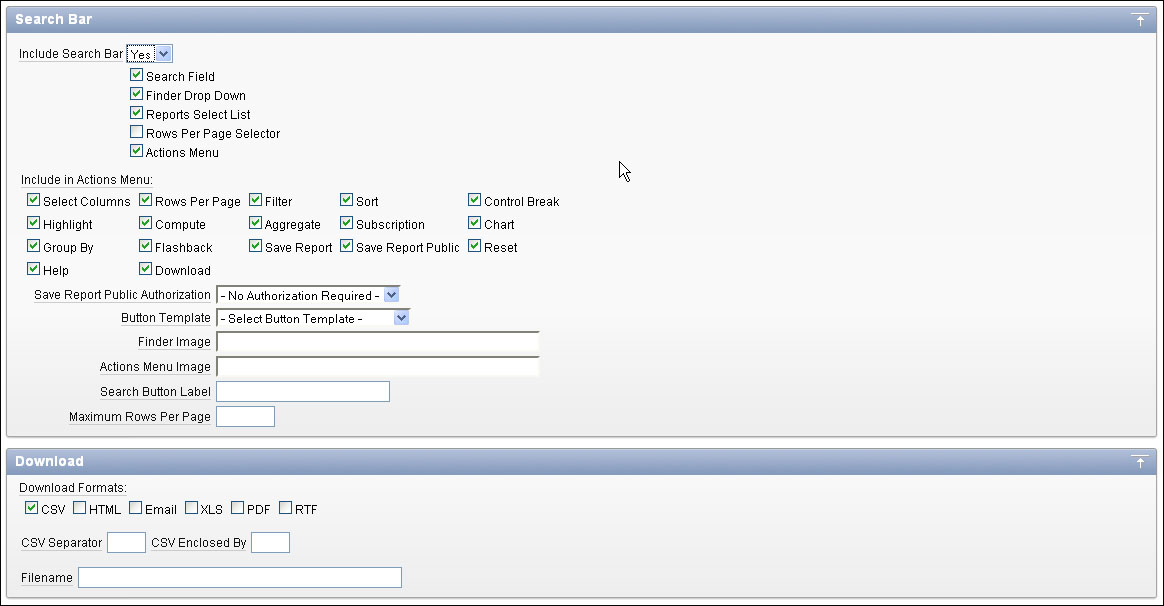
To see these options, right-click on the region and click on the option named Edit region attributes. When scrolling down this screen, you can see there are two sections: Search Bar and Download:

The first section holds the options that can be used in the Search Bar. When a user clicks on the Action button in the Search Bar, a menu will unfold revealing all the possible options. Data can be filtered, sorted, highlighted, and aggregated for instance. It's also possible for the user to generate a chart.
They can even save the changes made to the report for personal or public use, so other users can benefit as well:

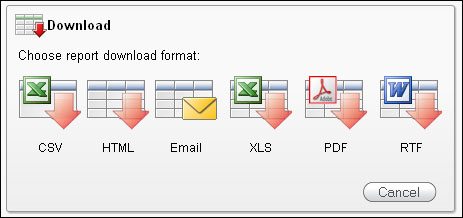
The second section holds the file types that can be used to download the information in the interactive report. These include well-known formats such as CSV, PDF, and XLS:

Change the font size
Change margin width
Change background colour