Sign In Start Free Trial
Account

Add to playlist

Create a Playlist

Modal Close icon
You need to login to use this feature.
  • Book Overview & Buying Python Tools for Visual Studio
  • Table Of Contents Toc
Python Tools for Visual Studio

Python Tools for Visual Studio

3.8 (4)
close
close
Python Tools for Visual Studio

Python Tools for Visual Studio

3.8 (4)

Overview of this book

This is a hands-on guide that provides exemplary coverage of all the features and concepts related to PTVS. The book is intended for developers who are aiming to enhance their productivity in Python projects with automation tools that Visual Studio provides for the .Net community. Some basic knowledge of Python programming is essential.
Table of Contents (13 chapters)
close
close

PTVS tools overview


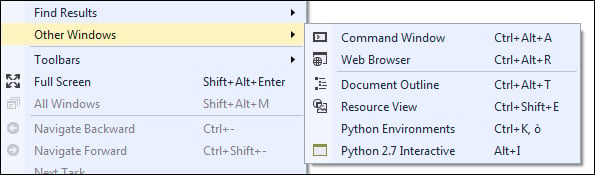
Now that you have PTVS up and running, let's take a closer look at the various tools provided by Visual Studio that empower the Python development cycle. Let's start with the windows, which are accessible through the View menu:

From the View menu, you can choose two windows that are more important for Python:

  • Python Environments

  • Python Interactive

The Python Environments window

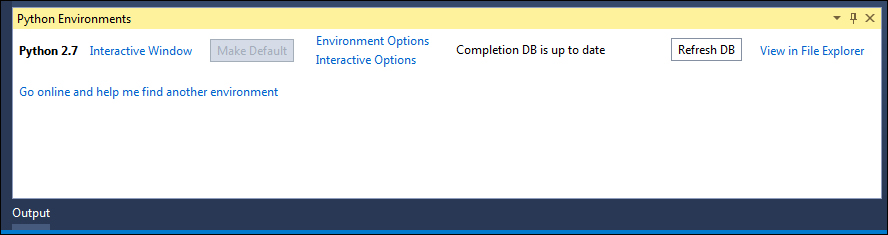
The Python Environments window shows all the Python interpreters' versions (environments) installed on the system. For each of them, an interactive window called read–eval–print loop (REPL) can be accessed, and it's possible to see the status of the package analysis made on all the packages installed. This is used by Visual Studio to carry out syntax and type analyses of all the classes and methods available for a given Python environment.

Since the analysis of Python code is complex, it's possible that you will not see progress in the Completion DB when you open it the first time. Even if Visual Studio performs background analysis to not interfere with the user experience of the IDE, the first analysis can take from one minute to an hour. This depends on different factors such as the number of installed libraries in the Python environment and the system resources available. Once the analysis of all the Python packages in Visual Studio is complete, the message Completion DB is up to date will be shown on the row of a given Python environment.

The Completion DB is automatically updated every time we open a new project in PTVS or install a new Python library; in such cases, Visual Studio reruns the background analysis on the new reachable code.

Sometimes, the automated background analysis process could be disabled or blocked, and the lists of installed libraries are not shown automatically. If the newly installed libraries and packages are not shown, we can manually trigger the analysis process with the Refresh DB button. By clicking on the button, we re-enable it, forcing a background analysis.

The Python Environments tool window with the list of installed Python environments and the tool buttons to access most used functions

Clicking on the View in File Explorer link in the Python Environments window will provide you with direct access to the Python installation folder.

Python Interactive

The Python Interactive window gives you access to the standard REPL tool for Python directly in the IDE along with the ability to access the modules that you are developing. This is a great and quick way to debug and test some code snippets.

The Python Interactive tool window from where you can access the Python standard REPL tool

Besides the normal Python commands available in the standard Python REPL, Microsoft has further added some commands that are reachable by the $ (dollar) symbol. The list of available commands is available through $help.

CONTINUE READING
83
Tech Concepts
36
Programming languages
73
Tech Tools
Icon Unlimited access to the largest independent learning library in tech of over 8,000 expert-authored tech books and videos.
Icon Innovative learning tools, including AI book assistants, code context explainers, and text-to-speech.
Icon 50+ new titles added per month and exclusive early access to books as they are being written.
Python Tools for Visual Studio
notes
bookmark Notes and Bookmarks search Search in title playlist Add to playlist font-size Font size

Change the font size

margin-width Margin width

Change margin width

day-mode Day/Sepia/Night Modes

Change background colour

Close icon Search
Country selected

Close icon Your notes and bookmarks

Confirmation

Modal Close icon
claim successful

Buy this book with your credits?

Modal Close icon
Are you sure you want to buy this book with one of your credits?
Close
YES, BUY

Submit Your Feedback

Modal Close icon
Modal Close icon
Modal Close icon