Sign In Start Free Trial
Account

Add to playlist

Create a Playlist

Modal Close icon
You need to login to use this feature.
  • Book Overview & Buying Coffeescript Application Development Cookbook
  • Table Of Contents Toc
Coffeescript Application Development Cookbook

Coffeescript Application Development Cookbook

By : Mike Hatfield
4.6 (5)
close
close
Coffeescript Application Development Cookbook

Coffeescript Application Development Cookbook

4.6 (5)
By: Mike Hatfield

Overview of this book

If you are interested in developing modern applications, this book will help you leverage the vast JavaScript ecosystem while using an elegant language, helping you avoid the shortcomings of JavaScript.
Table of Contents (13 chapters)
close
close
12
Index

Configuring Sublime Text

What you use to edit code can be a very personal choice, as you, like countless others, might use the tools dictated by your team or manager. Fortunately, most popular editing tools either support CoffeeScript out of the box or can be easily extended by installing add-ons, packages, or extensions.

In this recipe, we will look at adding CoffeeScript support to Sublime Text and Visual Studio.

Getting ready

This section assumes that you have Sublime Text or Visual Studio installed.

Sublime Text is a very popular text editor that is geared to working with code and projects. You can download a fully functional evaluation version from http://www.sublimetext.com. If you find it useful and decide to continue to use it, you will be encouraged to purchase a license, but there is currently no enforced time limit.

How to do it...

Sublime Text does not support CoffeeScript out of the box. Thankfully, a package manager exists for Sublime Text; this package manager provides access to hundreds of extension packages, including ones that provide helpful and productive tools to work with CoffeeScript.

Tip

Sublime Text does not come with this package manager, but it can be easily added by following the instructions on the Package Control website at https://sublime.wbond.net/installation.

With Package Control installed, you can easily install the CoffeeScript packages that are available using the Package Control option under the Preferences menu. Select the Install Package option.

Tip

You can also access this command by pressing Ctrl + Shift + P, and in the command list that appears, start typing install. This will help you find the Install Package command quickly.

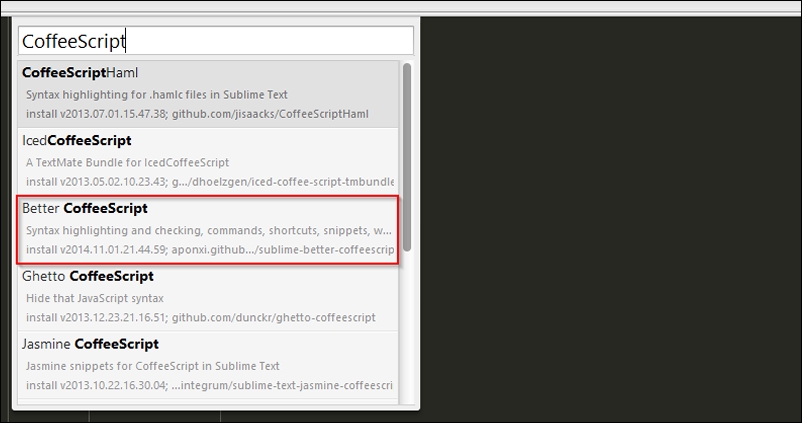
To install the CoffeeScript package, open the Install Package window and enter CoffeeScript. This will display the CoffeeScript-related packages. We will use the Better CoffeeScript package:

How to do it...

As you can see, the CoffeeScript package includes syntax highlighting, commands, shortcuts, snippets, and compilation.

How it works...

In this section, we will explain the different keyboard shortcuts and code snippets available with the Better CoffeeScript package for Sublime.

Commands

You can run the desired command by entering the command into the Sublime command pallet or by pressing the related keyboard shortcut. Remember to press Ctrl + Shift + P to display the command pallet window. Some useful CoffeeScript commands include the following:

Command

Keyboard shortcut

Description

Coffee: Check Syntax

Alt + Shift + S

This checks the syntax of the file you are editing or the currently selected code. The result will display in the status bar at the bottom.

Coffee: Compile File

Alt + Shift + C

This compiles the file being edited into JavaScript.

Coffee: Run Script

Alt + Shift + R

This executes the selected code and displays a buffer of the output.

Tip

The keyboard shortcuts are associated with the file type. If you are editing a new CoffeeScript file that has not been saved yet, you can specify the file type by choosing CoffeeScript in the list of file types in the bottom-left corner of the screen.

Snippets

Snippets allow you to use short tokens that are recognized by Sublime Text. When you enter the code and press the Tab key, Sublime Text will automatically expand the snippet into the full form. Some useful CoffeeScript code snippets include the following:

Token

Expands to

log[Tab]

console.log

cla

class Name

constructor: (arguments) ->

# ...

forin

for i in array

# ...

if

if condition

# ...

ifel

if condition

# ...

else

# ...

swi

switch object

when value

# ...

try

try

# ...

catch e

# ...

Tip

The snippets are associated with the file type. If you are editing a new CoffeeScript file that has not been saved yet, you can specify the file type by selecting CoffeeScript in the list of file types in the bottom-left corner of the screen.

CONTINUE READING
83
Tech Concepts
36
Programming languages
73
Tech Tools
Icon Unlimited access to the largest independent learning library in tech of over 8,000 expert-authored tech books and videos.
Icon Innovative learning tools, including AI book assistants, code context explainers, and text-to-speech.
Icon 50+ new titles added per month and exclusive early access to books as they are being written.
Coffeescript Application Development Cookbook
notes
bookmark Notes and Bookmarks search Search in title playlist Add to playlist font-size Font size

Change the font size

margin-width Margin width

Change margin width

day-mode Day/Sepia/Night Modes

Change background colour

Close icon Search
Country selected

Close icon Your notes and bookmarks

Confirmation

Modal Close icon
claim successful

Buy this book with your credits?

Modal Close icon
Are you sure you want to buy this book with one of your credits?
Close
YES, BUY

Submit Your Feedback

Modal Close icon
Modal Close icon
Modal Close icon