Sign In Start Free Trial
Account

Add to playlist

Create a Playlist

Modal Close icon
You need to login to use this feature.
  • Book Overview & Buying Coffeescript Application Development Cookbook
  • Table Of Contents Toc
Coffeescript Application Development Cookbook

Coffeescript Application Development Cookbook

By : Hatfield
4.6 (5)
close
close
Coffeescript Application Development Cookbook

Coffeescript Application Development Cookbook

4.6 (5)
By: Hatfield

Overview of this book

If you are interested in developing modern applications, this book will help you leverage the vast JavaScript ecosystem while using an elegant language, helping you avoid the shortcomings of JavaScript.
Table of Contents (13 chapters)
close
close
12
Index

Debugging CoffeeScript using Node Inspector

Source maps and Chrome's developer tools can help troubleshoot our CoffeeScript that is destined for the Web. In this recipe, we will demonstrate how to debug CoffeeScript that is designed to run on the server.

Getting ready

Begin by installing the Node Inspector NPM module with the following command:

npm install -g node-inspector

How to do it...

To use Node Inspector, we will use the coffee command to compile the CoffeeScript code we wish to debug and generate the source map.

In our example, we will use the following simple source code in a file named counting.coffee:

for i in [1..10]
  if i % 2 is 0
    console.log "#{i} is even!"
  else
    console.log "#{i} is odd!"

To use Node Inspector, we will compile our file and use the source map parameter with the following command:

coffee -c -m counting.coffee

Next, we will launch Node Inspector with the following command:

node-debug counting.js

How it works...

When we run Node Inspector, it does two things.

First, it launches the Node debugger. This is a debugging service that allows us to step through code, hit line breaks, and evaluate variables. This is a built-in service that comes with Node. Second, it launches an HTTP handler and opens a browser that allows us to use Chrome's built-in debugging tools to use break points, step over and into code, and evaluate variables.

Node Inspector works well using source maps. This allows us to see our native CoffeeScript code and is an effective tool to debug server-side code.

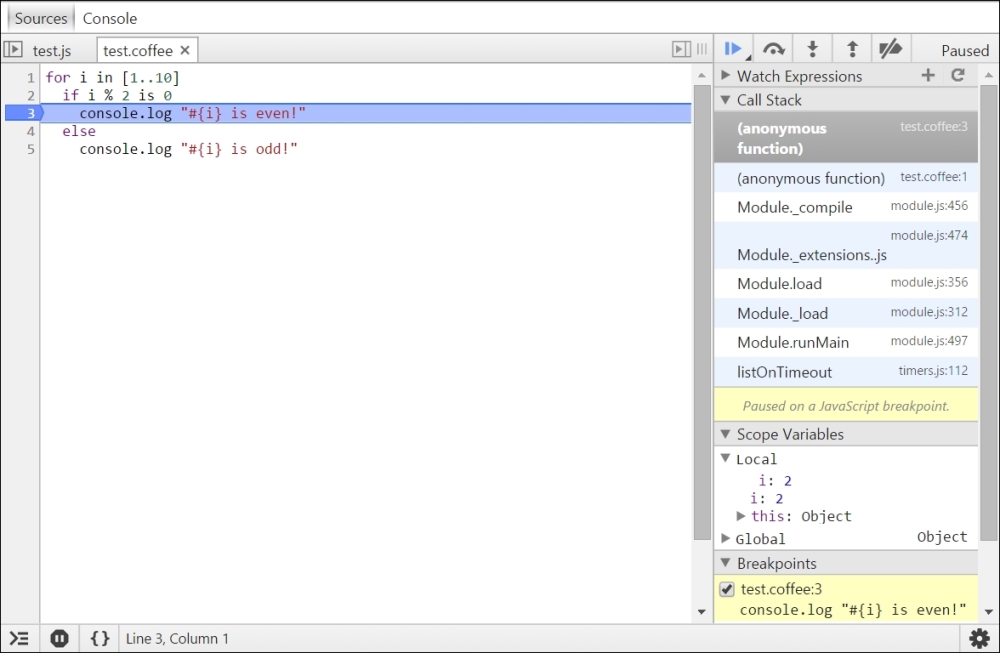
The following screenshot displays our Chrome window with an active break point. In the local variables tool window on the right-hand side, you can see that the current value of i is 2:

How it works...

The highlighted line in the preceding screenshot depicts the log message.

Visually different images
CONTINUE READING
83
Tech Concepts
36
Programming languages
73
Tech Tools
Icon Unlimited access to the largest independent learning library in tech of over 8,000 expert-authored tech books and videos.
Icon Innovative learning tools, including AI book assistants, code context explainers, and text-to-speech.
Icon 50+ new titles added per month and exclusive early access to books as they are being written.
Coffeescript Application Development Cookbook
notes
bookmark Notes and Bookmarks search Search in title playlist Add to playlist font-size Font size

Change the font size

margin-width Margin width

Change margin width

day-mode Day/Sepia/Night Modes

Change background colour

Close icon Search
Country selected

Close icon Your notes and bookmarks

Confirmation

Modal Close icon
claim successful

Buy this book with your credits?

Modal Close icon
Are you sure you want to buy this book with one of your credits?
Close
YES, BUY

Submit Your Feedback

Modal Close icon
Modal Close icon
Modal Close icon