Sign In Start Free Trial
Account

Add to playlist

Create a Playlist

Modal Close icon
You need to login to use this feature.
  • Book Overview & Buying QGIS Python Programming Cookbook
  • Table Of Contents Toc
  • Feedback & Rating feedback
QGIS Python Programming Cookbook

QGIS Python Programming Cookbook

By : Joel Lawhead
3.8 (6)
close
close
QGIS Python Programming Cookbook

QGIS Python Programming Cookbook

3.8 (6)
By: Joel Lawhead

Overview of this book

If you are a geospatial analyst who wants to learn more about automating everyday GIS tasks or a programmer who is responsible for building GIS applications,this book is for you. The short, reusable recipes make concepts easy to understand. You can build larger applications that are easy to maintain when they are put together.
Table of Contents (11 chapters)
close
close
10
Index

Using the Python ScriptRunner plugin

The QGIS Python ScriptRunner plugin provides a middle ground for QGIS automation, between the interactive console and the overhead of plugins. It provides a script management dialog that allows you to easily load, create, edit, and run scripts for large-scale QGIS automation.

Getting ready

Install the ScriptRunner plugin using the QGIS plugin manager. Then, run the plugin from the Plugin menu to open the ScriptRunner dialog. Configure a default editor to edit scripts using the following steps:

  1. Find the gear icon that represents the ScriptRunner Preferences settings dialog box and click on it.
  2. In the General Options section, check the Edit Scripts Using: checkbox.
  3. Click on the button to browse to the location of a text editor on your system.
  4. Click on the Open button.
  5. Click on the OK button in the Preferences dialog.

How to do it…

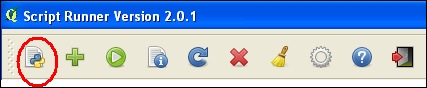
  1. In the ScriptRunner dialog, click on the New Script icon, as shown in the following screenshot:
    How to do it…
  2. Browse to the directory where you can save your script, name the script, and save it.
  3. Verify that the new script is loaded in ScriptRunner.
  4. Right-click (or control-click on a Mac) on the script name in ScriptRunner and select Edit Script in External Editor.
  5. In the editor, replace the template code with the following code:
    from PyQt4.QtCore import *
    from PyQt4.QtGui import *
    from qgis.core import *
    from qgis.gui import *
    
    def run_script(iface):
        layer =  QgsVectorLayer('Polygon?crs=epsg:4326', 'Mississippi' , "memory")
    pr = layer.dataProvider()
        poly = QgsFeature()
        geom = QgsGeometry.fromWkt("POLYGON ((-88.82 34.99,-88.09 34.89,-88.39 30.34,-89.57 30.18,-89.73 31,-91.63 30.99,-90.87 32.37,-91.23 33.44,-90.93 34.23,-90.30 34.99,-88.82 34.99))")
        poly.setGeometry(geom)
        pr.addFeatures([poly])
        layer.updateExtents()
    QgsMapLayerRegistry.instance().addMapLayers([layer])
  6. Click on the Run Script icon, which is represented by a green-colored arrow.
  7. Close the ScriptRunner plugin.
  8. Verify that the memory layer polygon was added to the QGIS map, as shown in the following screenshot:
    How to do it…

How it works…

ScriptRunner is a simple but powerful idea. It allows you to build a library of automation scripts and use them from within QGIS, but without the overhead of building a plugin or a standalone application. All the Python and system path variables are set correctly and inherited from QGIS; however, you must still import the QGIS and Qt libraries.

Visually different images
CONTINUE READING
83
Tech Concepts
36
Programming languages
73
Tech Tools
Icon Unlimited access to the largest independent learning library in tech of over 8,000 expert-authored tech books and videos.
Icon Innovative learning tools, including AI book assistants, code context explainers, and text-to-speech.
Icon 50+ new titles added per month and exclusive early access to books as they are being written.
QGIS Python Programming Cookbook
notes
bookmark Notes and Bookmarks search Search in title playlist Add to playlist font-size Font size

Change the font size

margin-width Margin width

Change margin width

day-mode Day/Sepia/Night Modes

Change background colour

Close icon Search
Country selected

Close icon Your notes and bookmarks

Confirmation

Modal Close icon
claim successful

Buy this book with your credits?

Modal Close icon
Are you sure you want to buy this book with one of your credits?
Close
YES, BUY

Submit Your Feedback

Modal Close icon
Modal Close icon
Modal Close icon