Sign In Start Free Trial
Account

Add to playlist

Create a Playlist

Modal Close icon
You need to login to use this feature.
  • Book Overview & Buying QGIS Python Programming Cookbook
  • Table Of Contents Toc
QGIS Python Programming Cookbook

QGIS Python Programming Cookbook

By : Joel Lawhead
3.8 (6)
close
close
QGIS Python Programming Cookbook

QGIS Python Programming Cookbook

3.8 (6)
By: Joel Lawhead

Overview of this book

If you are a geospatial analyst who wants to learn more about automating everyday GIS tasks or a programmer who is responsible for building GIS applications,this book is for you. The short, reusable recipes make concepts easy to understand. You can build larger applications that are easy to maintain when they are put together.
Table of Contents (11 chapters)
close
close
10
Index

Creating a standalone application

QGIS is a complete desktop GIS application. However, with PyQGIS, it can also be a comprehensive geospatial Python library to build standalone applications. In this recipe, we will build a simple standalone script that creates a map with a line on it.

Getting ready

All you need to do to get ready is ensure that you have configured Eclipse and PyDev for PyQGIS development, as described in the Setting up your QGIS IDE recipe.

How to do it…

In PyDev, create a new project called MyMap with a Python script called MyMap.py, as follows:

  1. In the Eclipse File menu, select New and then click on PyDev Project.
  2. In the PyDev project's Name field, enter MyMap.
  3. Next, select the Python radio button from the Project Type list.
  4. From the Interpreter pull-down menu, select PyQGIS.
  5. Leave the radio button checked for Add project directory to the PYTHONPATH.
  6. Click on the Finish button.
  7. Now, select the project in the PyDev package explorer.
  8. From the File menu, select New and then click on File.
  9. Name the file myMap.py.
  10. Click on the Finish button.
  11. Add the following code to the file that is open in the editor:
    from qgis.core import *
    from qgis.gui import *
    from qgis.utils import *
    from PyQt4.QtCore import *
    from PyQt4.QtGui import *
    
    app = QgsApplication([], True)
    app.setPrefixPath("C:/Program Files/QGIS Brighton/apps/qgis", True)
    app.initQgis()
    canvas = QgsMapCanvas()
    canvas.setWindowTitle("PyQGIS Standalone Application Example")
    canvas.setCanvasColor(Qt.white)
    layer =  QgsVectorLayer('LineString?crs=epsg:4326', 'MyLine' , "memory")
    pr = layer.dataProvider()
    linstr = QgsFeature()
    geom = QgsGeometry.fromWkt("LINESTRING (1 1, 10 15, 40 35)")
    linstr.setGeometry(geom)
    pr.addFeatures([linstr])
    layer.updateExtents()
    QgsMapLayerRegistry.instance().addMapLayer(layer)
    canvas.setExtent(layer.extent())
    canvas.setLayerSet([QgsMapCanvasLayer(layer)])
    canvas.zoomToFullExtent()
    canvas.freeze(True)
    canvas.show()
    canvas.refresh()
    canvas.freeze(False)
    canvas.repaint()
    exitcode = app._exec()
    QgsApplication.exitQgis()
    sys.exit(exitcode)
  12. From the Run menu, select Run.
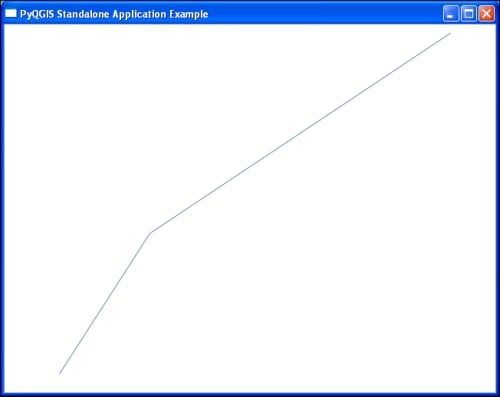
  13. Verify that the standalone QGIS map appears in a new window, as shown here:
    How to do it…

How it works…

This recipe uses as little code as possible to create a map canvas and to draw a line in order to demonstrate the skeleton of a standalone application, which can be built up further to add more functionality.

To create the line geometry, we use Well-Known Text (WKT), which provides a simple way to define the line vertices without creating a bunch of objects. Towards the end of this code, we use a workaround for a bug in QGIS 2.2 by freezing the canvas. When the canvas is frozen, it does not respond to any events which, in the case of this bug, prevent the canvas from updating. Once we refresh the canvas, we unfreeze it and then repaint it to draw the line. This workaround will still work in QGIS 2.4 and 2.6 but is not necessary.

There's more...

The standalone application can be compiled into an executable that can be distributed without installing QGIS, using py2exe or PyInstaller:

You can find our more about py2exe at http://www.py2exe.org.

You can learn more about PyInstaller at https://github.com/pyinstaller/pyinstaller/wiki.

CONTINUE READING
83
Tech Concepts
36
Programming languages
73
Tech Tools
Icon Unlimited access to the largest independent learning library in tech of over 8,000 expert-authored tech books and videos.
Icon Innovative learning tools, including AI book assistants, code context explainers, and text-to-speech.
Icon 50+ new titles added per month and exclusive early access to books as they are being written.
QGIS Python Programming Cookbook
notes
bookmark Notes and Bookmarks search Search in title playlist Add to playlist font-size Font size

Change the font size

margin-width Margin width

Change margin width

day-mode Day/Sepia/Night Modes

Change background colour

Close icon Search
Country selected

Close icon Your notes and bookmarks

Confirmation

Modal Close icon
claim successful

Buy this book with your credits?

Modal Close icon
Are you sure you want to buy this book with one of your credits?
Close
YES, BUY

Submit Your Feedback

Modal Close icon
Modal Close icon
Modal Close icon