Sign In Start Free Trial
Account

Add to playlist

Create a Playlist

Modal Close icon
You need to login to use this feature.
  • Book Overview & Buying Learning Selenium Testing Tools - Third Edition
  • Table Of Contents Toc
  • Feedback & Rating feedback
Learning Selenium Testing Tools - Third Edition

Learning Selenium Testing Tools - Third Edition - Third Edition

By : Raghavendra Prasad MG
4.4 (11)
close
close
Learning Selenium Testing Tools - Third Edition

Learning Selenium Testing Tools - Third Edition

4.4 (11)
By: Raghavendra Prasad MG

Overview of this book

If you are a software developer with a basic knowledge of testing and are interested in automated testing using Selenium, this is the book for you. No prior knowledge of Selenium is required.
Table of Contents (17 chapters)
close
close
16
Index

Validating a test with assert and verify

In the last few steps, we were able to record a workflow that we would expect the user to perform. It will test that the relevant bit of functionality is there, such as buttons and links to work against. Unfortunately, we are not checking whether the other items on the page are there or if they are visible when they should be hidden. We will now work against the same page as before, but we shall make sure that different items are on the page.

There are two mechanisms for validating elements available on the application under test. The first is assert: this allows the test to check whether the element is on the page. If it is not available, then the test will stop on the step that failed. The second is verify: this allows the test to check if the element is on the page, but if it isn't, then the test will carry on execution. To add the assert or verify commands to the tests, we need to use the context menu that Selenium IDE adds to Firefox. All that one needs to do is right-click on the element if on Windows or Linux. If you have a Mac, then you will need to do the two-finger click to show the context menu.

When the context menu appears, it will look roughly like the following screenshot with the normal Firefox functions above it:

Validating a test with assert and verify

We will record the test and learn how to use/verify some commands as follows:

  1. Open the IDE so that we can start recording.
  2. Navigate to http://book.theautomatedtester.co.uk/chapter1.
  3. Select Selenium Grid from the drop-down box.
  4. Change the selection to Selenium Grid.
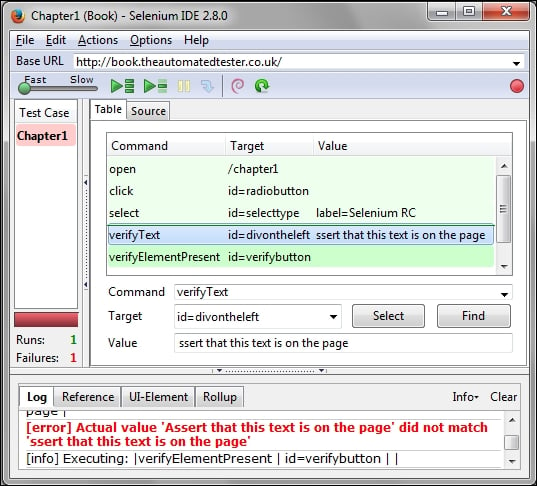
  5. Verify that the Assert that this text is on the page text is mentioned on the right-hand side of the drop-down box, by right-clicking on the text and selecting verifyText id=diveontheleft Assert that this text is on the page. You can see the command in the previous screenshot.
  6. Verify that the button is on the page. You will need to add a new command for verifyElementPresent with the verifybutton target in Selenium IDE.
  7. Now that you have completed the previous steps, your Selenium IDE should look like the following screenshot:
    Validating a test with assert and verify

If you now run the test, you will see it has verified that what you are expecting to see on the page has appeared. Notice that the verify commands have a darker green color. This is to show that they are more important to the test than moving through the steps. The test has now checked that the text we required is on the page and that the button is there too.

What will happen if the verify command did not find what it was expecting? The IDE would have thrown an error stating what was expected was not there, but then carried on with the rest of the test. We can see an example of this in the following screenshot:

Validating a test with assert and verify

The test would not have carried on if it was using assert as the mechanism for validating that the elements and text were loaded with the page.

We have just seen that we can add asserts or verification to the page. Selenium IDE does not do this when recording, so it will always be a manual step. The assert command will stop the running tests, unlike the verify command in which the tests will continue running even after failure. In both the cases, Selenium IDE will log an error. Each of these have their own merits.

Some of the verify and assert methods are as follows:

Selenium Command

Command Description

verifyElementPresent

This verifies an expected element is present on the page.

assertElementPresent

This asserts an expected element is present on the page.

verifyElementNotPresent

This verifies an expected element is not present on the page.

assertElementNotPresent

This asserts an expected element is not present on the page.

verifyText

This verifies expected text and its corresponding HTML tags are present on the page.

assertText

This asserts expected text and its corresponding HTML tags are present on the page.

verifyAttribute

This verifies the value of an attribute of any HTML tag on the page.

assertAttribute

This asserts the value of an attribute of any HTML tag on the page.

verifyChecked

This verifies whether the condition of the checkbox is checked or not on the page.

assertChecked

This asserts whether the condition of the checkbox is checked or not on the page.

verifyAlert

This verifies the alert present on the page.

assertAlert

This asserts the alert present on the page.

verifyTitle

This verifies an expected page title.

assertTitle

This asserts an expected page title.

Visually different images
CONTINUE READING
83
Tech Concepts
36
Programming languages
73
Tech Tools
Icon Unlimited access to the largest independent learning library in tech of over 8,000 expert-authored tech books and videos.
Icon Innovative learning tools, including AI book assistants, code context explainers, and text-to-speech.
Icon 50+ new titles added per month and exclusive early access to books as they are being written.
Learning Selenium Testing Tools - Third Edition
notes
bookmark Notes and Bookmarks search Search in title playlist Add to playlist font-size Font size

Change the font size

margin-width Margin width

Change margin width

day-mode Day/Sepia/Night Modes

Change background colour

Close icon Search
Country selected

Close icon Your notes and bookmarks

Confirmation

Modal Close icon
claim successful

Buy this book with your credits?

Modal Close icon
Are you sure you want to buy this book with one of your credits?
Close
YES, BUY

Submit Your Feedback

Modal Close icon
Modal Close icon
Modal Close icon