Sign In Start Free Trial
Account

Add to playlist

Create a Playlist

Modal Close icon
You need to login to use this feature.
  • Book Overview & Buying Boost.Asio C++ Network Programming
  • Table Of Contents Toc
  • Feedback & Rating feedback
Boost.Asio C++ Network Programming

Boost.Asio C++ Network Programming

By : Wisnu Anggoro
3.2 (12)
close
close
Boost.Asio C++ Network Programming

Boost.Asio C++ Network Programming

3.2 (12)
By: Wisnu Anggoro

Overview of this book

Boost.Asio is a C++ library used for network programming operations. Organizations use Boost because of its productivity. Use of these high-quality libraries speed up initial development, result in fewer bugs, reduce reinvention-of-the-wheel, and cut long-term maintenance costs. Using Boost libraries gives an organization a head start in adopting new technologies. This book will teach you C++ Network programming using synchronous and asynchronous operations in Boost.Asio with minimum code, along with the fundamentals of Boost, server-client applications, debugging, and more. You will begin by preparing and setting up the required tools to simplify your network programming in C++ with Boost.Asio. Then you will learn about the basic concepts in networking such as IP addressing, TCP/IP protocols, and LAN with its topologies. This will be followed by an overview of the Boost libraries and their usage. Next you will get to know more about Boost.Asio and its concepts related to network programming. We will then go on to create a client-server application, helping you to understand the networking concepts. Moving on, you will discover how to use all the functions inside the Boost.Asio C++ libraries. Lastly, you will understand how to debug the code if there are errors found and will run the code successfully.
Table of Contents (9 chapters)
close
close
8
Index

Setting up the MinGW compiler and Text Editor

This is the hardest part—where we have to choose one compiler over the others. Even though I realize that every compiler has its own strength and weakness, I want to make it easier for you to go through all the code in this chapter. So, I suggest that you apply the same environment that we have, including the compiler that we use.

I am going to use GCC, the GNU Compiler Collection, because of its widely used open source. Since my environment includes Microsoft Windows as the operating system, I am going to use Minimalistic GCC for Windows (MinGW) as my C++ compiler. For those of you who have not heard about GCC, it is a C/C++ compiler that you can find in a Linux operating system and it is included in a Linux distribution as well. MinGW is a port of GCC to a Windows environment. Therefore, the entire code and examples in this book are applicable to any other GCC flavor.

Installing MinGW-w64

For your convenience, and since we use a 64-bit Windows operating system, we chose MinGW-w64 because it can be used for Windows 32-bits and 64-bits architecture. To install it, simply open your Internet browser and navigate to http://sourceforge.net/projects/mingw-w64/ to go to the download page, and click on the Download button. Wait for a moment until the mingw-w64-install.exe file is completely downloaded. Refer to the following screenshot to locate the Download button:

Installing MinGW-w64

Now, execute the installer file. You will be greeted by a Welcoming dialog box. Just press the Next button to go to the Setup Setting dialog box. In this dialog box, choose the latest GCC version (at the writing time this, it is 4.9.2), and the rest of the options are to be chosen, as follows:

Installing MinGW-w64

Click on the Next button to continue and go to the installation location option. Here, you can change the default installation location. I am going to change the installation location to C:\MinGW-w64 in order to make our next setting easier, but you can keep this default location if you want.

Installing MinGW-w64

Click on the Next button to go to the next step and wait for a moment until the files are downloaded and the installation process is complete.

Setting up the Path environment

Now you have the C++ compiler installed on your machine, but you can only access it from its installed directory. In order to access the compiler from any directory in your system, you have to set the PATH environment by performing the following steps:

  1. Run Command Prompt as an administrator by pressing the Windows + R key. Type cmd in the text box and, instead of pressing the Enter key, press Ctrl + Shift + Enter to run the command prompt in Administrator mode. The User Account Control dialog box will then appear. Choose YES to confirm that you intend to run Command Prompt in Administrator mode. If you do this correctly, you will get a title bar labeled Administrator: Command Prompt. If you do not get it, you might not have the administrator privilege. In this case, you have to contact the administrator of your computer.
  2. Type the following command in Command Prompt in Administrator mode:
    rundll32.exe sysdm.cpl,EditEnvironmentVariables
    
  3. Press the Enter key and the command prompt will immediately run the Environment Variables window. Afterwards, go to System variables, select the variable named Path, click on the Edit button to open the Edit System Variable dialog box, and then append the last Variable value parameter with the following string:
    ;C:\MinGW-w64\mingw64\bin

    (Otherwise, you will have to adjust the path of the installation directory if you use the default location the installation wizard is given in the previous step)

  4. Click on the OK button on the Edit System Variable dialog box, and click on the OK button again in the Environment Variables dialog box to save these changes.

It is time to try our Environment Variable setting. Open a new Command Prompt window, either in Administrator or non-Administrator mode, in any active directory except C:\MinGW-w64 and type the following command:

g++ --version

You have configured the proper settings if you see the output informing you the following:

g++ (x86_64-posix-seh-rev2, Built by MinGW-W64 project) 4.9.2

If you are showed a different version number, you might have another GCC compiler on your computer. To solve this problem, you can modify Environment Variable and remove all path environment settings associated with the other GCC compiler, for instance, C:\StrawberryPerl\c\bin.

However, if you do believe that you have followed all the steps correctly, but you still get an error message, as shown in the following snippet, you might have to restart your machine for your new system settings to be set:

'g++' is not recognized as an internal or external command, operable program or batch file.

Choosing and installing the Text Editor

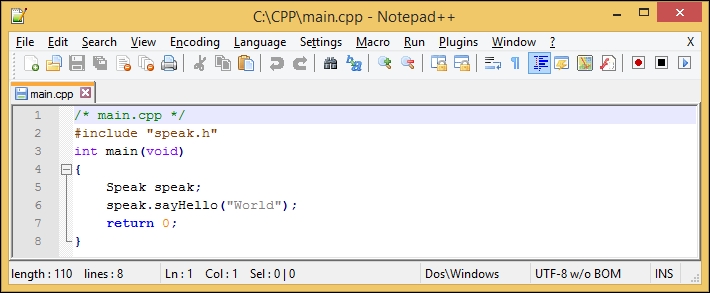
Microsoft Windows has been equipped with Notepad, a simple text editor to create plain text files. You can use Notepad to create a C++ file, where the file must contain only plain text formatting. You can also turn to a heavy Integrated Development Environments (IDE) when you want to edit your code, but I prefer a simple, lightweight, and extensible programming plain-text editor, so I choose to use a text editor instead of IDE. Since I will need syntax highlighting when writing code to make it easier to read and understand, I pick Notepad++ as our text editor. You can choose your favorite text editor as long as you save the output file as plain text. Here is the sample of syntax highlighting in Notepad++:

Choosing and installing the Text Editor

If you decide to use Notepad++ as I did, you can go to http://notepad-plus-plus.org/ to grab the latest version of Notepad++. Find the Download menu on the main page and select the current version link. There, you will find a link to download the installer file. Use the Notepad++ Installer file instead of the package file to get the easiest way to set it up on your machine by following all the instructions on the installer wizard.

Choosing and installing the Text Editor
Visually different images
CONTINUE READING
83
Tech Concepts
36
Programming languages
73
Tech Tools
Icon Unlimited access to the largest independent learning library in tech of over 8,000 expert-authored tech books and videos.
Icon Innovative learning tools, including AI book assistants, code context explainers, and text-to-speech.
Icon 50+ new titles added per month and exclusive early access to books as they are being written.
Boost.Asio C++ Network Programming
notes
bookmark Notes and Bookmarks search Search in title playlist Add to playlist font-size Font size

Change the font size

margin-width Margin width

Change margin width

day-mode Day/Sepia/Night Modes

Change background colour

Close icon Search
Country selected

Close icon Your notes and bookmarks

Confirmation

Modal Close icon
claim successful

Buy this book with your credits?

Modal Close icon
Are you sure you want to buy this book with one of your credits?
Close
YES, BUY

Submit Your Feedback

Modal Close icon
Modal Close icon
Modal Close icon