Sign In Start Free Trial
Account

Add to playlist

Create a Playlist

Modal Close icon
You need to login to use this feature.
  • Book Overview & Buying Learn Python in 7 Days
  • Table Of Contents Toc
Learn Python in 7 Days

Learn Python in 7 Days

By : Das
1.5 (2)
close
close
Learn Python in 7 Days

Learn Python in 7 Days

1.5 (2)
By: Das

Overview of this book

Python is a great language to get started in the world of programming and application development. This book will help you to take your skills to the next level having a good knowledge of the fundamentals of Python. We begin with the absolute foundation, covering the basic syntax, type variables and operators. We'll then move on to concepts like statements, arrays, operators, string processing and I/O handling. You’ll be able to learn how to operate tuples and understand the functions and methods of lists. We’ll help you develop a deep understanding of list and tuples and learn python dictionary. As you progress through the book, you’ll learn about function parameters and how to use control statements with the loop. You’ll further learn how to create modules and packages, storing of data as well as handling errors. We later dive into advanced level concepts such as Python collections and how to use class, methods, objects in python. By the end of this book, you will be able to take your skills to the next level having a good knowledge of the fundamentals of Python.
Table of Contents (12 chapters)
close
close
2
Type Variables and Operators

Installation

Here we will look forward to the installation of Python on three different OS platforms, namely, Windows, Linux, and Mac OS. Let's begin with the Windows platform.

Installation on Windows platform

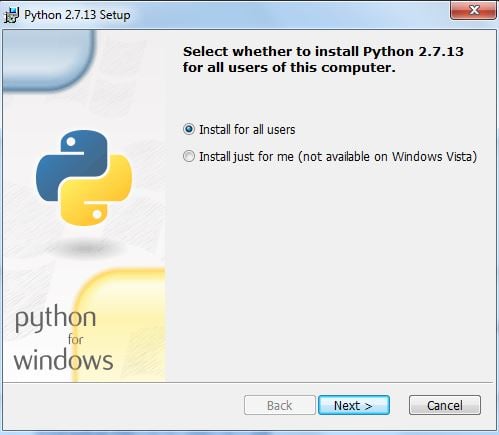
Python 2.x can be downloaded from https://www.python.org/downloads. The installer is simple and easy to install. Perform the following steps to install the setup:

  1. Once you click on setup installer, you will get a small window on your desktop screen as shown here; click on Next:
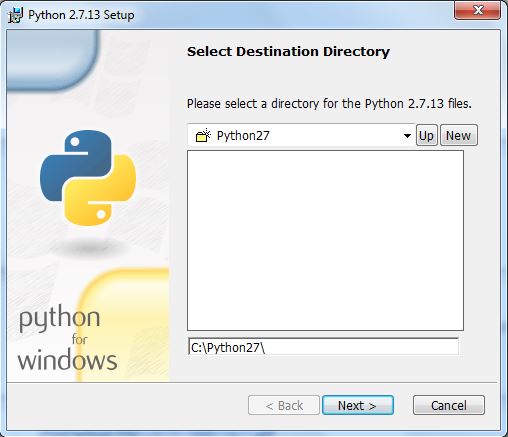
  1. Provide a suitable installation folder to install Python. If you don't provide the installation folder, then the installer will automatically create an installation folder for you, as shown in the following screenshot. Click on Next:
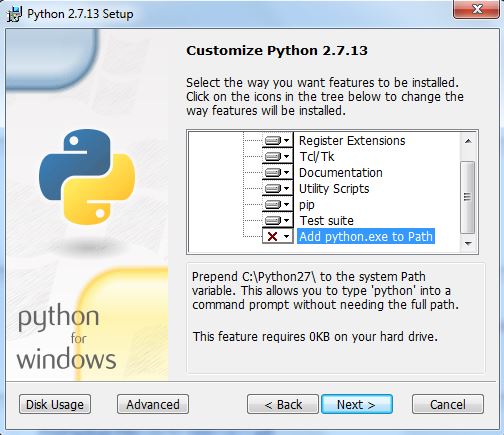
  1. After completion of step 2, you will get a window to customize Python as shown in the preceding screenshot. Notice that the Add python.exe to Path option has been marked x. Select this option to add it to system path variable (which will be explained later in the chapter), and click on Next:
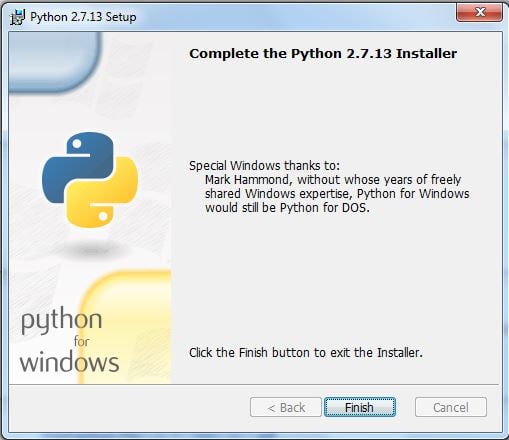
  1. Finally, click on Finish to complete the installation:

Installation on Linux platform

These days most of the Linux-based systems come preloaded with Python, so in most cases, you do not need to install it separately. However, if you do not find your desired version of Python on the Linux platform, you can download your desired version for a particular Linux platform from the site https://www.python.org/downloads/source/. Perform the following steps:

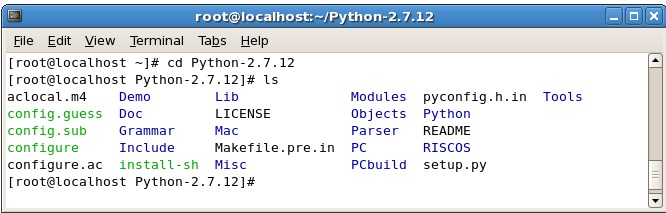
  1. Extract the compressed file using the tar -xvzf python_versionx.x command.
  2. Browse the directory of the compressed file as shown in the screenshot:
  1. Run the following commands:
      [root@localhost Python-2.7.12]# ./configure
[root@localhost Python-2.7.12]# make
[root@localhost Python-2.7.12]# make install
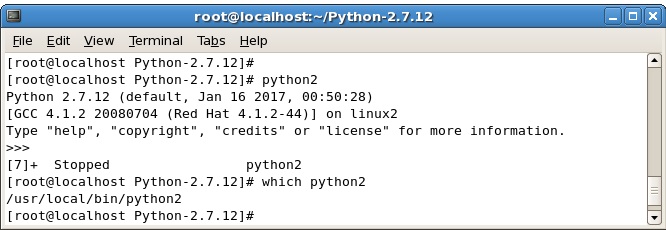
  1. Use the command as shown in screenshot to ensure that Python is running:

Installation on Mac OS

For Mac OS, you will get the installer from the site https://www.python.org/downloads/mac-osx/

For the new Mac OS X, Sierra comes loaded with Python 2.7 and it's good for learning but the same cannot be used to develop advanced-level programs. You do not need to separately install Python on the new Mac OS X. However, a word of caution is that the version of Python packed with the Mac OS could be out of date and might require updating. If you still want to install a separate version, you can follow the simple steps mentioned as follows:

  1. First of all, you might require to install Xcode, Xcode is the IDE for  platform and can be downloaded from the Apple appstore.
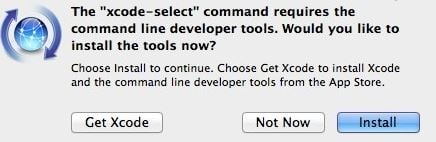
  2. Once Xcode is installed, you need to install the command-line tools, which can be installed by running the xcode-select --install command on the terminal found under /Applications/Utilities/, as shown in the following screenshot:
  1.  A pop-up window appears with three different options as shown here:
  1. Once you click on Install and agree to their terms and conditions, the command-line tools will start to download and will be installed in few minutes depending on the Internet connection.
  1. The next step in the process would be to install Homebrew, which is a package manager for Mac OS and handles the Python package. In order to install Homebrew, simply provide the following inputs to the terminal:

      /usr/bin/ruby -e "$(curl -fsSL
https://raw.githubusercontent.com/Homebrew/install/master/install)"
  1. To install the latest python2 version, simply type brew install python on the terminal:
      $ brew install python
In order to install python3, you need to use brew install python3.
CONTINUE READING
83
Tech Concepts
36
Programming languages
73
Tech Tools
Icon Unlimited access to the largest independent learning library in tech of over 8,000 expert-authored tech books and videos.
Icon Innovative learning tools, including AI book assistants, code context explainers, and text-to-speech.
Icon 50+ new titles added per month and exclusive early access to books as they are being written.
Learn Python in 7 Days
notes
bookmark Notes and Bookmarks search Search in title playlist Add to playlist download Download options font-size Font size

Change the font size

margin-width Margin width

Change margin width

day-mode Day/Sepia/Night Modes

Change background colour

Close icon Search
Country selected

Close icon Your notes and bookmarks

Confirmation

Modal Close icon
claim successful

Buy this book with your credits?

Modal Close icon
Are you sure you want to buy this book with one of your credits?
Close
YES, BUY

Submit Your Feedback

Modal Close icon
Modal Close icon
Modal Close icon