Sign In Start Free Trial
Account

Add to playlist

Create a Playlist

Modal Close icon
You need to login to use this feature.
  • Book Overview & Buying Learn Python in 7 Days
  • Table Of Contents Toc
Learn Python in 7 Days

Learn Python in 7 Days

By : Das
1.5 (2)
close
close
Learn Python in 7 Days

Learn Python in 7 Days

1.5 (2)
By: Das

Overview of this book

Python is a great language to get started in the world of programming and application development. This book will help you to take your skills to the next level having a good knowledge of the fundamentals of Python. We begin with the absolute foundation, covering the basic syntax, type variables and operators. We'll then move on to concepts like statements, arrays, operators, string processing and I/O handling. You’ll be able to learn how to operate tuples and understand the functions and methods of lists. We’ll help you develop a deep understanding of list and tuples and learn python dictionary. As you progress through the book, you’ll learn about function parameters and how to use control statements with the loop. You’ll further learn how to create modules and packages, storing of data as well as handling errors. We later dive into advanced level concepts such as Python collections and how to use class, methods, objects in python. By the end of this book, you will be able to take your skills to the next level having a good knowledge of the fundamentals of Python.
Table of Contents (12 chapters)
close
close
2
Type Variables and Operators

Notepad++ installation

Notepad++ is one of the easy-to-use text editors and is a free open source software program, which could be easily downloaded from https://notepad-plus-plus.org/. We will be using this text editor to create simple programs.

Python file formats

Every language understands a file format, for example, like the C language file extension is .c likewise java language has a file extension .java. The Python file extension is .py while bytecode file extension is .pyc.

Python interactive shell

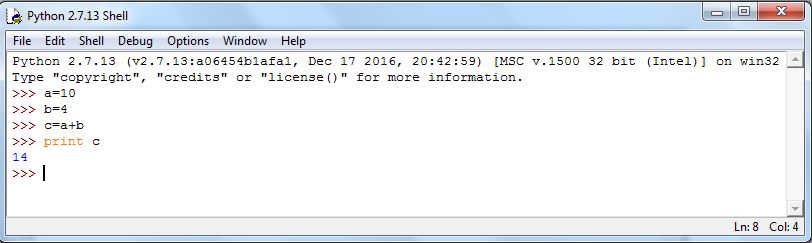
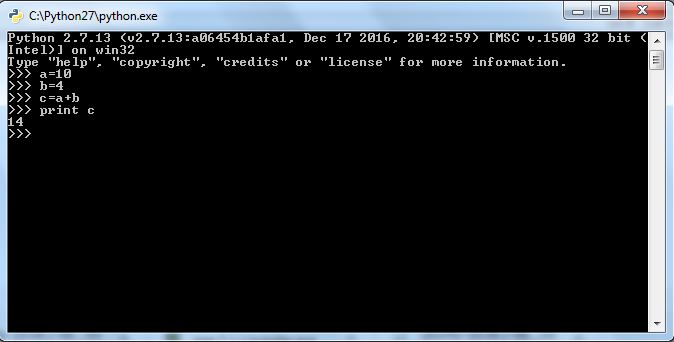
Python interactive shell is also known as Integrated Development Environment (IDLE). With the Python installer, two interactive shells are provided: one is IDLE (Python GUI) and the other is Python (command line). Both can be used for running simple programs.

For complex programs and executing large files, the windows command prompt is used, where after the system variables are set automatically, large files are recognized and executed by the system.

The preceding screenshot is what we call Python IDLE, which comes bundled with the Python installation. The next screenshot is of the command line that also comes bundled with the Python installation, or we can simply launch the Python command through the windows command line and get Python command line. For most of our programming instructions, we will be using the Python command line:

System or environment variables

If you remember the installation steps explained earlier, you might be still thinking what are system variables? They are a set of predefined variables, which are available to all programming units. If it's not set, then each and every time you want to run your program or execute a Python file, you will have to manually provide path for each Python executable, but if python.exe is set as a system variable, then the system automatically recognizes your programming instruction and starts executing.

Setting environment variables in Windows

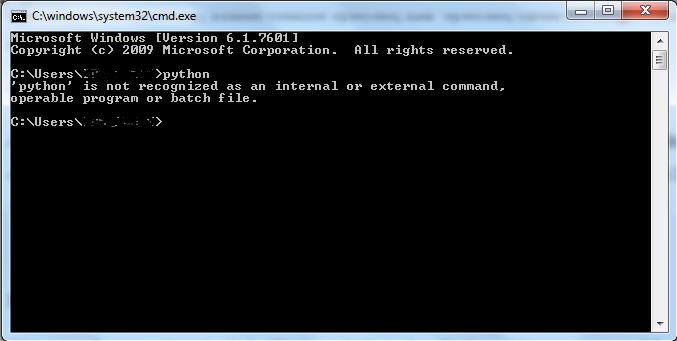
Here, if python.exe is not provided to the path variable, then the system does not recognize python as a command, as shown in the following screenshot:

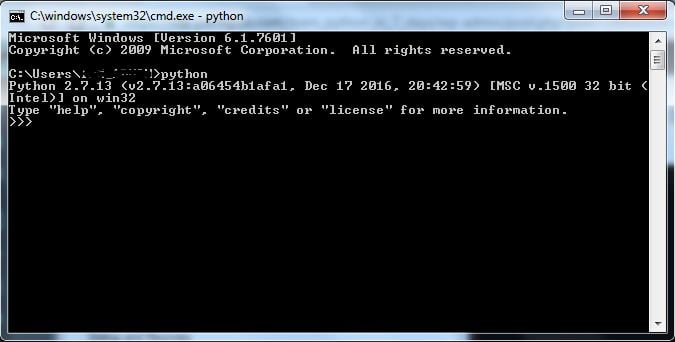
The Windows command prompt does not recognize python as shown in the previous screenshot. Once Python has been updated in the path variables or system variables, the windows command line recognizes the python command and executes as shown here: 

During installation, the installer provides an option to set system variables, which we have seen in our installation steps. But in case you missed that out, you need not worry. You can manually set the system variables. Simply follow these steps:

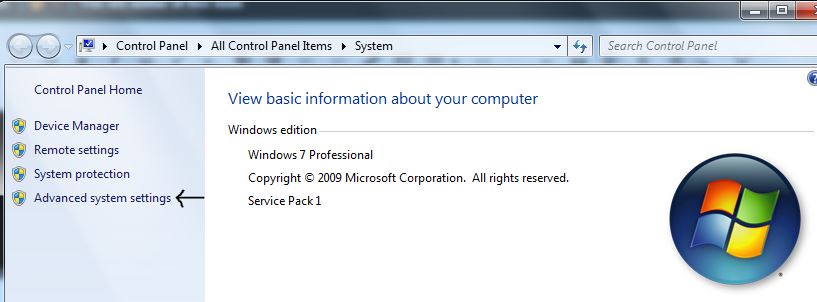
  1. Just right-click on My Computer (older version of Windows PC) or Computer (win 7 onwards) and select Properties. Once you have selected the properties, you will get the following screenshot where you need to select Advanced system settings:
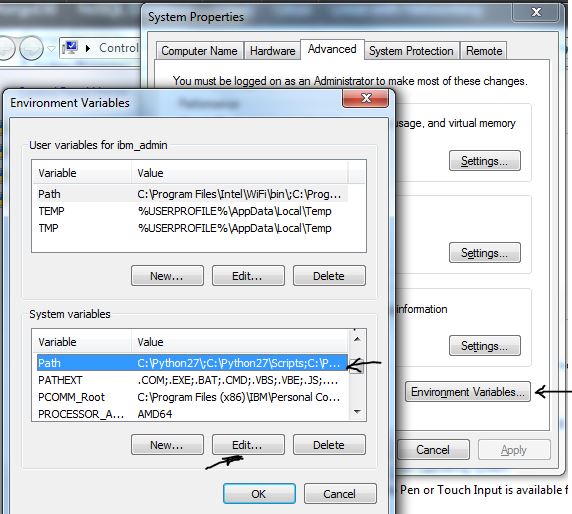
  1. After you have clicked on Advanced system settings, you will get System Properties. Click on the Environment Variables button. 
  2. After completing Step 2, a window will pop up. From the System variables pane, select Path and click on the Edit button.
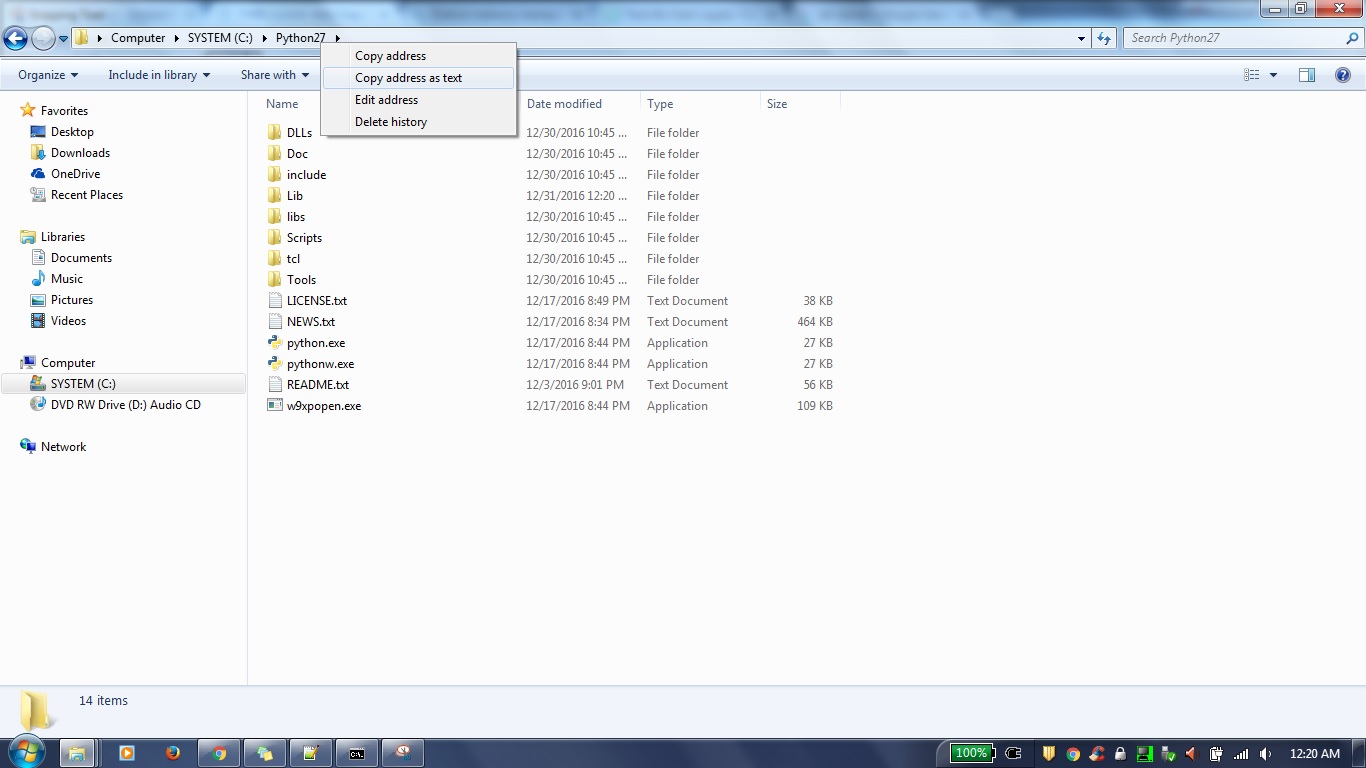
  3. Your Python installation will look something like the following screenshot, where you need to right-click on the address bar and select the Copy address as text option:
  1. Add the Python installation folder path to the Path variable.
  2. Click on OK and then again on OK to close all the windows. Our system variable is set:

Setting environment variables in Linux

Linux comes with different types of shells and the Python directory path is usually /usr/local/bin/python:

  • csh shell: Open the terminal and enter setenv PATH "$PATH:/usr/local/bin/python" followed by pressing Enter
  • bash shell: On the terminal, enter export PATH="$PATH:/usr/local/bin/python" followed by pressing Enter
  • sh or ksh shell: Enter PATH="$PATH:/usr/local/bin/python" followed by pressing Enter

Setting environment variables in Mac OS (OS 10.9)

Here, simply you need to edit the launchd.conf file and add the path variable to the file:

$ sudo edit /etc/launchd.conf
setenv PYTHONPATH /Users/vesper/temp:/Users/vesper/misc
CONTINUE READING
83
Tech Concepts
36
Programming languages
73
Tech Tools
Icon Unlimited access to the largest independent learning library in tech of over 8,000 expert-authored tech books and videos.
Icon Innovative learning tools, including AI book assistants, code context explainers, and text-to-speech.
Icon 50+ new titles added per month and exclusive early access to books as they are being written.
Learn Python in 7 Days
notes
bookmark Notes and Bookmarks search Search in title playlist Add to playlist download Download options font-size Font size

Change the font size

margin-width Margin width

Change margin width

day-mode Day/Sepia/Night Modes

Change background colour

Close icon Search
Country selected

Close icon Your notes and bookmarks

Confirmation

Modal Close icon
claim successful

Buy this book with your credits?

Modal Close icon
Are you sure you want to buy this book with one of your credits?
Close
YES, BUY

Submit Your Feedback

Modal Close icon
Modal Close icon
Modal Close icon