





We now know how to get Boolean information from our user, but what if we want to get something more detailed, such as text?
Tkinter provides us with the perfect widget to do just this – Entry.
An Entry widget is a one-line text entry box which is put into a parent widget just like a Label or Button. The special Tkinter variables can be attached to an Entry to make getting the value out a breeze.
Why don't we add some personalization to our Hello World application? Grab your code and adjust it to the following:
class Window(tk.Tk):
    def __init__(self):
        super().__init__()
        self.title("Hello Tkinter")
        self.label_text = tk.StringVar()
        self.label_text.set("My Name Is: ")

        self.name_text = tk.StringVar()

        self.label = tk.Label(self, textvar=self.label_text)
        self.label.pack(fill=tk.BOTH, expand=1, padx=100, pady=10)

        self.name_entry = tk.Entry(self, textvar=self.name_text)
        self.name_entry.pack(fill=tk.BOTH, expand=1, padx=20, pady=20)

        hello_button = tk.Button(self, text="Say Hello",
                                 command=self.say_hello)
        hello_button.pack(side=tk.LEFT, padx=(20, 0), pady=(0, 20))

       goodbye_button = tk.Button(self, text="Say Goodbye",
                                  command=self.say_goodbye)
       goodbye_button.pack(side=tk.RIGHT, padx=(0, 20), pady=(0, 20))
If you run this version of the code, you will now see a text box in which to enter your name. As we enter our name in the Entry widget, its value is automatically assigned to the name_text StringVar thanks to the textvar keyword argument:
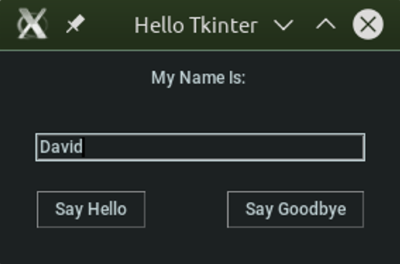
The buttons will still function the same, however, so let's do something about that:
def say_hello(self):
    message = "Hello there " + self.name_entry.get()
    msgbox.showinfo("Hello", message)

def say_goodbye(self):
    if msgbox.askyesno("Close Window?", "Would you like to
                        close this window?"):
        message = "Window will close in 2 seconds - goodybye " + self.name_text.get()
        self.label_text.set(message)
        self.after(2000, self.destroy)
    else:
        msgbox.showinfo("Not Closing", "Great! This window
                         will stay open.")
These functions demonstrate both of the ways we can now grab the value back out of our Entry widget. We can either call the get method of the Entry itself, or grab the value out of our StringVar (also with the get method).
If the Entry box itself is the only part of your application which will need to use its value, I would recommend just grabbing it directly via .get() and foregoing the use of a StringVar. If, however, its value will be needed by other parts of your application, using a StringVar is probably the best way. This allows you to use the set method to adjust its value programmatically.


